How to Change PowerShell Execution Policies in Windows 11

PowerShell execution policies are safety settings that control whether scripts can run on your Windows 11 PC. This guide covers four ways to check and change them: the Settings app, PowerShell commands, and the Registry Editor.
Open PowerShell as administrator and use the `Set-ExecutionPolicy` command. Specify the policy name (e.g., RemoteSigned) and the scope (e.g., LocalMachine or CurrentUser). Alternatively, navigate to Settings Privacy & security For developers to toggle policies for your user.
What Are PowerShell Execution Policies?
Think of a script as a small program saved in a text file. An execution policy decides whether PowerShell will run that file, and under what conditions. This helps protect your computer from malicious code that arrives by download or email.
You can set a policy for:
- Your whole computer (all users)
- Just your user account
- Only the current PowerShell window you’re using
Policies stop accidental or unsafe scripts from running on their own. They are not full security, though. Anyone can still type commands directly into PowerShell, and a determined user can work around a policy. Treat it as a safety net, not a lock.
Types of Execution Policies
Windows 11 has several execution policies, each with a different security level. ‘AllSigned’ only allows scripts from trusted sources, while ‘Bypass’ allows everything with no warnings. Here is what each one does:
- AllSigned — Only runs scripts signed by a trusted publisher. PowerShell asks you first if a script comes from a publisher you haven’t trusted yet. This helps you avoid running unsigned or unknown scripts, including your own, unless you sign them.
- Bypass — Nothing is blocked and there are no warnings. Use it when PowerShell runs inside another app that handles security itself.
- Default — Applies the standard policy for your edition of Windows. That is Restricted on Windows client computers like your PC and RemoteSigned on Windows Server.
- RemoteSigned — The default on Windows Server. Scripts you download from the internet must be signed by a trusted publisher. Scripts you write on your own PC don’t need to be signed. For most home and office users who write or run their own scripts, this is the sensible choice.
- Restricted — The default on Windows client computers (like your PC). No scripts run at all. Only individual commands typed into the console are allowed.
- Undefined — No policy is set in that scope. If no scope has a policy, Windows falls back to Restricted on client computers.
- Unrestricted — Runs all scripts, including unsigned ones. It warns you before running scripts downloaded from the internet. It’s risky if you run scripts from unknown sources.
Where Can You Set These Policies?
A policy can be set in five places, called scopes:
- MachinePolicy: Set by system administrators (through Group Policy) for all users on your PC.
- UserPolicy: Set by system administrators (through Group Policy) for your user account.
- Process: Only affects the current PowerShell window. It disappears when you close the window.
- CurrentUser: Affects only your user account.
- LocalMachine: Affects all users on your PC.
If more than one scope has a policy, PowerShell uses them in the order listed above. MachinePolicy wins over UserPolicy, which wins over Process, and so on down to LocalMachine. So if your change doesn’t seem to stick, a policy set by your organization in a higher scope is the usual reason.
Check Your Current Execution Policies
Before you change anything, check which rule is active. Follow these steps:
- Right-click the Start button and choose Terminal (Admin). If you see only Windows PowerShell (Admin), choose that instead.
- Click Yes when User Account Control asks for permission. A PowerShell window opens with a prompt starting with PS.
- Type Get-ExecutionPolicy and press Enter.
- Read the word that appears on the next line, such as Restricted or RemoteSigned. That is the policy PowerShell is applying right now.
Reading the policy doesn’t strictly need administrator rights, but you need them later to change it, so it’s handy to open the admin window now. The steps below show another way to open it.
This ensures the system allows the necessary changes.
Change Execution Policy Using Windows Settings (Easy Way)
Use the Settings app to change your policy without typing commands. It’s the simplest method and a good fit if you only want local scripts to run on your own PC.
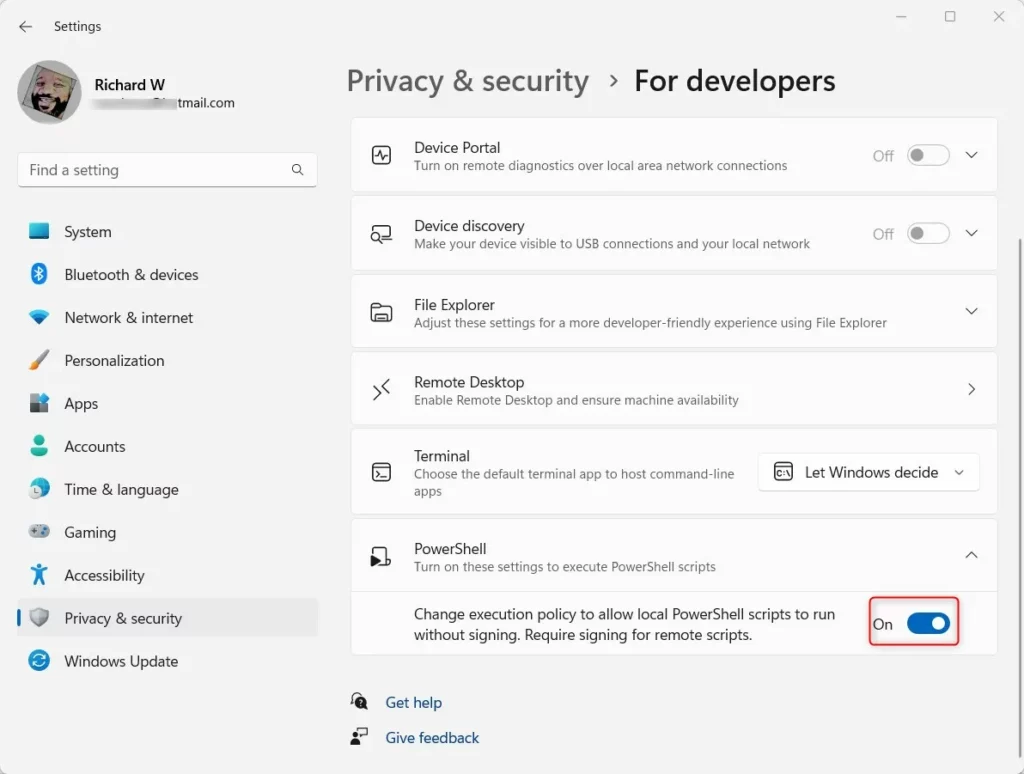
The Settings toggle is a two-way switch, not a full list of policies. Turned on, it sets RemoteSigned for your user account, so local scripts run without a signature but downloaded ones need to be signed. Turned off, you get Restricted.
What happens when done? The change applies right away. Open a new PowerShell window to be sure it picks up the new setting.
- Open Settings by clicking the Start menu and selecting Settings. Or press Win+I.
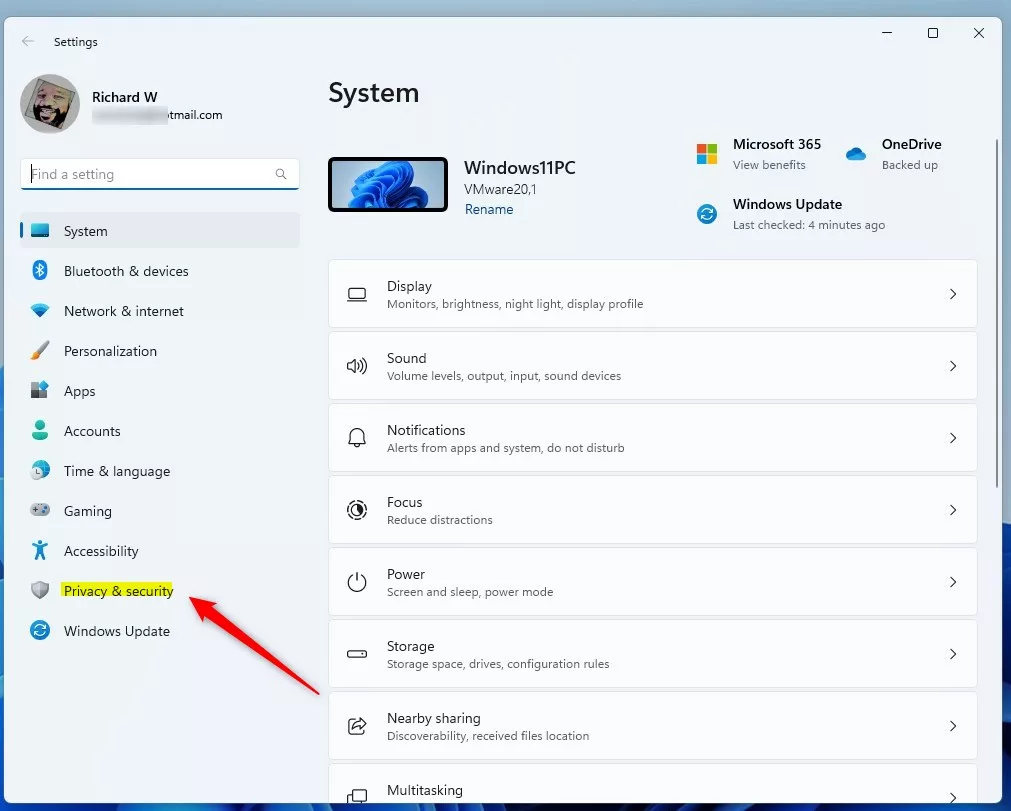
- Click Privacy & security on the left menu. The right side now shows a list of privacy and security categories.
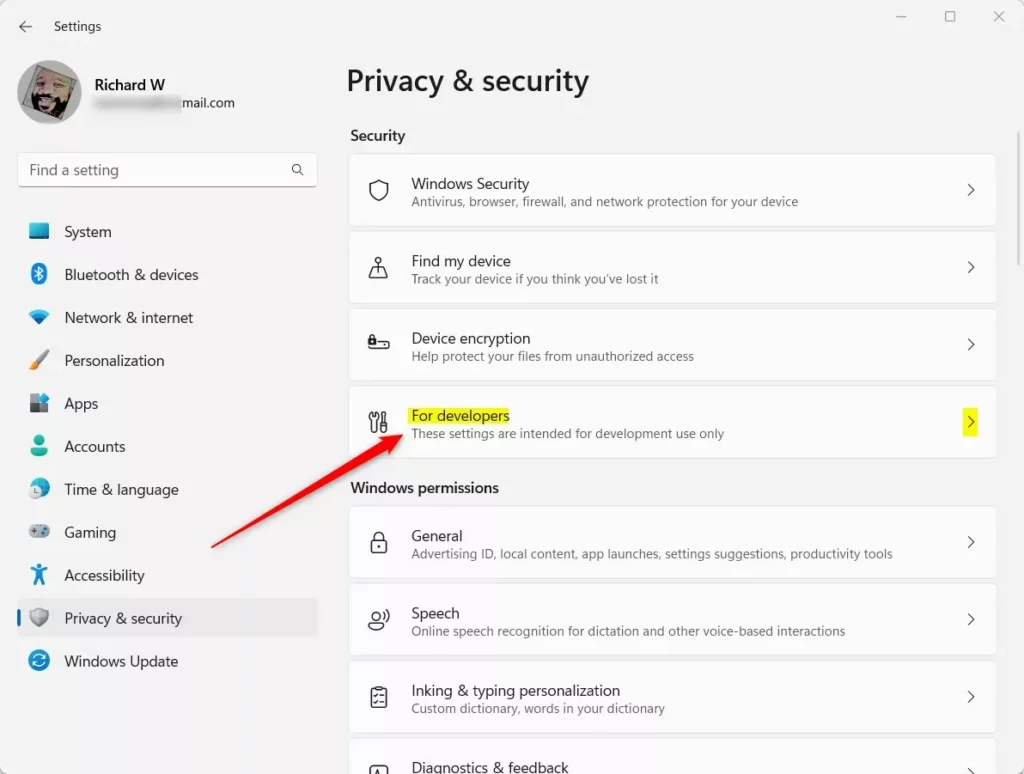
- On the right, scroll to the Security section and click For developers. On some newer Windows 11 builds, this page has moved to System For developers, so look there if you can’t find it under Privacy & security.
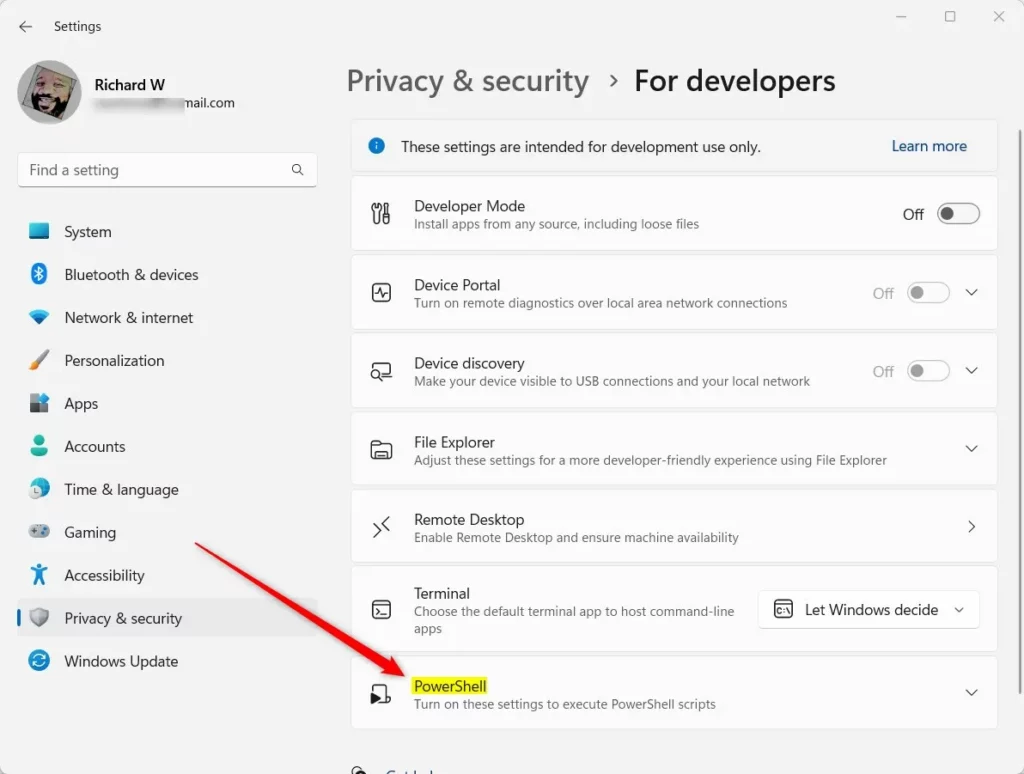
- Scroll down and find the PowerShell section. Click it to expand it if it’s collapsed. You’ll see a switch with a short description about running local scripts without signing.
- Toggle the switch to On to apply RemoteSigned for your user account.
- To undo it, toggle the switch back to Off. This returns you to the Restricted policy.
- Close the Settings app.
If the switch is greyed out or missing, your PC is probably managed by an organization, or a Group Policy is already setting the policy. In that case use the PowerShell method below to see which scope is in control.
Change Execution Policy Using PowerShell (Advanced)
For more control, change your PowerShell execution policy using PowerShell commands. This method lets you pick any of the seven policies and choose exactly which scope it applies to, including all users on the PC.
Because you can target a scope, administrators can set one policy for every user on a Windows 11 computer and keep script behavior consistent across the system. That’s not possible with the per-user Settings toggle.
What happens when done? Your chosen policy takes effect immediately. You don’t need to restart.
First, open PowerShell as an administrator:
How to Open PowerShell as Administrator
Then type the command and press Enter. Replace PolicyName with one of these options: AllSigned, Bypass, Default, RemoteSigned, Restricted, Undefined, or Unrestricted. For example, the command Set-ExecutionPolicy RemoteSigned applies the RemoteSigned policy. If you don’t name a scope, the change applies to LocalMachine, so it affects all users.
Set-ExecutionPolicy PolicyName -Scope CurrentUser -ForceOr, to choose the scope yourself:
Set-ExecutionPolicy PolicyName -Scope LocalMachine -Force⚠️ Admin Required: Using LocalMachine scope requires administrator privileges. Setting a policy for only your own account doesn’t.
For example, to set the RemoteSigned policy for your user only:
Set-ExecutionPolicy RemoteSigned -Scope CurrentUser -Force
PowerShell may ask you to confirm the change. Type Y and press Enter to accept it. To check the result, run Get-ExecutionPolicy again and confirm it shows the policy you chose.
If you get an error saying the setting is overridden by a policy defined at a more specific scope, a Group Policy (MachinePolicy or UserPolicy) is in control. On a PC managed by your employer or school, you’ll need to ask your administrator. To undo any change, run the same command with the previous policy, or use Undefined to remove the setting from that scope.
Change Execution Policy Using the Registry Editor (For Experts)
Expert users can change the policy by editing the Registry Editor directly. This method needs caution because you're modifying system settings by hand, but it's an alternative when other methods don't work, for example if PowerShell commands fail to run.
Before you start, back up the registry or create a restore point. A wrong edit in the registry can cause problems that are hard to trace. Also keep in mind that a Group Policy set by an administrator takes priority over a value you enter here.
What happens when done? Changes take effect after you restart your computer.
- Open the Registry Editor by typing
regeditin the Start menu and pressing Enter. Click Yes if User Account Control appears. - Navigate to this path:
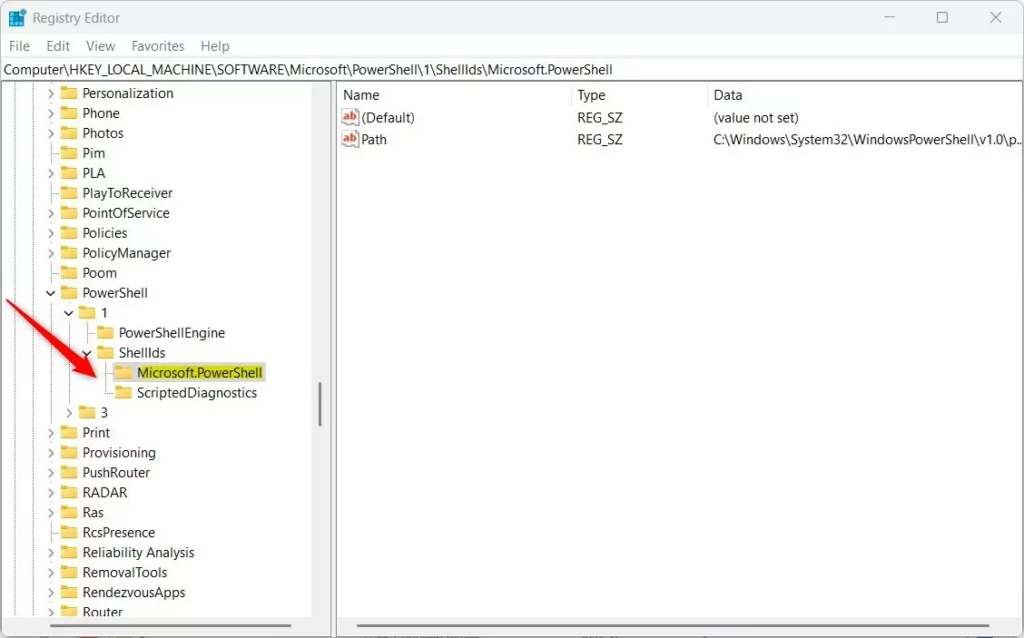
HKEY_LOCAL_MACHINE\SOFTWARE\Microsoft\PowerShell\1\ShellIds\Microsoft.PowerShell - If you don't see the Microsoft.PowerShell folder, right-click ShellIds. Choose New Key. Name it Microsoft.PowerShell.
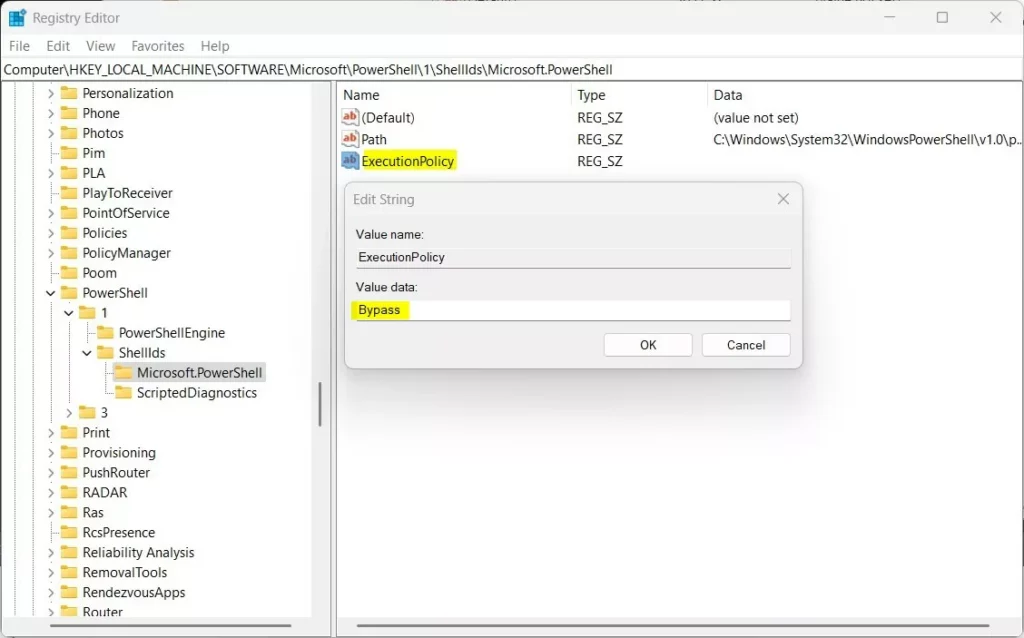
- Click the Microsoft.PowerShell folder. Right-click an empty area on the right side and choose New String Value A new value appears, ready for you to name it.
- Name the new value
ExecutionPolicy. - Double-click ExecutionPolicy and enter one of the policy names in the Value data box:
- Restricted
- AllSigned
- RemoteSigned
- Unrestricted
- Bypass
- Click OK and close the Registry Editor.
- Restart your computer for the changes to take effect.
After the restart, open PowerShell and run Get-ExecutionPolicy to confirm the new value. To undo the change, go back to the same value and enter your previous policy, or delete the ExecutionPolicy value.
⚠️ Admin Required: Editing the registry requires administrator privileges.
Summary
PowerShell execution policies in Windows 11 act as safety rules to control which scripts can run, protecting your computer from unwanted programs. Different policy options range from strict to open. You can change them using Windows Settings or with more control via PowerShell commands.- PowerShell execution policies help control when scripts can run on your computer.
- There are several policy options. You can choose from very strict (Restricted) to very open (Bypass).
- You can change policies using the Windows Settings app, PowerShell commands, or the Registry Editor.
- Always be careful when running scripts from unknown sources. This keeps your PC safe.
- For more detailed info, visit the official Microsoft page: Microsoft PowerShell Execution Policies
Have a question about this guide?
Answered by AI from this guide. Good questions may be added to this page — please don't include personal details.
Did this guide fix your problem?

About the Author
Richard
Tech Writer, IT Professional
Richard is a writer at Geek Rewind who turns complex IT tasks into clear, step-by-step guides. He draws on years of hands-on experience in system administration and enterprise IT operations, focusing on Windows, Linux and WordPress: the problems people actually run into, and the fixes that work. His server and WordPress guides come from systems he runs himself. Richard builds and maintains the platform behind Geek Rewind, from its Ubuntu servers and Nginx configuration to its custom WordPress plugins. Many new tutorials start with readers' questions, and he's always glad to answer them in the comments.
No comments yet — be the first to share your thoughts!