How to End a Task from PowerShell in Windows 11

- 11 steps
- Needs administrator rights
Ending a task from PowerShell in Windows 11 means closing an app or background process by typing a command instead of using Task Manager. The quickest way is the Stop-Process cmdlet (a built-in PowerShell command), for example Stop-Process -Name notepad.
This works when Task Manager is slow to open, when an app hangs and ignores the Close button, or when you manage a PC over a remote session. It works the same in Windows PowerShell 5.1, which ships with Windows 11, and in PowerShell 7.
To end a task from PowerShell in Windows 11, open Terminal, type Stop-Process -Name notepad and press Enter, replacing notepad with the process name. Stop-Process ends the process immediately, so unsaved work in that app is lost. Get-Process lists the names of running processes. Use Terminal (Admin) for processes owned by other users or system services.
Before you start
You can end any process your own account started without extra rights, in a normal PowerShell window. To end a process owned by another user, or one that runs as a system service, you need an elevated window (one opened with administrator rights). Windows shows a User Account Control prompt when you open one.
If you have not opened PowerShell before, our guide on how to open PowerShell in Windows 11 covers every method. The steps below use the quickest one.
How to End a Task from PowerShell in 🪟 Windows 11
To end a task from PowerShell in Windows 11, list the running processes, find the one you want, and stop it by name. The steps below use Notepad as a harmless example, so open Notepad first if you want to follow along.
- Right-click the Start button. A menu of system shortcuts opens above the taskbar.
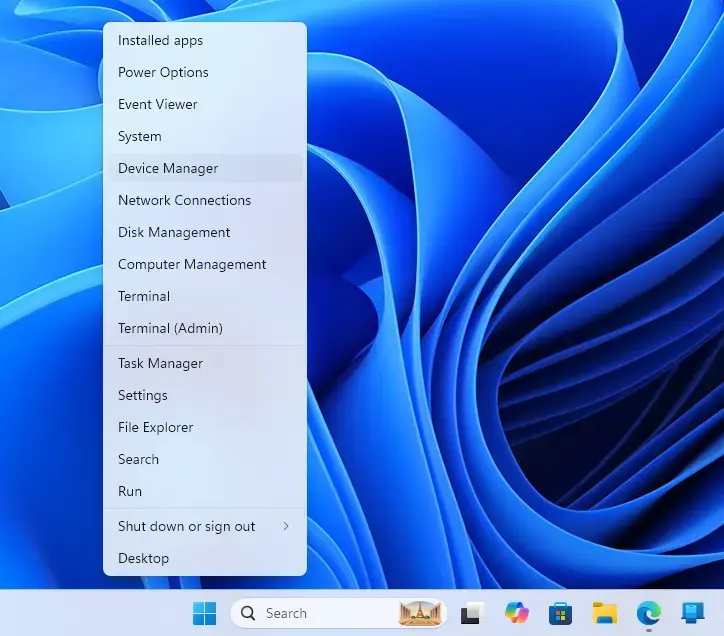
Device Manager - Select Terminal to open a normal window, or Terminal (Admin) for an elevated one. Administrator privileges are required only for processes you do not own. If you pick the admin option, select Yes on the User Account Control prompt.
- Check that the tab says PowerShell. Windows Terminal opens PowerShell by default on current Windows 11 builds. If it opened Command Prompt instead, select the down arrow next to the plus sign at the top and choose Windows PowerShell.
- Type
Get-Processand press Enter. PowerShell prints a table of every running process with columns such as Id, CPU(s) and ProcessName. - Find the app in the ProcessName column. Names appear without the .exe ending, so Notepad shows as Notepad. The list is long. If you have scrolled past the name, scroll back up to find it.
- Type
Stop-Process -Name notepadand press Enter. Replacenotepadwith the name you found. Names are not case-sensitive. - Check that the app window has closed. PowerShell prints nothing when the command succeeds, so a blank prompt is the normal result.
- Type
Get-Process -Name notepadand press Enter to confirm. An error saying PowerShell cannot find a process with that name means the task has ended.
The command from step 6 looks like this:
Stop-Process -Name notepadThe -Name option (the switch that selects a process by its name) ends every running copy of that process. If you have three Notepad windows open, all three close. To end only one copy, use its process ID, which the next section covers.
Find the right process before you end it
Many apps run under a name that differs from what you see on screen. A browser, for example, runs several processes at once. Filtering the list saves guesswork.
To search by part of a name, use a wildcard (an asterisk that stands for any characters):
Get-Process -Name note*To find the heaviest processes, sort the list by processor use and keep the top ten:
Get-Process | Sort-Object CPU -Descending | Select-Object -First 10The CPU column shows total processor time in seconds, not a live percentage. A process that has run for hours can rank high without being the cause of a slowdown. For a live view, Task Manager is better, and you can change how often it refreshes in our post on the real-time update speed in Windows 11 Task Manager.
End a single process by its ID
Every running process has a process ID, a number Windows assigns while the process runs. Using the ID targets exactly one copy, which matters when several processes share a name.
- Type the command
Get-Process -Name chromeand press Enter. Replace the placeholderchromewith the app that has several processes. Each row has its own number in the Id column. - Note the number for the process you want to end.
- Type
Stop-Process -Id 4321and press Enter. Replace4321with your own number.
The command looks like this:
Stop-Process -Id 4321Process IDs change every time an app starts. An ID you noted yesterday points to nothing today, or worse, to a different program. Always read the ID from a fresh Get-Process listing.
Ending one process of a multi-process app can close the whole app. Browsers are the usual example, because closing the main process takes the tabs with it.
Close an app gently first
Closing an app gently is the first option, because Stop-Process ends a process at once. Send the app a close request and it will try to close on its own. If you want the app to close the way it does when you select the X button, ask it to close its main window instead. The app can then show its “Save changes?” prompt.
(Get-Process -Name notepad).CloseMainWindow()PowerShell prints True when it sent the close request and False when it could not. A True result does not guarantee the app closed. It may be waiting for you to answer a prompt, or it may be frozen and ignoring the request. In that case, switch to Stop-Process.
If more than one copy is running, Get-Process returns several objects and this command can fail. Use the process ID approach from the previous section to target one copy.
Force a frozen app to close
A frozen app is the most common reason to use PowerShell for this. In practice, the plain Stop-Process command already terminates a frozen process, because it does not wait for the app to respond.
The -Force option has a narrower job. It suppresses the confirmation prompt that PowerShell shows when you try to end a process you do not own:
Stop-Process -Name notepad -ForceUse -Force in an elevated window when PowerShell asks for confirmation and you are sure of the target. Without administrator rights, -Force does not give you access to protected processes. It only skips the prompt.
Preview a command before you run it
Typing the wrong name can close the wrong app. The -WhatIf option prints what PowerShell would do without doing it:
Stop-Process -Name chrome -WhatIfYou see one line per process, such as “What if: Performing the operation “Stop-Process” on target…”. Nothing closes. When the list looks right, run the same command again without -WhatIf, the preview option.
The -Confirm option does the opposite: it asks you to approve each process one at a time. Type Y to end that process or N to skip it. This helps when a wildcard matches more than you expected.
Stop-Process -Name chrome* -ConfirmEnd every app that is not responding
Windows marks a process with a window as not responding when it stops handling input. You can filter on that state and end every match in one command. Preview it first, because this closes several apps at once and any unsaved work in them is lost.
Get-Process | Where-Object { $_.Responding -eq $false } | Stop-Process -WhatIfRead the list. If it names only apps you want gone, run the same command without -WhatIf:
Get-Process | Where-Object { $_.Responding -eq $false } | Stop-ProcessAn app that is busy but healthy, such as one installing an update or exporting a video, can briefly appear as not responding. Give it a minute before you end it this way.
Use taskkill from PowerShell
Windows also includes taskkill, an older command-line program that works in PowerShell, Command Prompt and batch files. If you already know it, it behaves the same inside PowerShell. It uses the full file name, including .exe.
taskkill /IM notepad.exe /FThe /IM option takes the image name (the executable file name), and /F forces the process to end. Without /F, taskkill asks the app to close politely and may report that it could not end the process. To target one process by ID, use /PID:
taskkill /PID 4321 /FAdd /T to end a process and any child processes it started. This helps with apps that launch helper programs and leave them running. A successful command prints a line beginning with “SUCCESS”.
Stop-Process is the better habit inside PowerShell. It returns objects you can filter and pipe, and it supports -WhatIf. taskkill has no preview option.
Fix errors when ending a task
Most failures fall into a few cases. Each message below appears in red text in the window.
“Cannot find a process with the name…” means PowerShell found nothing under that name. Check the spelling, leave off .exe, and run Get-Process to confirm the app is still running. The process may also have ended on its own.
“Cannot stop process… because of the following error: Access is denied” means your account lacks the rights to end that process. Close the window, open Terminal (Admin) as in step 2, and run the command again. If the error stays, Windows or your security software is protecting the process. Some system processes and antivirus components refuse to close, even for administrators, by design.
The app comes back after you end it. Something restarts it. Common causes are a Windows service set to restart on failure, a startup entry, or a scheduled task.
Check the app’s own settings first. If a scheduled task is relaunching it, see our post on enabling Task Scheduler history in Windows 11 to find out which task starts it and when.
The process is a Windows service. Services run in the background, often under a generic host name such as svchost. Ending one with Stop-Process can make Windows unstable. Use Get-Service to find the service and Stop-Service to stop it cleanly instead.
PowerShell blocks a script that contains these commands. Typing commands in the window does not depend on the execution policy, which is PowerShell’s setting for running scripts. Running a saved .ps1 file does depend on it. Our guide on changing PowerShell execution policies in Windows 11 explains how to allow your own scripts safely.
Shorter commands you will see online
PowerShell has built-in aliases (shorter names for commands). On Windows, kill and spps both point to Stop-Process, so these two lines do the same thing:
kill -Name notepadStop-Process -Name notepadAliases save typing in a live session. In scripts you plan to share, use the full cmdlet name so others can read it without looking anything up.
Reverse or recover after ending a task
Ending a process cannot be reversed, because Windows does not keep the closed process in memory. To get the app back, start it again from the Start menu or by typing its name in the terminal, for example notepad.
Many apps, including Notepad, Microsoft Word and Excel, restore unsaved content when reopened after a forced close. Others do not. Save before you end a task whenever the app still responds.
What to do next
If an app keeps hanging or restarting after you end it, watch it in Task Manager for a few minutes to see which process uses the most processor or memory. Then update or reinstall that app. Next, try mapping network drives with PowerShell in Windows 11. The steps follow the same open-and-type pattern you used here.
Have a question about this guide?
Answered by AI from this guide. Good questions may be added to this page — please don't include personal details.
Did this guide fix your problem?

About the Author
Richard
Tech Writer, IT Professional
Richard is a writer at Geek Rewind who turns complex IT tasks into clear, step-by-step guides. He draws on years of hands-on experience in system administration and enterprise IT operations, focusing on Windows, Linux and WordPress: the problems people actually run into, and the fixes that work. His server and WordPress guides come from systems he runs himself. Richard builds and maintains the platform behind Geek Rewind, from its Ubuntu servers and Nginx configuration to its custom WordPress plugins. Many new tutorials start with readers' questions, and he's always glad to answer them in the comments.
No comments yet — be the first to share your thoughts!