

This article explains how to open the Windows Terminal app automatically when you log in to Windows 11.
Windows Terminal is a modern host application for the command-line shells, including Command Prompt, Windows PowerShell, and bash (via Windows Subsystem for Linux (WSL)).
The Terminal app in Windows allows many customizations. You can change the language, adjust the launch size, set the default profile, change the startup behavior, open the admin window, and more.
Configuring the Terminal app to launch automatically when you log in to Windows can save time for those who frequently use the command-line interface. It eliminates the need to manually open the Terminal app every time you start your computer, making the process more efficient.
Additionally, if you have customized your Terminal app with specific settings, having it launch automatically ensures that those settings are applied every time you log in to Windows.
Automatically launch the Terminal app on Windows
As mentioned, you can configure the Windows Terminal app to launch automatically on Windows startup.
Here’s how to do that.
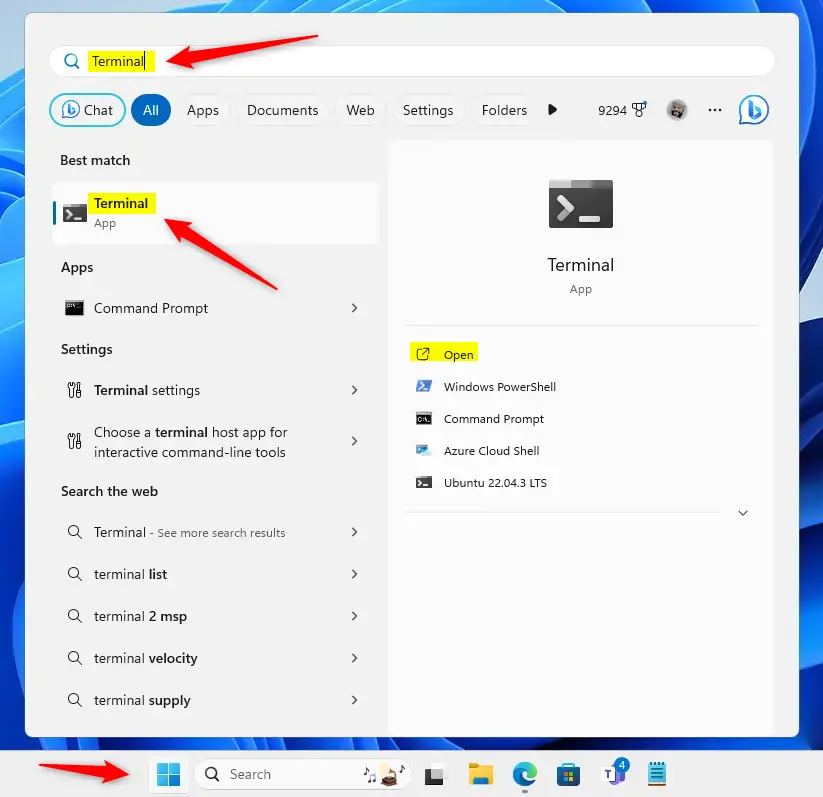
First, open the Windows Terminal app.
You can do that by clicking on the Start menu and searching for Terminal. Then, under Best match, select and open the Windows Terminal app.
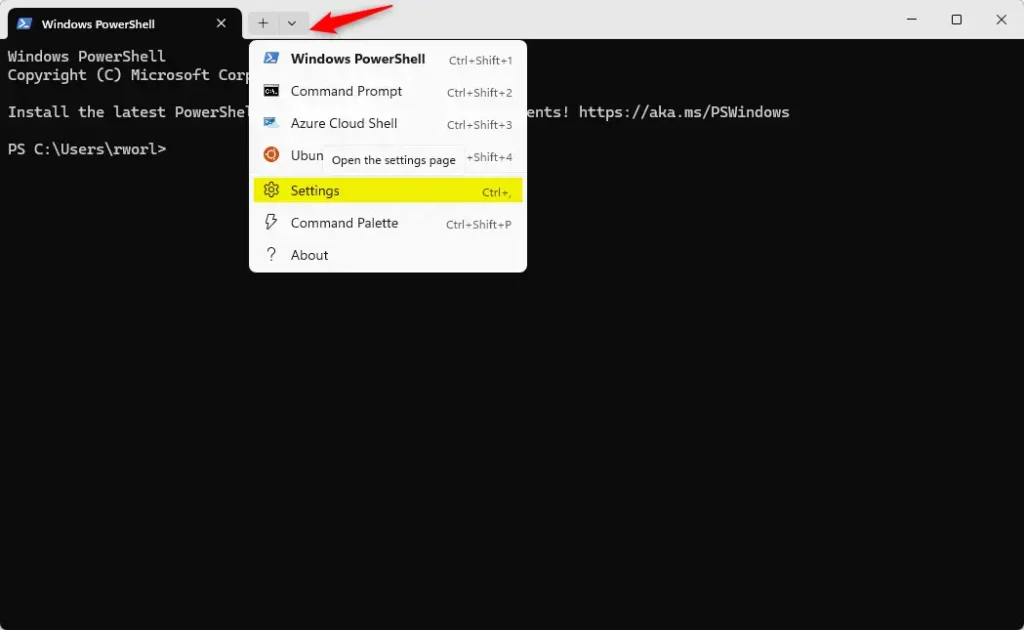
When the Terminal app opens, click the down arrow button on the top bar and select Settings (Ctrl +,).
On the Settings window, click on the Startup tab. Then, select the “Launch on machine startup” tile and toggle the switch button to the On position to enable it.
To disable it, toggle the switch button to the Off position.
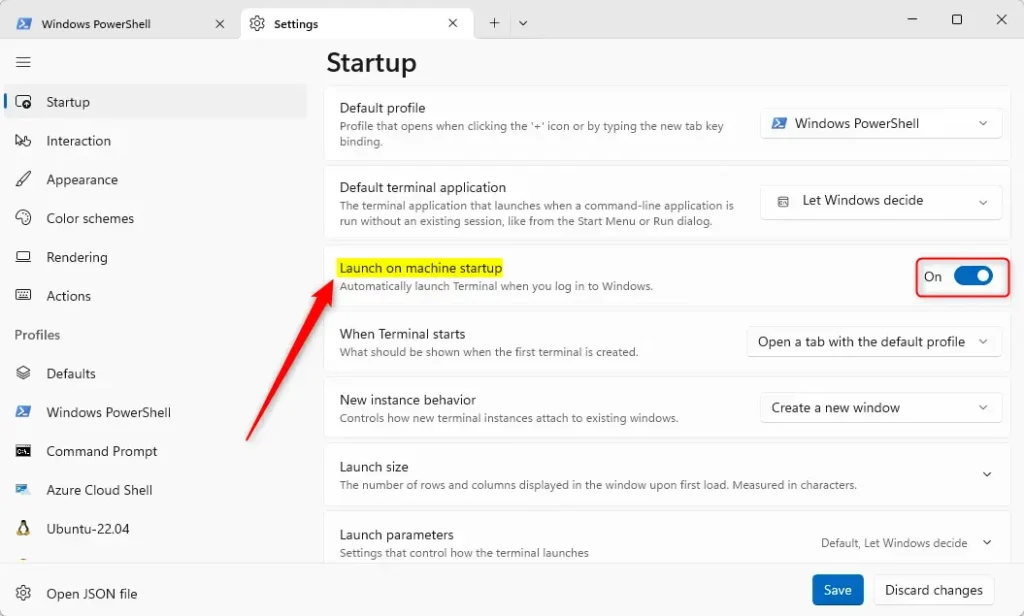
Click the Save button at the bottom to save your changes, then exit.
That should do it!
Conclusion:
- Configuring the Windows Terminal app to launch automatically on Windows startup is a time-saving convenience for frequent command-line interface users.
- Automatic launch ensures that any customizations and specific settings applied to the Terminal app are consistently available upon logging in.
- The provided step-by-step guide enables easy setup and customization of the launch behavior, ultimately optimizing the user experience.
- Please utilize the comments section below the article for any additional comments, feedback, or updates.


Leave a Reply