How to Check Modern Standby Support on Windows 11


Modern Standby support on Windows 11 shows whether your PC can use the S0 Low Power Idle power state to wake up instantly like a phone while keeping apps online with the screen off.
Run the powercfg /energy command in the Command Prompt to check this feature and build a web report that flags background tasks draining your battery.
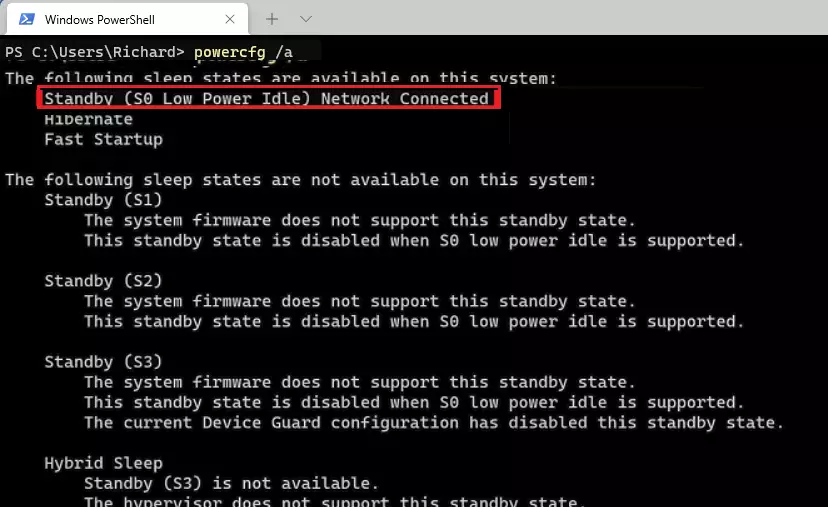
You can check Modern Standby support by opening Command Prompt as administrator and typing `powercfg -a`. If you see “Standby (S0 Low Power Idle) Network Connected,” your device uses Modern Standby.
Why check for Modern Standby?
Modern Standby keeps your PC connected to the internet while the screen is off so apps can update in the background.
What happens when you are done?
Hardware indicators reveal whether the system uses the modern S0 state or the older S3 sleep mode. Diagnostic reports expose precisely what wakes the computer, helping resolve overheating and battery drain.
How to check your sleep mode
Modern Standby Windows 11 support determines if your computer uses low-power idle states for instant wake times. You can check which sleep states your computer supports by running a simple command in the Terminal app. This test reveals whether your system uses modern low-power standby or older sleep modes.
- Click the Start button and type “Terminal”.
- Right-click the app and select Run as administrator. (Admin privileges required)
- Type the following command and press Enter:
powercfg -a
Screen output indicating “Standby (S0 Low Power Idle) Network Connected” confirms the system uses Modern Standby. Seeing “Standby (S3)” indicates the device relies on traditional, slower sleep methods.
Troubleshooting battery drain and overheating
Modern Standby battery drain on Windows 11 happens when background programs keep your hardware awake while the screen is off. You can track down these power-hungry tasks by generating a detailed power report using the Terminal app. This report shows you exactly which apps and drivers wake your computer and drain the battery.
- Open Terminal as administrator. (Admin privileges required)
- Type
powercfg /sleepstudyand press Enter. - Windows will save an HTML file to C:\Windows\System32\sleepstudy-report.html.
Opening this file in a web browser reveals which apps prevent the computer from entering a deep sleep state. Additional guidance remains available in the official Microsoft Sleep Study documentation.
Can I disable Modern Standby?
Disable Modern Standby Windows 11 settings by editing the system registry if your computer suffers from constant overheating and battery loss while sleeping. You can turn off this sleep behavior by adding a specific override key to the Registry Editor. This forces your computer to use traditional sleep modes instead of low-power idle states.
- Press Win + R, type
regedit, and press Enter. (Admin privileges required) - Navigate to HKEY_LOCAL_MACHINE\SYSTEM\CurrentControlSet\Control\Power.
- Look for a value named "PlatformAoAcOverride". If it does not exist, right-click, select New DWORD (32-bit) Value, and name it "PlatformAoAcOverride".
- Set the value to 0 to disable Modern Standby.
Summary
Modern Standby delivers rapid wake times for Windows 11 machines. Unmanaged background tasks can deplete battery reserves, though built-in commands help verify status and diagnose problems.
Was this guide helpful?

About the Author
Richard
Tech Writer, IT Professional
Richard is a writer at Geek Rewind who turns complex IT tasks into clear, step-by-step guides. He draws on years of hands-on experience in system administration and enterprise IT operations, focusing on Windows, Linux and WordPress: the problems people actually run into, and the fixes that work. His server and WordPress guides come from systems he runs himself. Richard builds and maintains the platform behind Geek Rewind, from its Ubuntu servers and Nginx configuration to its custom WordPress plugins. Many new tutorials start with readers' questions, and he's always glad to answer them in the comments.

I’m pretty sure you misspelled the word “everytime” on your site. You might want to check out a site like SpellRadar.com or SiteCheck.com which have helped me with problems like this in the past.