How to Change Scrollbar Size in Windows 11 (Easy Steps)

- 12 steps
- Needs administrator rights
- Includes a restart or sign-out
Changing the scrollbar size in Windows 11 makes the sliding bars easier to see and grab. This helps on high-resolution screens, with a touchpad, or when you scroll through long documents and web pages a lot.
Windows 11 has no slider for scrollbar thickness in the Settings app. The closest option is Always show scroll bars under Settings Accessibility Visual effects, which stops them from hiding but does not make them thicker. To change the thickness you edit two values in the Registry Editor, which is what this tutorial covers. The steps work on both Home and Pro editions.
The change affects many desktop apps, such as File Explorer. Some apps draw their own scrollbars, including many browsers and modern apps, so they may ignore it.
Before you start, think about creating a restore point or exporting the key you are about to edit. In Registry Editor you do this with File Export. Both values below can also be set back to their defaults, so the change is easy to undo.
Open Registry Editor with Win+R, type regedit, then navigate to 🗝️HKEY_CURRENT_USER\
Step-by-Step: Change Scrollbar Size
Step 1Open Registry Editor
- Press Win+R on your keyboard. The Run dialog box opens.
- Type regedit and press Enter.
- If User Account Control asks for permission, click Yes. The Registry Editor window opens.
Step 2Go to the Scrollbar Settings
The scrollbar settings live in one key, and you need to browse to it in the left-hand pane.
- In the left pane of Registry Editor, expand 🗝️HKEY_CURRENT_USER.
- Expand Control Panel, then Desktop.
- Click WindowMetrics.
The full path is 🗝️HKEY_CURRENT_USER\
HKEY_CURRENT_USER\Control Panel\Desktop\WindowMetrics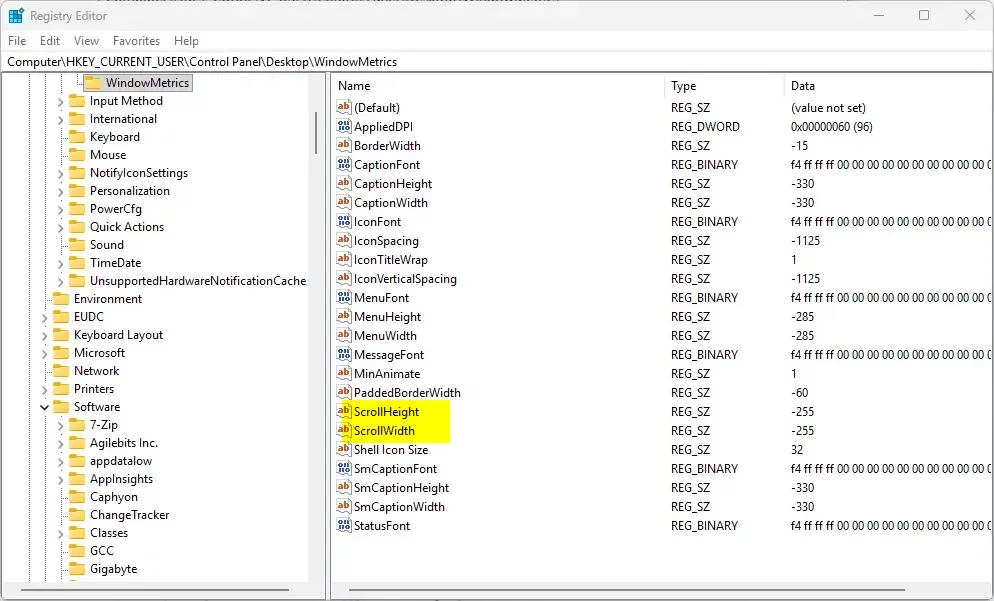
Step 3Change Scrollbar Height
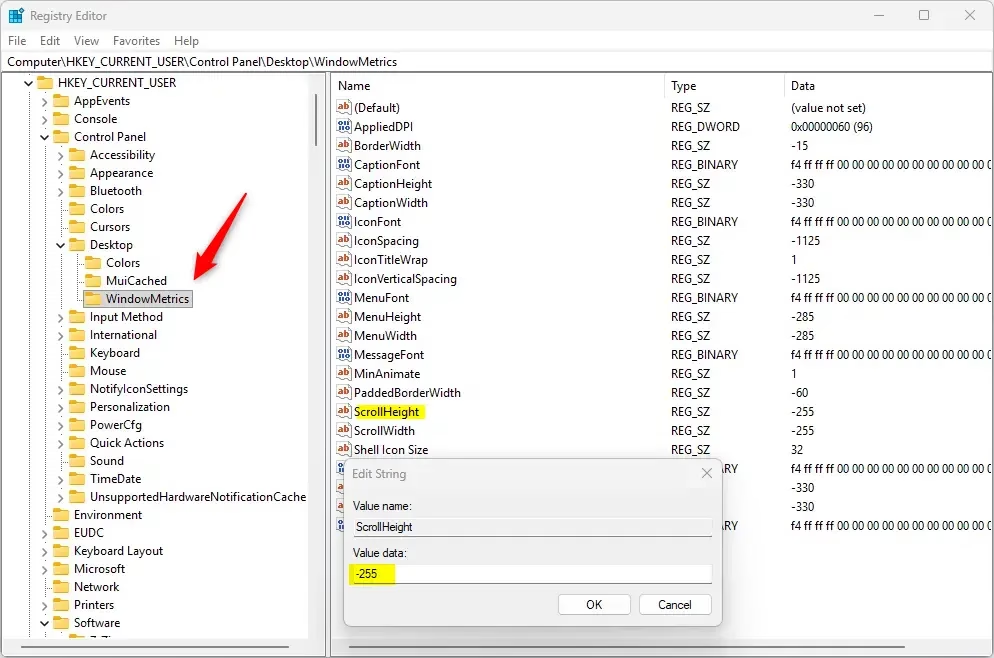
The ScrollHeight value controls the scrollbar height. It also sets the size of the arrow buttons on horizontal scrollbars.
- In the right pane, find ScrollHeight and double-click it.
- In the Edit String box that opens, click in the Value data field and replace the current number with your new one.
Use these rules when you pick the number:
- Use a value between -120 (smaller) and -1500 (larger).
- The default is -255.
- To pick a size, use this formula: -15 × (height in pixels).
- For example, if you want 17 pixels tall, enter -255 (because -15 × 17 = -255).
Step 4Change Scrollbar Width
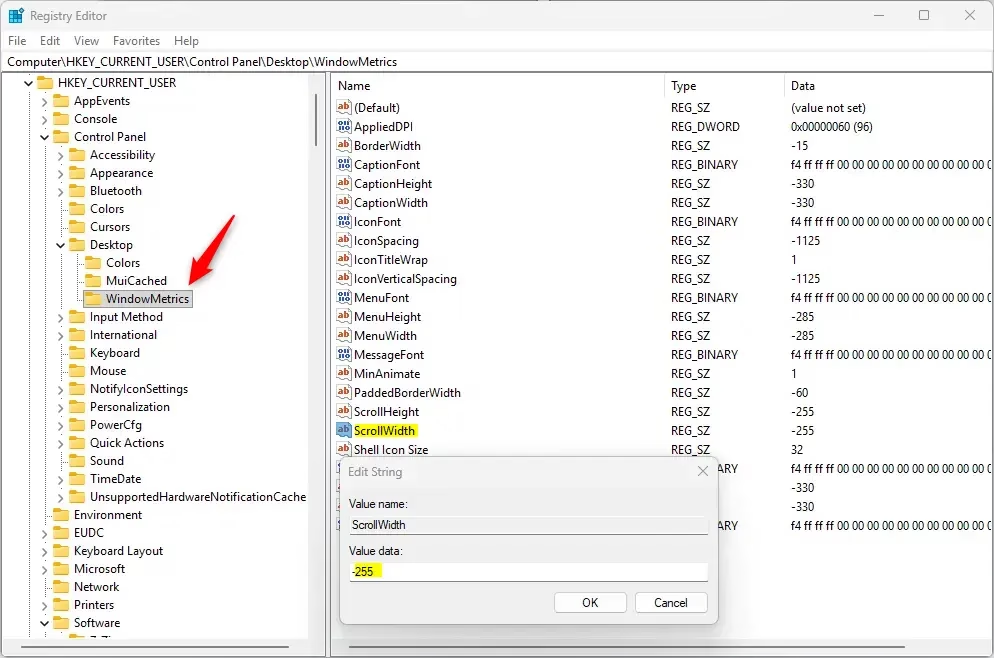
- In the right pane, find ScrollWidth and double-click it.
- In the Edit String box, replace the number in Value data.
Use the same range and formula as for the height:
- Between -120 (thinner) and -1500 (thicker).
- The default is -255.
- Formula: -15 × (width in pixels).
- Example: for 17 pixels wide, enter -255.
It usually looks best to give ScrollWidth and ScrollHeight the same value, so the vertical and horizontal bars match.
Step 5Save and Exit
- Click OK after entering each value. The new number now shows in the Data column next to the value name.
- Close Registry Editor.
Nothing changes on screen yet. Windows reads these values when you sign in or restart the shell, so the next step is needed.
Step 6Apply the Changes
You must restart Windows Explorer (the process that manages your taskbar and desktop) or sign in again before the new scrollbar size takes effect. Choose one of these options:
- Press Ctrl+Shift+Esc to open Task Manager. Find Windows Explorer in the list. Right-click it and choose Restart. The taskbar and desktop disappear for a moment and then come back. In Windows 11 you can also select it and use the Restart task button in the toolbar at the top of Task Manager.
- Or simply sign out and sign back in.
- Or restart your PC.
Restarting Explorer does not always change apps that are already open. If the scrollbars still look the same, close and reopen the app. If they are still unchanged, sign out and back in, or restart, because this is the most reliable way to apply the change.
To undo the change, go back to the WindowMetrics key, set both ScrollHeight and ScrollWidth back to -255, and sign out and back in. If an app still ignores your new size, it uses its own scrollbars and nothing in Windows will change that.
Summary
Adjusting the Windows 11 scrollbar size lets you make scrollbars thicker or thinner so they are easier to click and grab. These tweaks apply to most traditional desktop programs, though they might not change newer apps downloaded from the Microsoft Store.- You can make scrollbars thicker or thinner to match your preference
- These changes affect most traditional Windows apps but not all modern apps
- Default scrollbar size is set to -255 for both height and width
- Remember to restart Explorer or your computer to see the new sizes
- Be careful when changing Registry settings. Always double-check your changes before saving
Have a question about this guide?
Answered by AI from this guide. Good questions may be added to this page — please don't include personal details.
Did this guide fix your problem?

About the Author
Richard
Tech Writer, IT Professional
Richard is a writer at Geek Rewind who turns complex IT tasks into clear, step-by-step guides. He draws on years of hands-on experience in system administration and enterprise IT operations, focusing on Windows, Linux and WordPress: the problems people actually run into, and the fixes that work. His server and WordPress guides come from systems he runs himself. Richard builds and maintains the platform behind Geek Rewind, from its Ubuntu servers and Nginx configuration to its custom WordPress plugins. Many new tutorials start with readers' questions, and he's always glad to answer them in the comments.
No comments yet — be the first to share your thoughts!