How to the Change Size of Taskbar Icons in Windows 11

- 27 steps
- Needs administrator rights
- Group Policy needs Windows 11 Pro, Enterprise or Education
- Includes a restart or sign-out
Changing the size of taskbar icons in Windows 11 lets you clear extra screen space or make buttons easier to click with your mouse. Older releases of Windows 11 do not include a direct switch for this in the Settings app, so on those builds you have to edit the Windows Registry (a database that stores low-level settings for the operating system and apps) instead.
You can choose between three different sizes (small, medium, and large) by changing a single value in 🗝️HKEY_CURRENT_USER\
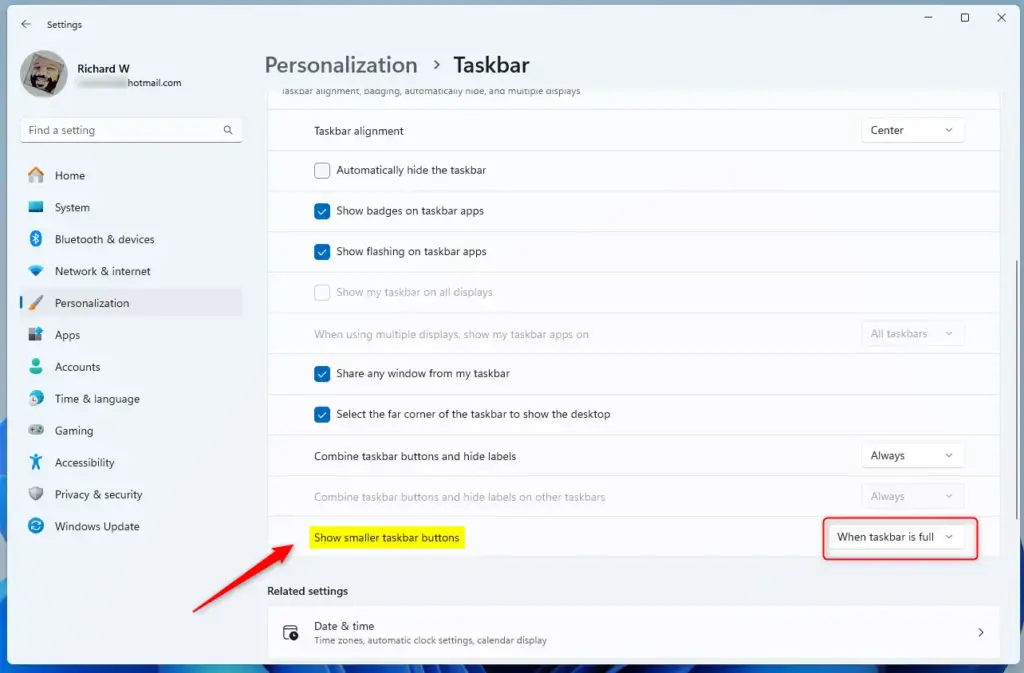
Open Settings with Win+I, go to Personalization Taskbar Taskbar behaviors, then use the Show smaller taskbar buttons drop-down to choose Always, Never, or When taskbar is full. The icons resize immediately without restarting.
How to Change Taskbar Icon Size Using Settings
Newer Windows 11 builds let you shrink the taskbar buttons from the Settings app through a compact view. This built-in method needs no advanced tools or registry edits. Open Settings with Win+I, click Personalization, select Taskbar, and look for the option to make your taskbar buttons smaller.
Run Windows Update, or use the Registry Editor or Group Policy method later in this guide.
- Press
Win + Ion your keyboard. The Settings window opens. - Click Personalization in the left pane, then select Taskbar on the right. You should see the list of taskbar items and options.
- Scroll down and click Taskbar behaviors to expand it. A list of checkboxes and drop-down menus appears.
- Find the drop-down menu labeled Show smaller taskbar buttons and choose one of these:
- Always – icons stay small all the time.
- Never – icons stay the original size.
- When taskbar is full – icons shrink only when the taskbar runs out of space.
- Close Settings. The change applies right away, and you should see the icons resize on the taskbar without restarting.
To undo the change, return to the same drop-down and pick Never or When taskbar is full.
Open Taskbar Settings directly

Change Taskbar Icon Size Using the Registry (Advanced)
Registry Editor lets you change taskbar icon size in Windows 11 by adding a specific system value that forces icons to stay permanently small. This advanced method works well if the standard Settings page is missing on your build or does not give you the display results you want.
The value you set controls the icon sizing. Here is what each setting looks like.
Always show smaller icons:
reg add "HKEY_CURRENT_USER\Software\Microsoft\Windows\CurrentVersion\Explorer\Advanced" /v TaskbarSmallIcons /t REG_DWORD /d 1 /f
Never show smaller icons:
reg add "HKEY_CURRENT_USER\Software\Microsoft\Windows\CurrentVersion\Explorer\Advanced" /v TaskbarSmallIcons /t REG_DWORD /d 0 /fShow smaller icons only when taskbar is full (default):
reg add "HKEY_CURRENT_USER\Software\Microsoft\Windows\CurrentVersion\Explorer\Advanced" /v TaskbarSmallIcons /t REG_DWORD /d 0 /fHow to edit the Registry manually:
In Registry Editor, click File, then Export, and save a copy. Wrong edits in the registry can cause problems, so change only the value described here.
- Press
Win + R, typeregedit, and press Enter to open Registry Editor. If a User Account Control prompt appears, click Yes. - Navigate to:
HKEY_CURRENT_USER\Software\Microsoft\Windows\CurrentVersion\Explorer\AdvancedYou can expand the folders in the left pane, or paste the path into the address bar at the top of the window. - Look for IconSizePreference in the right pane. If it doesn’t exist, right-click an empty area, choose New, then DWORD (32-bit) Value, and name it IconSizePreference.
- Double-click IconSizePreference and set the value to:
- 0 for always small
- 1 for never small
- 2 for small only when full
- Click OK and close Registry Editor. The new number should show in the Data column.
- Sign out and back in, or restart your PC, to see the changes. The setting is not read until Windows starts a new session.
To undo the change, set IconSizePreference back to 2 (the default), or delete the value, then sign out and back in. You can also import the backup you exported earlier.
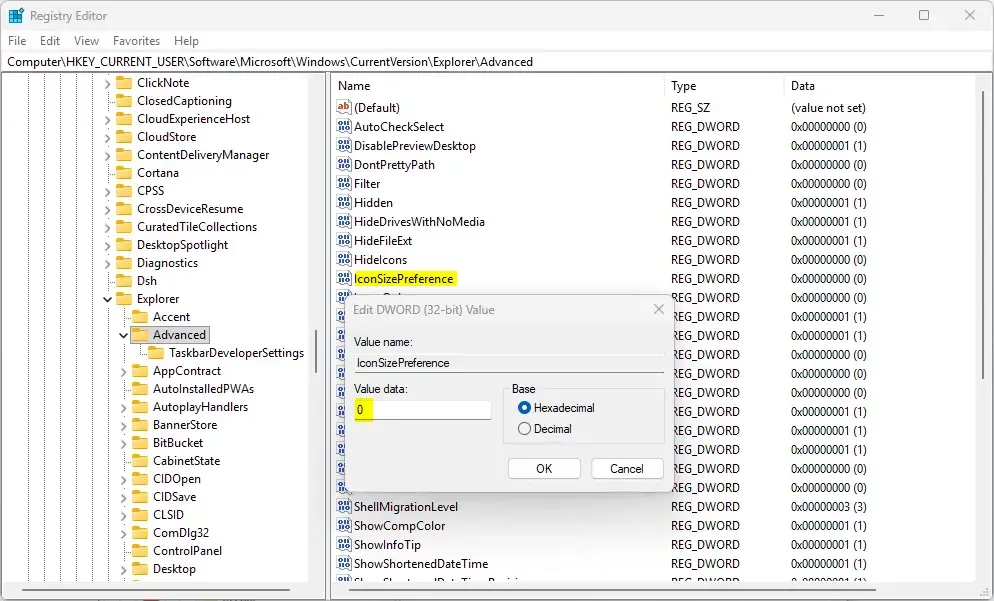
You can edit the registry manually to change taskbar icon size in Windows 11 by opening Registry Editor and modifying a key in the Explorer folder. This hands-on approach requires you to type a specific command and adjust a DWORD value to force smaller buttons on your screen. Follow the numbered steps above in order and double-check the path before you edit anything.
Change Taskbar Icon Size for All or Specific Users (Using Local Group Policy Editor)
Local Group Policy Editor lets you change taskbar icon size in Windows 11 for all user accounts on a single computer at the same time. This administrative tool helps you enforce uniform taskbar settings across different profiles without changing each account individually.
The Local Group Policy Editor is included in Windows 11 Pro, Enterprise, and Education. Windows 11 Home does not have it, so Home users should use the Settings or Registry Editor method instead.
- Open the Local Group Policy Editor:
- Press
Win + R, typegpedit.msc, and press Enter. The editor opens with a folder tree on the left.
- Press
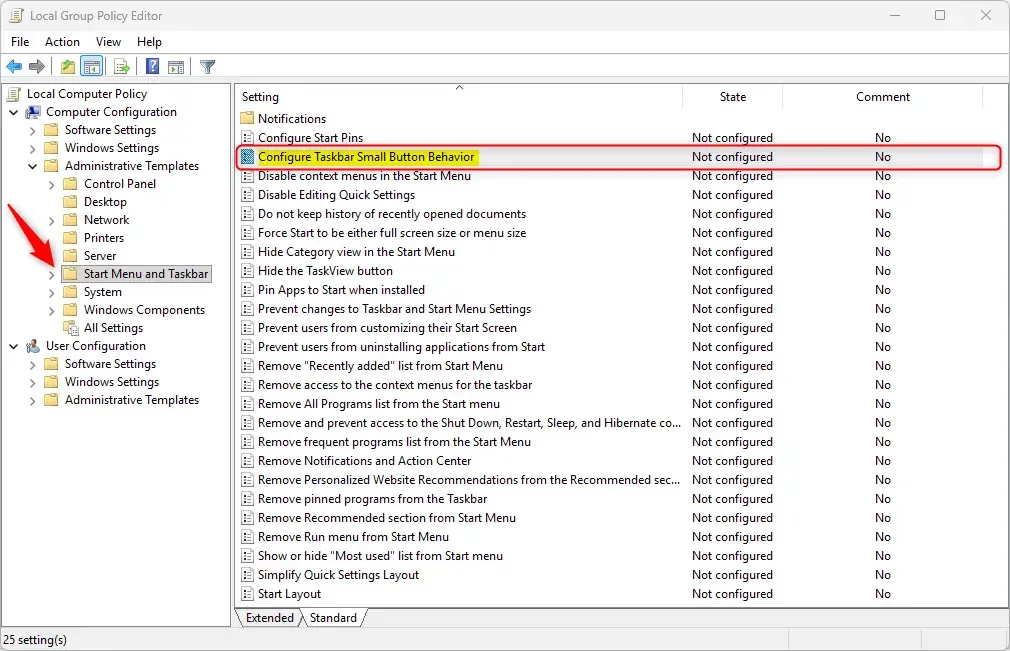
- To apply for all users: go to Computer Configuration Administrative Templates Start Menu and Taskbar.
- To apply for specific users: go to User Configuration Administrative Templates Start Menu and Taskbar.
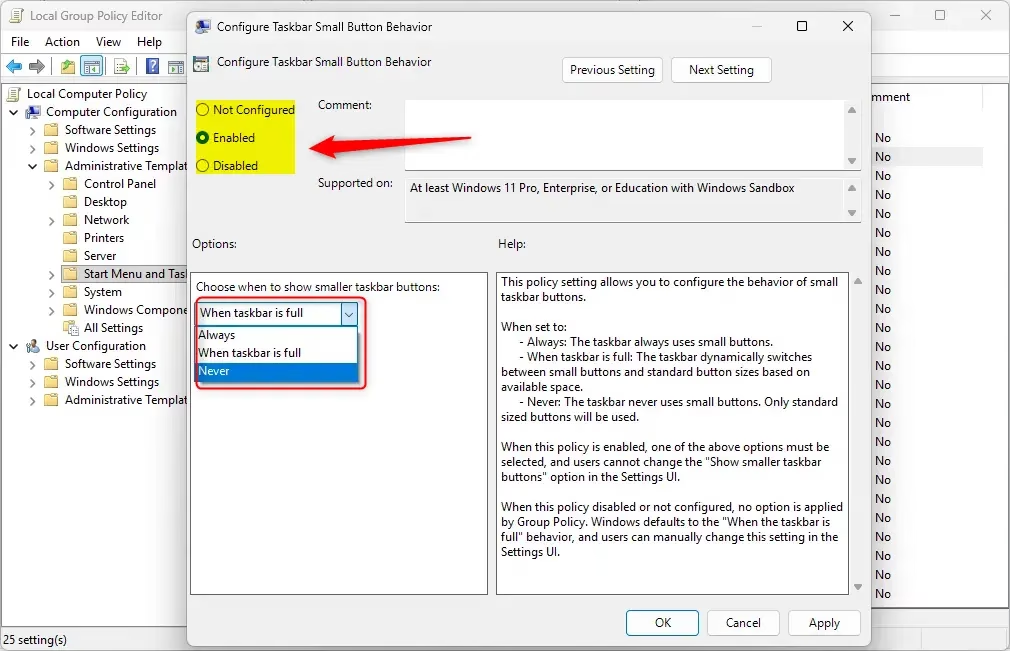
- In the right pane, double-click Configure Taskbar Small Button Behavior. A settings window opens.
- Choose one of the following:
- Not Configuredlets users choose their own size (default).
- Enabledthen pick “Always”, “Never”, or “When taskbar is full” from the dropdown.
- Click OK.
- Restart your PC or sign out and sign back in to apply changes.
To undo the change, open the same policy, select Not Configured, click OK, and sign out and back in. Users can then pick their own size again.
Summary
Windows 11 gives you a few different ways to change taskbar icon size depending on your skill level and needs. You can use the basic Settings app for quick adjustments, or turn to Registry Editor and Local Group Policy Editor for permanent system-wide changes.
- You have choicesUse Settings for simple changes, or Registry/Group Policy for advanced control.
- Flexible optionsKeep icons normal size, always small, or only small when the taskbar is crowded.
- User-friendlyEasy to do with just a few clicks in Settings, where your build offers it.
- Save screen spaceSmaller icons help fit more apps on your taskbar.
- Customize your PCMake your Windows 11 look and work the way you like.
Enjoy the personalized taskbar.
Frequently asked questions
How to make taskbar icons bigger?
To make taskbar icons bigger, open Settings, select Personalization, then Taskbar, and check for a size option. If none appears, open Registry Editor, go to the Advanced key under Explorer, and set the TaskbarSi value to 2 for large icons. Sign out and back in to apply the change.
Why are my taskbar icons so small?
Your taskbar icons are small because they are set to the small size. Check Settings under Personalization, then Taskbar, for a larger option. If you do not see one, open Registry Editor, find the TaskbarSi value in the Advanced key, and change it from 0 to 1 or 2. Then sign out and back in.
How to increase taskbar icon size?
To increase taskbar icon size, first check Settings under Personalization, then Taskbar. If no size option appears, open Registry Editor and set the TaskbarSi value in the Advanced key to 1 for medium or 2 for large. Sign out and back in to see the change.
Can I increase taskbar icons and decrease web browser pix size?
Yes, but they are separate settings. Taskbar icons are controlled in Settings or by the TaskbarSi value in Registry Editor. Browser image and page size are controlled inside the browser itself. Press Ctrl and plus to zoom in on web pages, and Ctrl and minus to zoom out.
How to make taskbar smaller?
You cannot shrink the taskbar's height directly in Windows 11, but you can make its icons smaller. Open Settings, select Personalization, then Taskbar, and look for a smaller size option. If none appears, set TaskbarSi to 0 in the Advanced key in Registry Editor, then sign out and back in.
How to make task bar icons larger?
To make task bar icons larger, open Settings, select Personalization, then Taskbar, and check for a size option. If your version does not have one, open Registry Editor, find the TaskbarSi value in the Advanced key, and set it to 2. Sign out and back in to apply the change.
Still have a question?
Answered by AI from this guide. Good questions may be added to this page — please don't include personal details.
Did this guide fix your problem?

About the Author
Richard
Tech Writer, IT Professional
Richard is a writer at Geek Rewind who turns complex IT tasks into clear, step-by-step guides. He draws on years of hands-on experience in system administration and enterprise IT operations, focusing on Windows, Linux and WordPress: the problems people actually run into, and the fixes that work. His server and WordPress guides come from systems he runs himself. Richard builds and maintains the platform behind Geek Rewind, from its Ubuntu servers and Nginx configuration to its custom WordPress plugins. Many new tutorials start with readers' questions, and he's always glad to answer them in the comments.
No comments yet — be the first to share your thoughts!