Get New Themes for Windows 11 and Apply Them

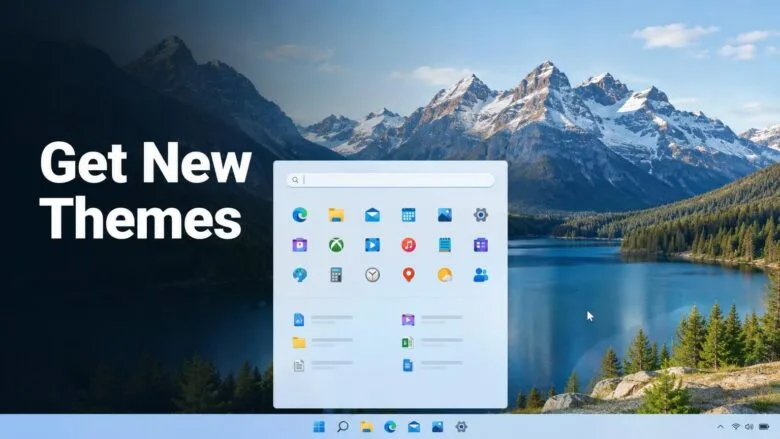
Themes in Windows 11 change your desktop background, accent color, sounds and mouse cursor in one click. The quickest way to get new ones is Settings Personalization Themes, where the Browse themes button opens the Microsoft Store (the built-in app store) with free theme packs.
This guide shows three ways to get a theme: from the Store, from a file, or by saving your own changes. It also shows how to go back to the default look. None of the steps need administrator rights, and none need a restart.
To get new themes in Windows 11, open Settings , go to Personalization Themes, and select Browse themes beside “Get more themes from Microsoft Store.” Choose a theme pack, select Get to install it , then return to Themes and select its thumbnail. Windows applies the wallpaper, accent color, sounds and cursor at once, with no restart and no administrator rights needed.
What a 🪟 Windows 11 Theme Changes
A theme is a saved bundle of appearance settings. It holds a set of wallpapers, an accent color (the color used on the Start menu , taskbar and window title bars), and a light or dark mode. It also holds a sound scheme (the set of sounds Windows plays for events such as alerts) and a mouse cursor set.
Those are separate settings. Windows 11 also has no supported way to install third-party visual styles (the old “skins” that restyle every window). Avoid tools that patch system files to restyle windows. They can break Windows after an update, so do not install them.
Before You Start
Check three things first, so the steps below work the first time.
- Windows must be activated (registered with Microsoft as a genuine copy). On an unactivated copy, the Personalization page is locked, and a banner tells you to activate Windows.
- You need internet access and the Microsoft Store. Signing in to the Store with a Microsoft account is usually needed to download a theme, even a free one.
- The PC must not be locked down by an organization. On a work or school device, an administrator can block theme changes.
Windows 11 Home and Pro both support themes in the same way, so the edition does not matter here.
Get New Themes for 🪟 Windows 11 and Apply Them
Open Settings, go to Settings Personalization Themes, and select Browse themes to get a new theme. Then apply it and check the result on your desktop.
- Open Settings. Press Windows + I, or right-click Start and choose Settings.

- Select Personalization in the left pane. The right side now shows a preview of your current desktop and a list of options.
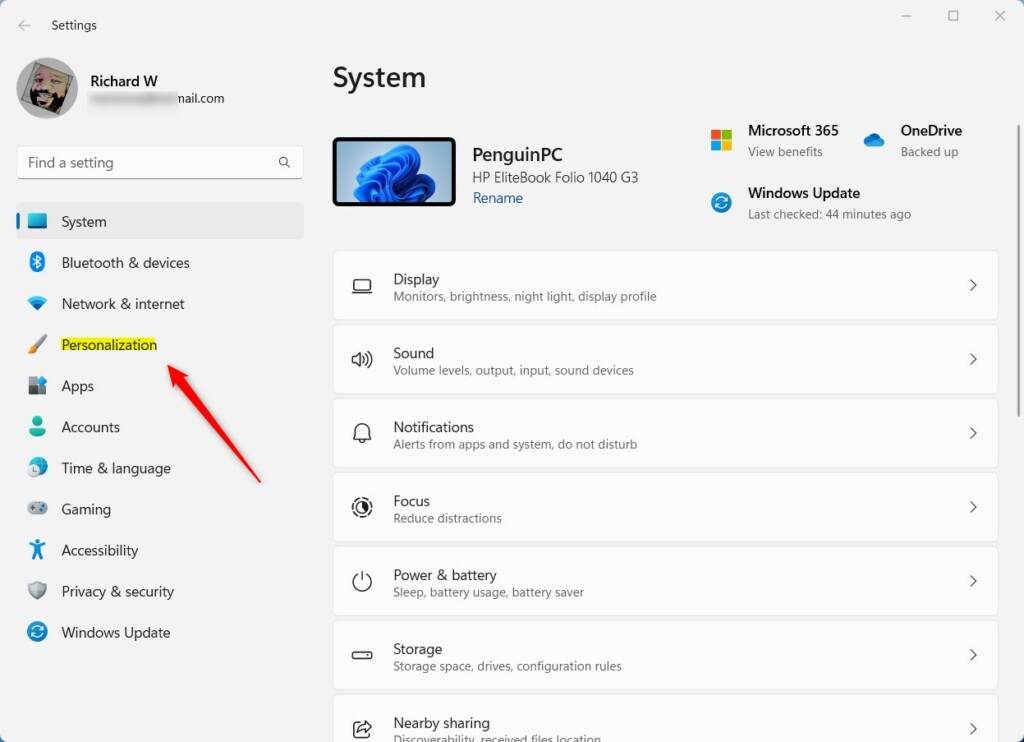
Windows 11 Personalization in the Settings app - Select Themes. The page shows a Current theme card at the top and a grid of thumbnails under Select a theme to apply. Windows includes a few themes already, such as light and dark versions of the default Windows theme.
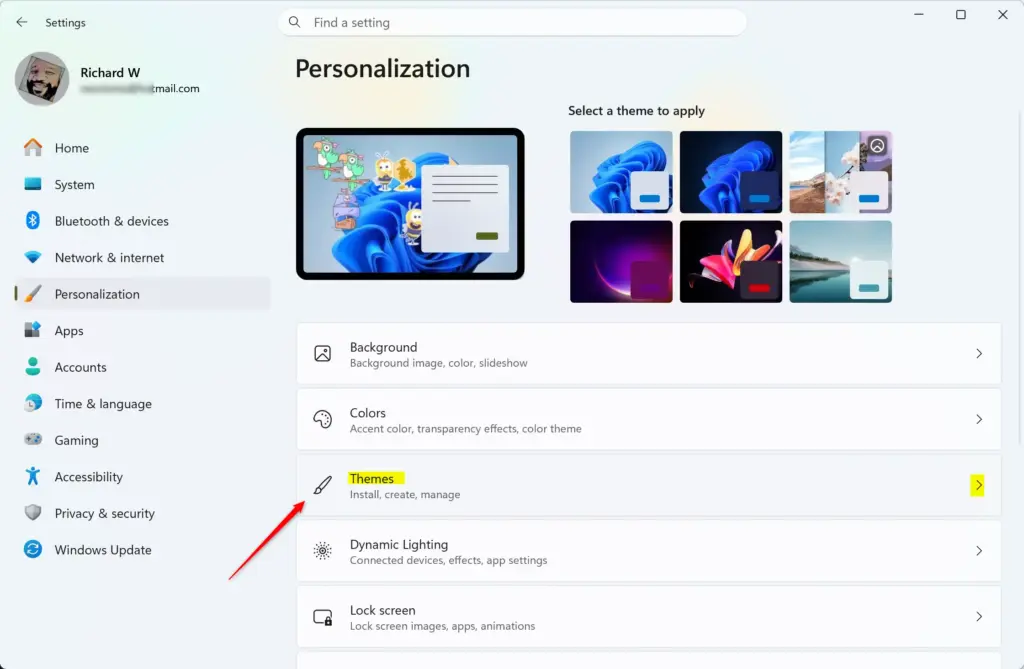
Settings › Personalization › Themes - Scroll to Get more themes from Microsoft Store. Select Browse themes beside it.
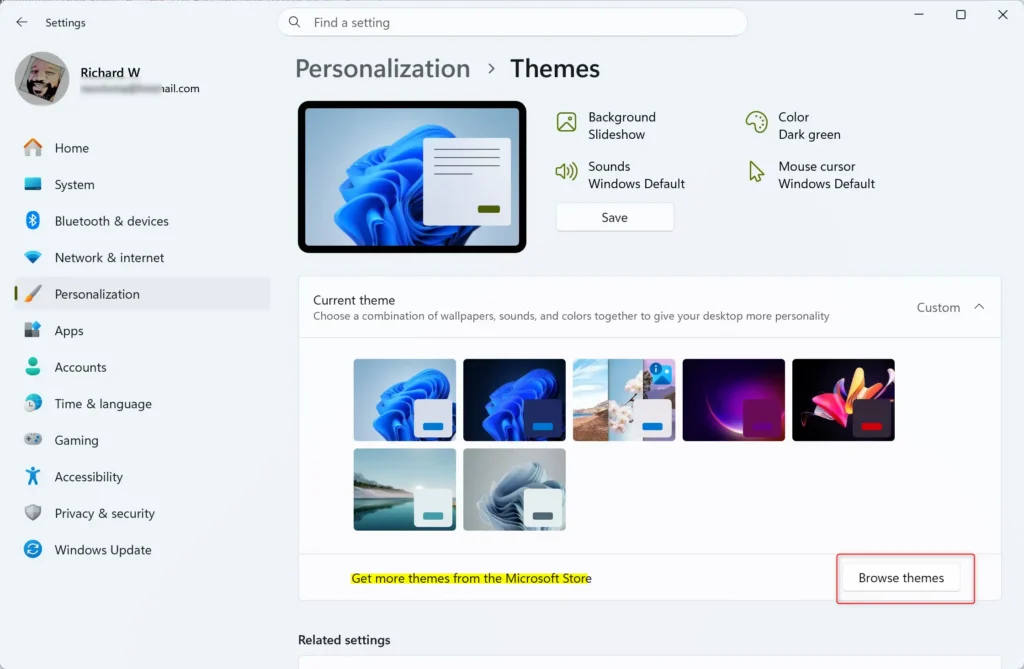
- Wait for the Microsoft Store to open on its themes page. If the Store opens but the page is blank or shows an error, close the Store and select Browse themes again. If it still fails, see the troubleshooting section below.
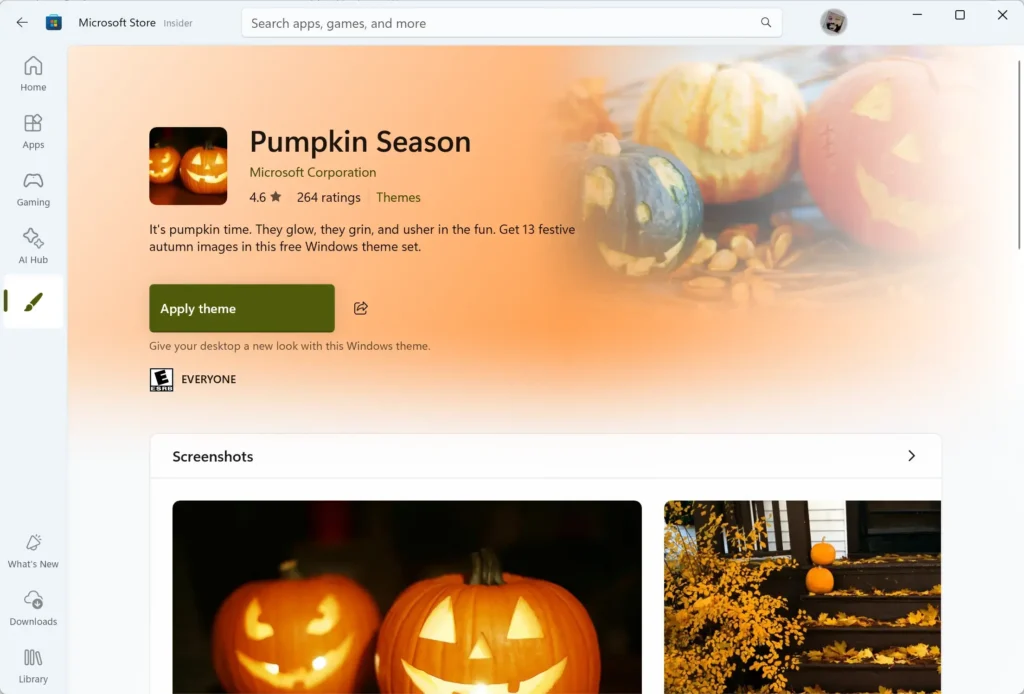
- Select a theme pack that you like. Its page lists the images included. Check the price label next to the button, because most theme packs are free but some are paid.
- Select Get. The Store downloads and installs the theme. Wait until the download finishes before you leave the page.
- Go back to Settings Personalization Themes The new theme now appears in the Select a theme to apply grid, usually near the top.
- Select the new theme's thumbnail. Windows applies it at once. The wallpaper, accent color and, if the theme includes them, the sounds and cursor change. No restart is needed.
- Check the result in the Current theme card. It now shows the name of the theme you picked, with buttons for Background, Color, Sounds and Mouse cursor.
If the New Theme Does Not Show in the List
Give the Store a minute to finish the install, then close and reopen Settings. If the theme is still missing, open the Microsoft Store, select Library, and check that the theme shows as installed. If it shows an Update or Install button instead, the download did not finish. Select that button to restart it.
Install a Theme From a File
This route is useful when a theme is not in the Store. Download files only from sources you trust, because a theme file can include sounds, cursors and images that you have not inspected.
Windows 11 recognizes two common theme file types. A .deskthemepack file contains the theme and its images in a single file. A .theme file is a small settings file that points to images and other files it needs, so it only works fully if those files are present too.
- Download the theme file to a folder you can find, such as Downloads.
- Open File Explorer and go to that folder. Press Windows + E to open File Explorer.
- Double-click the theme file. Windows opens Settings Personalization Themes and applies the theme.
- Check the Current theme card. It shows the name of the theme you opened. The theme is now also in the thumbnail grid, so you can switch to it later.
If double-clicking does nothing, right-click the file, choose Open with, and check that Settings is in the list of apps. If Windows shows a security prompt, read the file name and source before you continue. If you are not sure where the file came from, cancel and delete it.
Customize and Save Your Own Theme
You do not have to accept a theme exactly as it comes. You can change one part, such as the accent color, and save the result under a new name.
Change Individual Parts of a Theme
The four buttons on the Current theme card each open a settings page for one part of the look.
- Background opens Settings Personalization Background. Choose a Picture, Solid color, Slideshow or Windows Spotlight (a feature that downloads rotating pictures from Microsoft).
- Color opens Settings Personalization Colors. Set the mode to Light, Dark or Custom, and pick an accent color.
- Sounds opens the classic Sound window on its Sounds tab, where you pick a sound scheme or mute event sounds.
- Mouse cursor opens the Mouse settings page where you change the pointer style, size and color.
Many theme packs use the Slideshow background and rotate through their images. To change how often the picture changes, open Settings Personalization Background and set Change picture every to a different interval. To stop the rotation, switch Personalize your background to Picture.
Save the Changed Theme
After you change a part, the Current theme card shows the theme as unsaved. Save your changes before you switch themes, or they are lost. Select Save on that card, type a name, and select Save again. The theme then appears in the grid with your name, so you can return to it at any time.
Switch Back or Remove a Theme
Changing themes is fully reversible, and nothing about it affects your files or apps. To go back to the default look, open Settings Personalization Themes and select Windows (light) or Windows (dark) in the grid. The desktop returns to the standard wallpaper and colors.
To remove a theme you no longer want, right-click its thumbnail in the grid and choose Delete. Windows does not let you delete the theme that is currently applied, so switch to a different one first. Windows does not let you delete built-in themes. For a theme installed from the Store, you can also open Settings Apps Installed apps and uninstall it there.
Why Theme Options Are Missing or Greyed Out
Most theme problems come from one of the causes below.
The Personalization Page Is Locked
If Settings shows "You need to activate Windows before you can personalize your PC", activation is the problem. Open Settings System Activation and check the status. Once Windows is activated, the Personalization settings become available and you can apply themes.
A Message Says Some Settings Are Managed by Your Organization
This message means a rule set by your organization (a policy) controls the setting on a work or school device. You cannot override it from Settings. Ask your IT administrator whether theme changes are allowed on that device.
Browse Themes Opens the Store but Nothing Loads
An outdated Store app is a common cause. Open the Microsoft Store, select Library, and select Get updates. Then restart the Store and try the Browse themes button again. If you are signed out of the Store, sign in with your Microsoft account from the profile icon at the top.
The Theme Applies but the Colors Look Wrong
A contrast theme (a high-visibility theme for accessibility) overrides normal themes. If you see harsh black, white and bright colors, open Settings Accessibility Contrast themes and set the option to None. Then apply your chosen theme again.
Your Theme Does Not Follow You to Another PC
Windows can sync some personalization settings across PCs signed in with the same Microsoft account. The option is under Settings Accounts Windows backup The label and location of this option vary between Windows 11 versions, and a downloaded theme file or Store theme may still need installing on the second PC.
What to Do Next
Your theme stays in place until you change it, and a feature update does not normally reset it. If a theme ever reverts, reapply it from the Themes page. If you want to go further, the next steps are to adjust the taskbar and Start menu in Settings Personalization. Another option is to set a custom lock screen picture in Settings Personalization Lock screen
Have a question about this guide?
Answered by AI from this guide. Good questions may be added to this page — please don't include personal details.
Did this guide fix your problem?

About the Author
Richard
Tech Writer, IT Professional
Richard is a writer at Geek Rewind who turns complex IT tasks into clear, step-by-step guides. He draws on years of hands-on experience in system administration and enterprise IT operations, focusing on Windows, Linux and WordPress: the problems people actually run into, and the fixes that work. His server and WordPress guides come from systems he runs himself. Richard builds and maintains the platform behind Geek Rewind, from its Ubuntu servers and Nginx configuration to its custom WordPress plugins. Many new tutorials start with readers' questions, and he's always glad to answer them in the comments.
No comments yet — be the first to share your thoughts!