Customize Alt+Tab Settings in Windows 11

Alt+Tab is the Windows 11 shortcut that lets you switch between open windows. The Settings app controls what shows up in its list. Open Settings System Multitasking to pick whether Alt+Tab includes Microsoft Edge tabs and whether it shows windows from every virtual desktop or only the current one.
The change takes effect right away. You do not need to restart your PC, and you do not need administrator rights to make it.
Windows 11 does not offer a setting to turn off the thumbnail switcher or change its size or layout. Multitasking settings only control which items appear in the list. This article also covers keyboard shortcuts that change how the switcher works, and fixes for when it acts up.
To change Alt+Tab settings in Windows 11, open Settings , select System, then Multitasking. There you choose whether Alt+Tab lists Microsoft Edge tabs, using “Show tabs from apps when snapping or pressing Alt+Tab”, and whether it shows windows from all virtual desktops or only the current one. Changes apply immediately, with no restart needed.
What the Alt+Tab Settings Control
Alt+Tab opens a row of thumbnails, one for each open window. Two settings change what appears in that row:
- Show tabs from apps when snapping or pressing Alt+Tab decides whether Edge browser tabs appear as separate entries next to your windows. It also affects the layout suggestions you see when you snap a window (dock it to one side of the screen).
- Pressing Alt+Tab shows windows that are open on decides whether the switcher lists windows from all your virtual desktops (separate workspaces you create with Task View) or only the current one.
Both settings sit on the same page, so you can change them together.
Open the Multitasking Settings Page
Every option in this article lives on one page.
- Press Windows key + I to open Settings.

Windows 11 Start menu with Settings gear icon highlighted. - Select System in the left pane.
- Scroll down the right side and select Multitasking.
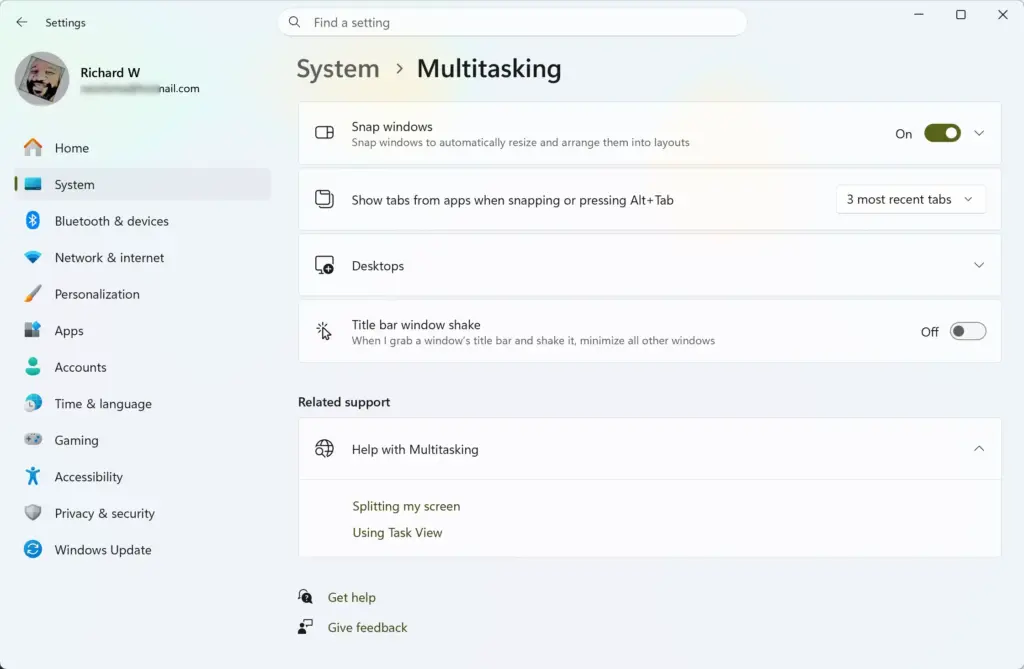
Settings › System › Multitasking
If you prefer a shortcut, press the Windows key, type multitasking, and select Multitasking settings from the results.
If the page is missing, check your Windows version first. Run winver from the Run box (Windows key + R) to see it.
Change What Edge Tabs Show in Alt+Tab
Choose how many Edge tabs appear
This step decides whether your Edge tabs clutter the switcher. If you keep dozens of tabs open, the default can fill the row with entries you do not want.
- Open Settings System Multitasking
- Find the drop-down labeled Show tabs from apps when snapping or pressing Alt + Tab. It sits in or just below the Snap windows section, depending on your build.
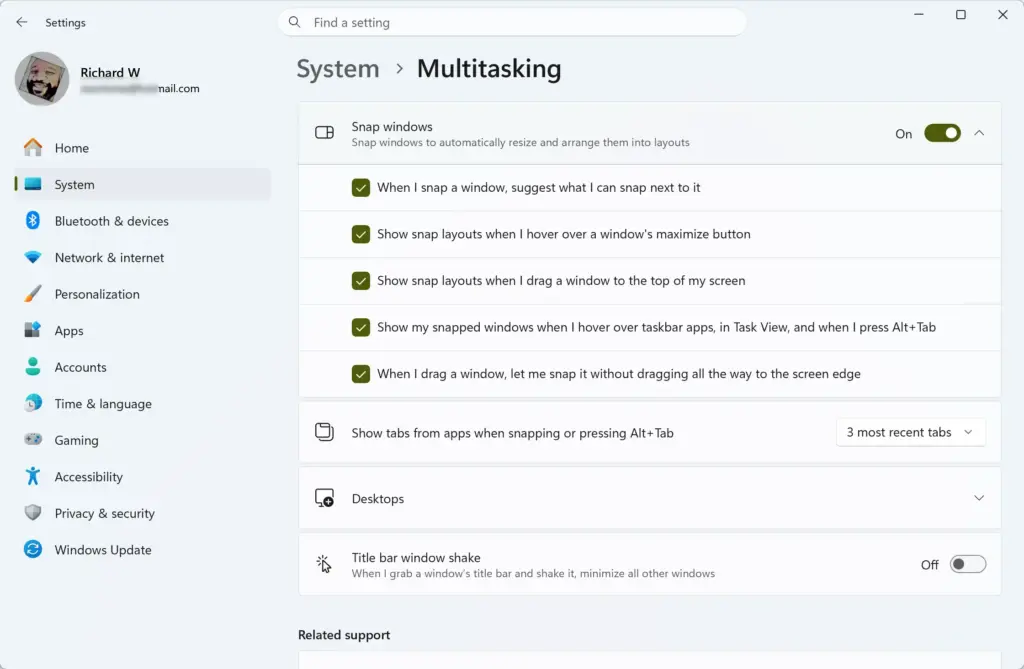
- Open the drop-down and choose one of the options:
- Open windows and all tabs in Edge lists every tab in every Edge window.
- Open windows and 5 most recent tabs in Edge limits the list to the five tabs you used last.
- Open windows and 3 most recent tabs in Edge limits the list to the last three tabs.
- Open windows only turns tabs off, so Alt+Tab lists only whole windows.
- Press Alt + Tab to test it. The switcher now reflects your choice.
The exact list of options can differ slightly between Windows 11 builds (the numbered versions of Windows 11). If your drop-down offers different numbers, pick the one closest to what you want.
For a classic window-only switcher, choose Open windows only. This is the setting most people want when they say Alt+Tab is "too crowded".
If you don't see Edge tabs in Alt+Tab
Only Microsoft Edge gets separate tab entries in Alt+Tab. Tabs from Chrome, Firefox and other browsers never show up as separate entries. They appear as a single window, like any other app.
If you chose a tab option and still see no tabs, check these points:
- Edge must be running with more than one tab open. A single-tab window shows as one entry.
- The drop-down must not be set to Open windows only.
- Close and reopen Edge if the tabs still do not appear after you change the setting.
Show Windows From All Desktops or Only the Current One
Virtual desktops keep groups of windows apart, for example one desktop for work and one for personal use. By default, Alt+Tab shows only the windows on the desktop you are using. This step changes that.
- Open Settings System Multitasking
- Scroll to the Desktops section.
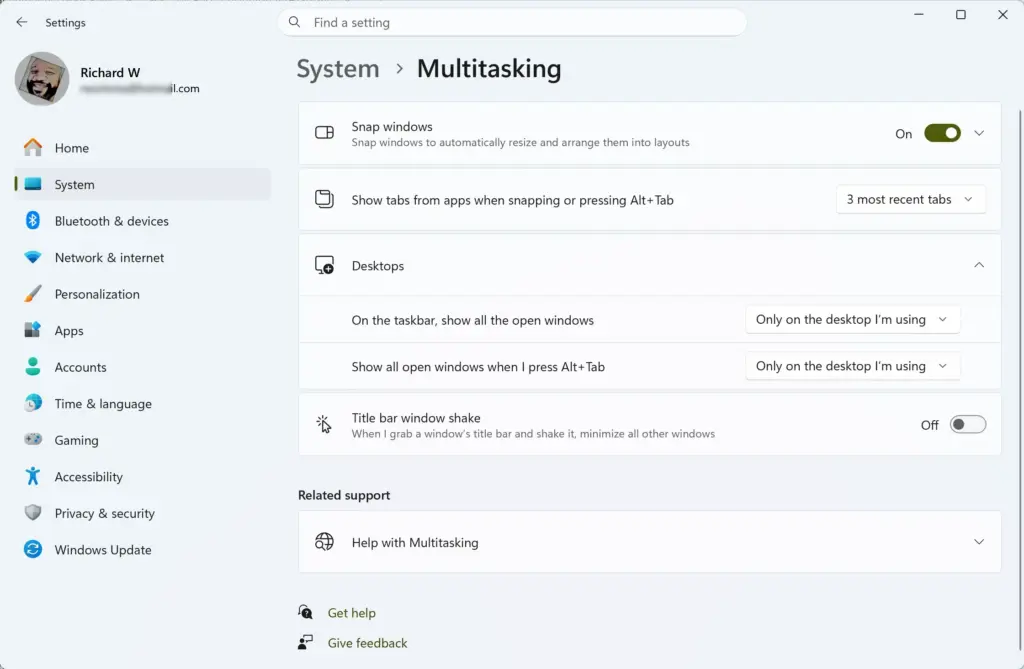
- Find the drop-down labeled Pressing Alt + Tab shows windows that are open on.
- Choose Only the desktop I'm using to keep each desktop separate, or All desktops to list every open window across all desktops.
- Press Alt + Tab to confirm. With All desktops selected, windows from your other desktops now appear in the row.
If you only ever use one desktop, this setting makes no visible difference. The drop-down directly above it, On the taskbar, show windows that are open on, controls the taskbar and is separate from Alt+Tab. Changing one does not change the other.
Create a second desktop to test the setting
Skip this if you already use virtual desktops. Otherwise, press Windows key + Ctrl + D to create and switch to a new desktop. Open an app there, then press Windows key + Ctrl + Left arrow to move back. With All desktops selected, Alt+Tab now lists the app on the other desktop. With Only the desktop I'm using, it does not.
To remove the extra desktop, press Windows key + Ctrl + F4 while you are on it. Windows moves its open windows to the previous desktop.
Keyboard Shortcuts That Change How Alt+Tab Works
Several shortcuts change how the switcher behaves without touching any setting. These are the ones that matter in daily use:
- Alt + Tab opens the switcher. Hold Alt and tap Tab to move through the windows. Release Alt to switch to the highlighted one.
- Alt + Shift + Tab moves backward through the list.
- Ctrl + Alt + Tab opens the switcher and keeps it open after you let go of the keys. Use the arrow keys to pick a window and press Enter to switch. Press Esc to close it without switching.
- Alt + Esc cycles through open windows in the order you opened them, with no thumbnail row. It is the closest thing Windows 11 has to a minimal switcher.
- Windows key + Tab opens Task View, a full-screen view that also shows your virtual desktops. It is a different tool from Alt+Tab, and none of the settings above apply to it in the same way.
While the switcher is open, you can also press Delete with a window highlighted to close it, or click the close button that appears on a thumbnail when you hover over it. Closing a window this way does not skip the usual "save changes" prompt. If the app has unsaved work, it still asks first.
Why an Alt+Tab Setting Is Missing or Not Working
The Multitasking drop-downs are missing or look different
Windows 11 changes its Settings layout between feature updates. The option names in this article match current Windows 11 releases. On a very early build or an unusual setup, the page may show fewer options or place them under different headings. Open Settings Windows Update and install pending updates, then check Multitasking again.
If your PC is managed by an employer or school, an administrator may have locked some options. A locked option shows a message such as "Some settings are managed by your organization". Only your IT team (the people who manage your work or school computer) can change those.
Alt+Tab shows a window you closed, or does not respond
Windows Explorer (the program that draws the switcher, taskbar and desktop) can get stuck, which often causes odd behavior. Restarting it does not close your other apps, but it briefly clears and redraws the taskbar and desktop.
- Press Ctrl + Shift + Esc to open Task Manager.
- Select the Processes tab. If you see a compact view, select More details first.
- Find Windows Explorer in the list and right-click it.
- Select Restart.
The taskbar disappears for a moment and then returns. Press Alt + Tab again to test it.
Alt+Tab does nothing at all
Check the keyboard before you suspect Windows. Try the left and right Alt keys separately, because one may be faulty. Some keyboards, especially gaming models, have a lock that disables the Windows key or Alt combinations. Look for an indicator light or a switch. If the problem only happens in one full-screen game or remote desktop session (a connection that controls another PC), that program may capture the shortcut for itself. Switch it to windowed mode, or check its keyboard options.
Registry Method
The Settings app covers every Alt+Tab option described here, so you do not need to edit the registry (Windows' internal settings database). A registry method for these options is not verified for this article: [Registry method: to be verified]. Use the Settings steps above.
Undo Your Changes
Every change is reversible in the same place. Open Settings System Multitasking and set the drop-downs back. To return to the Windows defaults, set Pressing Alt + Tab shows windows that are open on to Only the desktop I'm using, and set Show tabs from apps when snapping or pressing Alt + Tab to the first option, Open windows and all tabs in Edge, if your build offers it. If your original value was different, restore the value you had before. The change applies as soon as you select it.
What to do next
If Alt+Tab now shows the windows you want, the next useful step is learning the other window-management tools. Try Snap layouts (the window arrangements you see when you hover over a window's maximize button), and virtual desktops with Windows key + Ctrl + D. A major feature update can reset Multitasking options, so recheck this page after one if the switcher starts listing Edge tabs again.
How do I configure Alt + Tab settings in 🪟 Windows 11?
Open Settings System Multitasking. Turn Show tabs from apps when snapping or pressing Alt + Tab on or off to control whether Microsoft Edge tabs appear. Then set the Pressing Alt + Tab shows windows that are option to every desktop or only the current one. Changes apply right away, with no restart or administrator rights needed.
How to change alt tab settings?
Change Alt + Tab settings in the Settings app under System Multitasking That page controls whether Edge tabs show in the switcher and whether windows from all virtual desktops or just the current one appear. Windows 11 has no option to change the thumbnail size, the layout, or to turn the switcher off.
How to get classic alt tab 🪟 windows 11?
Windows 11 has no built-in setting that brings back the classic Alt + Tab, so you cannot switch to it from Settings. Third-party tools such as AltTab can replace the switcher with a different look. Download them only from official sites, since a tool that watches your keyboard can be risky.
How to fix 🪟 Windows 11 alt tab bug?
Restart your PC first, since that clears most stuck or frozen Alt + Tab behavior. If it still misbehaves, check Settings System Multitasking to confirm your options are set as you want. If the switcher stays blank or unresponsive, open Task Manager, select Windows Explorer, and choose Restart. Your open apps stay running.
Was this guide helpful?

About the Author
Richard
Tech Writer, IT Professional
Richard is a writer at Geek Rewind who turns complex IT tasks into clear, step-by-step guides. He draws on years of hands-on experience in system administration and enterprise IT operations, focusing on Windows, Linux and WordPress: the problems people actually run into, and the fixes that work. His server and WordPress guides come from systems he runs himself. Richard builds and maintains the platform behind Geek Rewind, from its Ubuntu servers and Nginx configuration to its custom WordPress plugins. Many new tutorials start with readers' questions, and he's always glad to answer them in the comments.

No comments yet — be the first to share your thoughts!