How to Enable or Disable Copilot Actions in Windows 11

You enable or disable copilot-on-or-off-in-windows-11/" class="sal-link" rel="noopener" target="_blank" data-sal-id="37648">Copilot Actions in Windows 11 to control its behavior and integration within the operating system.
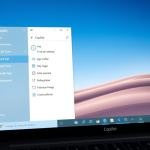
Copilot Actions are specific functionalities within the Windows Copilot app that you can configure, such as its startup behavior or how its side panel appears.
For instance, with Copilot app version 1.25112.74, Microsoft introduced new actions for Insiders, allowing you more granular control. You can decide if Copilot launches automatically when Windows starts.
You can also choose to pin or unpin the Copilot side panel, resize it to your preference, or even create a desktop shortcut for quicker access.
What Are Copilot Actions?
Copilot Actions work like a helper that does tasks for you. You simply describe what you want to do in your own words. The agent will then try to complete it by working with your desktop apps and websites.
Why would you use this? It saves you time by automating repetitive tasks.
How to Enable Copilot Actions
Follow these steps to turn on Copilot Actions:
- Open the Copilot app.
- If you haven’t signed into Copilot yet, please do so with your Microsoft account to sync your settings.
- Click the Account button and select Settings in full view mode.
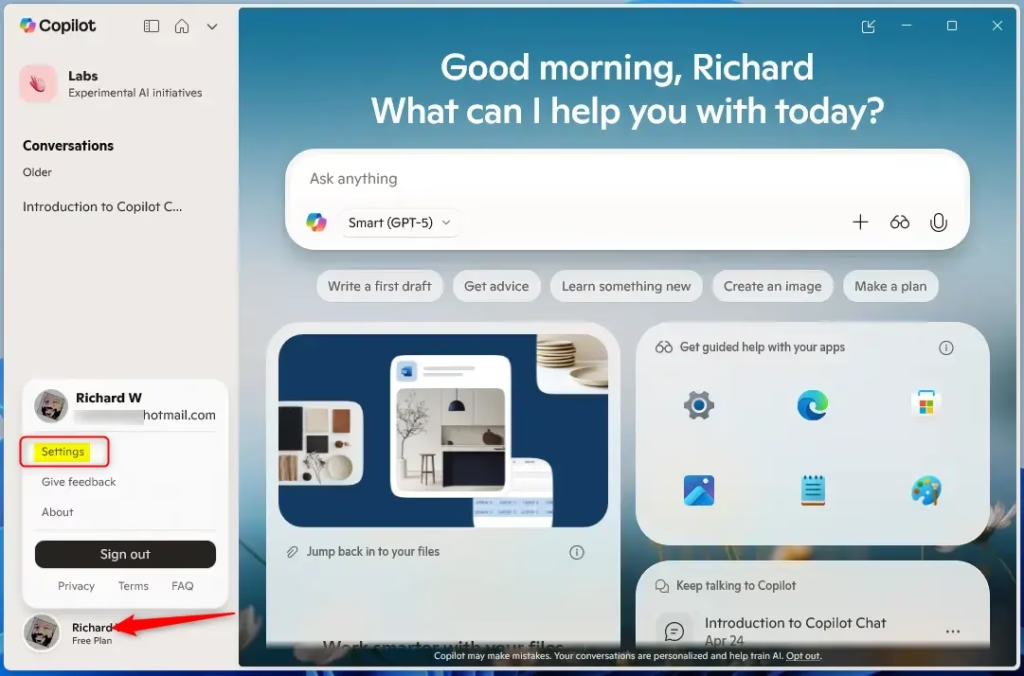
- On the Settings page, go to the Permission settings.
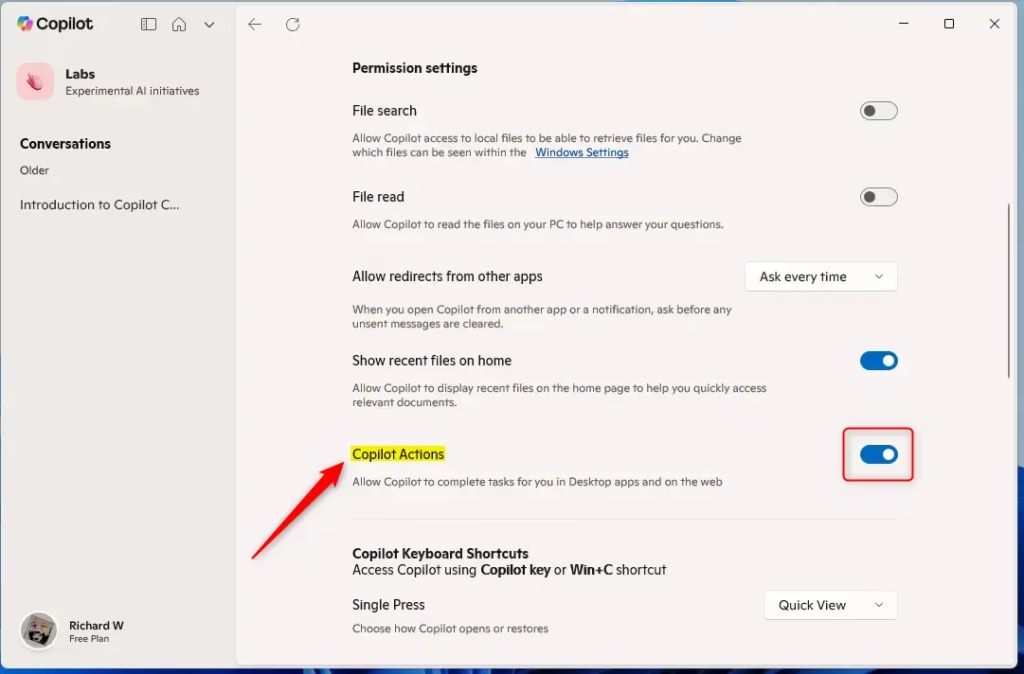
- Select Copilot Actions.
- Toggle the button to turn the feature on or off.
- Close the settings page when you’re done.
What happens when you enable it? Copilot will now be able to perform tasks on your computer and the web when you ask it to.
What happens when you disable it? Copilot will no longer be able to take actions on your behalf. You can still chat with Copilot, but it won’t interact with your apps.
Summary
Enabling or disabling Copilot Actions in Windows 11 is simple and quick. Here are the main points:
- Easy to Access: The Copilot app makes it simple to manage your settings.
- Account Required: You need to sign in with a Microsoft account to use this feature.
- One Toggle: Just one button click turns Copilot Actions on or off.
- Saves Time: Copilot Actions can do repetitive tasks for you automatically.
- You Control It: You can change this setting anytime you want.
By following these steps, you can easily turn Copilot Actions on or off based on what works best for you on Windows 11.
Reference: Microsoft Blog
Was this guide helpful?

About the Author
Richard
Tech Writer, IT Professional
Richard, a writer for Geek Rewind, is a tech enthusiast who loves breaking down complex IT topics into simple, easy-to-understand ideas. With years of hands-on experience in system administration and enterprise IT operations, he’s developed a knack for offering practical tips and solutions. Richard aims to make technology more accessible and actionable. He's deeply committed to the Geek Rewind community, always ready to answer questions and engage in discussions.


No comments yet — be the first to share your thoughts!