How to Enable Preload Pages in Microsoft Edge

This article explains how to turn the “Preload pages for faster browsing and searching” feature on or off in Microsoft Edge.
Microsoft Edge is the default browser in Windows 11 and 12. You can still switch to their preferred or favorite browser if you prefer another option. Edge is built on the same technology as Google Chrome.
Why do this? Preloading pages tells your browser to download parts of a website before you even click on it. This makes the page appear almost instantly when you do click.
What happens when done? Your browser will use a small amount of extra data and memory in the background to ensure your next click is faster.
Preload pages for faster browsing in Edge
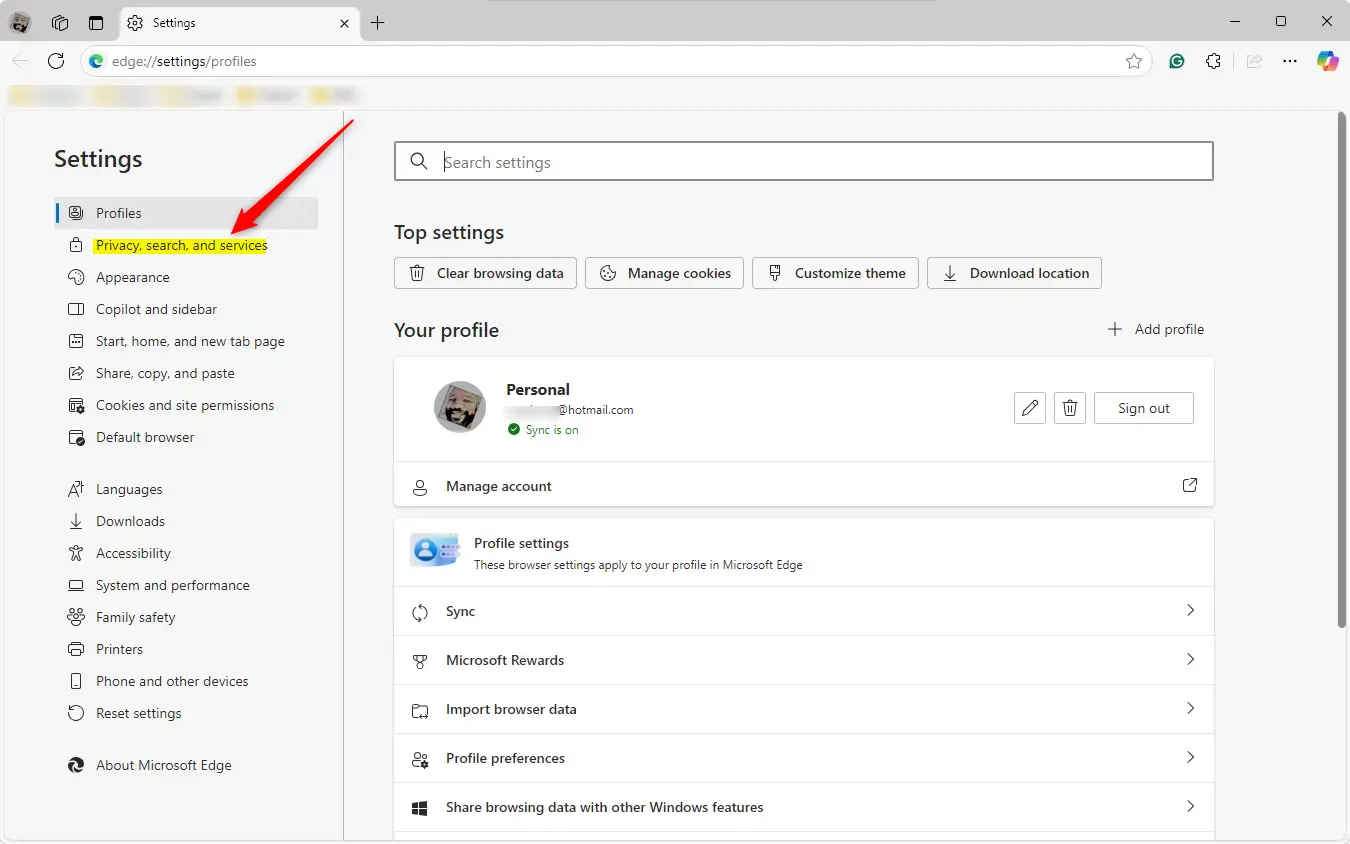
You can change this setting directly inside your browser. Follow these steps for the 2026 version of Edge:
- Open the Microsoft Edge browser.
- Click the three dots in the top right corner and select Settings.
- Select the Performance tab from the left-hand menu.

- Look for the section labeled Efficiency mode or Preload pages.
- Toggle the switch to On or Off to match your preference.
You can close the settings tab when you are finished.
Enable / Disable Preloading of pages for faster browsing in Edge via Registry
You can also change this setting using the Windows Registry Editor.
Warning: Manual registry edits can be overwritten by Group Policy or Intune management settings. If you are in a business or school environment, use the official Administrative Templates instead of the registry.
First, open the Windows Registry and go to this path:
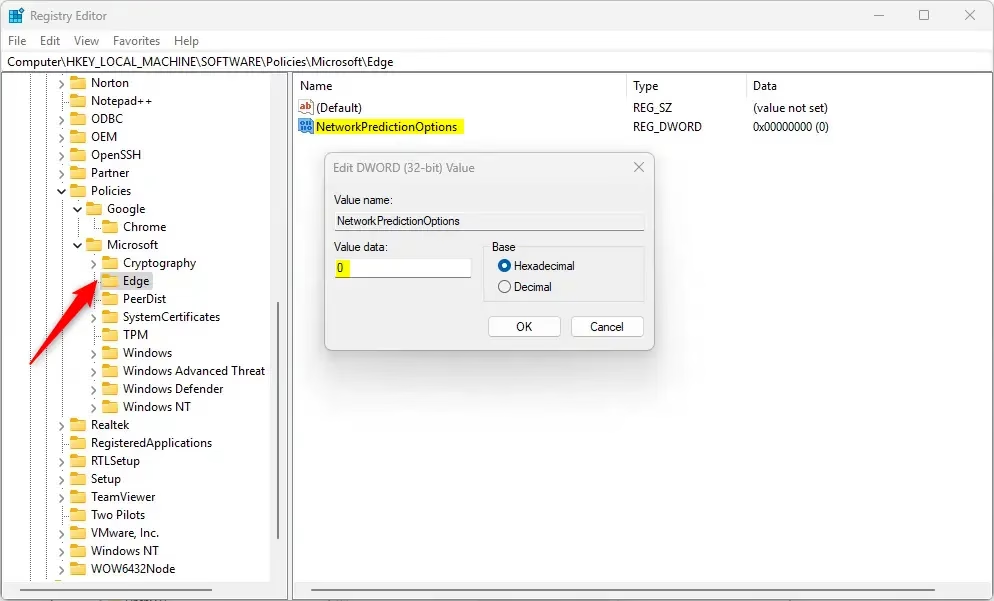
Computer\HKEY_LOCAL_MACHINE\SOFTWARE\Policies\Microsoft\Edge
Remember to back up your registry before making any changes, or create a System Restore point as a precaution.
Right-click Edge, select New, then choose DWORD (32-bit) Value. Name it NetworkPredictionOptions.
Double-click the new file and set the value to 0 to enable the feature. Set the value to 2 to disable it.
You may need to restart your computer for these changes to take effect.
Conclusion
Enabling page preloading is a great way to make the web feel faster. It works well with your normal browsing habits.
Note: Page preloading complements other features like “Sleeping Tabs.” While Sleeping Tabs save memory by putting unused tabs to sleep, preloading gives you a head start on new pages. They work together to keep your browser both fast and efficient.
You can manage these settings through the Edge menu or the Registry. Always be careful when editing the registry to avoid system errors.
Was this guide helpful?

About the Author
Richard
Tech Writer, IT Professional
Richard, a writer for Geek Rewind, is a tech enthusiast who loves breaking down complex IT topics into simple, easy-to-understand ideas. With years of hands-on experience in system administration and enterprise IT operations, he’s developed a knack for offering practical tips and solutions. Richard aims to make technology more accessible and actionable. He's deeply committed to the Geek Rewind community, always ready to answer questions and engage in discussions.




No comments yet — be the first to share your thoughts!