How to Enable or Disable Windows Update Delivery Optimization


Windows Update Delivery Optimization is a built-in feature designed to speed up the update process. Instead of downloading every file from Microsoft servers, your PC can get parts of updates from other computers. This uses peer-to-peer (P2P) distribution. Your computer may also act as a source, sending update files to other PCs on your network or the internet. This helps reduce network congestion and saves bandwidth for Microsoft.
Why use this?
It makes updates faster and more reliable. It is helpful if you have many computers in your home or office. It prevents every device from downloading the same large files separately.
What happens when done?
When you disable this, your computer will only download updates directly from Microsoft. This stops your PC from sharing data with others. It gives you full control over your internet usage.
Security and Privacy Implications
You might wonder if this is safe. Microsoft uses secure methods to ensure the files you receive are authentic. However, some users prefer to disable it to avoid any background data transfer. If you are worried about privacy, turning this off ensures your computer does not participate in the P2P network.
Bandwidth Throttling and Network Impact
Does Delivery Optimization use my bandwidth to upload updates to others? Yes, it can. If you have a slow internet plan, this might cause issues. You can limit how much bandwidth is used for uploads. Go to Settings > Windows Update > Advanced options > Delivery Optimization > Advanced options to set upload limits.
How to Check if Delivery Optimization is Active
You can see if it is working by opening Task Manager. Press Ctrl + Shift + Esc. Click the Performance tab and look at your Ethernet or Wi-Fi usage. If you see high activity while no apps are open, Delivery Optimization might be sharing files.
How to Change Settings in Windows 11
- Open the Windows Settings app.
- Select Windows Update on the left side.
- Click on Advanced options.
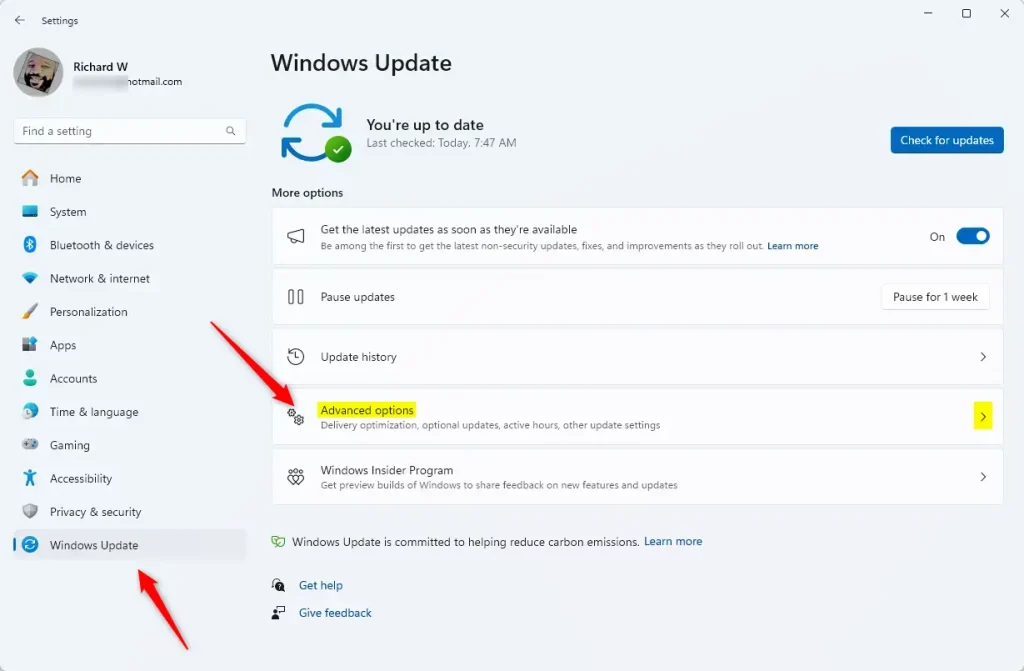
- Look for the Delivery Optimization tile under “Additional options” and click it.
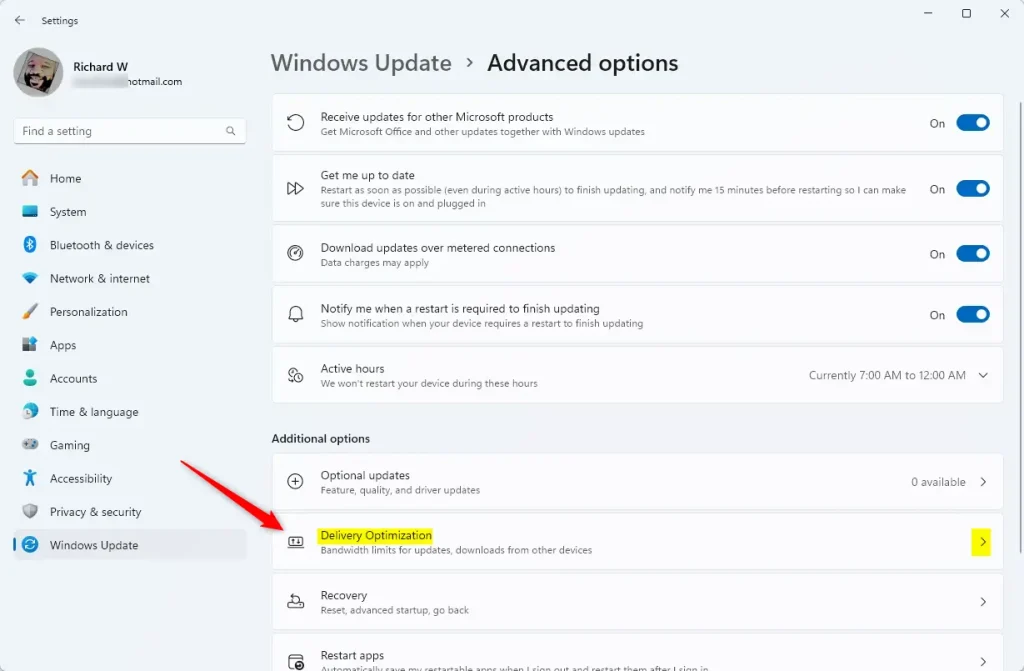
- Click on Allow downloads from other PCs.
- Toggle the switch to On or Off.
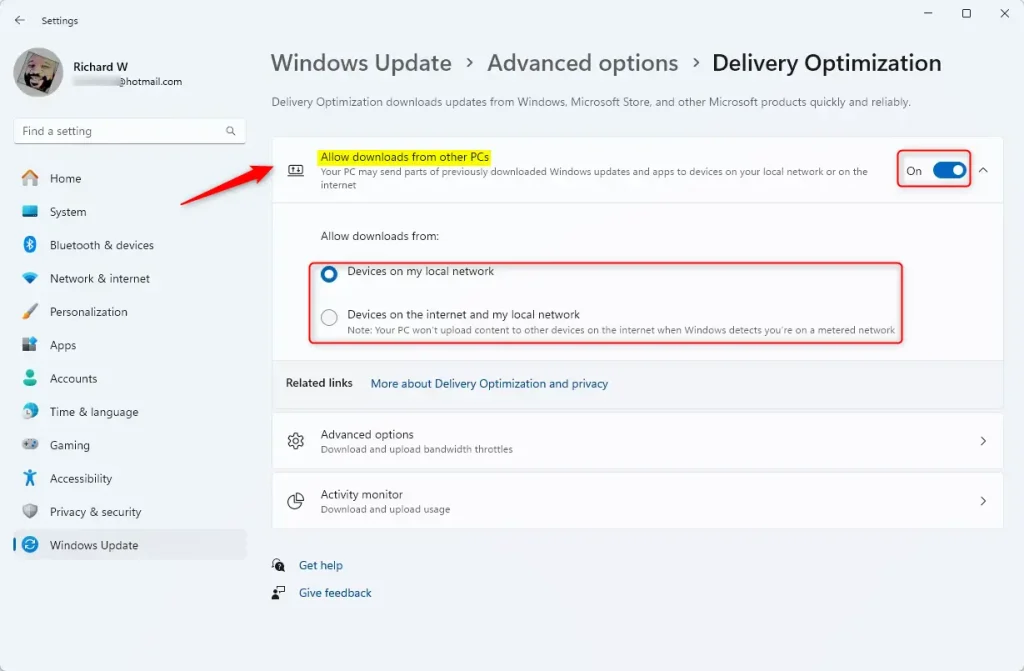
If you keep it on, you can choose between Devices on my local network or Devices on the Internet and my local network.
Advanced Method: Using the Registry Editor
Note: This method requires admin privileges. Editing the registry can be risky. Please back up your computer before making any changes.
- Press the Windows key, type
regedit, and press Enter. - Navigate to:
HKEY_LOCAL_MACHINE\SOFTWARE\Policies\Microsoft\Windows\DeliveryOptimization - Look for
DODownloadMode. If it is not there, right-click, select New > DWORD (32-bit) Value, and name itDODownloadMode. - Double-click
DODownloadModeand enter:- 0: Disable Delivery Optimization.
- 1: Enable for local network only.
- 3: Enable for local network and the internet.
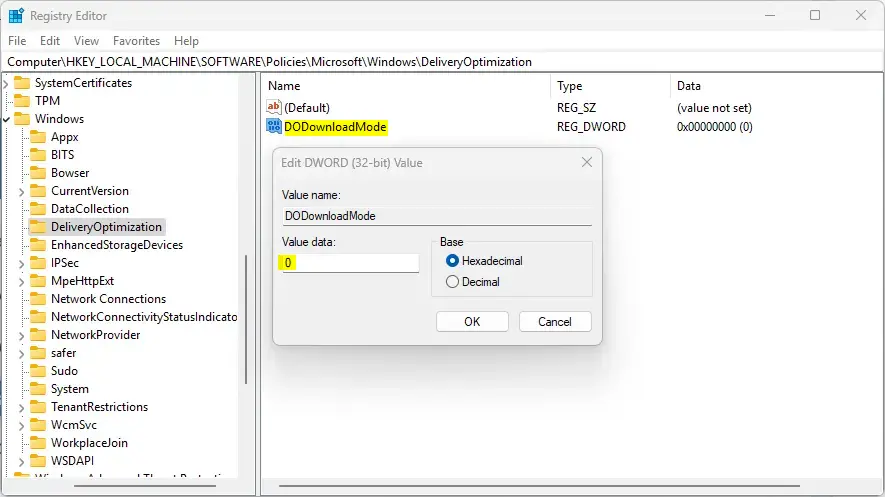
Restart your computer to apply the changes.
How to Clear the Delivery Optimization Cache
If you have disk space issues, you can clear the cache. Go to Settings > System > Storage > Temporary files. Select Delivery Optimization Files and click Remove files.
Summary
Windows Update Delivery Optimization is a tool for faster updates using P2P technology. While efficient, it can impact your bandwidth. You can manage these settings in the Windows Settings app or via the Registry Editor. Always monitor your data usage if you have a limited internet plan.
Is Delivery Optimization safe for metered connections?
Yes, Windows is smart enough to detect metered connections. If you set your Wi-Fi or Ethernet connection as metered in Windows settings, Delivery Optimization will automatically pause background uploads and downloads to prevent you from exceeding your data limit.
Was this guide helpful?



Absolutely DOES NOT WORK.,
it is not working