How to get the stats with Activity Monitor when using Delivery Optimization in Windows 11

Delivery Optimization in Windows 11 includes a built-in Activity Monitor that shows exactly how your PC shares download and upload bandwidth with other devices. This tracking tool displays your average download speed alongside real-time data sources like Microsoft servers, local network computers, and internet peers.
Checking these numbers lets you see how much data your system contributes to help other PCs finish their updates faster. Open the Settings app and view your bandwidth stats to keep track of local network traffic and internet data usage.
Open Settings , navigate to Windows Update , then Advanced options, and finally click Activity monitor to view Delivery Optimization stats. This will show your download sources, speeds, and upload data usage.
How to Open the Activity Monitor
Activity Monitor is built right into your Windows settings , making it simple to check your Delivery Optimization stats without installing extra software. Press the Win and open Settings . Click Windows Update in the left sidebar, select Advanced options, and click Delivery Optimization.
Press the Win and select the gear icon to open Settings , then click Windows Update in the left sidebar.
In the Settings window, look for Windows Update . In Windows 11, this appears in the left-hand menu. For Windows 10, click Update & Security, then select Delivery Optimization from the left menu.
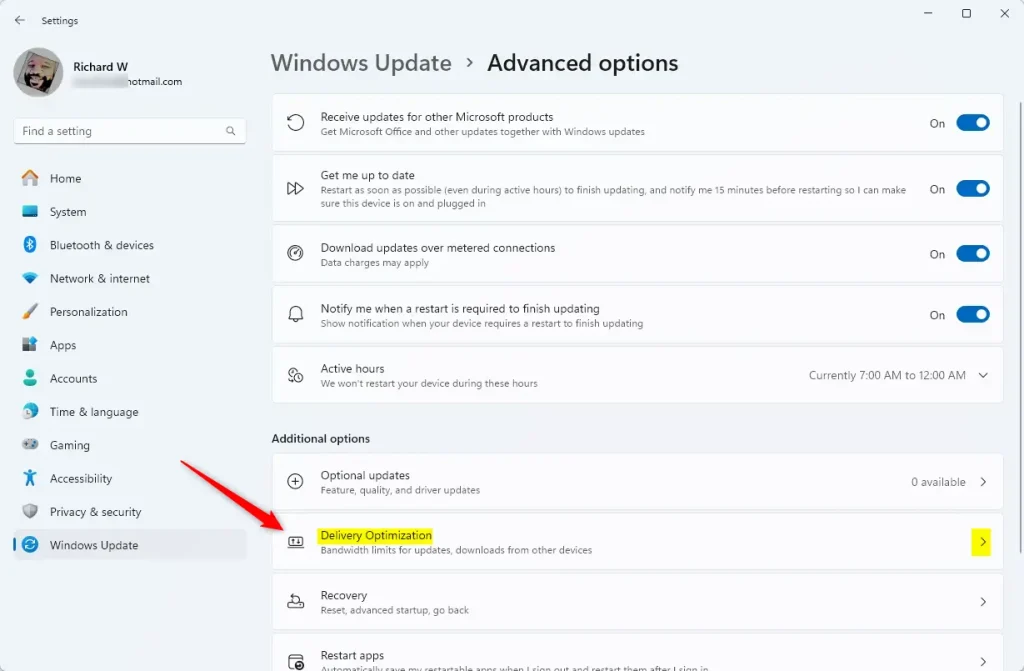
Now, you’re in the Delivery Optimization settings. Click on Advanced options.
Inside Advanced options, find and click on Activity monitor.
That's it! You're now looking at the Delivery Optimization Activity Monitor.
What the Activity Monitor Shows
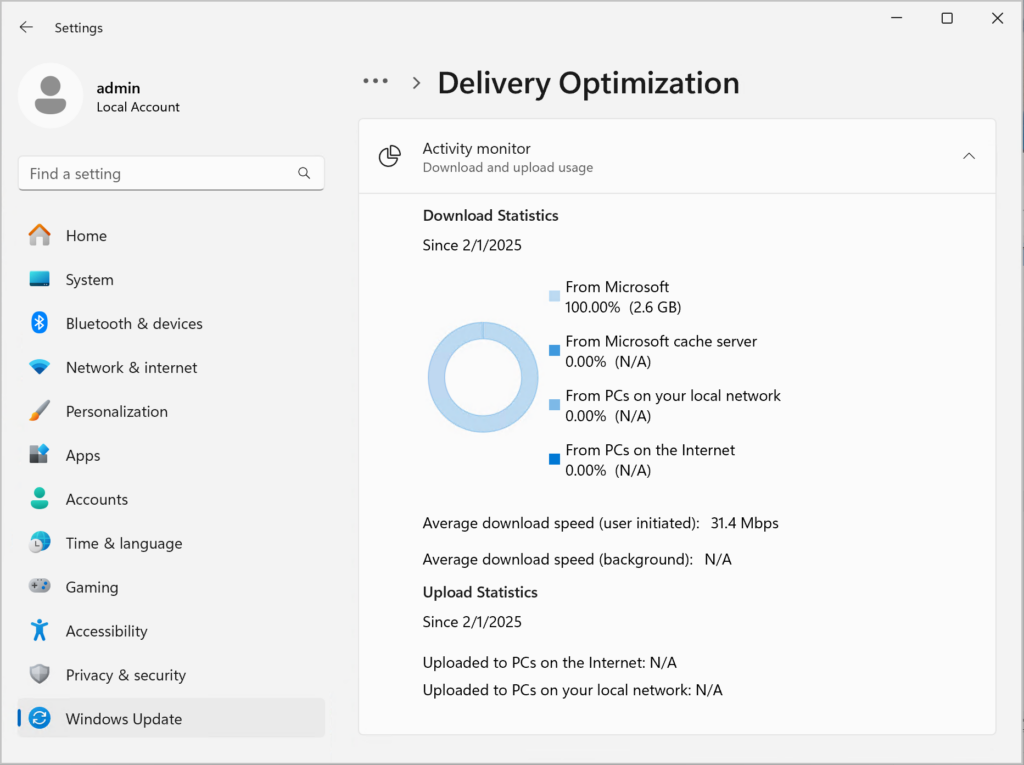
Delivery Optimization stats show how your computer shares update files with other devices. The Activity Monitor shows exact numbers for data downloaded from local network PCs and internet peers, your average download speeds, and upload totals that show how much data your own system has shared with others.
- Downloads from other PCs: This shows how much data your PC downloaded from other computers. It tells you if the downloads came from your local network or the internet.
- Average download speed: This shows how fast you received downloads from other PCs.
- Upload stats: This shows how much data your computer has sent to help other devices get updates and apps.
- Boost from other PCs: This estimates how much faster your downloads were because other PCs on the internet helped you.
References:
Summary
The Activity Monitor tool, found in Windows Settings under Windows Update Advanced options, gives you a clear look at Delivery Optimization. It shows where your downloads come from, how fast they are, and how much data you've shared to help other devices on the network or internet.
How to check activity monitor on 🪟 Windows 11?
Right-click the Start button and select Settings, then click Windows Update to begin locating the monitor.
How to use delivery optimization in 🪟 Windows 11?
Delivery Optimization in Windows 11 helps your computer download updates faster by sharing files with other PCs on your network or the internet. To set it up, open Settings, go to Windows Update, click Advanced options, select Delivery Optimization, and choose whether to allow downloads from other devices.
Was this guide helpful?

About the Author
Richard
Tech Writer, IT Professional
Richard is a writer at Geek Rewind who turns complex IT tasks into clear, step-by-step guides. He draws on years of hands-on experience in system administration and enterprise IT operations, focusing on Windows, Linux and WordPress: the problems people actually run into, and the fixes that work. His server and WordPress guides come from systems he runs himself. Richard builds and maintains the platform behind Geek Rewind, from its Ubuntu servers and Nginx configuration to its custom WordPress plugins. Many new tutorials start with readers' questions, and he's always glad to answer them in the comments.
No comments yet — be the first to share your thoughts!