How to Change Maximum PIN Length in Windows 11

You change the maximum PIN length in Windows 11 by editing the Local Group Policy Editor.
A Windows PIN offers a quick and secure way to sign into your device, acting as part of the Windows Hello suite of authentication methods. By default, your Windows 11 PIN cannot exceed 127 characters, though the typical starting length is 4 digits.
Adjusting the maximum PIN length enhances your security options, allowing you to set a stronger authentication requirement for your account.
To make this change, you’ll need to access the Local Group Policy Editor and navigate to the PIN Complexity settings.
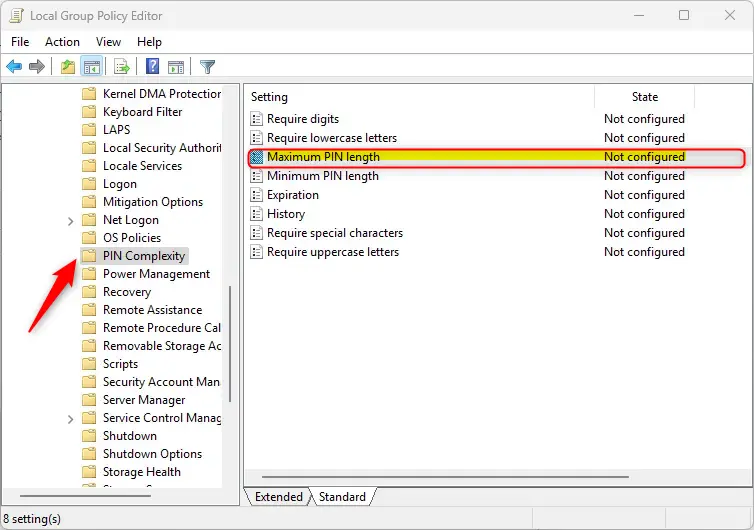
Open the Local Group Policy Editor and navigate to Computer Configuration > Administrative Templates > System > PIN Complexity. Double-click “Maximum PIN length” and set your desired number between 4 and 127. Apply the changes to enforce the new maximum length.
Change Maximum PIN Length in Windows
Windows admins can change the maximum PIN length for users on Windows 11.
Here’s how to do it.
Method 1Using Local Group Policy Editor
- ⚙️ Admin Required – Open the Local Group Policy Editor. Search for “Edit group policy” on the Start menu.
- Navigate to these folders:
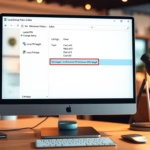
You can change the maximum PIN length in Windows 11 using the Local Group Policy Editor. First, open the editor by searching for “Edit group policy” in the Start menu. This tool lets you adjust settings for PIN complexity.
- In the PIN Complexity details pane on the right, find and double-click “Maximum PIN length” settings.
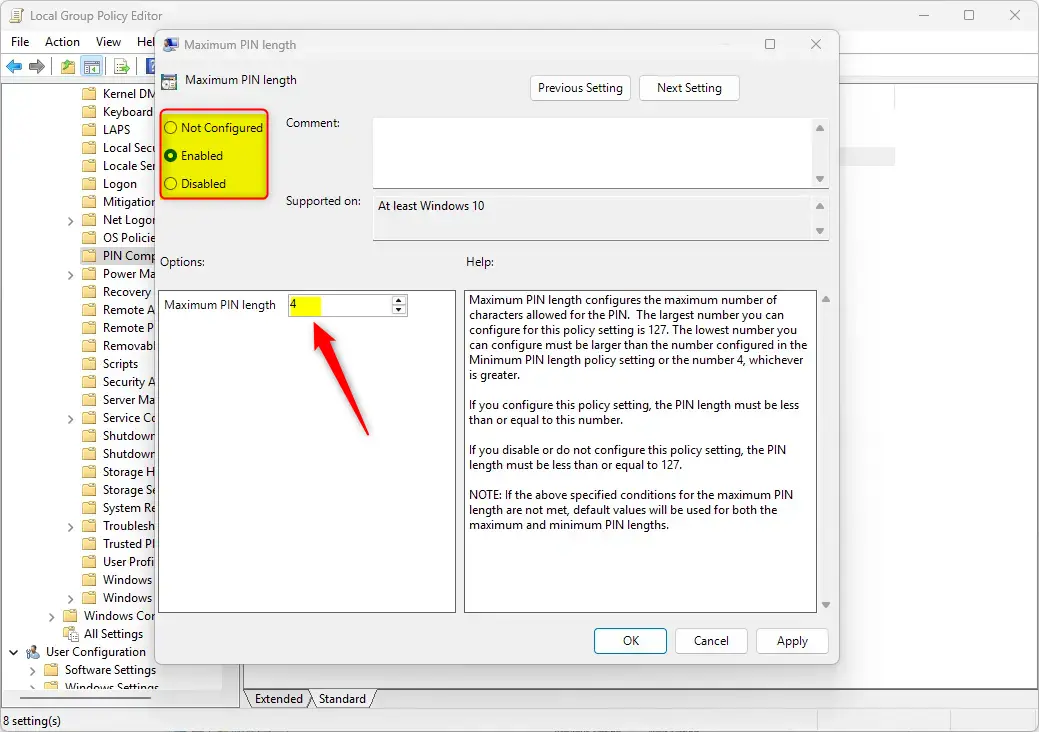
- In the “PIN Complexity” window, choose one of these options:
- Not Configured (default) – Same as Disabled.
- Enabled – You set the maximum PIN length. The largest number you can use is 127. The smallest number must be larger than the Minimum PIN length setting or 4, whichever is greater.
- Disabled – PIN length must be 127 or less.
- Click OK to save your changes.
Method 2Using the Registry
Changing the maximum PIN length in Windows 11 can also be done using the Registry Editor, but it’s a more advanced method. Before you start, it’s important to back up your registry or create a System Restore point. You’ll need administrator access to open the Registry Editor.
⚠️ Important: Remember to back up your registry before making any changes. Or create a System Restore point as a backup.
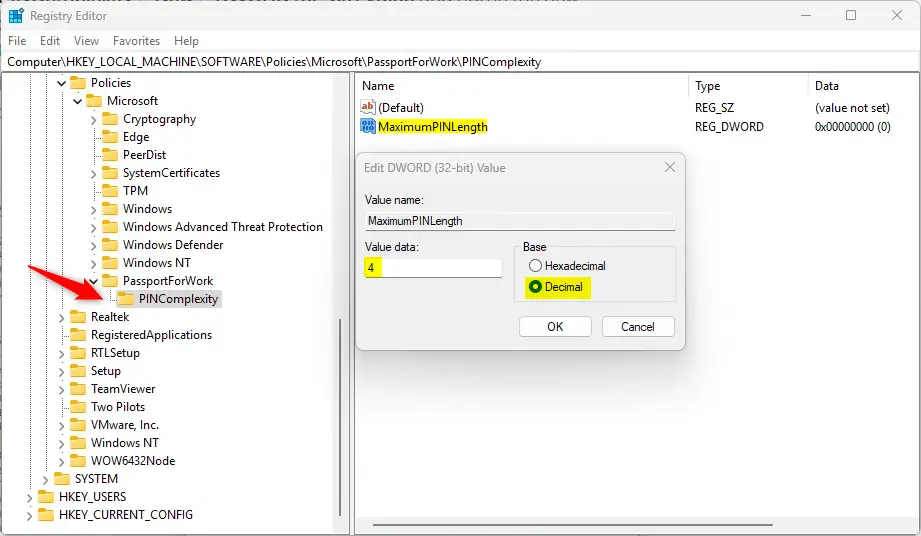
- ⚙️ Admin Required – Open the Registry Editor and navigate to this folder path:
HKEY_LOCAL_MACHINE\SOFTWARE\Policies\Microsoft\PassportForWork\PINComplexity - If you do not have the PassportForWork and/or PINComplexity keys in the registry path, create new keys to match the path above.
- Right-click PINComplexity > New > DWORD (32-bit) Value and name the new DWORD
MaximumPINLength. - Double-click
MaximumPINLengthand select Decimal under Based. Then type a number between 4 and 127 for the PIN length you want.
- To restore the default behavior, delete the
MaximumPINLengthvalue you created. - You may need to restart your computer to apply the changes.
That should do it!
Reference
Summary
You can easily change the maximum PIN length in Windows 11 to improve your device’s security. Windows 11 allows PINs up to 127 characters, which is much longer than the default 4 digits. You can adjust this setting using either the Local Group Policy Editor or the Registry Editor.
- Windows 11 supports a maximum PIN length of up to 127 characters. The default is 4 digits.
- You can modify the maximum PIN length using the Local Group Policy Editor or the Windows Registry Editor.
- A longer PIN helps protect your device from unauthorized access by making it harder to guess.
- Back up your registry or create a restore point before making changes to avoid problems.
- Users may need to update their existing PINs if they don’t meet the new length requirements after the change.
- These steps ensure a more secure user experience on your Windows 11 device.
How long should my 🪟 Windows 11 PIN be?
We’ve discussed four methods to configure the minimum Windows 11 PIN length. While most experts agree that a length of between 4-6 numbers is sufficient for credential management, it is still highly recommended that you check for any specific requirements from your preferred IT compliance.
How many digits is a 🪟 Windows 11 PIN?
💡 Tip: Generally, PINs are between 4-6 numbers long. However, feel free to check various IT compliance requirements to determine the best length for your business. Click Apply, then Ok. Open an elevated Command Prompt and execute gpudate /force to apply the changes immediately.
Was this guide helpful?

About the Author
Richard
Tech Writer, IT Professional
Richard, a writer for Geek Rewind, is a tech enthusiast who loves breaking down complex IT topics into simple, easy-to-understand ideas. With years of hands-on experience in system administration and enterprise IT operations, he’s developed a knack for offering practical tips and solutions. Richard aims to make technology more accessible and actionable. He's deeply committed to the Geek Rewind community, always ready to answer questions and engage in discussions.



No comments yet — be the first to share your thoughts!