Windows

How to Verify Device Encryption Support in Windows 11


Richard
Written by
Richard
Feb 19, 2024 Updated Apr 17, 2026 3 min read
How to Verify Device Encryption Support in Windows 11

This guide shows you how to check if your computer supports “Device Encryption” in Windows 11.

Why: Device Encryption acts like a digital vault for your hard drive. It keeps your files safe if your computer is ever lost or stolen.

What happens when done: You will know if your hardware is ready to lock down your data or if you need to look into other security options.

Device Encryption is a security feature that uses BitLocker to scramble your data. To use it, your computer must have a TPM 2.0 chip and UEFI firmware with Secure Boot enabled. If your computer does not meet these rules, you can use standard BitLocker encryption instead. Automatic encryption works on hardware that supports Modern Standby, while standard BitLocker is for Windows 11 Pro, Enterprise, or Education users.

Check Support Using System Information

This tool gives you a quick report on your hardware status.

  1. Click the Start menu and type msinfo32.
  2. Right-click “System Information” and select “Run as administrator.” (Requires admin privileges)
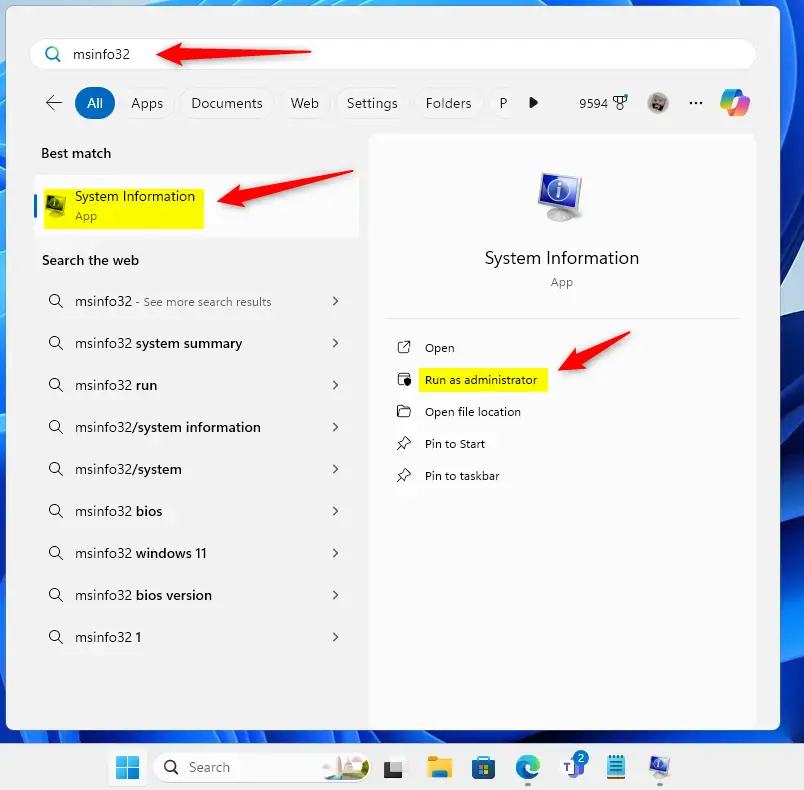
Windows search for msinfo32

  1. Scroll down the list until you see “Automatic Device Encryption Support.”
  2. If your computer is ready, it will say “Meet prerequisites.” If not, it will explain why.
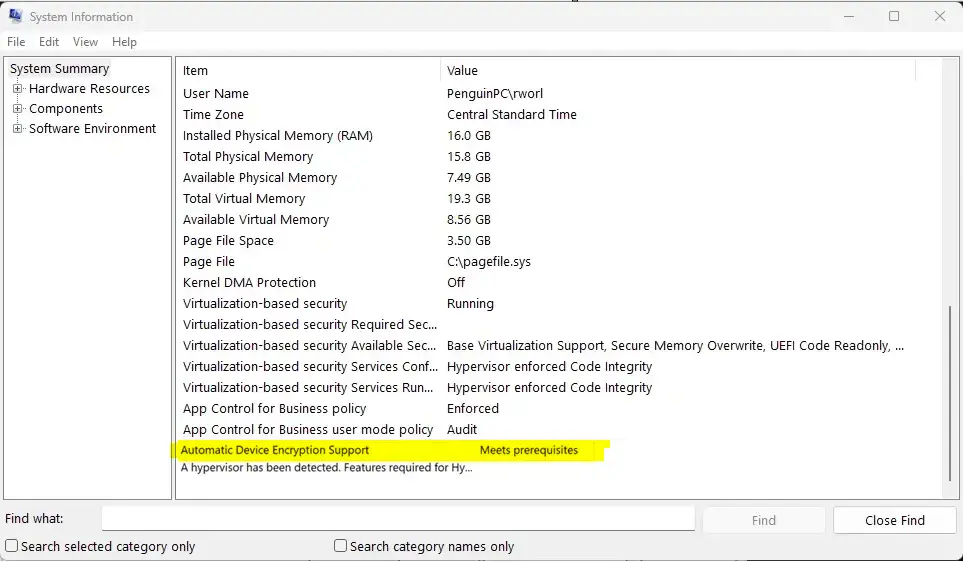
Automatic Device Encryption meets prerequisites in Windows 11
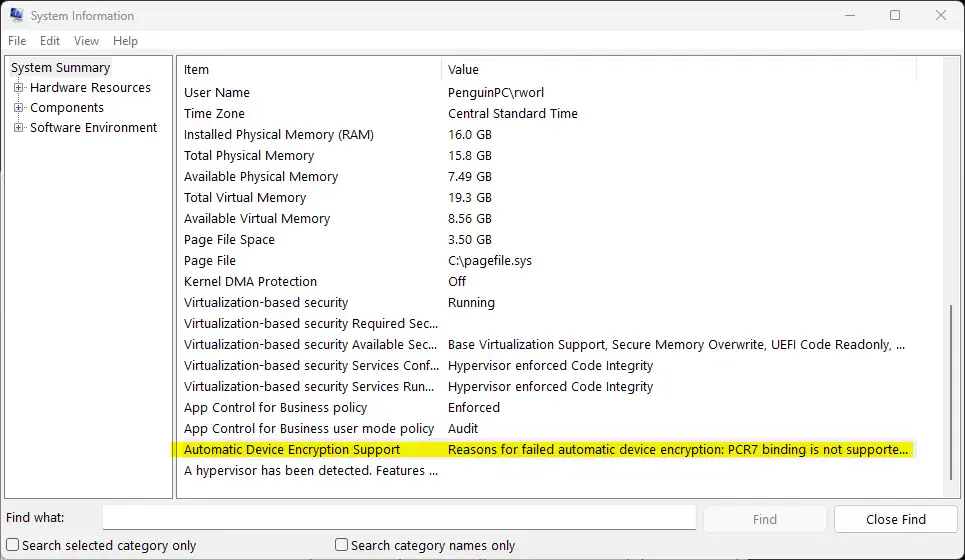
Automatic Device Encryption doesn't meet


Check Support Using Windows Settings

This is the easiest way to see if you can turn encryption on or off.

  1. Open the “Settings” app by pressing the Windows key + I.
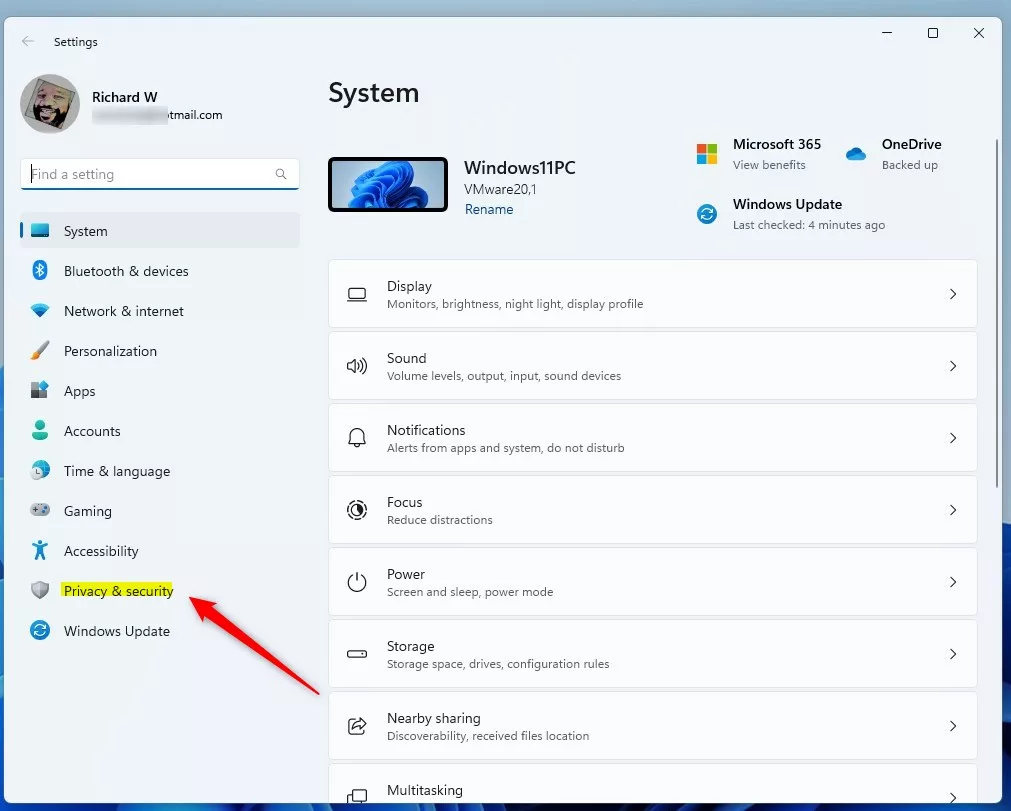
Windows Privacy and security button in Settings

  1. Click “Privacy & security” on the left menu.
  2. Click the “Device encryption” tile on the right.
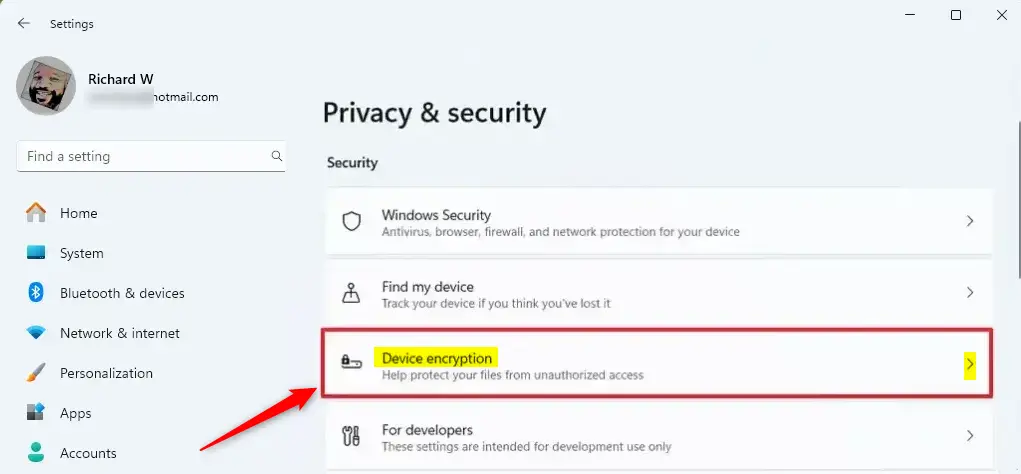
Windows Device encryption tile

  1. Here, you can see if the feature is available and toggle it on or off.
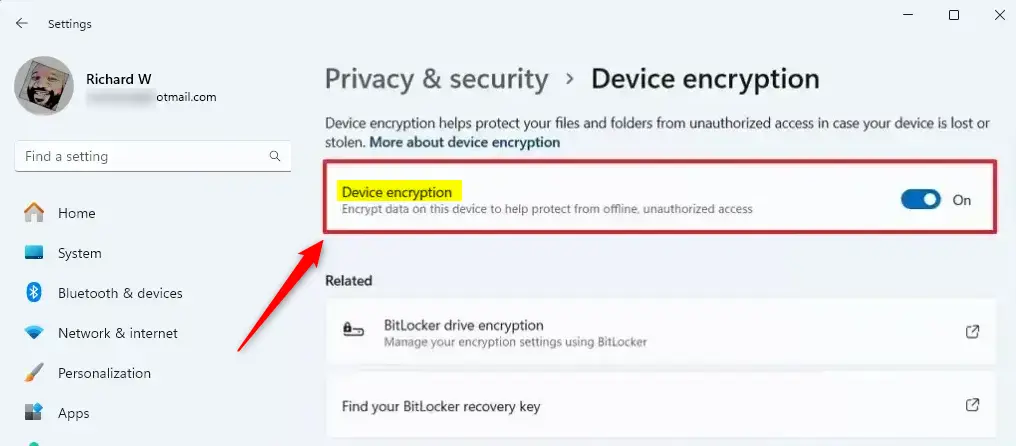
Device encryption settings in Windows 11

Summary

Knowing if your PC supports encryption is a great step toward better security. You can use the msinfo32 tool to check your hardware requirements or visit the Privacy & security section in Settings to manage your encryption status. If your device lacks the required TPM 2.0 or Secure Boot features, remember that standard BitLocker is still an option for Pro, Enterprise, or Education versions of Windows 11.

Reference: Microsoft

[Requires admin privileges]

How can I check if my Windows 11 device supports Device Encryption?

You can check if your device supports Device Encryption by using the System Information tool (msinfo32) or the Windows Settings app. In System Information, look for 'Automatic Device Encryption Support' to see if it meets the requirements.

What are the hardware requirements for Device Encryption in Windows 11?

To support Device Encryption in Windows 11, your device must have a TPM (Trusted Platform Module) 2.0 chip and UEFI firmware with Secure Boot support. If these requirements are not met, standard BitLocker encryption can be used instead.

Is Device Encryption available on all editions of Windows 11?

Device Encryption is available on devices that support Modern Standby or HSTI-compliant hardware running any Windows edition. However, standard BitLocker encryption is only available on Windows 11 Pro, Enterprise, or Education editions.

What should I do if my device does not support Device Encryption?

If your device does not support Device Encryption, you can still use standard BitLocker encryption if you have a compatible Windows 11 edition. Check your hardware specifications and consider upgrading if necessary.

How do I enable Device Encryption on my Windows 11 device?

To enable Device Encryption, go to the Windows Settings app, select 'Privacy & security', and then click on 'Device encryption'. From there, you can turn on or off the Drive encryption signaling support for your device.

Was this guide helpful?

Tags: #Windows 11
Richard

About the Author

Richard

Tech Writer, IT Professional

Richard, a writer for Geek Rewind, is a tech enthusiast who loves breaking down complex IT topics into simple, easy-to-understand ideas. With years of hands-on experience in system administration and enterprise IT operations, he’s developed a knack for offering practical tips and solutions. Richard aims to make technology more accessible and actionable. He's deeply committed to the Geek Rewind community, always ready to answer questions and engage in discussions.

2469 articles → Twitter

📚 Related Tutorials

How to Change BitLocker Encryption in Windows 11
Windows How to Change BitLocker Encryption in Windows 11
How to Enable or Disable Device Encryption in Windows 11
Windows How to Enable or Disable Device Encryption in Windows 11
How to Check Secure Boot on Windows 11
Windows How to Check Secure Boot on Windows 11
How to Open the Settings App in Windows 11
Windows How to Open the Settings App in Windows 11

One response to “How to Verify Device Encryption Support in Windows 11”

Leave a Reply

Your email address will not be published. Required fields are marked *