How to Check Secure Boot on Windows 11

Secure Boot stops unsafe software from running when you turn on Windows 11 by checking essential startup files. This security feature is a strict requirement to run Windows 11, alongside TPM 2.0.
Checking if Secure Boot is active takes a few clicks using the built-in System Information tool. Most Windows 11 computers already have this protection turned on by default.
Open Windows Security, go to Device security, and look for the Secure Boot status. It will clearly state if Secure Boot is On or Off.
How to See if Secure Boot is On or Off
Here are three easy ways to check your Secure Boot status on Windows 11:
1Check Using the Windows Security App
- Click the Start button and type Windows Security, then open the app.
- Click on Device security.
- Look for the Secure Boot section. It will say On if it’s enabled or Off if it’s disabled.
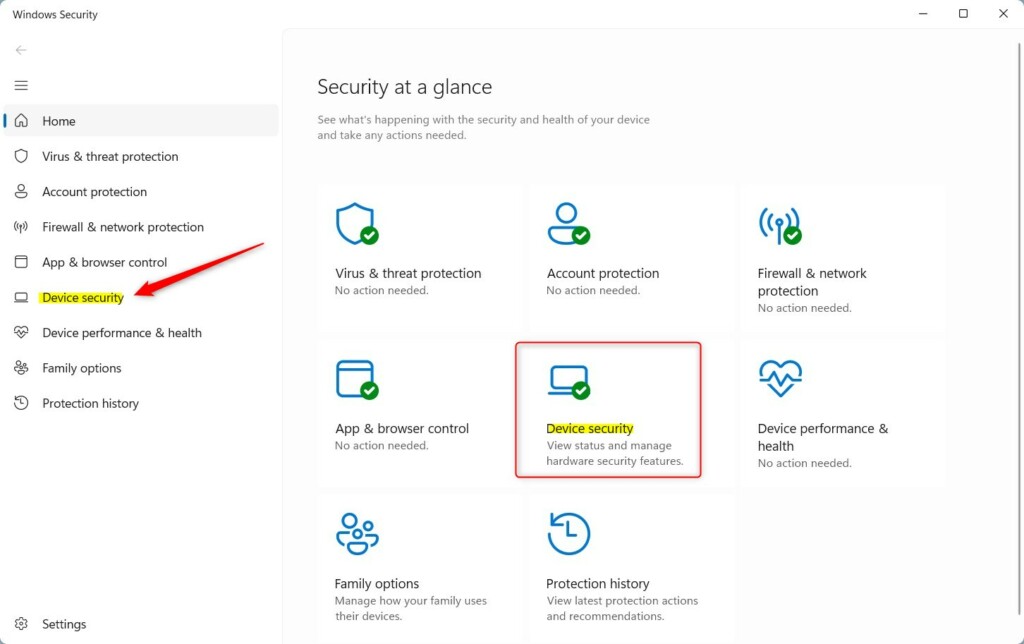
This is the easiest way to see your Secure Boot status.
2Use the System Information Tool
- Press Win+R on your keyboard to open the Run box.
- Type
msinfo32and press Enter. - In the window that opens, look for BIOS Mode and Secure Boot State on the right side.
- If BIOS Mode says UEFI and Secure Boot State says On, then Secure Boot is enabled.
- If it says Off, then Secure Boot is disabled.
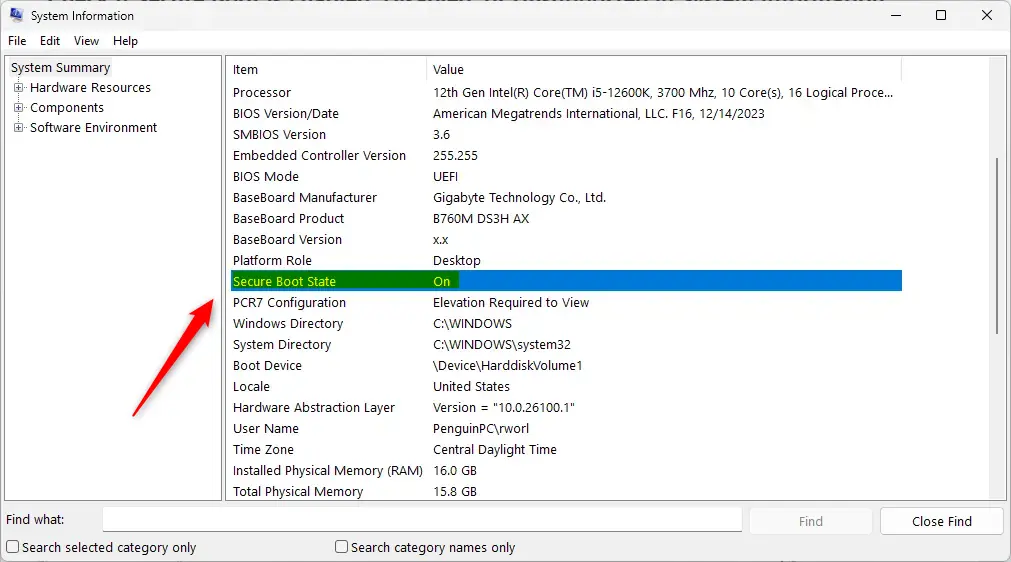
The System Information tool lets you check secure boot windows 11 without restarting your computer. You can open a built-in menu to view your exact BIOS mode and security settings at a glance, which takes less than a minute.
3Use Windows Terminal to Check
- Right-click the Start button and select Windows Terminal (Admin). %%SC0%%
- In the terminal window, type the following command and press Enter:
Windows Terminal provides a fast way to check secure boot windows 11 using a single command line. Running a quick query in administrator mode instantly returns a true or false value so you know your exact system status right away.
- True — Secure Boot is enabled.
- False — Secure Boot is disabled.
- An error message — Secure Boot is not supported on your device.
Summary
- Secure Boot helps protect your PC by only allowing trusted software when it starts.
- Windows 11 requires Secure Boot to be enabled for installation.
- You can check Secure Boot status using the Windows Security app, System Information tool, or Windows Terminal.
- Secure Boot status will show as On/Off or True/False depending on the method you use.
Knowing how to check secure boot windows 11 helps you verify that your computer meets modern security standards and system requirements. You can use built-in tools like System Information or the Terminal to confirm your status in seconds.
If you have questions or need more help, feel free to ask in the comments below!
How to confirm Secure Boot status?
Summary. Starting in April 2026, the Windows Security app displays additional information about the status of Secure Boot certificate updates on your device. You can find this under Device security > Secure Boot. Microsoft Secure Boot certificates, originally issued in 2011, are approaching expiration in 2026.
Was this guide helpful?

About the Author
Richard
Tech Writer, IT Professional
Richard, a writer for Geek Rewind, is a tech enthusiast who loves breaking down complex IT topics into simple, easy-to-understand ideas. With years of hands-on experience in system administration and enterprise IT operations, he’s developed a knack for offering practical tips and solutions. Richard aims to make technology more accessible and actionable. He's deeply committed to the Geek Rewind community, always ready to answer questions and engage in discussions.



No comments yet — be the first to share your thoughts!