How to Clear Recent Activity in Windows 11 Copilot


You clear recent activity in Windows 11 Copilot by deleting your chat history directly within the Copilot interface.
Windows 11 Copilot is Microsoft’s built-in AI assistant, accessible via the taskbar button or Windows Key + C, designed to streamline tasks and answer questions.
This AI assistant maintains a record of your conversations to improve its responses. Clearing this history, which typically stores data for up to 30 days unless manually deleted, helps protect your privacy and provides a clean slate.
Specifically, deleting your Copilot activity removes all past chat logs from your account, ensuring your interactions remain private.
Access Copilot, click the “Recent activity” clock icon, select an item, and click “Delete”. For a full history removal, visit the Microsoft Privacy Dashboard and sign in to manage your activity history.
Why Clear Copilot Recent Activity?
Clearing your Copilot recent activity helps keep your personal information private and removes clutter from your chat history.
Personal vs. Enterprise Accounts
Knowing if you use a Personal Microsoft Account or an Enterprise (Work or School) Account is key because how you clear Copilot recent activity depends on it.
How to Clear Copilot Recent Activity
Clearing your Copilot recent activity in Windows 11 is simple and helps keep your interactions private. You can easily remove past conversations by opening Copilot and clicking the clock icon found in the top right corner of its sidebar.
- Open the Windows Copilot by clicking the icon or pressing the Windows key + C on your keyboard.
- Look at the top right corner of the Copilot sidebar. Click the “Recent activity” button, which looks like a small clock.
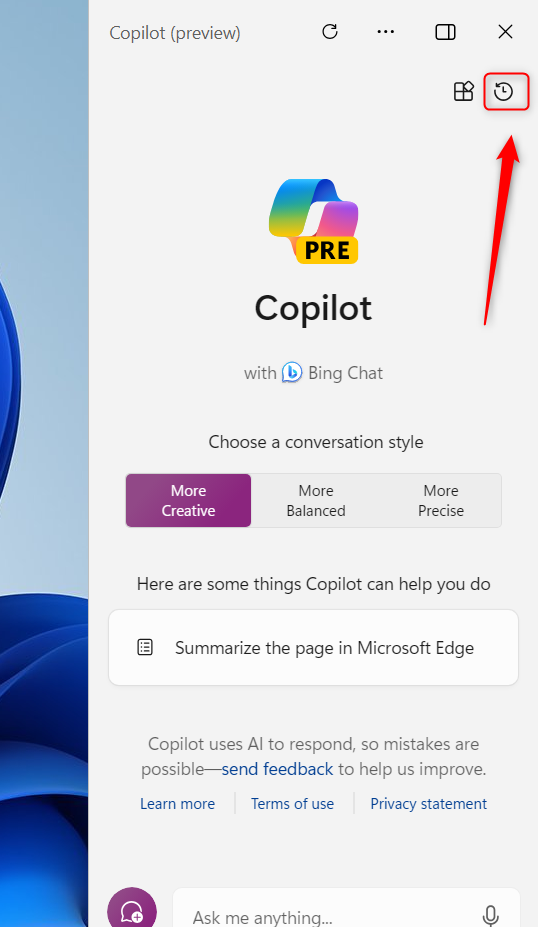
Copilot recent activity button in Windows 11 - You will see a list of your previous chats. Select the activity you want to remove.
- Click the Delete button to remove that specific item from your history.
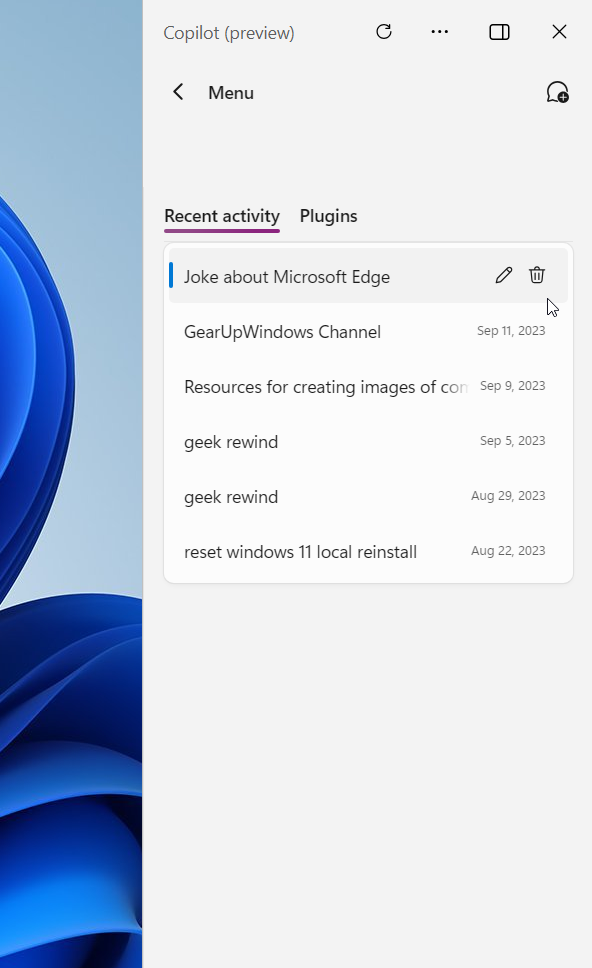
Copilot recent activity delete or edit
Managing GitHub Copilot Chat History
If you use GitHub Copilot Chat in tools like VS Code, clearing your chat history is done directly within the extension by right-clicking the session and choosing to delete it.
Using the Microsoft Privacy Dashboard
For a complete cleanup, visit the Microsoft Privacy Dashboard. Sign in with your account. Navigate to the “Activity history” section. Here, you can manage your Copilot prompt history across all devices. This is the most effective way to ensure all data is wiped from Microsoft servers.
Troubleshooting Enterprise Restrictions
If you can’t find the option to clear Copilot recent activity, it’s likely due to Enterprise restrictions managed by your IT department.
Summary
Managing your Copilot history helps keep your digital life private, whether you use a personal or work account.
Does clearing activity history delete my saved code snippets?
No. Clearing your Copilot activity history only removes the chat logs and prompts you have sent to the AI. It does not affect your actual code files, saved projects, or repositories stored on your local machine or cloud platforms like GitHub. Your work remains safe and unchanged.
How do I disable Copilot activity logging permanently?
You can manage Copilot activity logging by adjusting settings in the Microsoft Privacy Dashboard to opt out of data sharing for product improvement.
What is the difference between clearing chat history and clearing activity history?
Clearing chat history usually refers to removing the visible conversation threads in the sidebar. Clearing activity history is a broader action that removes the logs from your Microsoft account profile. Both actions help protect your privacy, but the Privacy Dashboard provides a more comprehensive wipe of your data.
Was this guide helpful?

About the Author
Richard
Tech Writer, IT Professional
Richard, a writer for Geek Rewind, is a tech enthusiast who loves breaking down complex IT topics into simple, easy-to-understand ideas. With years of hands-on experience in system administration and enterprise IT operations, he’s developed a knack for offering practical tips and solutions. Richard aims to make technology more accessible and actionable. He's deeply committed to the Geek Rewind community, always ready to answer questions and engage in discussions.


[…] Windows starts, Pin or Unpin the Copilot side panel, Resize the Copilot side panel, delete chat history in Copilot, create a desktop shortcut, hide the sidebar, use your phone with Copilot, enable […]