How to Change Phone Link App Theme in Windows 11

You change the notifications-from-the-phone-link-app-on-windows-11/" class="sal-link" rel="noopener" target="_blank" data-sal-id="35510">Phone Link app theme in Windows 11 by altering your overall Windows color settings.
The Phone Link app doesn’t have its own independent theme setting; instead, it automatically adopts the accent color and dark/light mode you’ve selected for your Windows 11 operating system.
This means a single change to your Windows appearance options directly affects the Phone Link app’s look, ensuring a cohesive experience. For instance, switching to Dark Mode in Windows 11 will instantly make your Phone Link app use a dark theme.
Why change your Phone Link app theme?
Changing the theme helps reduce eye strain, especially in dark rooms. It also lets you customize the app to look exactly how you want it. By choosing a dark interface, you may also find it easier to focus on your notifications and messages without the glare of a bright white screen.
What happens when done?
Once you finish, the Phone Link app will immediately update its colors. If you select a specific mode within the app, it will override the system setting for that window only. This change only affects the app itself and will not change the theme of your entire Windows system unless you choose the ‘Use Windows settings’ option.
Steps to change your Phone Link theme
Follow these steps to adjust your display preferences:
- Open the Phone Link app. You can find it by clicking the Start menu, selecting All apps, and choosing Phone Link.
- Once the app is open, click the Settings (gear) icon located at the top right corner of the window.
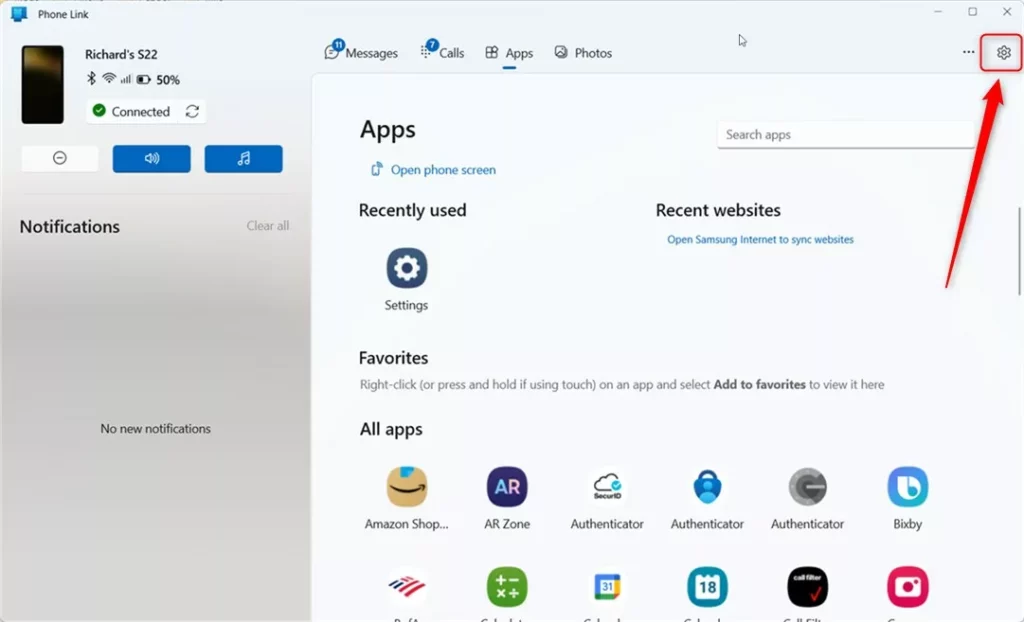
Note: You do not need admin privileges to perform these steps.
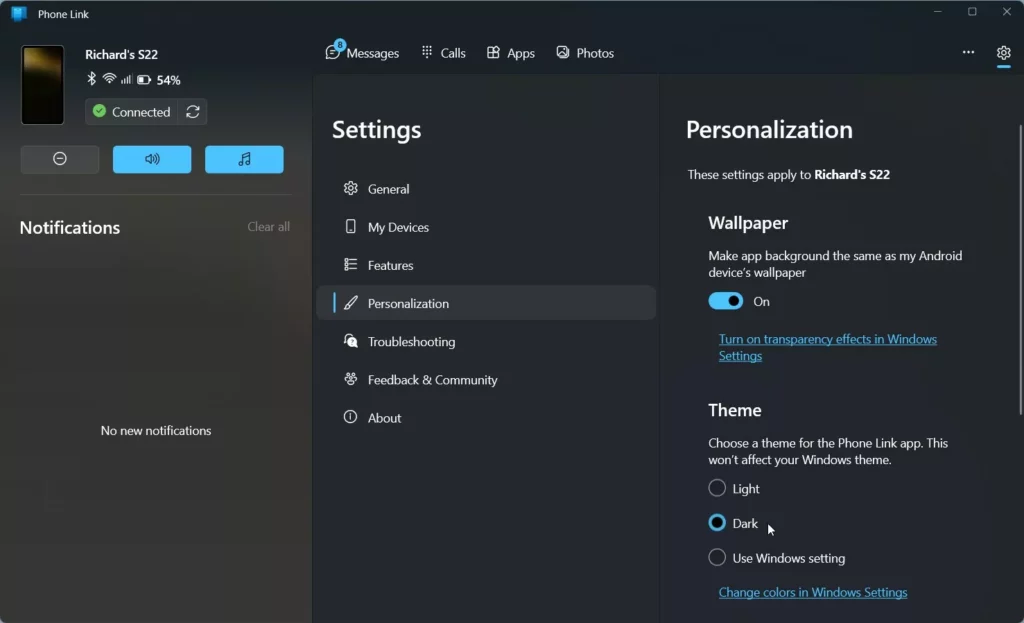
- Look for the Personalization section.
- Under the Theme menu, pick the look you prefer:
- Light: A bright white background.
- Dark: A black background that is easier on the eyes.
- Use Windows settings: The app will automatically match whatever theme your computer is currently using.
- Close the app to save your changes.
Accessibility and High Contrast
If you use High Contrast themes for accessibility, the Phone Link app will respect those system-wide settings. This ensures that the app remains readable for users with visual impairments. You can manage these settings in Settings > Accessibility > Contrast themes.
Summary
The Phone Link app is a powerful tool for connecting your mobile device to your PC. By understanding how system theme inheritance works, you can easily toggle between light and dark modes to create a more comfortable viewing experience. Whether you prefer a bright interface or a dark one, you can customize your Phone Link display preferences in just a few clicks without needing admin access.
Can I set Phone Link to Dark Mode if Windows is in Light Mode?
Yes. By navigating to the Phone Link settings menu, you can manually select ‘Dark’ mode regardless of your Windows system theme. This allows you to keep your desktop in Light mode while keeping the Phone Link app dark for better visibility of your messages and notifications.
Why does my Phone Link app look different from my Windows theme?
If your app looks different, it is likely because the ‘Theme’ setting inside the Phone Link app is set to a specific mode (Light or Dark) rather than ‘Use Windows settings.’ Check the app’s gear icon settings to ensure it is synchronized with your system preferences.
Does changing the theme affect battery usage?
On devices with OLED screens, using the ‘Dark’ mode can help save battery life because the display does not need to power as many pixels. On standard LCD screens, the impact on battery usage is generally negligible, though it remains a popular choice for comfort.
Was this guide helpful?

About the Author
Richard
Tech Writer, IT Professional
Richard, a writer for Geek Rewind, is a tech enthusiast who loves breaking down complex IT topics into simple, easy-to-understand ideas. With years of hands-on experience in system administration and enterprise IT operations, he’s developed a knack for offering practical tips and solutions. Richard aims to make technology more accessible and actionable. He's deeply committed to the Geek Rewind community, always ready to answer questions and engage in discussions.

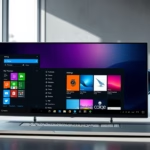

[…] Next, select the Appearance tab and click Dark under Dark mode. SelectUse system settings if the Windows theme is set to Dark mode. […]
[…] app, send and receive text messages from the app, add or remove Phone Link on the widgets board, turn dark mode on or off, open your phone screen in the app, turn show notifications for all my apps on or off, show […]