Windows

How to Mount Drives as Folders in Windows 11


Richard
Written by
Richard
Aug 10, 2022 Updated Apr 16, 2026 3 min read
How to Mount Drives as Folders in Windows 11

This guide explains how to mount a drive as a folder instead of a drive letter in Windows 11.

Windows allows you to connect a drive to an empty folder. This makes your drive look and act like a regular folder on your computer. Your files stay on the drive, but you access them through a folder path. Anything you save in that folder is actually stored on the drive.

Why mount a drive as a folder?

Mounting as a folder helps you organize your files better. It is useful if you have run out of drive letters or want to keep your file structure clean.

What happens when you do this?

Your external or internal drive will no longer show up as a separate letter (like D: or E:) in File Explorer. Instead, it will look like a sub-folder inside your existing file system.

Note: You can only mount drives in empty folders on NTFS volumes. Drive mounted with a letter in Windows 11

To begin, create an empty folder. Then, open your Windows Settings app.

You can open Settings by pressing the Windows key + I or by clicking Start > Settings. Updated Windows 11 Start Menu Settings interface

In the Settings app, click System on the left, then click Storage on the right. Windows 11 System Storage settings tile

Click on Advanced storage settings to see more options. Advanced storage settings in Windows 11

Next, click Disks & volumes. Disks and volumes tile in Windows 11 settings

Select the drive you want to mount, then click Properties. Disk and volume properties in Windows 11

Find the Paths section and click Add. (Requires Admin Privileges) Add path option for disk and volume in Windows 11

Type the path to an empty folder or click Browse to find one on your computer. Browse option for selecting folder path in Windows 11

Your folder is now linked to the drive. Anything you save inside will be stored on that drive. Mount drive as folder path in Windows 11

Using Command Prompt

You can also use the Command Prompt to do this. (Requires Admin Privileges)

From Windows Terminal, follow these steps:

  1. Open Command Prompt as an administrator.
  2. Type diskpart and press Enter.
  3. Type list volume to see your drives. Note the volume number.
  4. Type select volume to choose your drive.
  5. Type assign mount=C:\Your\Empty\Folder\Path to link the drive.
Mounting a drive as a folder in Windows 11

Summary

Mounting a drive as a folder is a great way to manage storage space without using extra drive letters. By using the Windows Settings menu, Disk Management, or the diskpart command, you can easily integrate external or internal storage into your existing folder structure. This keeps your files organized and easy to find.

[mount=<path>]

How do I mount a drive as a folder in Windows 11?

To mount a drive as a folder in Windows 11, first create an empty folder. Then, go to Settings > System > Storage, select the drive, click Properties, and under Paths, click Add to specify the folder path.

Can I mount a drive in a folder that already contains files?

No, you can only mount drives in empty folders. If the folder contains any files, Windows will not allow you to mount the drive there.

What types of drives can be mounted as folders in Windows 11?

You can mount both internal and external drives as folders in Windows 11, provided they are formatted with the NTFS file system and the folder is empty.

Is it possible to use Disk Management to mount a drive as a folder?

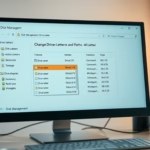
Yes, you can use Disk Management to mount a drive as a folder. Right-click the partition, select 'Change Drive Letter and Paths', and then choose 'Add' to mount it in an empty NTFS folder.

What happens to the files saved in the mounted folder?

Any files saved in the mounted folder will actually be stored on the drive that you mounted. The folder acts as a gateway to access the drive's contents.

Was this guide helpful?

Tags: #Windows 11
Richard

About the Author

Richard

Tech Writer, IT Professional

Richard, a writer for Geek Rewind, is a tech enthusiast who loves breaking down complex IT topics into simple, easy-to-understand ideas. With years of hands-on experience in system administration and enterprise IT operations, he’s developed a knack for offering practical tips and solutions. Richard aims to make technology more accessible and actionable. He's deeply committed to the Geek Rewind community, always ready to answer questions and engage in discussions.


2470 articles → Twitter

📚 Related Tutorials

How to Change Drive Letter in Windows 11
Windows How to Change Drive Letter in Windows 11

0 responses to “How to Mount Drives as Folders in Windows 11”

Leave a Reply

Your email address will not be published. Required fields are marked *