How to Turn On or Off Automatic Touchpad Scrolling at Edge in Windows 11

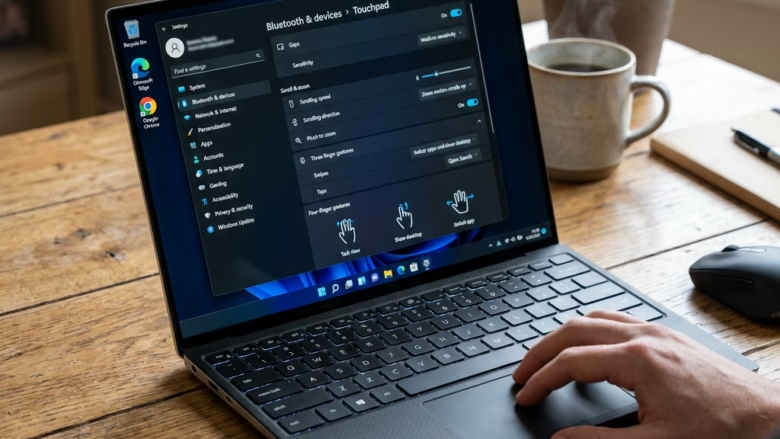
You can enable or disable automatic touchpad scrolling at the edge in Windows 11 by changing a setting in the Touchpad options.
This feature, called edge scrolling, lets your Precision Touchpad, a type of advanced touchpad, scroll a document or webpage continuously as long as your finger stays near the edge. It’s a handy way to navigate long content smoothly without lifting your fingers.
Imagine you’re reading a lengthy article or working through a large spreadsheet on your Windows 11 laptop. Edge scrolling makes this process faster by providing continuous movement.
You can find this setting directly in Windows 11’s Settings app, usually under Devices > Touchpad.
Adjust the “Automatic scrolling at edge” setting in Windows 11’s Touchpad options. Open Settings, go to Bluetooth & devices, then Touchpad. Expand Scroll & zoom and check or uncheck the box as desired.
Precision Touchpad vs. Legacy Touchpad
| Feature | Precision Touchpad | Legacy Touchpad |
|---|---|---|
| Gestures | Supports advanced multi-finger | Limited support |
| Settings | Managed in Windows Settings | Managed by OEM software |
| Scrolling | Smooth, system-level | Often jerky or driver-dependent |
How to Turn On or Off Automatic Scrolling at Edge in Settings
Windows 11 lets you control automatic scrolling at the edge of your touchpad right from the Settings app.
2. Select Bluetooth & devices on the left, then click Touchpad on the right.
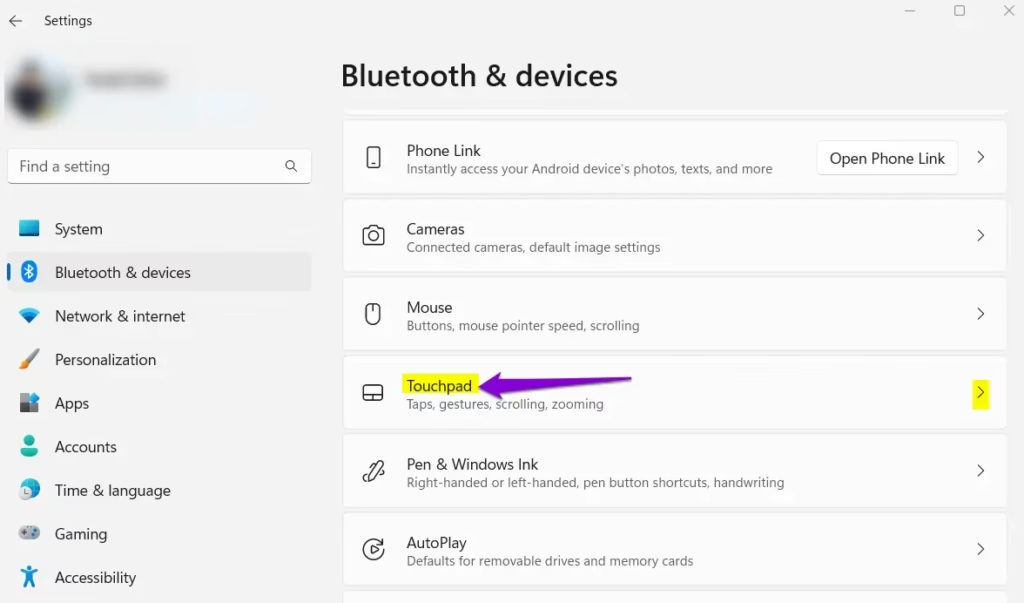
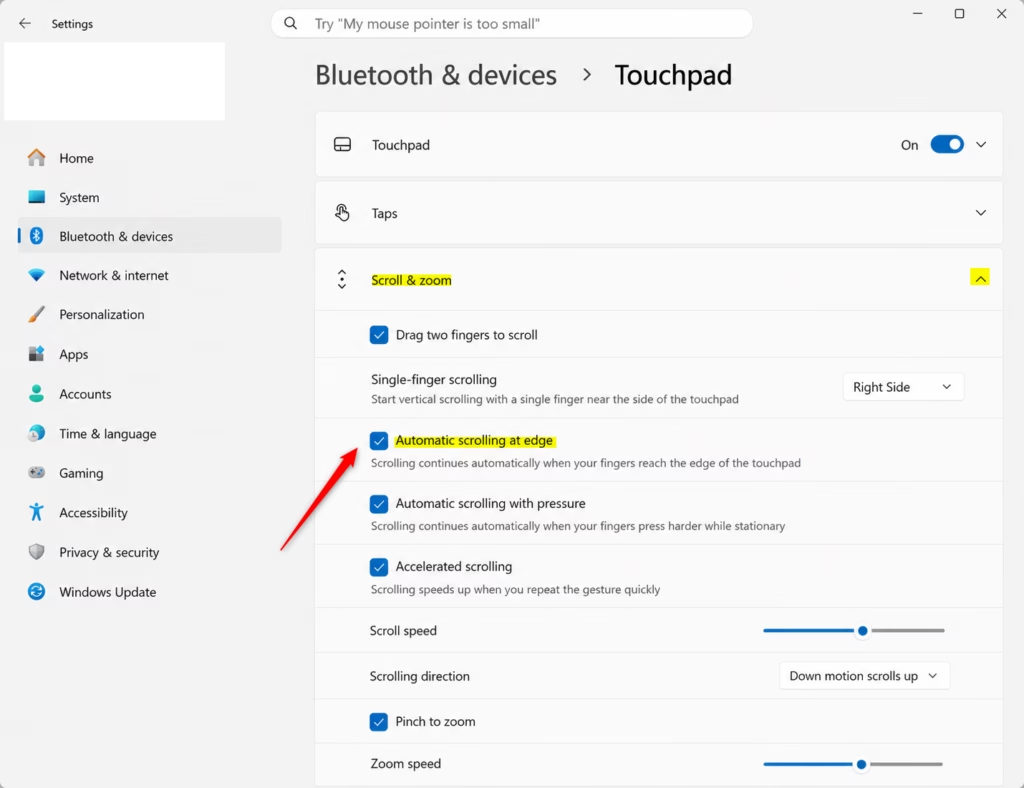
3. Click the arrow next to Scroll & zoom to reveal more options.
4. Check or uncheck the box for Automatic scrolling at edge depending on your preference.
5. Close the window when you’re done.
How to Configure via Registry (Advanced)
If you’d rather use the Registry Editor, follow these steps. Note: This requires administrative privileges.
- Press ⊞ Win+R, type regedit, and hit Enter.
- Navigate to:
HKEY_CURRENT_USER\Software\Microsoft\Windows\CurrentVersion\PrecisionTouchPad - Double-click EdgeAutoPanningEnabled. Set its value to 1 to turn the feature on, or 0 to turn it off.
Troubleshooting Scrolling Issues
If you can’t find the automatic scrolling option in Windows 11, it might be because your laptop doesn’t support Precision Touchpad drivers.
Summary
The automatic scrolling at the edge feature in Windows 11 helps you navigate more easily, and you can find it in your touchpad settings.
Why is the edge scrolling option missing from my 🪟 Windows 11 settings?
This option only appears if your laptop hardware supports Precision Touchpad drivers. If you have a legacy touchpad, your settings are likely controlled by third-party software from your laptop manufacturer, such as Synaptics or ELAN control panels, rather than the standard Windows 11 menu.
Does changing registry settings affect my mouse wheel scrolling?
No, modifying the registry key for EdgeAutoPanningEnabled only impacts the behavior of your touchpad gestures. It does not change how your physical mouse wheel functions or the scroll speed settings configured elsewhere in the Windows 11 mouse properties menu.
Was this guide helpful?

About the Author
Richard
Tech Writer, IT Professional
Richard, a writer for Geek Rewind, is a tech enthusiast who loves breaking down complex IT topics into simple, easy-to-understand ideas. With years of hands-on experience in system administration and enterprise IT operations, he’s developed a knack for offering practical tips and solutions. Richard aims to make technology more accessible and actionable. He's deeply committed to the Geek Rewind community, always ready to answer questions and engage in discussions.


No comments yet — be the first to share your thoughts!