How to Change Minimum PIN Length in Windows 11

If you use a PIN to sign in to your Windows 11 computer, you can make it more secure by changing the minimum number of digits required in your PIN. This guide will show you how to do that in a simple way.
What is a Windows PIN?
A Windows PIN is a quick and safe way to sign in to your computer and some apps. Instead of typing a long password, you enter a number code that only works on your device. You can learn more about signing in with a PIN here: How to login with a PIN in Windows 11.
Windows 11 also lets you sign in using other methods like a picture password, fingerprint, or face recognition.
Why Change the PIN Length?
The default minimum PIN length is 4 digits. You can increase this number to make your PIN harder to guess. A longer PIN helps protect your computer from people trying to break in.
Note: If you set a longer PIN length, everyone using the computer will have to update their PIN to meet the new length.
How to Change the Minimum PIN Length in 🪟 Windows 11
Method 1Using Local Group Policy Editor
This method works if your Windows edition includes the Group Policy Editor (usually Windows 11 Pro or Enterprise).
- Click the Start button and type
Edit group policy, then open the Local Group Policy Editor. [Requires admin privileges] - In the left sidebar, go to:
Computer Configuration > Administrative Templates > System > PIN Complexity - On the right side, find Minimum PIN length and double-click it.
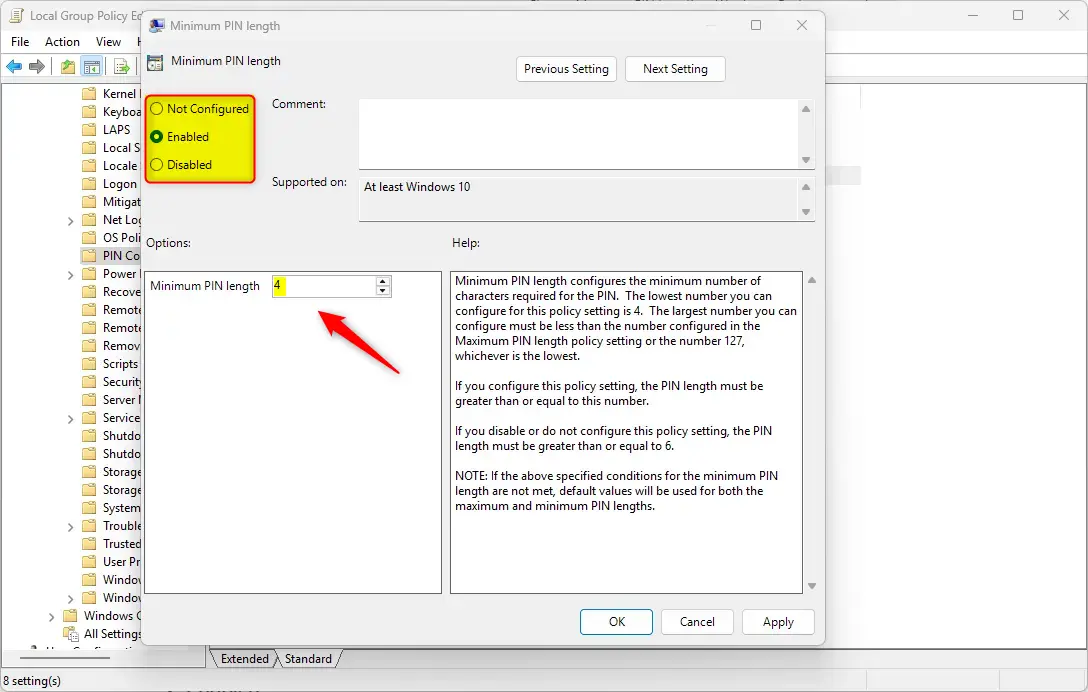
- Choose Enabled.
- In the box below, enter the minimum number of digits you want your PIN to have (between 4 and 127).
- Click OK to save.
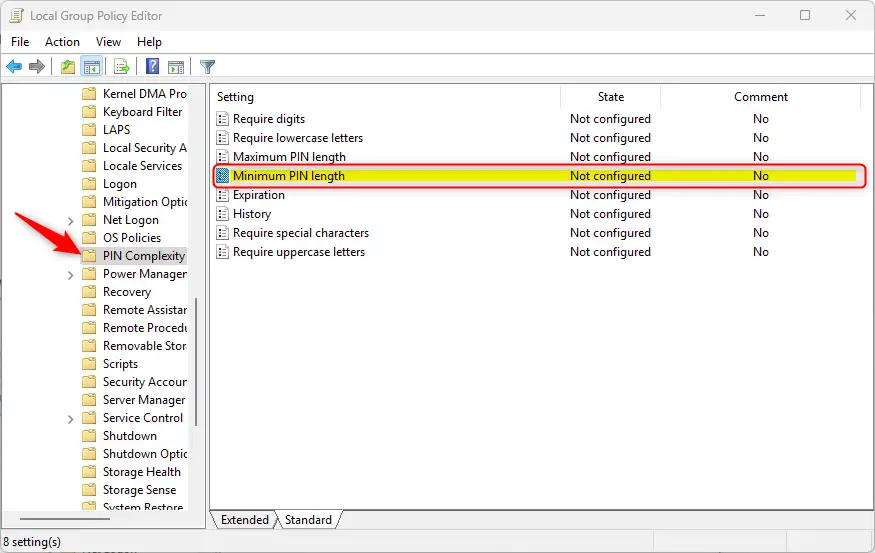
Example of the Minimum PIN length setting in Group Policy Editor.
What the Options Mean:
- Not Configured: Uses the default PIN length (minimum 4 digits).
- Enabled: Lets you set your own minimum PIN length.
- Disabled: Requires a minimum PIN length of 6 digits.
Method 2Using the Windows Registry Editor
If you don’t have the Group Policy Editor, you can change the PIN length using the Registry Editor. Please be very careful with this method, and always back up your registry or create a System Restore point before making changes. Here is how:
- Press
Windows + Ron your keyboard, typeregedit, and press Enter to open the Registry Editor. [Requires admin privileges] - Navigate to this folder:
HKEY_LOCAL_MACHINE\SOFTWARE\Policies\Microsoft\PassportForWork\PINComplexity - If you don’t see the PassportForWork or PINComplexity folders, you can create them by right-clicking and selecting New > Key.
- Inside the PINComplexity folder, right-click on the right side and select New > DWORD (32-bit) Value.
- Name this new value MinimumPINLength.
- Double-click MinimumPINLength, select Decimal under Base, and type a number between 4 and 127 for your minimum PIN length.
- Click OK and close the Registry Editor.
- Restart your computer to apply the changes.
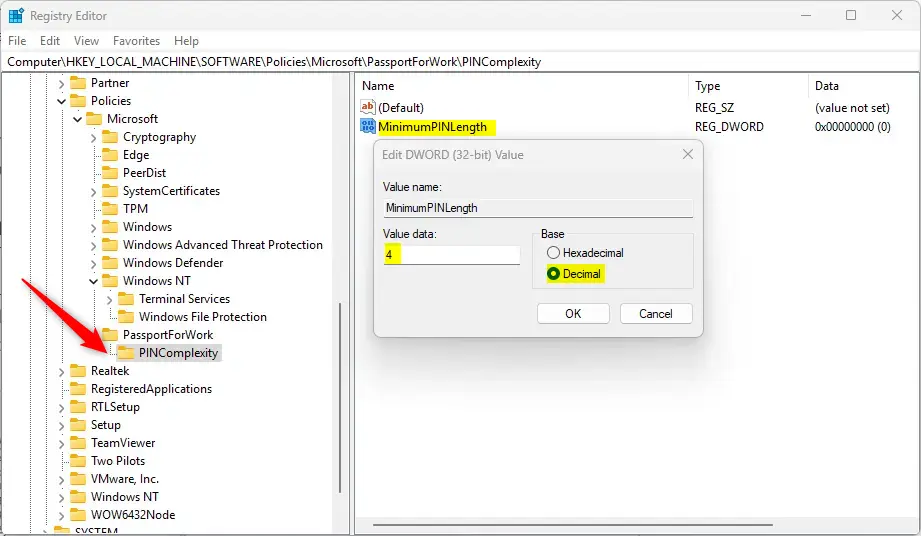
Registry Editor showing the MinimumPINLength value.
To Undo Changes:
Delete the MinimumPINLength value you created, then restart your PC.
Summary
- Why: Increasing your PIN length makes your computer more secure.
- How: Use either the Local Group Policy Editor or Registry Editor.
- Range: Minimum PIN length can be set from 4 to 127 digits.
- Remember: Back up your system before making changes.
- After change: Users will have to update their PINs if their current PIN is too short.
Helpful Links:
- How to login with a PIN in Windows 11
- How to change your PIN in Windows 11
- How to open the Registry Editor in Windows 11
- How to backup and restore the Registry in Windows 11
- Microsoft official info on PIN length policies
If you follow these simple steps, your Windows 11 PC will be safer, and signing in with a PIN will stay quick and easy.
Was this guide helpful?

About the Author
Richard
Tech Writer, IT Professional
Richard, a writer for Geek Rewind, is a tech enthusiast who loves breaking down complex IT topics into simple, easy-to-understand ideas. With years of hands-on experience in system administration and enterprise IT operations, he’s developed a knack for offering practical tips and solutions. Richard aims to make technology more accessible and actionable. He's deeply committed to the Geek Rewind community, always ready to answer questions and engage in discussions.




No comments yet — be the first to share your thoughts!