Why Does Windows 11 HDR Keep Turning Off by Itself

- 25 steps
- Includes a restart or sign-out
HDR (High Dynamic Range, a display setting that boosts contrast and color) keeps turning off on Windows 11 when your monitor, graphics card, and operating system lose their display connection. Windows automatically switches back to standard SDR (Standard Dynamic Range, the traditional color format for computer displays) mode if that hardware handshake fails.
Faulty display cables, outdated graphics drivers, and power-saving settings in Windows 11 version 23H2 cause this drop in connection. Fixing the issue takes a few minutes of checking your hardware links, updating your software, and tweaking your display options. The steps are the same on Windows 11 Home and Pro.
Windows 11 HDR keeps turning off by itself because your screen, graphics card, and operating system fail to communicate properly, often due to weak cables, conflicting game settings, or strict power rules. To fix it, switch games to borderless windowed mode and use a high-bandwidth display cable.
Why HDR Turns Off When You Launch Apps or Games
Full-screen applications force their own display rules onto your monitor, which causes HDR to turn off. When a game starts up, it conflicts with your current desktop settings. This sudden switch causes your system to drop the HDR connection entirely, forcing the screen back to standard dynamic range.
The Windows 11 HDR feature turns itself off automatically when a game starts up and requests a specific resolution or refresh rate that your monitor, display cable, or graphics card struggles to handle while high dynamic range is active. Windows disables high dynamic range in these situations to prevent a complete system crash or a black screen.
Some games also expect system HDR to be switched on in Windows before you launch them. If it is off, or changes state while the game loads, the game and Windows can disagree about the display mode.
The Main Causes Behind Automatic HDR Dropouts
To fix the issue of Windows 11 HDR turning off by itself, you need to understand the main culprits. Here is how to spot the cause of the dropouts. The usual suspects are game settings, display mode, cable bandwidth, monitor quality, and power settings. Each one is covered below.
The Game Depends on System HDR Being On First
Windows 11 HDR keeps turning off by itself when games try to manage display settings automatically before the system is ready. If a game attempts to turn HDR on while Windows is still figuring out the display mode, a conflict happens.
The fix is simple: turn HDR on in Windows before you open the game, and leave it on while you play.
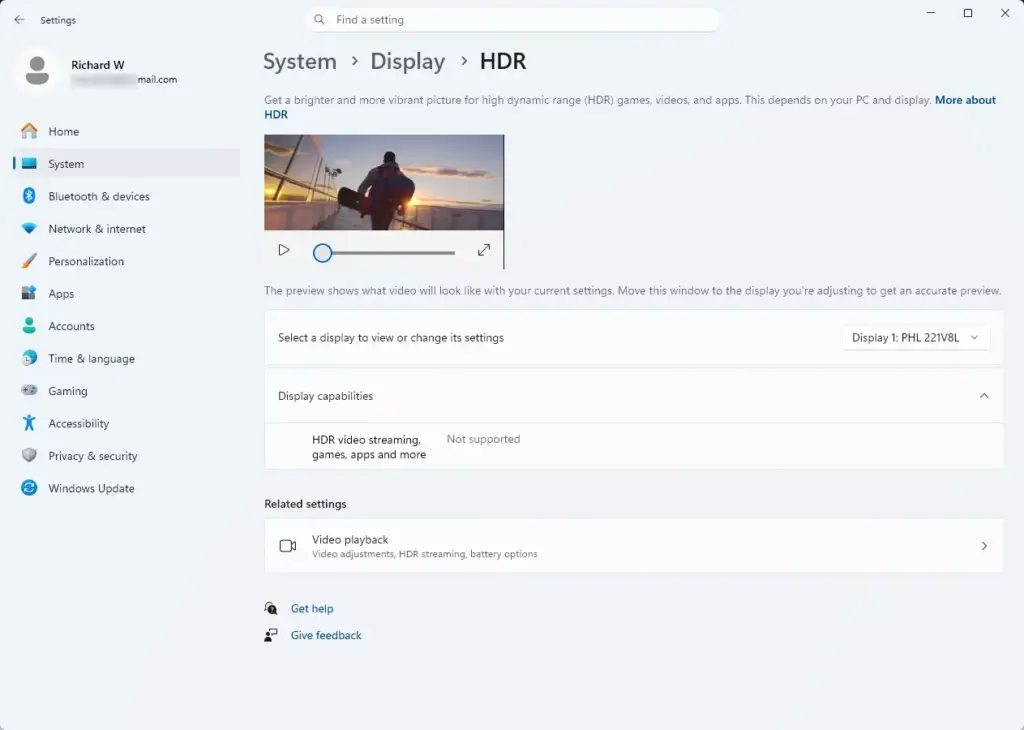
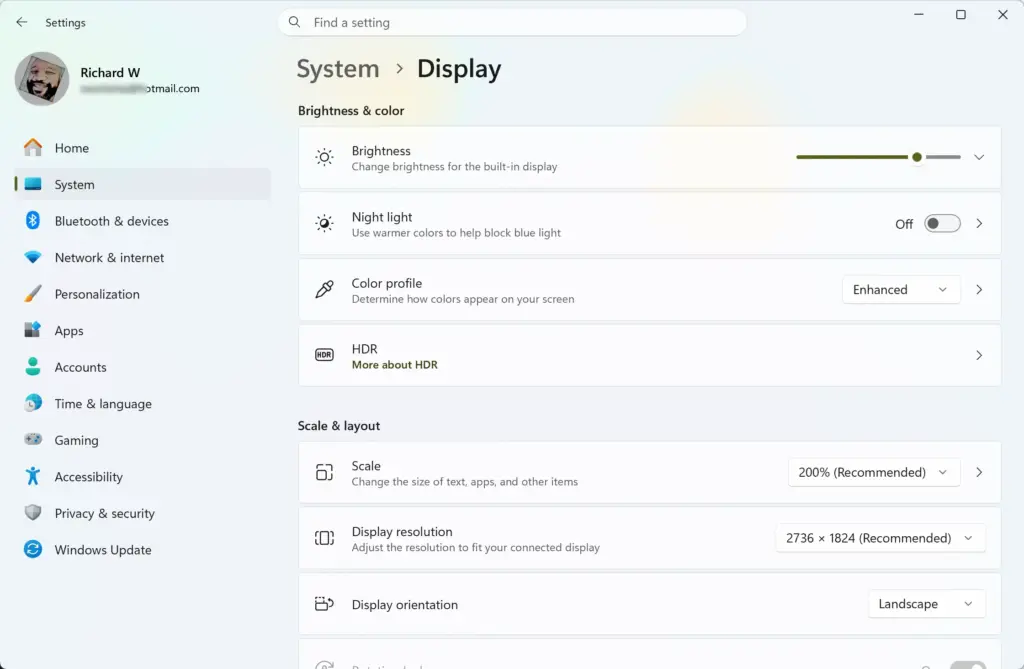
- Open Settings System Display.
- Select your HDR monitor if you have more than one. You should see its name highlighted at the top of the page.
- Click HDR to expand its options.
- Switch Use HDR to On. The screen may flicker briefly and the colors should look slightly different.
- Launch your game only after the desktop has settled.
If the Use HDR switch is greyed out, Windows does not see an HDR-capable display on that connection. Check the cable and the monitor’s own on-screen menu, which are covered later in this guide. To undo the change, switch the setting back to Off.
The App Is Forcing a Different Display Mode
Windows 11 HDR keeps turning off by itself because apps running in exclusive full-screen mode take total control of your monitor. If the game mode does not match your desktop settings, the sudden shift knocks HDR out of place.
Running your games in borderless windowed mode instead lets Windows keep a steady grip on the HDR setting. The trade-off is that a few games, usually older ones, only offer HDR in exclusive full-screen. If that is the case for yours, try the other fixes first before giving up on HDR in that game.
Cable, Port, or Adapter Bandwidth Is Not Holding the Signal
Windows 11 HDR keeps turning off by itself when your cable, port, or adapter does not have enough bandwidth to hold the signal. HDR needs a massive amount of data to travel from your computer to your monitor every second. Using an old HDMI cable or a broken DisplayPort cable stops that data flow, causing your monitor to drop the HDR connection.
Adapters and docks are a common weak point. A cheap DisplayPort-to-HDMI adapter, for example, may pass a normal picture but fail once HDR is switched on. Higher resolutions and refresh rates make this worse, because they use up more of the available bandwidth.
The Monitor Accepts HDR but Cannot Display It Well
Windows 11 HDR keeps turning off by itself because many budget monitors claim they support HDR but lack the actual brightness needed to show it. When Windows tries to send true HDR data to a screen that cannot handle it properly, the monitor or Windows shuts the feature down to protect the picture quality and prevent visual errors.
Check your monitor’s spec sheet for its real peak brightness and any HDR certification. A bare “HDR-compatible” label on the box only means the monitor accepts an HDR signal. It does not mean the panel can display it well.
Power and Brightness Rules Are Intervening
Windows 11 HDR keeps turning off by itself when aggressive power-saving settings intervene on your computer. HDR uses a lot of power because it pushes your screen backlight to the highest levels. If Windows thinks your laptop or desktop is running low on power or getting too hot, it may disable HDR automatically to save electricity.
This is most noticeable on laptops running on battery. If HDR works while plugged in and drops when you unplug, power settings are the cause.
How to Diagnose the Trigger Without Guesswork
You can find out why your Windows 11 HDR keeps turning off by itself by following a few diagnostic steps without any guesswork. Start by disconnecting extra monitors and testing your main screen with a direct cable. Then, try turning HDR on while sitting on your plain desktop with no heavy apps running in the background.
- Disconnect any extra monitors, television sets, or adapters. Test your main monitor by itself using a direct cable connection.
- Open Settings System Display and try to turn HDR on while you are sitting on the desktop, with no games or heavy apps running.
- Leave the desktop alone for a few minutes and watch whether the Use HDR switch stays on.
- Open the game that causes trouble and note exactly when HDR drops: at launch, after a few minutes, or when you switch windows.
If HDR stays on while you are on the desktop, but turns off the second you open a specific game, you know the game or its display mode is causing the drop.
If HDR turns off immediately on the desktop without opening any apps, your problem is likely related to your display cable, monitor settings, or graphics card driver.
Practical Fixes That Usually Work
Now that you know what might be causing the issue, look at the best ways to fix it. Work through them in order, and test HDR after each one so you know which change solved it.
Update Your Graphics Card Driver
Outdated or corrupted graphics drivers are a very common reason for display settings failing. Keeping your graphics driver up to date ensures your computer knows how to talk to your monitor correctly.
- Open Settings Windows Update Advanced options Optional updates.
- Expand Driver updates and look for a display or graphics driver. If one is listed, tick it and click Download & install.
- If nothing is listed, download the latest driver from your graphics card maker (NVIDIA, AMD, or Intel) and run the installer.
- Restart the computer when the installer finishes, then check HDR again.
The screen may go black for a few seconds during installation. That is normal. If HDR got worse after an update, you can roll the driver back in Device Manager, or install the previous version from the maker’s website.
Check Your Display Cable and Ports
- Unplug the cable from both the monitor and the PC, then plug it back in until it seats fully.
- Try a different port on the monitor and on the graphics card. Plug into the graphics card, not the motherboard, on a desktop PC.
- Swap in a known good, certified cable if you have one.
- Check your monitor’s on-screen menu. Some monitors have an HDR setting or an HDMI mode option that must be enabled for that input.
After a cable change, the screen should go black briefly and then return. Go back to Settings System Display and confirm that Use HDR is still available.
Change Your Game Display Settings
- Start the game and open its Settings or Options menu.
- Find the video or graphics section and look for the display mode setting.
- Change it from Fullscreen to Borderless or Windowed Fullscreen. Exact wording varies by game.
- Apply the change and restart the game if it asks you to.
The game should now fill the screen while HDR stays on. If you want to go back, set the display mode to exclusive full-screen again.
Adjust Windows Power Settings
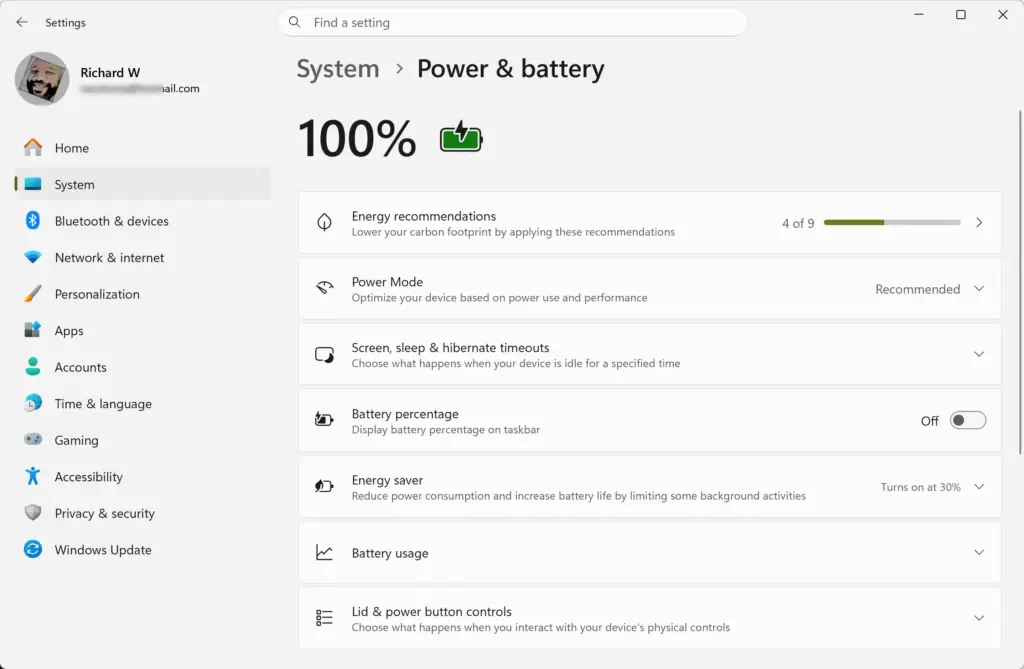
If you use a laptop, plug it into a wall outlet using its charger. Go to your power settings and make sure your laptop is not set to a strict battery-saver mode, which often disables high-performance display features like HDR.
- Connect the original charger, or one with enough wattage for your laptop.
- Open Settings System Power & battery.
- Turn off Battery saver if it is active.
- Set Power mode to Balanced or Best performance.
Some laptops also show battery options for HDR on the Display HDR page. If you see them, check that they do not limit HDR when on battery. Keep in mind that HDR drains the battery faster, so expect shorter run time when you leave it on while unplugged.
Summary
HDR will remain enabled during gaming sessions and media playback without dropping back to standard dynamic range unexpectedly. If it still turns off after all of these fixes, the likeliest remaining cause is the monitor itself, so test it with another PC or console if you can.
Have a question about this guide?
Answered by AI from this guide. Good questions may be added to this page — please don't include personal details.
Did this guide fix your problem?

About the Author
Richard
Tech Writer, IT Professional
Richard is a writer at Geek Rewind who turns complex IT tasks into clear, step-by-step guides. He draws on years of hands-on experience in system administration and enterprise IT operations, focusing on Windows, Linux and WordPress: the problems people actually run into, and the fixes that work. His server and WordPress guides come from systems he runs himself. Richard builds and maintains the platform behind Geek Rewind, from its Ubuntu servers and Nginx configuration to its custom WordPress plugins. Many new tutorials start with readers' questions, and he's always glad to answer them in the comments.
No comments yet — be the first to share your thoughts!