How to Enable HDR in Windows 11


HDR (High Dynamic Range) in Windows 11 gives your games and videos brighter whites, deeper darks, and a wider range of colors by expanding the contrast and color range of your display. To use it, you need two things:
- A monitor or TV that supports HDR. Check the spec sheet for HDR10 or a DisplayHDR rating.
- A capable graphics card, such as an NVIDIA GeForce RTX 30-series or AMD Radeon RX 6000-series.
Use a cable and port that can carry HDR. A recent HDMI or DisplayPort connection is usually fine. An old cable is a common reason the option never appears. Once your hardware meets these requirements, you can turn on HDR directly through your display settings. You do not need a restart, and it works the same on Windows 11 Home and Pro.
Open Settings by pressing Win+I, go to System Display, and toggle the Use HDR switch on. The setting applies immediately with no restart needed.
How to Turn on Auto HDR in 🪟 Windows 11
It adds HDR-style color to games that were built for standard dynamic range. It applies to DirectX 11 and DirectX 12 games. Auto HDR only works while HDR itself is on, so you switch on HDR first.
To do this, press the Win+I on your keyboard to open Settings . Then go to System Display and switch on Use HDR. The steps below walk through it. If you have more than one monitor, pick the HDR-capable one at the top of the Display page first. The HDR options belong to the selected display.
That is normal while Windows changes the display mode. The desktop can look a little dull or washed out at first, because standard apps are being mapped into the HDR range. If Use HDR is greyed out or missing, check these:
- The monitor’s own on-screen menu may have HDR turned off. Some monitors ship that way.
- The graphics driver may be out of date. Update it from NVIDIA, AMD or Intel.
- The cable or port may not support HDR. Try another cable or port.
- On a laptop, the option can be unavailable when the lid is closed or the PC is running on battery. Plug in the charger and check again.
- Press
Windows key + Ion your keyboard to open Settings . Or click the Start button , then select Settings.

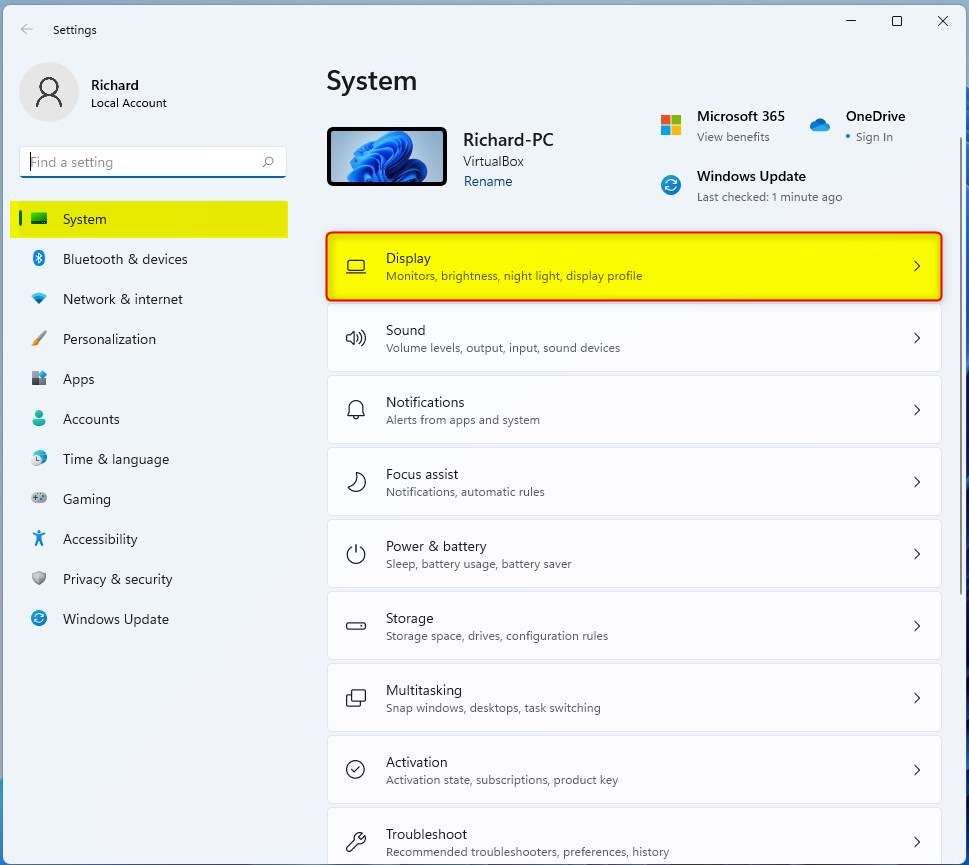
- In Settings, click on System, then choose Display from the right side.
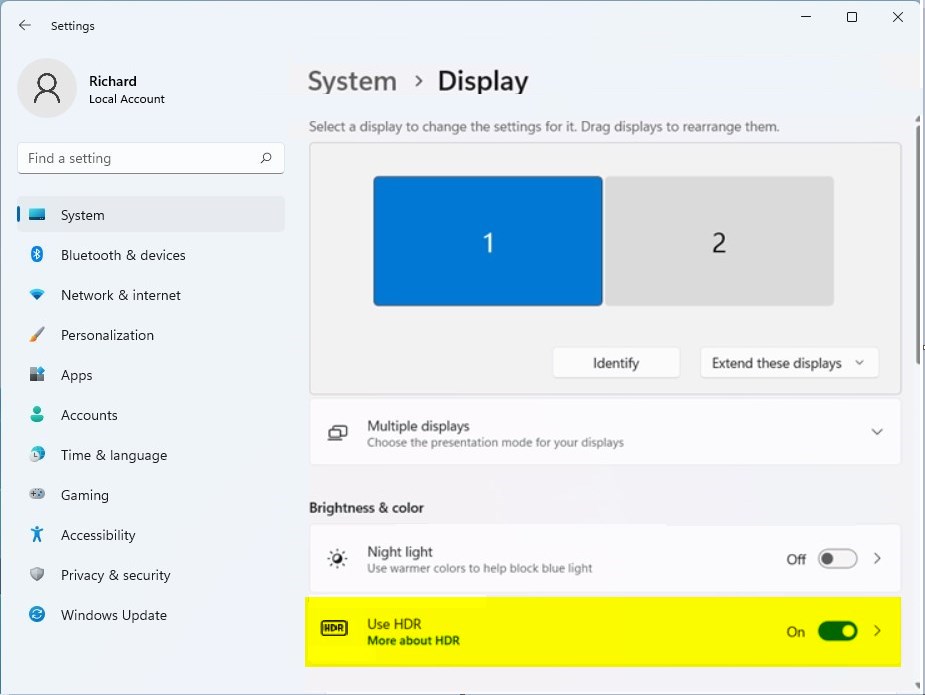
- Look for the option called Use HDR or just HDR and click on it.
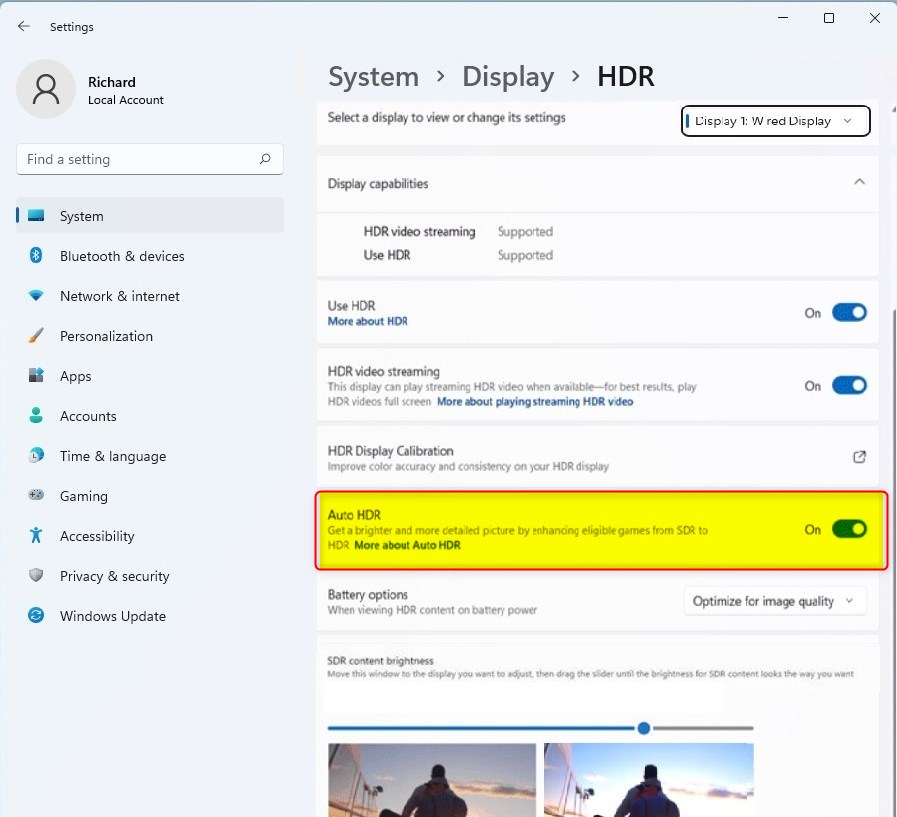
- Find the Auto HDR switch and turn it On.
The system engages HDR dynamically whenever compatible games or videos launch. You do not have to switch anything yourself for each title. Some games also have their own HDR setting in their video options. If a game looks wrong, check that setting too. If the image looks too dark or too bright, adjust the brightness controls in the game or on the monitor. Microsoft’s free Windows HDR Calibration app from the Microsoft Store can also help.
How to Turn off HDR in 🪟 Windows 11
You can turn off HDR in Windows 11 anytime your screen looks too bright or washed out. Go back into your display settings: open Start Settings System Display, click on the HDR section, and turn off both Playing streaming HDR video and Use HDR. The exact label for the streaming option can differ slightly between Windows 11 builds, so look for the toggle that mentions HDR video.
- Go to Start Settings System Display.
- Click on the HDR or Use HDR setting.
- Turn off both Playing streaming HDR video and Use HDR.
Disabling the feature returns the display to standard color reproduction. The screen may flicker briefly, and no restart is needed. If you want HDR back later, repeat the same steps and switch Use HDR on again.
Summary
- HDR makes colors and images on your screen look brighter and more detailed.
- Auto HDR lets Windows turn HDR on automatically when it helps your experience.
- You can easily turn HDR on or off in the Display settings.
- Turning HDR off is just as simple if you want to switch back.
- Knowing how to use HDR helps you get the best picture quality from your PC.
HDR improves your screen picture quality by making colors and bright areas look much richer and more detailed. You can turn HDR on or off at any time in your Windows 11 display settings, and use Auto HDR to let your PC handle game colors for you. If the result looks off on your desktop, leave HDR off for everyday work and switch it on only when you play games or watch HDR video.
Have a question about this guide?
Answered by AI from this guide. Good questions may be added to this page — please don't include personal details.
Did this guide fix your problem?

About the Author
Richard
Tech Writer, IT Professional
Richard is a writer at Geek Rewind who turns complex IT tasks into clear, step-by-step guides. He draws on years of hands-on experience in system administration and enterprise IT operations, focusing on Windows, Linux and WordPress: the problems people actually run into, and the fixes that work. His server and WordPress guides come from systems he runs himself. Richard builds and maintains the platform behind Geek Rewind, from its Ubuntu servers and Nginx configuration to its custom WordPress plugins. Many new tutorials start with readers' questions, and he's always glad to answer them in the comments.
No comments yet — be the first to share your thoughts!