What Breaks When You Turn Off Snap Assist in Windows 11

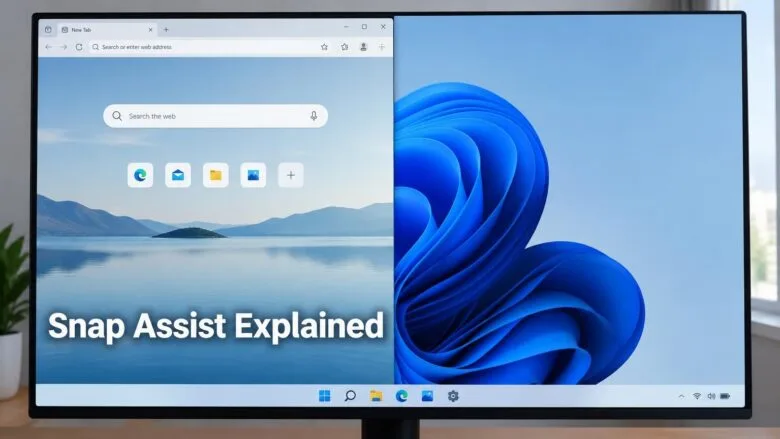
What breaks when you turn off Snap Assist in Windows 11 is one thing: the thumbnail picker that suggests which open window to place beside a snapped one. Snapping to screen edges and snap layouts keep working, unless you also turn off the main Snap windows switch.
Each setting changes something different, so this post shows what each one affects before you choose. It then shows how to turn Snap Assist off and back on in Settings. The change needs no administrator rights and no restart.
Turning off Snap Assist removes only the thumbnail picker that suggests a window for the empty half of the screen after you snap one. Edge snapping, corner snapping, Windows + Arrow shortcuts, snap layouts and snap groups all keep working. To change it, open Settings , select System, then Multitasking, and switch off “When I snap a window, suggest what I can snap next to it.
What Snap Assist Does in 🪟 Windows 11
Snap Assist is the suggestion step that follows a snap. You snap one window to half the screen, and Windows fills the empty half with thumbnails of your other open windows. Click a thumbnail and that window snaps into the space.
Snap Assist is one part of a larger feature called snapping, which Windows 11 groups under a single Snap windows switch in Settings. The label for the Snap Assist option on current Windows 11 builds is When I snap a window, suggest what I can snap next to it. Labels can differ slightly on older builds.
Snap Assist vs. Snap windows vs. snap layouts
These three names get mixed up, and the difference decides what breaks.
- Snap windows is the master switch. It controls all snapping behavior.
- Snap Assist is the thumbnail suggestion after you snap one window.
- Snap layouts is the grid of layout choices that appears when you hover over a window’s maximize button or press Win+Z.
Turning off Snap Assist leaves the other two in place. Turning off the master switch affects everything under it.
What Breaks When You Turn Off Snap Assist Only
Only the suggestion step goes away. Everything else about snapping behaves as before. The practical effect is a few extra clicks whenever you build a side-by-side layout.
What stops working
- The thumbnail picker after a snap. You drag a window to the left edge, and the right half stays empty. Nothing offers your other windows.
- Guided filling of snap layouts. When you pick a layout from the maximize-button pop-up, Windows normally offers thumbnails for each remaining zone. With Snap Assist off, you place each remaining window yourself.
- Keyboard snapping with suggestions, using Win+← Arrow or Win+→ Arrow. After a Win+← Arrow or Win+→ Arrow snap, the thumbnail list that lets you choose a partner window with the arrow keys and Enter no longer appears.
If you snap two or three windows a day, you will barely notice. If you build four-window layouts all day, the extra clicking adds up.
What keeps working
- Dragging a window to the left or right edge of the screen still snaps it to half the screen.
- Dragging a window to a corner still snaps it to a quarter of the screen.
- Windows + Arrow shortcuts still snap windows.
- Snap layouts on the maximize button still appear, as long as that option stays on.
- Snap groups still work. These are the sets of snapped windows that Windows remembers, so you can bring them back together from the taskbar or Task view.
Nothing else in Windows depends on Snap Assist. As far as this guide can confirm, no other app, service or setting depends on Snap Assist, so turning it off should not cause errors or crashes.
What Breaks When You Turn Off the Snap Windows Switch
That removes far more. Expect these changes:
- Dragging a window to a screen edge no longer snaps it. The window stays where you drop it.
- The snap layouts pop-up no longer appears when you hover over the maximize button.
- Win+Z, the shortcut that opens snap layouts, stops giving you layouts.
- Snap Assist disappears, because there is nothing left to assist.
- The sub-options for snap layouts and snapped-window display are hidden or greyed out in Settings.
Test them after you change the setting rather than assuming they still snap.
If you want fewer pop-ups but still want snapping, leave the master switch on and clear only the Snap Assist box. The guide to enabling or disabling Snap windows in Windows 11 covers the master switch in detail.
How to Turn Off Snap Assist in 🪟 Windows 11
This change applies only to your user account. It takes a few clicks to undo, and no administrator rights are needed. To turn Snap Assist off, follow these steps:
- Open Settings. Press Win+I.

- Select System in the left pane. The System page opens on the right.
- Scroll down and select Multitasking. The page lists options for snapping windows and for Alt+Tab and desktops.
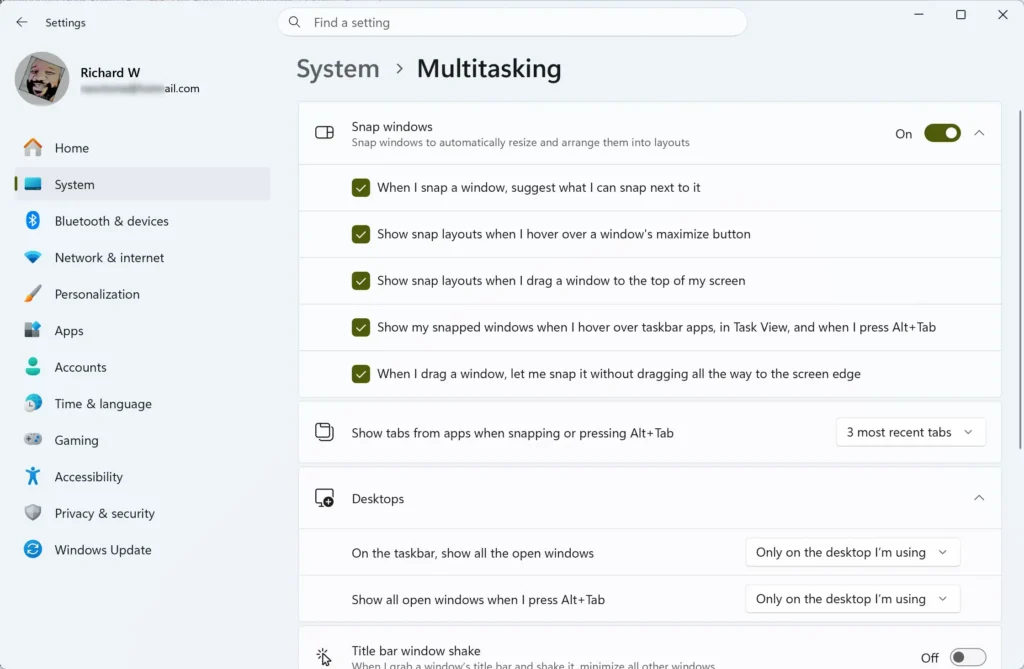
- Find the Snap windows row. If its switch is Off, turn it On first. The Snap Assist checkbox is hidden while the master switch is off.
- Select the arrow at the right end of the Snap windows row to expand it. A list of checkboxes appears under the row.
- Clear the checkbox labeled When I snap a window, suggest what I can snap next to it. The change applies at once, with no Save button.
- Close Settings. No restart or sign-out is needed.
Test that Snap Assist is off
- Open two or three app windows, for example File Explorer , Notepad and Microsoft Edge.
- Drag one window by its title bar to the left edge of the screen until an outline appears, then release.
- Check the right half of the screen. It should stay empty, with no thumbnails of your other windows.
If thumbnails still appear, return to Settings System Multitasking and confirm the checkbox is clear. Next, open a new window, snap it to one side, and check whether thumbnails still fill the empty half.
If the Snap Assist option is missing or greyed out
Three causes account for most cases.
- The master switch is off. The sub-options only show when Snap windows is On. Turn it on and expand the row.
- The label is different. On older or newer builds, the wording or the order of the checkboxes can change. Look for the option about suggesting what to snap next to a window.
- Your organization manages the setting. On a work or school PC, an administrator can lock it. Settings then shows a message that some settings are managed by your organization. Ask your IT team to change it.
Windows 11 Home and Windows 11 Pro show the same option in the same place. Edition is not the reason it is missing.
This guide covers the Settings method only. A registry method is not included, because this guide cannot confirm the value names from a verified source. [Registry method: to be verified]
Other Snap Options You Might Want to Change Instead
Snap Assist is rarely the setting that annoys people. The other options under Snap windows are more common complaints, and each is a separate checkbox.
- The snap layouts pop-up that appears when you hover over the maximize button. If the grid pops up when you only want to maximize a window, clear the checkbox about showing snap layouts when you hover over the maximize button. Dragging and keyboard snapping still work.
- Showing snapped windows in the taskbar , Task view and Alt+Tab. This option controls whether snap groups appear when you hover over taskbar apps, in Task view, or when you press Alt+Tab. Clear it if grouped windows clutter your switcher.
- Layouts when dragging to the top of the screen. Some Windows 11 builds add an option to show snap layouts when you drag a window to the top. If your build has it, you can clear it without losing anything else.
Exact labels and which checkboxes appear depend on your Windows 11 version. Open the expanded row and read what your build offers.
Who Should Turn Snap Assist Off, and Who Should Not
Turn it off if you snap windows by habit and always know which window goes where. The thumbnail picker adds a visual step you do not need. It can also get in the way when a snap leaves the other half empty on purpose. For example, you might want to read a document beside a desktop wallpaper or an app you open later.
Leave it on if you work with many windows open, use a small laptop screen, or are still learning snapping. The picker is the fastest way to complete a two-window layout without hunting through the taskbar.
Users on large or ultrawide monitors often use a third option: a separate app that controls window placement, such as a window manager. PowerToys, a free Microsoft utility set, includes FancyZones, which lets you define custom zones and snap windows into them. It works alongside the built-in snapping, so you can try it before changing any Windows setting.
How to Turn Snap Assist Back On
To turn Snap Assist back on, follow the steps below. Your open windows stay as they are.
- Open Settings with Windows + I.
- Go to Settings System Multitasking
- Expand the Snap windows row.
- Select the checkbox labeled When I snap a window, suggest what I can snap next to it.
The next time you snap a window to one side, the thumbnails appear in the empty space. No restart is needed.
Related "What Breaks" Checks
Turning off Snap Assist is a low-risk change. Other settings in the same area of Windows can have bigger side effects. If you are tidying up your desktop, these posts explain what each change costs you:
What to Do Next
If you decide you want the picker back, tick the same checkbox again. If you want to go further and turn snapping off completely, read the post on enabling or disabling Snap windows in Windows 11.
Have a question about this guide?
Answered by AI from this guide. Good questions may be added to this page — please don't include personal details.
Did this guide fix your problem?

About the Author
Richard
Tech Writer, IT Professional
Richard is a writer at Geek Rewind who turns complex IT tasks into clear, step-by-step guides. He draws on years of hands-on experience in system administration and enterprise IT operations, focusing on Windows, Linux and WordPress: the problems people actually run into, and the fixes that work. His server and WordPress guides come from systems he runs himself. Richard builds and maintains the platform behind Geek Rewind, from its Ubuntu servers and Nginx configuration to its custom WordPress plugins. Many new tutorials start with readers' questions, and he's always glad to answer them in the comments.
No comments yet — be the first to share your thoughts!