Turn On Offline Permissions in the Microsoft Store on Windows 11

Offline permissions in the Microsoft Store on Windows 11 let a PC keep running apps and games from the Store when it has no internet connection. To turn them on, open the Microsoft Store, select your profile picture, choose App settings, and switch Offline permissions to On.
Some Store apps and games check your license (the record that you own or may use the app) against your Microsoft account. When the PC cannot reach Microsoft, that check can fail and the app may refuse to open. Offline permissions tell the device to keep those licenses usable without a connection.
The steps below apply to Home and Pro editions of a currently supported Windows 11 version (25H2 or 26H2). No restart is needed, and no step triggers an administrator prompt on a standard setup.
To turn on Offline permissions in the Microsoft Store on Windows 11, open Microsoft Store, select your profile picture, choose App settings, and switch Offline permissions to On. This lets your PC keep running Store apps and games when it has no internet connection. Connect to the internet and sign in with your Microsoft account first, so the toggle appears and saves.
What Offline Permissions Do in the Microsoft Store
Offline permissions is a per-device setting in the Microsoft Store app. It affects apps and games you downloaded from the Store while signed in with your Microsoft account. It does not change how apps you installed from other sources behave.
The toggle is useful in a few situations:
- You travel with a laptop and often work on planes, trains or in areas with weak Wi-Fi.
- The PC sits on a network with limited or filtered internet access.
- You use a Store game that has a single-player mode and want it to start without waiting for a license check.
Before You Start
You can change this setting only when the Store can reach your account. Check these items first so the toggle appears and saves correctly.
- Be online. Connect the PC to the internet while you turn the setting on. The Store needs to confirm your account at that moment.
- Sign in with a Microsoft account. The Store uses your account to manage licenses. If you are not signed in, the profile picture shows a generic icon and the option may not appear.
- Update the Store. An older Store version can show a different Settings layout or leave the toggle out. The update steps are in the troubleshooting section below.
- Use the PC you want to run offline. The setting applies to the device where you switch it on, not to your whole account.
If this is a work or school PC, your organization may manage the Store. In that case some options can be hidden or locked, and you need to ask your IT staff.
How to Turn On Offline Permissions in the Microsoft Store
The following steps turn on Offline permissions in the Microsoft Store on Windows 11. When you finish, the toggle under Offline permissions reads On.
- Open the Start menu. Select the Start button on the taskbar, or press the Win. The Start menu opens with a search box at the top.
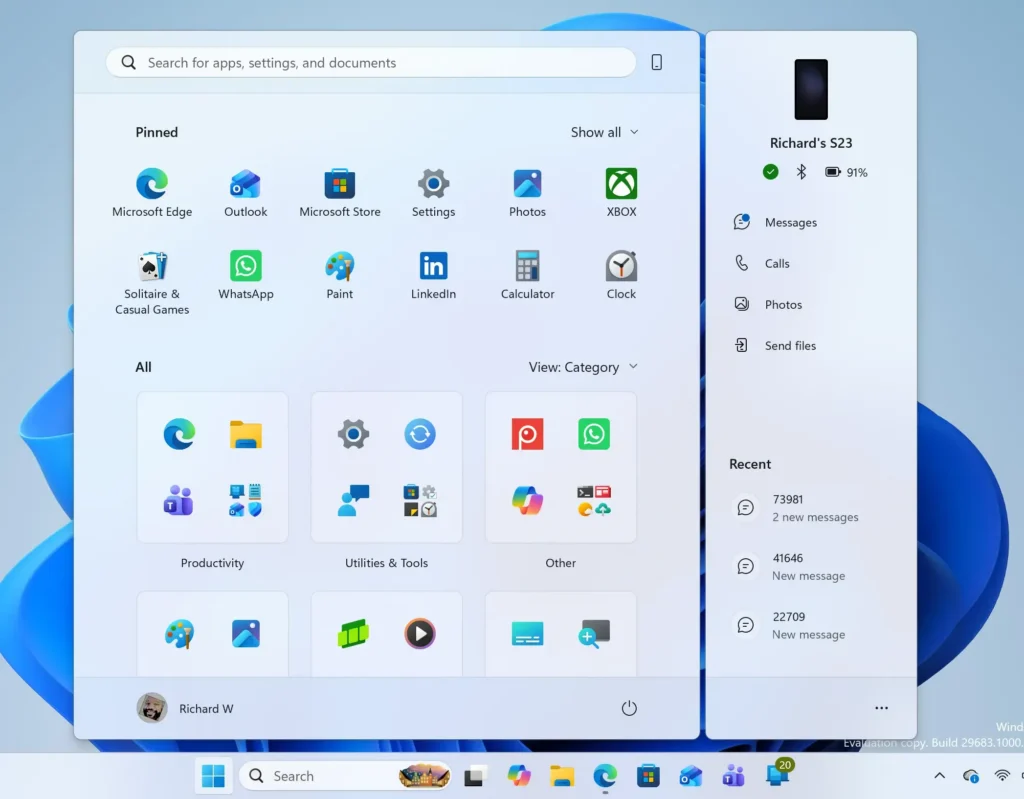
Windows 11 Start menu search panel for opening OpenSSH Client settings - Type “Microsoft Store” in the search box. The Microsoft Store app appears at the top of the results.
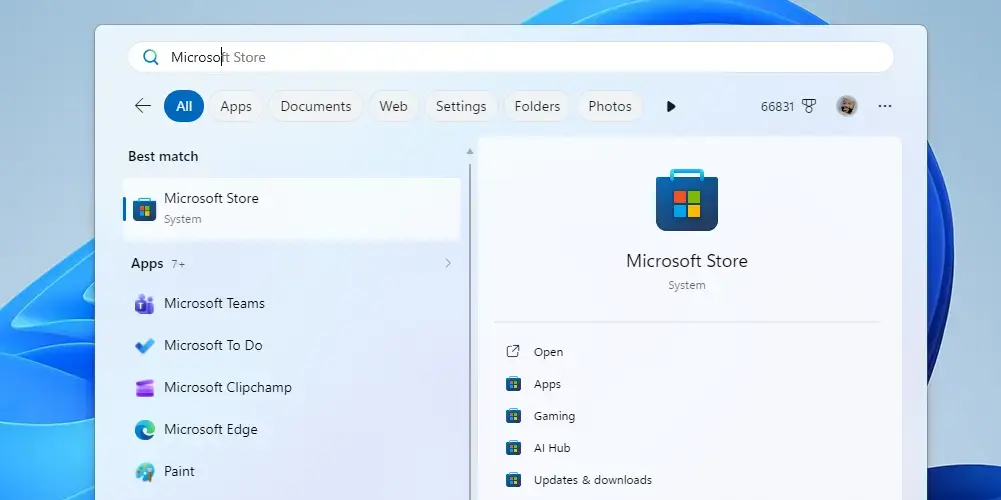
Start Menu - Select Microsoft Store to open it. The Store window opens on the Home page, with a search bar across the top.
- Check that you are signed in. Look at the top-right corner of the window. A picture or icon for your account sits to the right of the search bar. If you see a generic icon and the words Sign in when you select it, choose Sign in and enter your Microsoft account details before you continue.
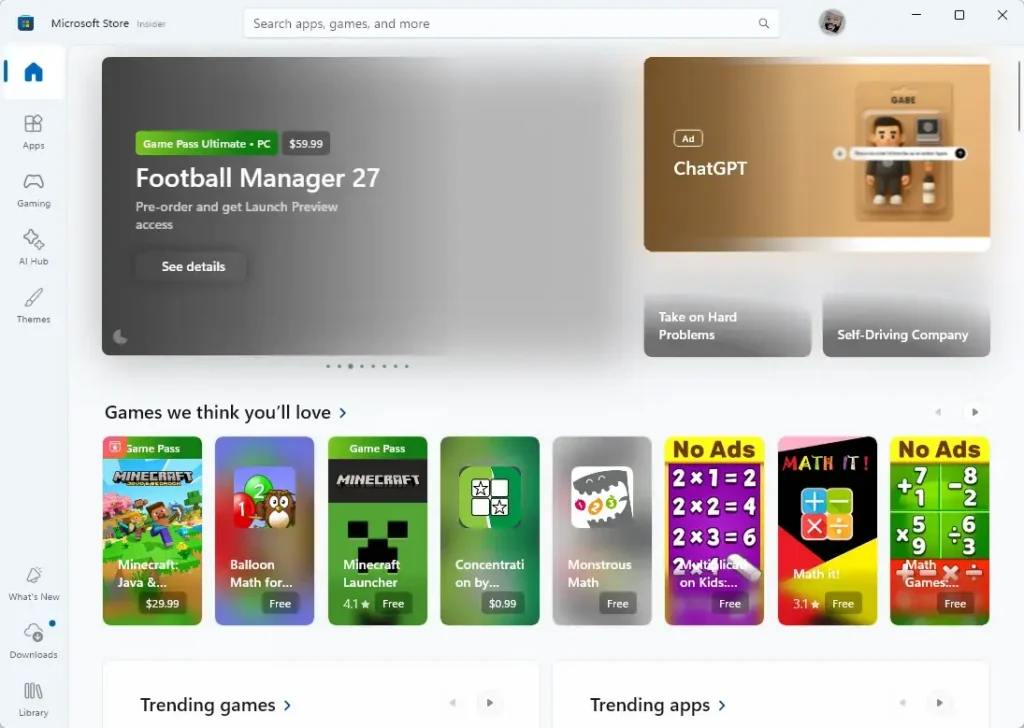
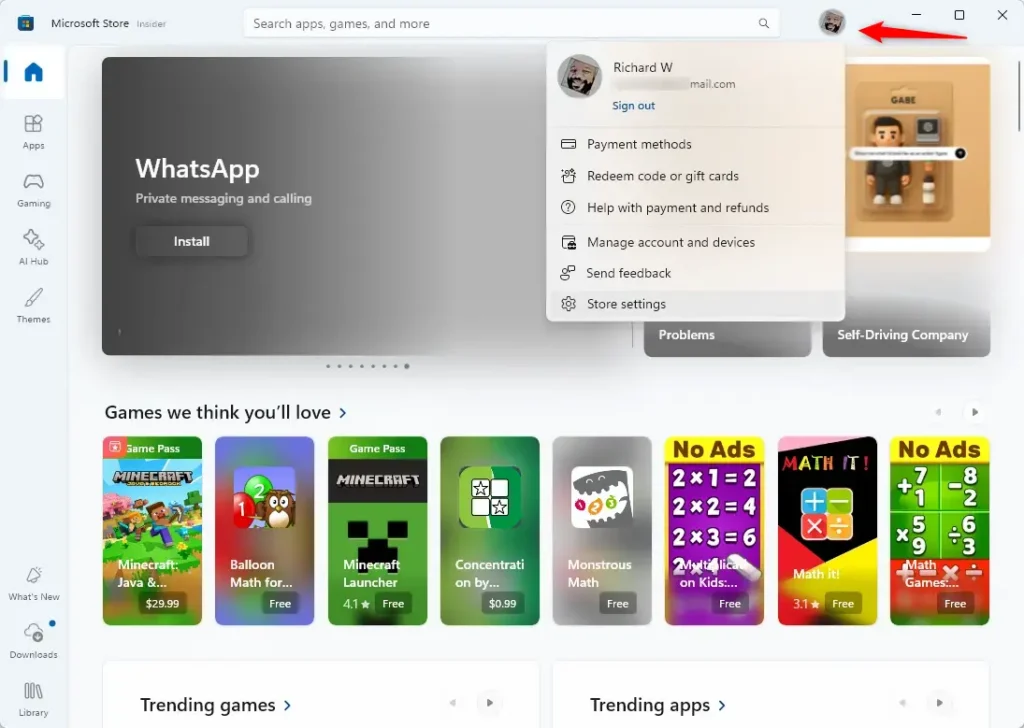
- Select your profile picture. Click the circular icon in the top-right corner of the Store window. A menu opens with your account name and a list of options.
- Select App settings. It sits in the profile menu, usually below your account details. The Settings page of the Store opens.
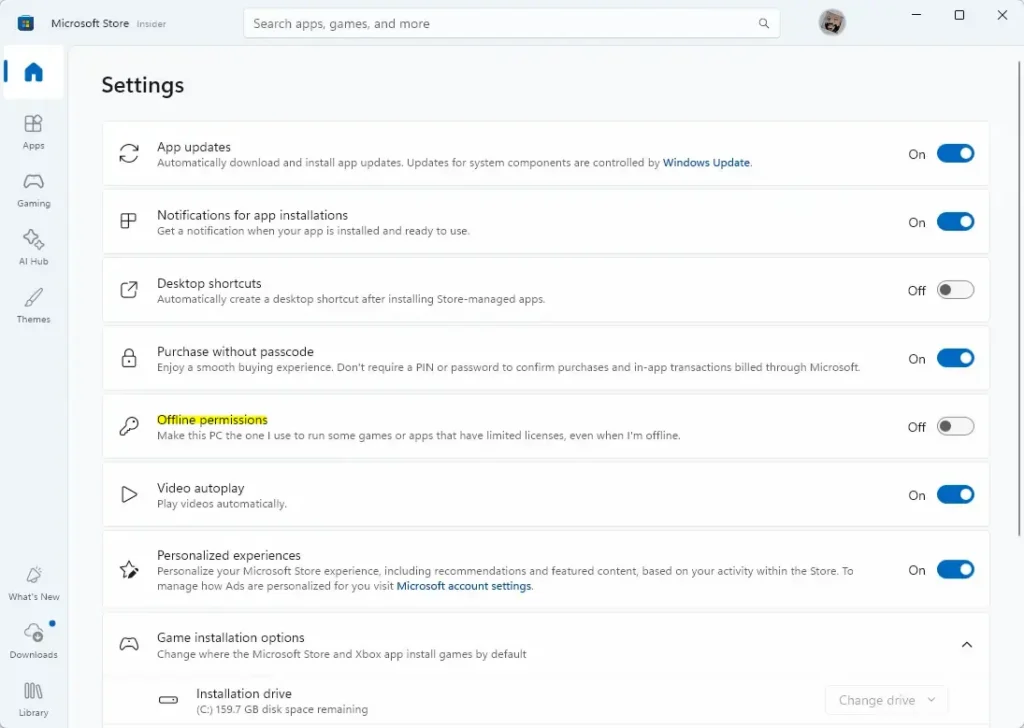
- Find Offline permissions on the page. Scroll down if you do not see it. The page lists other Store options such as app updates and video autoplay, and Offline permissions appears as its own entry with a short description below it.
- Read the description under Offline permissions. Microsoft states any limits on the setting there, so check it before you switch the setting on.
- Move the Offline permissions toggle to On. Click the switch once. The label next to it changes from Off to On, and the switch shows as filled.
- Close the Settings page. Use the back arrow in the top-left corner of the Store, or close the window. The setting saves as soon as you change the toggle, so no confirmation button exists.
If the toggle jumps back to Off after you click it, the Store could not reach your account. Check your connection, wait a minute, and try the steps again.
How to Check That Offline Permissions Work
You can test the setting without waiting for the next time you travel. The test below uses Quick Settings (the panel of toggles that opens from the taskbar) to cut the connection for a moment.
- Open Quick Settings. Click the network, speaker and battery icons at the right end of the taskbar.
- Turn on Airplane mode. The Wi-Fi tile and other wireless tiles switch off, and the PC loses its connection.
- Open an app you got from the Microsoft Store. Choose one that does not need the internet to function, such as a notes app, a calculator or a single-player game.
- Check that the app starts. If it opens normally, the setting works for that app.
- Turn Airplane mode off again. Your Wi-Fi reconnects within a few seconds.
If an app still refuses to open offline, it may rely on an online service for more than a license check. Games tied to Xbox services, and apps that sign you in each time, are common examples. This is a limit of those apps and not a fault with the toggle.
If the Offline Permissions Option Is Missing or Greyed Out
Several causes can hide the toggle or stop it from changing. Work through them in this order, since the first two fix most cases.
Sign in with your Microsoft account
The Store ties this setting to an account. If you opened the Store without signing in, the toggle may not show. Select the profile icon, choose Sign in, and return to App settings. If you only use a local account on the PC, you still sign in to the Store itself with a Microsoft account. You do not need to change your Windows sign-in.
Update the Microsoft Store app
An outdated Store can show a different Settings page. Open the Store, select Library in the left pane, and click Get updates. Wait for the Store to finish, then close and reopen it. The guide How to Update Microsoft Store Apps on Windows 11 explains this process in more detail. turning on automatic updates in the Microsoft Store keeps the Store current from now on.
Clear the Store cache
The Store cache (temporary data the app saves to load faster) can become damaged. Damaged cache files can cause a blank Settings page, a toggle that will not respond, or a Store window that closes on its own. Follow How to Reset Microsoft Store Cache in Windows 11, then open the Store and check App settings again.
Reset or re-register the Store
Try How to Reset Microsoft Store App in Windows 11 first. Resetting can return the app’s settings to their defaults, so check the Offline permissions toggle afterwards and switch it back on if needed. If a reset does not work, follow re-registering the Microsoft Store to re-register the Microsoft Store (a repair that reinstalls the app’s files and keeps your downloaded apps).
Check for a managed device
PCs that belong to a company or school can have Store features limited by an administrator. If the option stays missing after the steps above and the PC is managed, the restriction is likely deliberate. Ask the person who manages the device. I can’t tell which setting your organization uses, so I haven’t included any registry or policy changes.
Look for a message about another device
Read any text under the toggle or any message that appears when you switch it on. Microsoft shows this text to explain limits tied to your account or to other PCs you use. If the Store says another device already holds the permission, follow the on-screen wording. If the text does not explain the limit, I can’t confirm the details. Check Microsoft’s support pages for your account.
How to Turn Offline Permissions Off Again
You can reverse the change at any time. Turn the setting off if you share the PC, if you no longer need offline access, or if you want the Store to check licenses online again.
- Open the Microsoft Store. Search for it in the Start menu and select it.
- Select your profile picture. It sits in the top-right corner of the window.
- Select App settings. The Store Settings page opens.
- Move the Offline permissions toggle to Off. The label changes from On to Off.
After you turn it off, Store apps go back to the normal license check. Apps that need a license check may then refuse to open until the PC reconnects to the internet.
What Can Change the Setting Later
The toggle belongs to the Store app on that PC, so some later actions can change it. Resetting the Store app can return it to its default state. Reinstalling built-in Store apps can have the same effect. If you sign in to the Store with a different Microsoft account, that account’s setting applies instead.
After any of these actions, open App settings and check that Offline permissions still reads On. Because Windows can change Store settings with a feature update, make the same check after a major Windows 11 update. I can’t confirm that every feature update keeps the setting, so don’t skip that check.
What to Do Next
Open the Store’s App settings page again and look at the other options there. Two worth checking are Microsoft Store notifications and video autoplay. If you also want more control over what the Store installs, read how to enable or disable SmartScreen for Microsoft Store apps.
Have a question about this guide?
Answered by AI from this guide. Good questions may be added to this page — please don't include personal details.
Did this guide fix your problem?

About the Author
Richard
Tech Writer, IT Professional
Richard is a writer at Geek Rewind who turns complex IT tasks into clear, step-by-step guides. He draws on years of hands-on experience in system administration and enterprise IT operations, focusing on Windows, Linux and WordPress: the problems people actually run into, and the fixes that work. His server and WordPress guides come from systems he runs himself. Richard builds and maintains the platform behind Geek Rewind, from its Ubuntu servers and Nginx configuration to its custom WordPress plugins. Many new tutorials start with readers' questions, and he's always glad to answer them in the comments.
No comments yet — be the first to share your thoughts!