This text provides instructions on setting up and partitioning a new hard drive on Windows 11. It explains that partitioning helps manage data and improve performance in some situations. The step-by-step guide presents how to create, shrink, resize partitions, and how to initialize a new hard disk.
#Windows 11
This text provides a guide for restoring the default location of folders in the home directories of Windows 11. The process involves using File Explorer, inserting a specific command into the address bar, selecting a folder, and opting for 'Restore Default' in the folder properties. These steps can help users with storage management, returning to initial locations after prior changes.
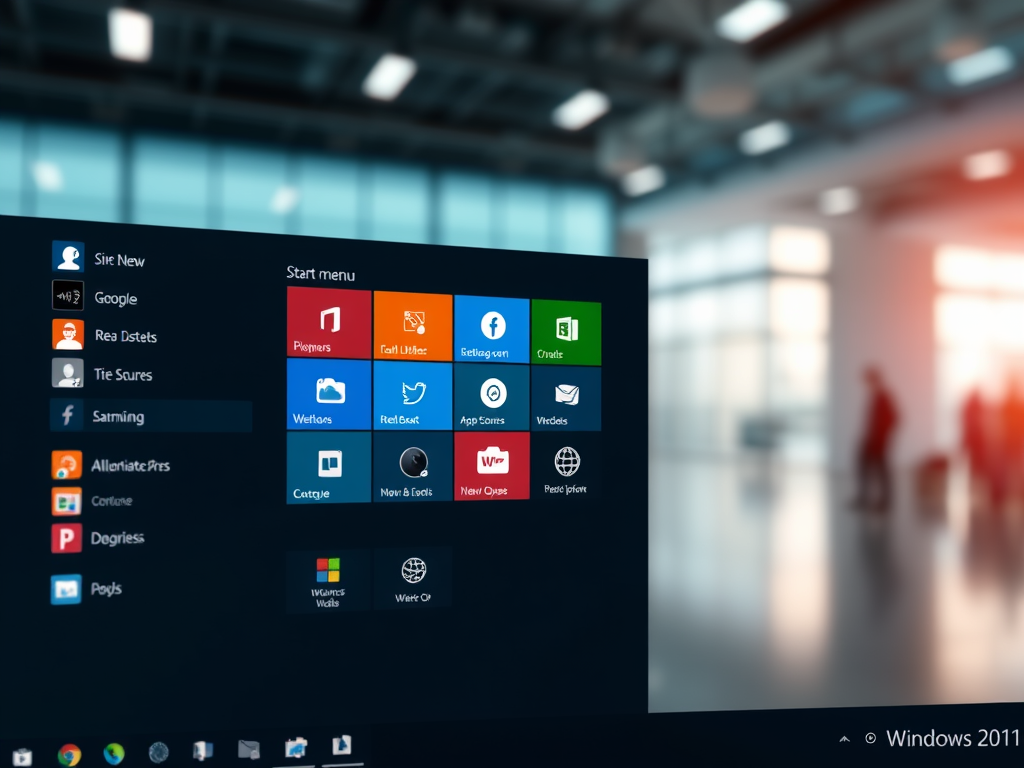
This article advises on how to reset or repair the Start Menu in Windows 11, an essential pathway to open apps and access settings. When the Start Menu malfunctions, it can be reset using specific commands in PowerShell, either for the user profile or all users on a device. If faced with an error, one can terminate the Windows Shell Experience Host process in Task Manager and rerun the commands.
This content guides users on how to change the default download location in Windows 11. It explains how to use the 'Move' command within the Downloads folder's Properties menu to alter the default location, choosing a new destination for the downloads. Finally, it confirms this process will also relocate any existing files to the new chosen location.
This content is a guide to reset or repair the Microsoft Store app on Windows 11 if it stops working or can't be opened. The Microsoft Store app, a Universal Windows Platform (UWP) app, can be reset to factory settings to resolve these issues. The guide also provides steps to re-register the Microsoft Store app using Windows PowerShell commands if the reset does not resolve the problem.
This article explains how to enable the Trusted Platform Module (TPM) 2.0 for Windows 11 compatibility and to receive all updates. TPM 2.0 is a security measure that protects against software vulnerabilities. The article provides a detailed guide on how to check if your system supports this feature and how to enable it, highlighting its importance in ensuring higher security standards and access to various features like BitLocker Drive Encryption and Secure Boot.
The post instructs on how to mute and unmute sound volume on Windows 11, either through the Quick Settings menu on the taskbar or the Windows settings app. Quick Settings can be accessed via a hidden or translucent button on top of the Wi-Fi, Speaker, and Battery icons. Users can toggle the speaker/sound icon or adjust the slider to mute or unmute sound. The same controls are available in the Sound settings within the Windows settings app.
The content provides a step-by-step guide for students and new users on how to change or update the country or regional settings in Windows 11. The tutorial clarifies how these settings influence the date/time, numeric, and currency data formats, offering illustrations on how to navigate the system settings to implement changes needed for correct document and program formatting.
The post provides instructions on how to stop OneDrive, a Microsoft cloud and backup storage, from automatically opening upon logging into Windows 11. Users can disable this feature by using Task Manager or from within the OneDrive app itself. Both methods involve finding the OneDrive settings and deactivating the auto-start feature.
This post guides through the process of deactivating and uninstalling Windows 11 activation key. It informs students and new users that they can transfer or remove their product key from a PC without erasing the digital license on Microsoft servers. To do this, one may need administrator rights, then proceed through several commands on the Command Prompt application to deactivate Windows 11 and clear the product key from the registry.
This content provides a guide on how to change or spoof the MAC address of a device on Windows 11. MAC addresses help identify network devices, and while they cannot be altered physically, users can change them virtually to resolve network issues. The article includes step-by-step instructions on how to navigate the Windows 11 system settings to perform this task.
The post instructs Windows 11 users on how to schedule automatic system maintenance tasks including updates, security scanning, and system diagnostics. While these tasks are usually done at 2 AM, the timing can be changed if one's PC is not usually on at this time. There's no option to stop these tasks, as they help the system function effectively.
This post advises students and new users on updating Microsoft Store apps on Windows 11, promoting its significance in addressing bugs/security vulnerabilities and improving overall app security. Two types of apps - Microsoft Store apps and traditional apps - can be installed on Windows. The post provides guidelines for manually updating Microsoft Store apps from settings and enabling automatic updates for convenience and better system protection.
This text outlines how to upgrade from Windows 11 Home Edition to Pro. It provides two options for acquiring a Windows 11 Pro license: purchasing a retail key from a vendor, or buying one directly from Windows activation settings. Benefits of Pro include BitLocker encryption, Hyper-V virtualization, a built-in remote desktop server, and joining a domain in an active directory. It also explains the step-by-step upgrade process within the Windows Settings app.
The article provides step-by-step instructions on adding exclusions to Microsoft Defender on Windows 11. It emphasizes that exclusions can enhance system performance but warns they could invite threats since Microsoft Defender won't scan excluded files for malware. The process involves opening the Windows Security app, navigating to Virus & Threat Protection settings, and selecting files, folders, file types, or processes to exclude from scans.