How to Turn On or off Narrator Emphasis in Windows 11

- 6 steps
- Includes a restart or sign-out
Narrator emphasis in Windows 11 changes how the built-in screen reader treats text, buttons and links while it speaks them. It is an accessibility feature. It helps you follow along by making active items stand out, with a clear color change on screen and extra cues in the audio.
You can turn this setting on or off in the Windows 11 Settings app whenever you want to change how Narrator looks and sounds. The change applies straight away. You don’t need to restart the PC, and the setting works the same on Windows 11 Home and Pro.
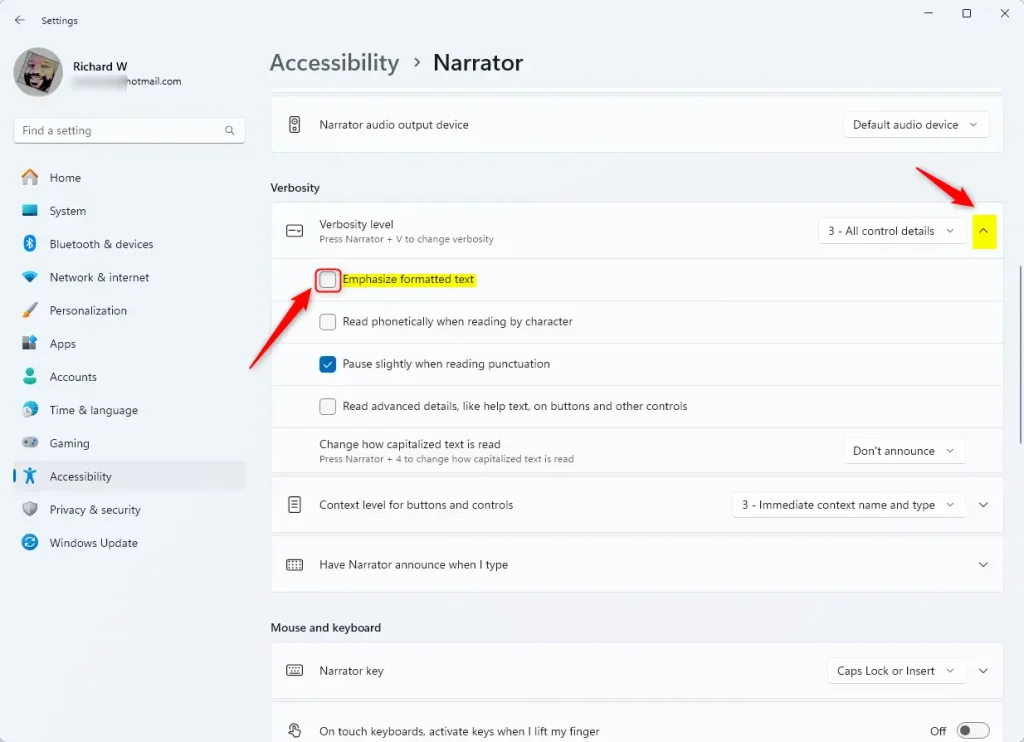
Open Settings Accessibility Narrator, scroll to Verbosity, and toggle the Emphasize formatted text switch on or off. The change takes effect immediately without restarting.
Why Turn On Narrator Emphasis?
Whether you want emphasis on is a matter of taste. Here is how people usually decide:
- It helps you notice important words or phrases when Narrator reads. This is useful in long documents and web pages where bold or italic text carries meaning.
- Some people like hearing this extra emphasis because it helps them understand the text better.
- Others prefer a simple, clear voice without extra emphasis. If the extra cues feel distracting, turn the setting off.
How to Enable or Disable Narrator Emphasis on Formatted Text
Narrator emphasis on formatted text controls whether the screen reader calls out text formatting such as bold or italics. You turn it on or off by opening Settings, going to Accessibility, and selecting Narrator. Then you scroll down to the Verbosity section and change how much detail Narrator reads out.
- Open Windows Settings. Click the Start menu (the Windows icon at the bottom left), then click Settings. You can also press Win+I to open Settings directly. For other ways to open it, see Learn more about opening Settings. The Settings window should now be open.
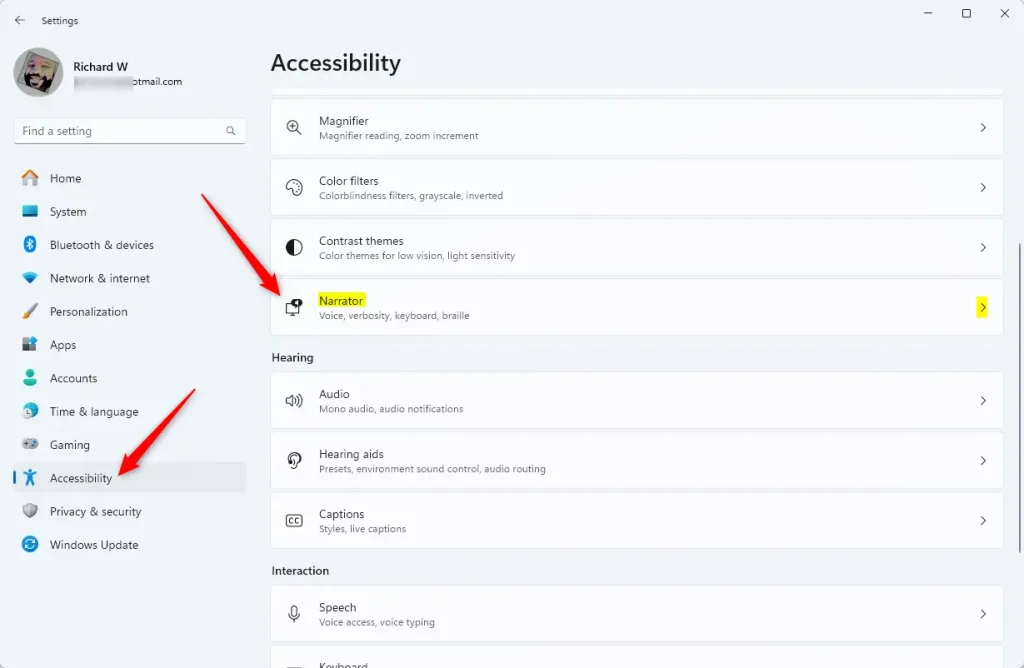
- Go to Accessibility. In the Settings window, click Accessibility in the menu on the left side. The accessibility options appear on the right.
- Find the Narrator settings. On the right side, scroll down and click Narrator. The page that opens has the Narrator on/off switch at the top, with more options below it.
- Open the Verbosity options. Scroll to the section called Verbosity. Click Verbosity level to expand it.
- Change the emphasis setting. You will see an option labeled Emphasize formatted text. Use the switch to turn it on or off. The switch shows On or Off straight away.
- Close Settings. When you’re done, close the Settings window. Your choice is saved automatically.
First, Microsoft moves and renames Narrator options between Windows 11 builds, so the wording on your PC may differ slightly. Second, run Windows Update, because older builds may not have the setting at all. Third, type Narrator into the Settings search box to get to the Narrator page faster.
To check that the change worked, start Narrator by pressing Ctrl+Win+Enter. Then open a web page or a document that has bold or italic text. Move through that text and listen to how Narrator reads it. Press the same three keys again to stop Narrator. To undo your change, go back to the same switch and set it to its earlier position.
How formatted text is announced depends on your own preferences. This setting decides how Narrator speaks elements like bold text or bullet points, which gives you control over the special audio cues. If you share the PC with someone who uses Narrator differently, remember that the setting belongs to the Windows account you are signed in to.
Summary
Narrator emphasis in Windows 11 is controlled through the Verbosity settings inside the Accessibility menu. These options change how the screen reader handles formatted text and audio cues. Review them when you want to fine-tune what you hear while you move through documents and web pages.
The path is always the same: Accessibility, then Narrator, then the Verbosity setting. Audio cues go with this feature to make clear when the screen reader is speaking a particular element.
Clearer sound distinctions help users with low vision, and anyone else who needs obvious audio cues. Emphasis makes important information stand out, which improves usability for people with a range of disabilities.
You can come back to these steps whenever you want to change your preferences.
For full details on using the built-in screen reader, see the complete Narrator guide.
Have a question about this guide?
Answered by AI from this guide. Good questions may be added to this page — please don't include personal details.
Did this guide fix your problem?

About the Author
Richard
Tech Writer, IT Professional
Richard is a writer at Geek Rewind who turns complex IT tasks into clear, step-by-step guides. He draws on years of hands-on experience in system administration and enterprise IT operations, focusing on Windows, Linux and WordPress: the problems people actually run into, and the fixes that work. His server and WordPress guides come from systems he runs himself. Richard builds and maintains the platform behind Geek Rewind, from its Ubuntu servers and Nginx configuration to its custom WordPress plugins. Many new tutorials start with readers' questions, and he's always glad to answer them in the comments.
No comments yet — be the first to share your thoughts!