How to Change Braille Display Language on Windows 11


Windows 11 lets you change the input and output language of a braille display, so you can read and write in more than one language. This guide covers where the setting lives, what to install first, and how to switch languages.
What is Narrator?
Windows 11 includes Narrator, a built-in screen reader that reads on-screen text aloud. Narrator also sends text to braille displays, which are external devices with refreshable tactile pins. The braille language setting sits inside Narrator’s settings, so you do not need any other app to change it.
Why change the braille display language?
The language you set tells Narrator how to turn text into braille cells, so localized characters and punctuation come out correctly. If you work in more than one language, such as Spanish or French, you can switch without losing readability. The steps are the same on Windows 11 Home and Pro.
Steps to Change Braille Display Language
Step 1Open Windows Settings
- Click the Start button on the taskbar , then select Settings. Or press
Windows key + Ion your keyboard to open the app directly.
The Settings window should now be open.
Step 2Go to Accessibility
- In the Settings window, click Accessibility in the menu on the left side.
The accessibility options appear on the right.
Step 3Find Narrator settings
- Scroll down on the right side and click Narrator.
The Narrator page opens. The full path you just followed is Settings Accessibility Narrator

Step 4Open Braille options
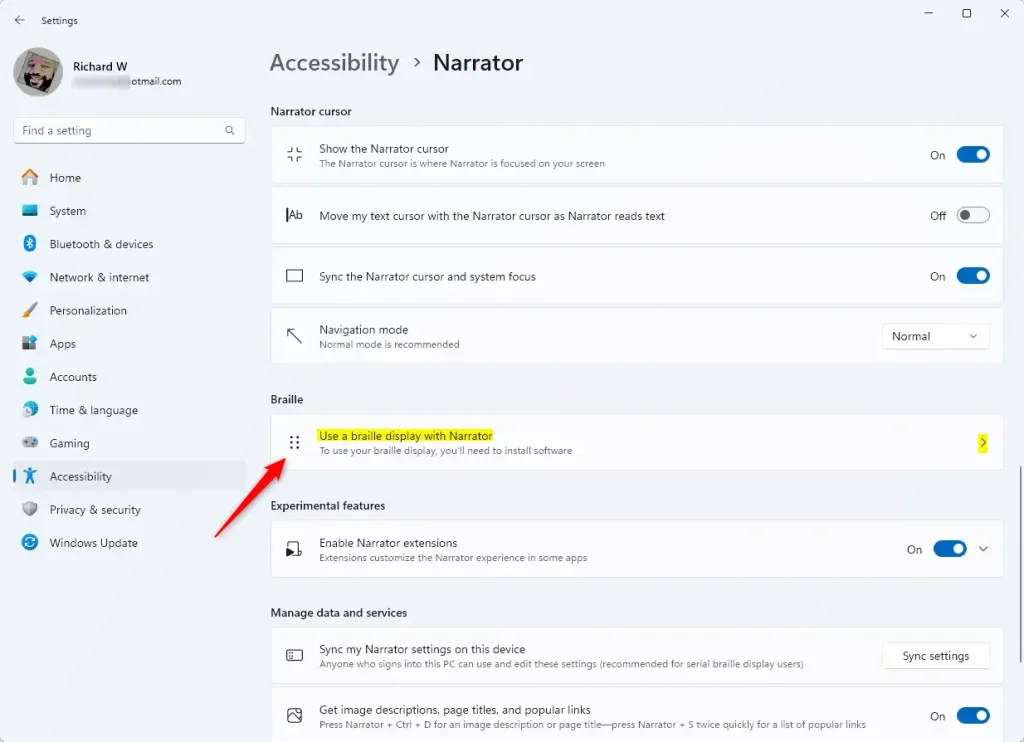
- On the Narrator page, find the Braille section.
- Click the arrow next to Use a braille display with Narrator to expand it.
The braille options now appear under that heading. If the section looks collapsed, click the same row again.
Step 5Install braille software (if needed)
⚠️ Admin Privileges Required
If Windows asks for admin approval or credentials, enter them to continue.
- If braille support is not installed yet, click Download and install braille. This fetches the required drivers, which are small software packages that let your hardware communicate with Windows.
- Wait for the download and installation to finish.
You also need an internet connection for the download. More information about this process is available here.
Step 6Change the input/output language
- Restart your PC after the installation finishes.
- Open Settings Accessibility Narrator again and expand the braille options as before.
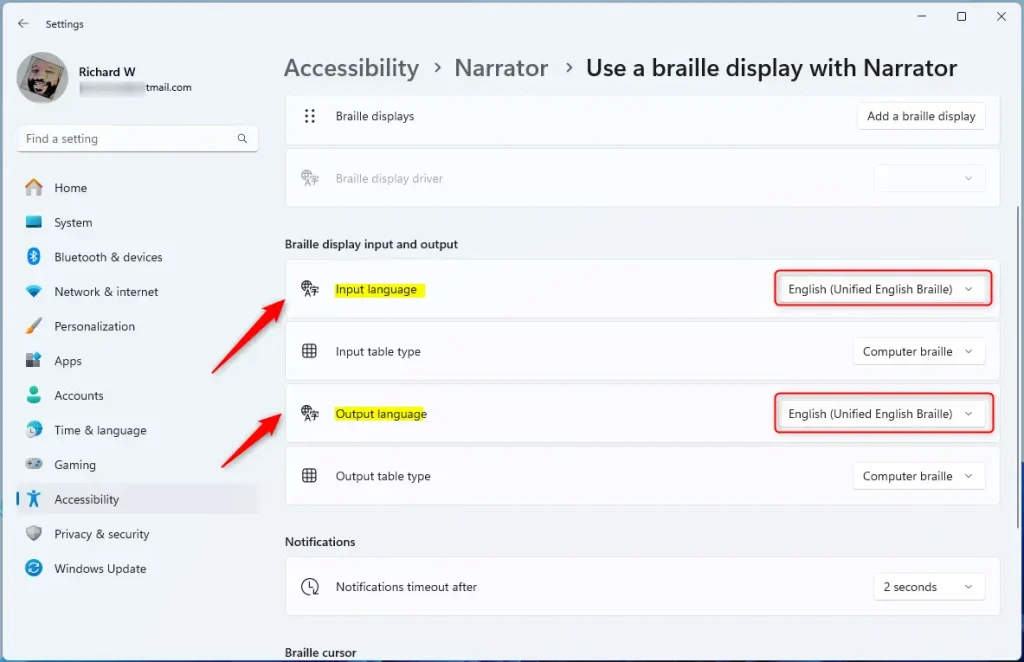
- Open the Input Language dropdown and choose the language you want to type in on the braille display.
- Open the Output Language dropdown and choose the language you want the display to show.
The two lists work separately, so you can set them to different languages if you need to. If the language you want is not listed, check that the braille drivers installed correctly.
The display switches to the new setting right away, with no further restart needed. To undo the change, open the same dropdowns and pick the previous language.
Summary
- Changing the braille display language helps you read and write in different languages.
- Make sure you have installed the braille software and drivers first.
- You can find the language settings in Settings Accessibility Narrator Braille
- This makes it easier to communicate and work with text in other languages.
If the language options are missing, first check that the braille drivers are installed and active. Then open Settings, go to Accessibility, select Narrator, and expand the Braille section again.
How to Turn On or Off Narrator in Windows 11
How to Use a Braille Display with Narrator on Windows 11
Leave a comment below to share troubleshooting experiences or questions.
Was this guide helpful?

About the Author
Richard
Tech Writer, IT Professional
Richard is a writer at Geek Rewind who turns complex IT tasks into clear, step-by-step guides. He draws on years of hands-on experience in system administration and enterprise IT operations, focusing on Windows, Linux and WordPress: the problems people actually run into, and the fixes that work. His server and WordPress guides come from systems he runs himself. Richard builds and maintains the platform behind Geek Rewind, from its Ubuntu servers and Nginx configuration to its custom WordPress plugins. Many new tutorials start with readers' questions, and he's always glad to answer them in the comments.




No comments yet — be the first to share your thoughts!