Stop Your Phone’s Messages from Showing up on Your Windows 11 PC

- 34 steps
- Needs administrator rights
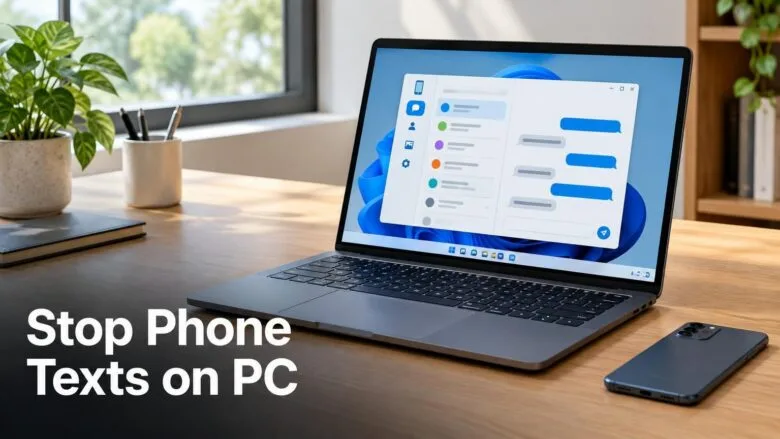
Phone Link, the Windows 11 app that mirrors your phone’s texts and notifications onto your PC, is what shows those messages on your screen. The question “how do I stop my laptop from receive messages on my phone” has a short answer: turn off message and notification syncing in Phone Link, then unlink the phone if you want it gone completely.
The fastest fix takes under a minute. Open Phone Link, go to Settings Features, and switch off the notification and message options. None of the steps below need administrator rights, and none delete anything from your phone.
Phone Link is not the only route. Bluetooth, Google Messages for web, and other apps can also show texts on a PC, so this guide covers each one.
To stop your phone’s messages from showing up on your Windows 11 PC, open Phone Link, select the gear icon, and go to Features. Turn off the notification and message toggles, then close Settings. The change applies at once. For a full disconnect, unlink the phone in Phone Link, and turn off Phone Link notifications under Settings System Notifications.
Why your phone’s messages show up on your PC
Messages reach a Windows 11 PC when something on the phone is allowed to share them. The PC does not read your texts by itself. You, or someone using your phone, gave a connection permission at some point.
The usual causes are:
- Phone Link (the Microsoft app, called Your Phone in older versions) is paired with your phone and has notification or message access.
- A Bluetooth pairing between the phone and the PC has notification sharing turned on. Bluetooth sharing like this is common with iPhones.
- Google Messages for web is paired with your Android phone through a QR code (a square barcode your phone scans).
- A separate chat app, such as WhatsApp or Telegram, is signed in on the PC.
Work out which one applies before you change anything. If a pop-up appears at the corner of the screen with a Phone Link icon, start with the next section. If texts appear in a browser tab, jump to the Google Messages section further down.
Stop message notifications in Phone Link
This is the quickest way to stop your PC from receiving messages from your phone while keeping the phone paired for other things, such as photos or calls. Open Phone Link, go to Settings Features, and turn off the toggle that mentions notifications or messages on your PC.
- Open the Start menu. Press the Windows key on your keyboard.
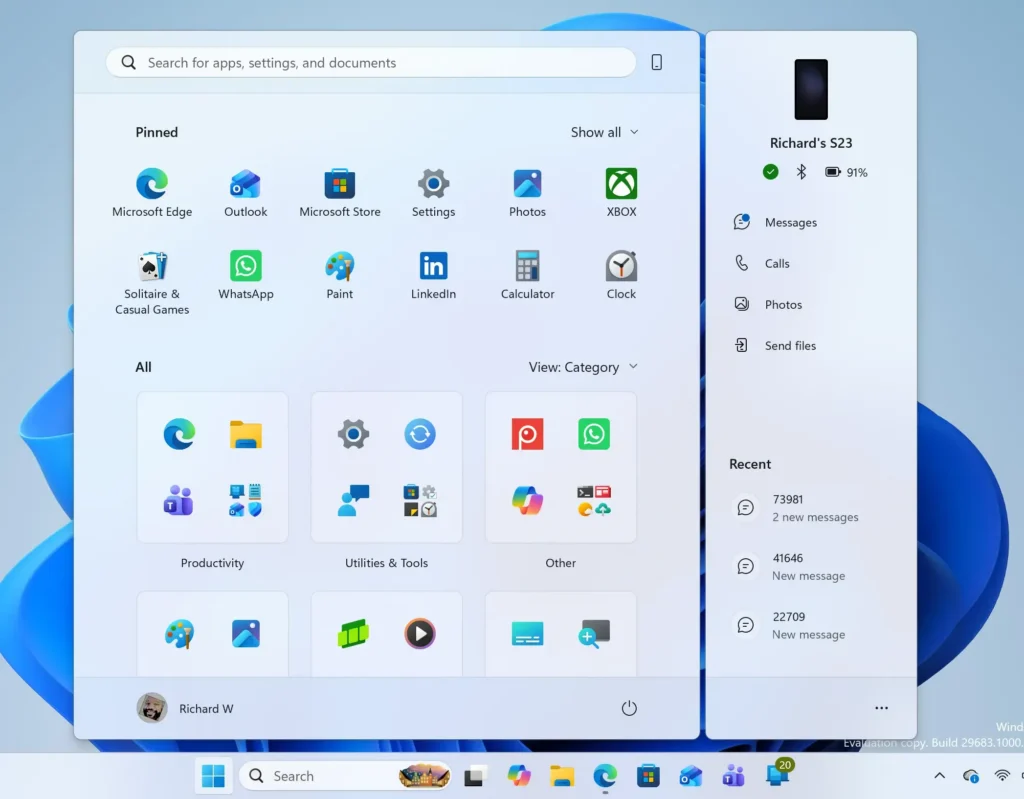
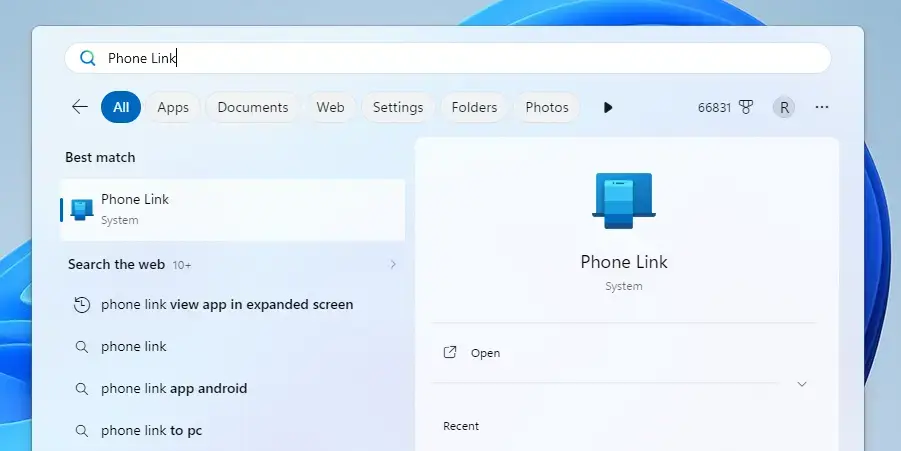
Windows 11 Start menu search panel for opening OpenSSH Client settings - Type “Phone Link” and open the app. The Phone Link window shows your phone’s name and tabs such as Messages and Calls.
Start Menu - Select the gear icon to open Settings. It sits in the top-right corner of the window.
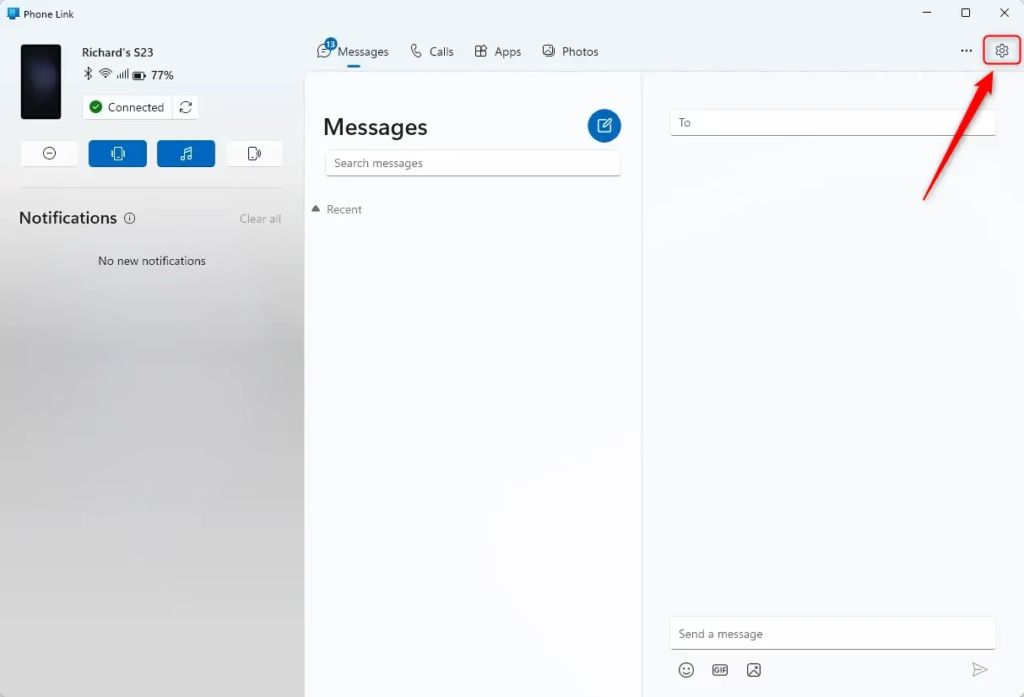
Phone Link app settings gear icon on Windows 11 - Select Features in the left pane. A list of feature groups appears, such as Notifications, Messages, Calls and Photos. The exact groups depend on your Phone Link version.
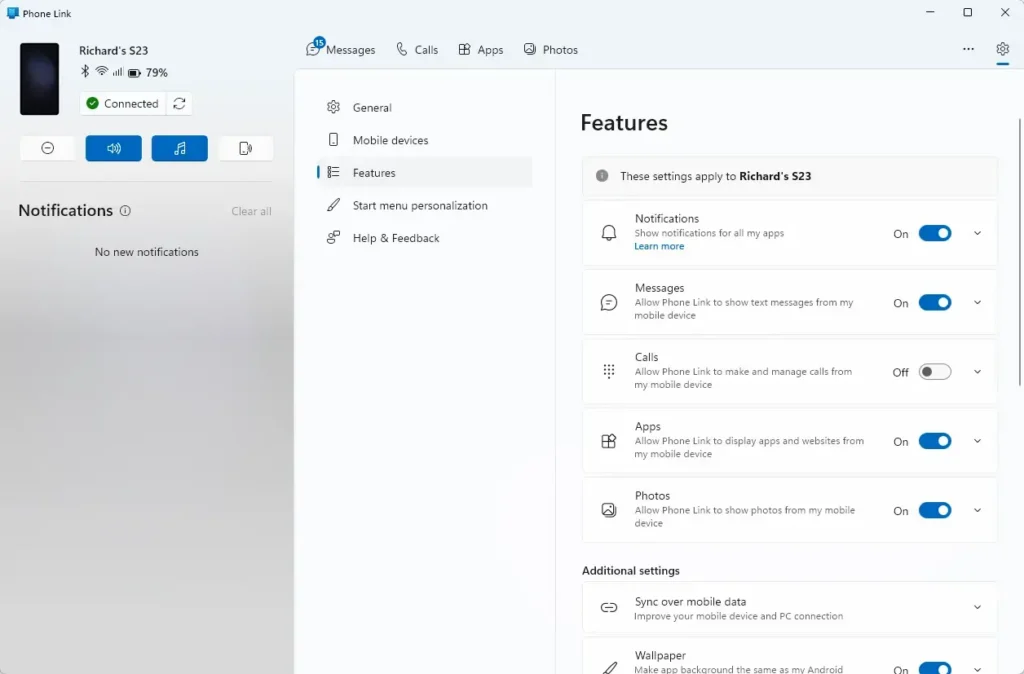
- Open the Notifications group. This controls which phone alerts appear on the PC, including message alerts.
- Turn off the toggle that shows phone notifications on your PC. The toggle moves to the left and turns grey. Phone alerts stop appearing as banners on your PC.
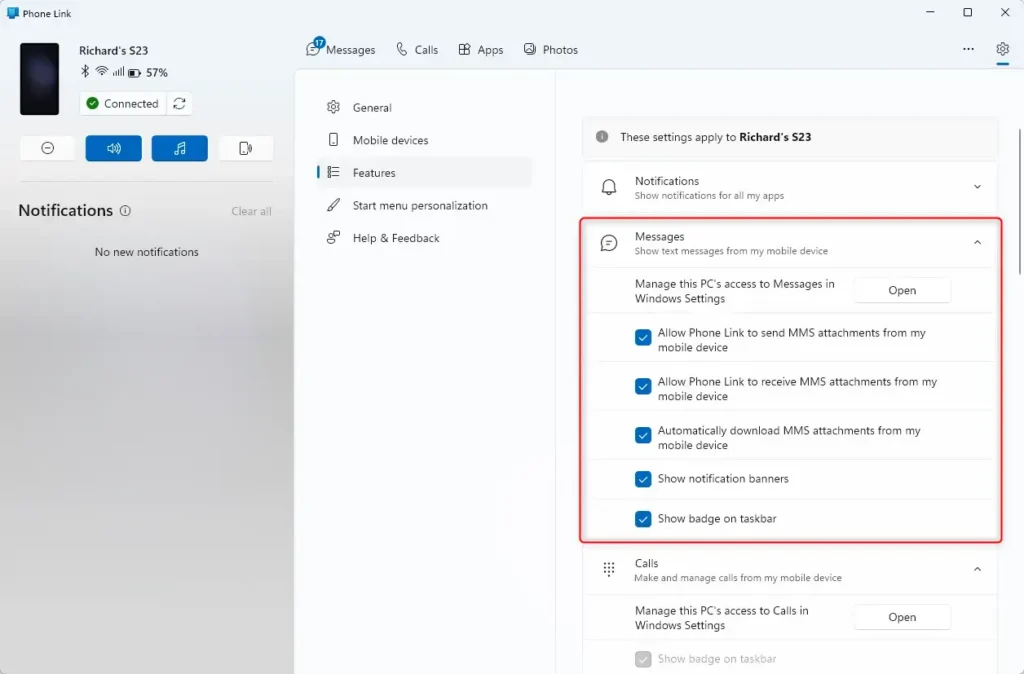
- Open the Messages group. Turn off the toggle that shows or syncs messages on the PC. Your texts stop appearing in the Phone Link Messages tab.
- Close Settings. The changes apply at once and no restart is needed.
Microsoft updates Phone Link through the Microsoft Store, so the labels next to each toggle change from version to version. Choose the toggle whose description mentions notifications or messages on your PC.
To test the change, send yourself a text from another phone or ask a friend to. Nothing should appear on the PC. If a banner still shows up, go to the next section.
Turn off Phone Link notifications in 🪟 Windows 11 Settings
If Phone Link still shows banners, block them at the Windows level. Open Settings System Notifications, find Phone Link in the list, and turn off its notifications. This step stops Windows from displaying any Phone Link alert, no matter what the app itself allows.
- Press Win+I. The Settings app opens.
Windows 11 Start menu search panel for opening OpenSSH Client settings - Select System in the left pane.
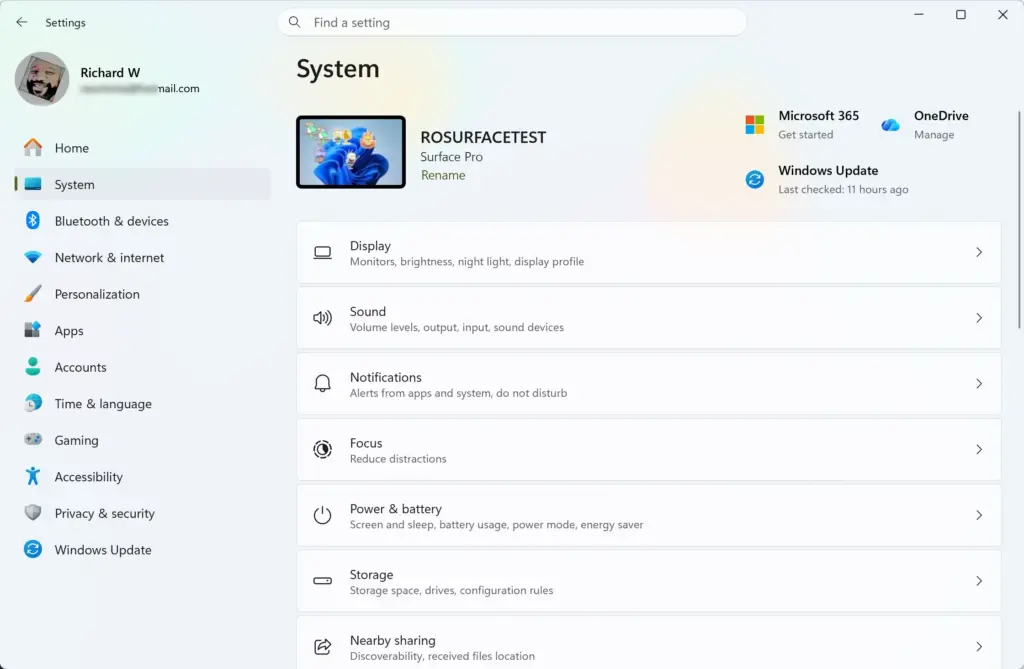
Settings › System - Select Notifications. A list of switches and an app list appears.
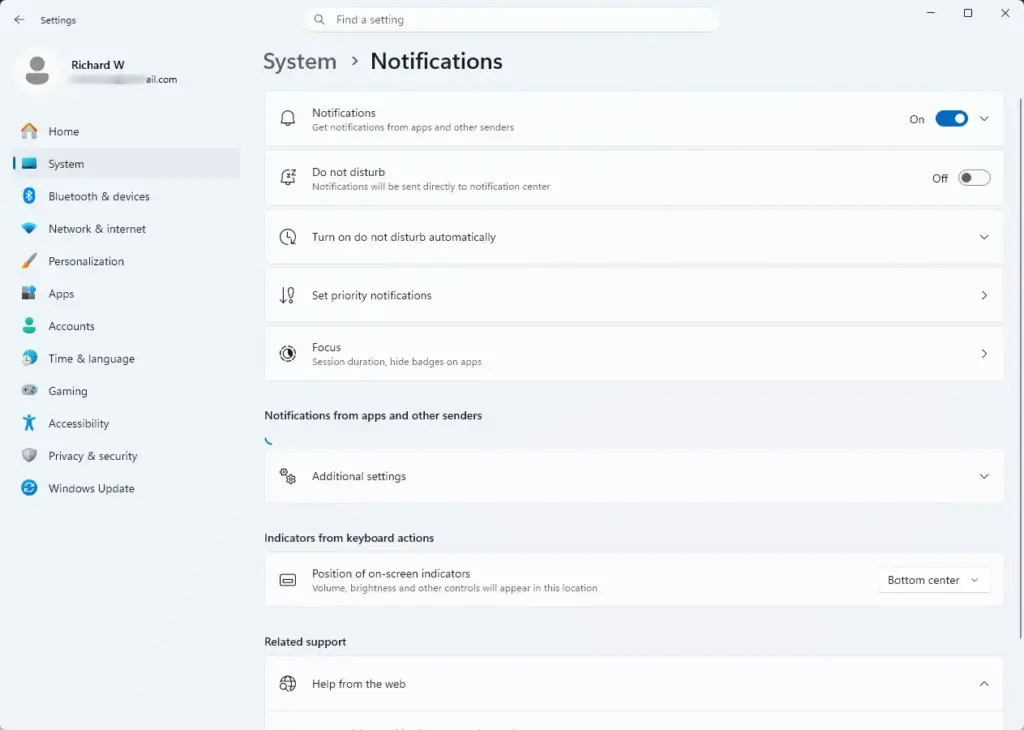
Settings › System › Notifications - Scroll to the list of apps and find Phone Link. If it is missing, Phone Link may not be installed, or Windows has not shown a notification from it yet.
- Turn off the toggle next to Phone Link. The toggle changes to Off, and Windows blocks banners, sounds and Notification Center entries from the app.
This hides the alerts but does not stop messages reaching the PC. The messages still travel to the PC and appear inside the Phone Link window when you open it. To cut the connection, use the next section.
Unlink your phone from your PC
Removing the link stops all sharing between the phone and the PC: messages, calls, photos and notifications. Use this when the PC is shared, or when you no longer want the phone connected. You can pair again later.
- Open Phone Link on the PC.
- Select the gear icon to open Settings.
- Select My devices. A list of linked phones appears.
- Find your phone in the list. Open its menu or select the option to remove or unlink it. The wording differs between versions.
- Confirm the removal. Phone Link returns to its setup screen, and texts no longer reach this PC.
Do the same on the phone so the link is gone on both sides. On a Samsung phone, open Settings Advanced features Link to Windows and remove the PC. On other Android phones, open the Link to Windows app and look for your linked PC in its device list. Menu names vary by phone maker, so your screens may look different.
If you only want to switch the app off for a while, the guide on how to enable or disable Phone Link in Windows 11 covers that route.
Stop messages from the phone side
Changing the settings on the phone is the most reliable fix. If the phone stops sharing, nothing on the PC can display your texts. Which steps apply depends on your phone.
Android: remove permissions from Link to Windows
Android asks you to grant the Link to Windows app access to notifications and messages. Taking that access away stops the flow at the source.
- Open Settings on the phone.
- Select Apps, then find Link to Windows. Tap it to open its details.
- Select Permissions. A list of allowed and denied permissions appears.
- Deny the SMS permission. Phone Link can no longer read your text messages.
- Check the phone’s notification access list and remove Link to Windows. On many phones this is under Notifications Device & app notifications, but the path varies by manufacturer.
Denying a permission may make Phone Link on the PC show an error or ask you to fix the connection. That is expected.
iPhone: turn off Show Notifications for the PC
An iPhone connects to Phone Link through Bluetooth. Messages and alerts reach the PC only when you allow the iPhone to share notifications with it.
- Open Settings on the iPhone.
- Tap Bluetooth. Your paired devices are listed.
- Tap the i icon next to your PC’s name.
- Turn off Show Notifications. The toggle turns grey, and the iPhone stops sending alerts to the PC.
Forgetting the iPhone also clears the Bluetooth link on the PC. The link drops the next time the devices try to connect. Check Bluetooth & devices in Settings on the PC to confirm.
Android Bluetooth: check message access
Stop Google Messages for web from showing texts
If your texts appear in a browser tab and not in Phone Link, the PC is paired with the Google Messages app through messages.google.com/web. This pairing works separately from Phone Link, so the steps above do not affect it.
- Open Messages (Google Messages) on your Android phone.
- Tap your profile picture or the three-dot menu in the top-right corner.
- Select Device pairing. A list of paired computers appears.
- Tap the X next to the PC to unpair it. The browser tab on the PC returns to the QR code screen.
Menu labels in Google Messages change from time to time. Open Google Messages on your phone and go to the profile menu. Look for Device pairing. If the label differs, choose the entry that is most similar.
Mute alerts for a while instead
If you want quiet for a meeting but still want your messages synced, pause the alerts and leave the link in place. Windows 11 has a Do not disturb mode that hides banners and sends them quietly to Notification Center.
- Press Win+I to open Settings.
- Select System Notifications.
- Turn on Do not disturb. Banners stop appearing, and missed alerts wait in Notification Center.
Turn the toggle off again to get your alerts back. Windows can also turn this mode on by itself during certain activities, depending on your settings.
If the steps do not match what you see
A few conditions explain most mismatches.
- The toggles are missing in Phone Link. Phone Link shows only the features your phone supports. Update the app from the Microsoft Store if the Features page looks sparse.
- Phone Link is not in the app list under Notifications. Windows lists an app there only after it has sent a notification. If Phone Link never appears, check the other sources in this guide.
- Messages still show after you unlink. The phone may still be paired through Bluetooth or Google Messages for web. Work through those sections.
- A different PC shows your texts. Phone Link can link a phone to more than one PC. Open Phone Link on each computer you have used and check the My devices list.
- A chat app shows the messages. WhatsApp, Telegram and similar apps have their own notification settings. Open Settings System Notifications on the PC and switch off the app there, or sign out of the app.
The steps work the same on Home and Pro editions of Windows 11, because Phone Link is a Microsoft Store app. A PC managed by an employer or school may block or force certain Phone Link settings. If a toggle is greyed out on a work PC, ask your IT team.
How to undo the change
Every change in this guide can be reversed. To bring syncing back, open Phone Link > Settings Features and turn the toggles back on. If you unlinked the phone, set it up again from scratch. The guide on setting up Windows 11 Phone Link walks through the pairing, and connecting your phone with Phone Link covers the phone-side prompts.
For permissions you denied on an Android phone, return to Settings Apps Link to Windows Permissions and allow them again. For an iPhone, turn Show Notifications back on, or pair the PC again if you chose Forget This Device.
What to do next
If you decide to keep Phone Link but want more control over it, read about turning off Phone Link recent apps in the notification area. If you would rather answer texts from the PC than silence them, see how to reply to messages and calls with Phone Link. You can also read how to turn Suggested Replies on or off.
Have a question about this guide?
Answered by AI from this guide. Good questions may be added to this page — please don't include personal details.
Did this guide fix your problem?

About the Author
Richard
Tech Writer, IT Professional
Richard is a writer at Geek Rewind who turns complex IT tasks into clear, step-by-step guides. He draws on years of hands-on experience in system administration and enterprise IT operations, focusing on Windows, Linux and WordPress: the problems people actually run into, and the fixes that work. His server and WordPress guides come from systems he runs himself. Richard builds and maintains the platform behind Geek Rewind, from its Ubuntu servers and Nginx configuration to its custom WordPress plugins. Many new tutorials start with readers' questions, and he's always glad to answer them in the comments.
No comments yet — be the first to share your thoughts!