

Installing Joomla locally on Windows 11 uses XAMPP, a free package that turns your PC into a web server. Nothing is exposed to the internet, and you don’t need a hosting account.
XAMPP includes Apache, MariaDB, and PHP, which are needed to run websites like Joomla. The XAMPP Control Panel labels the database module “MySQL”, but the software behind it is MariaDB. This lets you build and test Joomla sites on your computer before putting them online.
Joomla is a popular content management system for making professional websites. With XAMPP installed, you can get a Joomla site up and running on your own machine. The whole job has four parts: install XAMPP, create a database, put the Joomla files in the right folder, and run the web installer.
Install Joomla locally on Windows 11 by installing XAMPP, a free package that bundles Apache, MariaDB and PHP into a web server on your PC. Then create a database and database user, copy the Joomla files into the 📁C:\
Why run Joomla locally?
Running Joomla on your computer lets you build and test your website privately. You can experiment with designs, templates, and extensions before you ever go live on the internet.
A local copy is also a safe place to break things. If an extension or setting ruins the site, you can delete the folder and database and start over. Nothing public is affected and no visitor sees the mistake.
What happens when you are done?
Your fully functional Joomla website runs on your machine after installation. You can access your Joomla website through your web browser to create content and manage your site settings.
The site only works while Apache and MySQL are running in the XAMPP Control Panel . If the browser shows a connection error later, check that both modules are still started. The site is only reachable from your own PC unless you change your network setup.
Install XAMPP
XAMPP bundles all the necessary software for running a website locally into one easy-to-use package. If you have not yet installed XAMPP, follow the official XAMPP installation guides for Windows 11 to set up Apache, MySQL, and PHP.
Two tips from experience. First, install XAMPP in the default 📁C:\
When the installer finishes, open the XAMPP Control Panel and start Apache and MySQL. Both should turn green. If one will not start, another program is probably using its port. Skype, IIS, and other MySQL installs are common culprits.
Create a Joomla Database
To create a Joomla database for your Joomla installation XAMPP Windows 11 setup, you need to use the XAMPP Control Panel and the built-in shell. Open the XAMPP Control Panel with admin privileges and click the Shell button to launch the command window where you can run the commands to set up your database and user account.
Joomla stores all its content, users, and settings in a database. It also needs its own database user, so you don’t have to give it the all-powerful root account.
To open the Control Panel with admin rights, search for XAMPP Control Panel in the Start menu , right-click it, and choose Run as administrator. Confirm the User Account Control prompt. Make sure MySQL shows as running before you continue.
- Start the XAMPP Control Panel as administrator, as described above.
- Check that the MySQL module is running.
- Click the Shell button on the right side of the Control Panel . A command window opens.
Open the XAMPP Control Panel and click the ‘Shell’ button to open the command window. (Requires admin privileges)
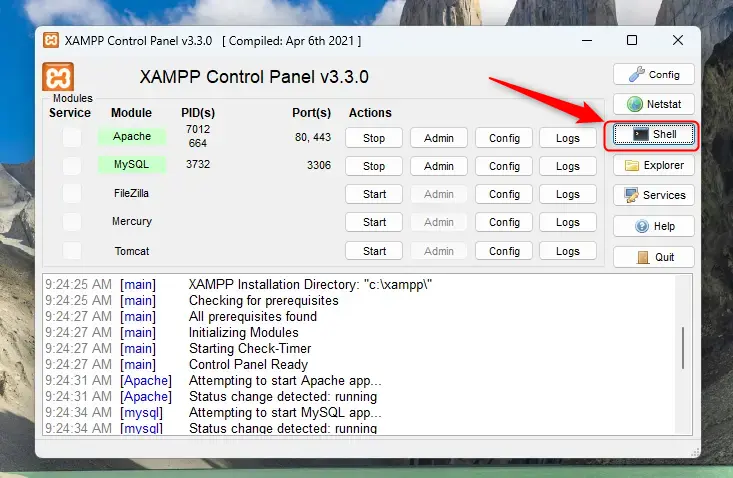
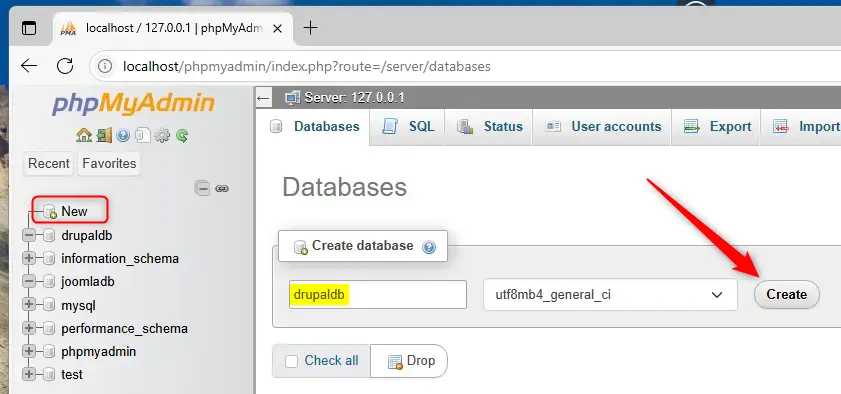
You will create a database named 'joomladb' and a user named 'joomladbuser' within phpMyAdmin, a tool for managing MySQL databases that comes with XAMPP version 8.2. Use the following commands to set them up.
Run the two commands below in order, one at a time. If you get an error on the first, don’t run the second until you’ve fixed it. You can run them in the Shell window, or paste them into the SQL tab in phpMyAdmin.
mysql -u root
CREATE DATABASE joomladb CHARACTER SET utf8mb4 COLLATE utf8mb4_general_ci;CREATE USER joomladbuser@localhost IDENTIFIED BY 'your_password_here';GRANT ALL ON joomladb.* TO joomladbuser@localhost;FLUSH PRIVILEGES;exit
Remember to replace ‘your_password_here’ with your own secure password. If you prefer not to use the command line, you can click the ‘Admin’ button next to MySQL in the XAMPP Control Panel to use the phpMyAdmin web interface instead.
Write the password down. You will need it in the Joomla installer. If you use phpMyAdmin instead, the Databases tab lets you check that joomladb now exists. If you make a mistake, you can delete the database or user there and create it again.
Download Joomla Files
To download Joomla files and set them up for your Joomla installation XAMPP Windows 11 environment, you must grab the official installation package from the web. Go to your 📁C:\
The htdocs folder is the folder Apache serves web pages from. Anything you put inside it is reachable in the browser, so the new folder name becomes part of your site’s address. To create the folder, open File Explorer , go to the htdocs folder, right-click an empty area, and choose New Folder
- Navigate to
C:\xampp\htdocson your computer. - Create a new folder named
joomla.
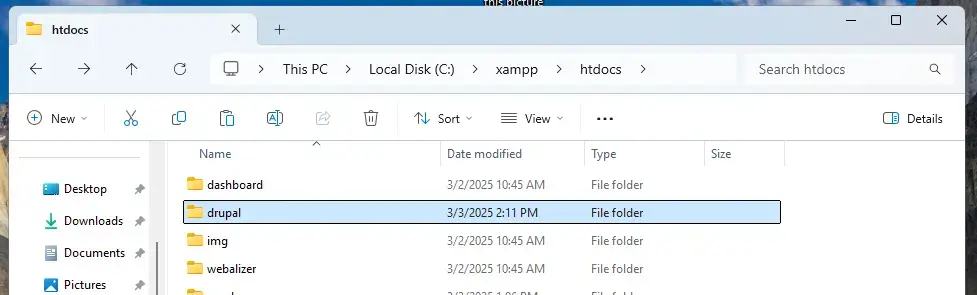
Download the Joomla files from official download page and extract them directly into your new C:\xampp\htdocs\joomla folder.
- Download the Joomla full package as a ZIP file.
- Right-click the ZIP file and choose Extract All.
- In the extraction window, set the destination to your new folder and click Extract.
- Open the folder and check that the Joomla files sit directly inside it. If they ended up in a second folder, move them up one level.
Next, open the C:\xampp\htdocs\index.html file in a text editor to update your redirect settings. Replace the contents with the following code so your browser opens your site automatically:
Use Notepad or any code editor, and check that the file keeps its original extension when you save. Notepad can add .txt if you pick the wrong file type.
<?php if (!empty($_SERVER['HTTPS']) && ('on' == $_SERVER['HTTPS'])) { $uri = 'https://'; } else { $uri = 'http://'; } $uri .= $_SERVER['HTTP_HOST']; header('Location: '.$uri.'/joomla/'); exit;?>Save the file. Go back to the XAMPP Control Panel and stop and start the Apache server to apply these changes.
- Save the file and close the editor.
- In the XAMPP Control Panel, click Stop next to Apache and wait for the green highlight to disappear.
- Click Start again. Apache should turn green.
To undo the redirect, put the original file back and restart Apache.
Finalize the Setup
To finalize the setup for your Joomla installation XAMPP Windows 11 project, open your web browser and load the local installation page. Follow the on-screen prompts to enter your site name, create your administrator login details, and input the database name and user credentials you made earlier to complete the installation.
If you kept the folder name used here, the address is http://localhost/joomla. Apache and MySQL must both be running. The Joomla installer should appear. If you see a list of files or a XAMPP dashboard instead, check that the Joomla files are directly in the folder and not in a subfolder.

Follow the on-screen instructions to set your site name, admin username, and password.
Pick an admin username that isn't "admin", and use a long password. Joomla 4 and later enforces a minimum length, 12 characters by default. Enter a working email address too, because it is used for password resets. Then continue to the database step.

When asked for database details, enter the database name (joomladb), the username (joomladbuser), and the password you created earlier. Click "Install Joomla" to finish.
Leave the database type as MySQLi and the host name as localhost, which are the defaults and match XAMPP. If the installer says it cannot connect to the database, check three things: that MySQL is running, that the name, user, and password match what you created, and that both database commands ran without errors.
The installation takes a minute or so. When it ends, you should see a completion screen with buttons to open the site or the administrator login.

Your site is now ready to use!
The front end is at http://localhost/joomla, and the admin login is at http://localhost/joomla/administrator. Sign in with the administrator account you just created.

Summary
You've successfully set up Joomla locally on Windows 11 using XAMPP by creating a database, adding files, and running the installer.
Next time, start both modules before opening the site. Your content stays in the database and the htdocs folder, so back up both before you experiment with anything risky.
[joomla]
[C:xampphtdocsjoomla]
Have a question about this guide?
Answered by AI from this guide. Good questions may be added to this page — please don't include personal details.
Did this guide fix your problem?

About the Author
Richard
Tech Writer, IT Professional
Richard is a writer at Geek Rewind who turns complex IT tasks into clear, step-by-step guides. He draws on years of hands-on experience in system administration and enterprise IT operations, focusing on Windows, Linux and WordPress: the problems people actually run into, and the fixes that work. His server and WordPress guides come from systems he runs himself. Richard builds and maintains the platform behind Geek Rewind, from its Ubuntu servers and Nginx configuration to its custom WordPress plugins. Many new tutorials start with readers' questions, and he's always glad to answer them in the comments.
No comments yet — be the first to share your thoughts!