How to Install XAMPP on Ubuntu 24.04

- 6 steps
- Needs administrator rights
XAMPP is a free software bundle that puts a web server, a database, and PHP tools onto your computer in one package. You can build and test websites locally on Ubuntu 24.04 before putting them online.
This guide installs version 8.2.12 or newer of this local server environment. The download comes from the official Apache Friends website, and the whole setup takes only a few steps.
Before you start, make sure you have an Ubuntu 24.04 system, an account with administrator (sudo) rights, and a working internet connection. If another web server is already running on the machine, stop it first. Two servers cannot listen on the same port at once, and the XAMPP Apache server may fail to start.
Open a terminal with Ctrl+Alt+T, download the installer with wget from the Apache Friends SourceForge link, then run sudo chmod +x on the.run file and start it with sudo./xampp-linux-*-installer.run. Choose the XAMPP Core Files and Developer Files, and the setup installs everything into /opt/lampp.
Download XAMPP
To install XAMPP on Ubuntu 24.04, you first download the official Linux installer from the SourceForge project page. The Apache Friends website links to it. Then you make the file executable so the system can run the setup script.
- Press Ctrl+Alt+T to open a terminal window.
- Run the wget command shown below to download the installer directly to your computer.
- Wait for the download to finish and for the prompt to come back.
Make a note of that location, because you need to run the installer from the same folder.
wget https://sourceforge.net/projects/xampp/files/XAMPP%20Linux/8.2.12/xampp-linux-x64-8.2.12-0-installer.run
A freshly downloaded file does not have permission to run. Use chmod to add the execute permission, as shown below. If you skip this step, the installer stops with a “Permission denied” error.
With the file executable, start the installer from the terminal. It runs with administrator privileges, so you may be asked for your password. After that, a setup window opens and its prompts guide you through the installation, including the choice of XAMPP components. When the installation finishes, you use the XAMPP application to manage your web server and databases.
sudo chmod +x xampp-linux-*-installer.run && sudo ./xampp-linux-*-installer.run
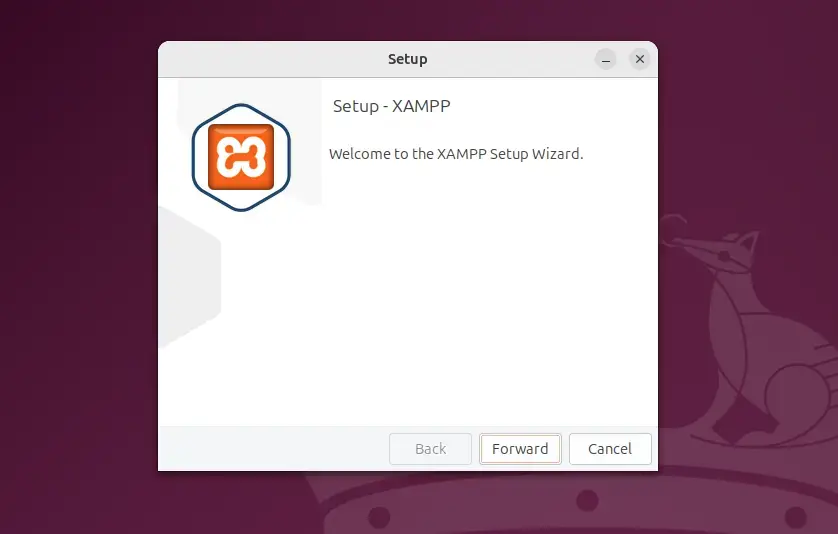
The setup wizard opens with a welcome page. Read it, then click Next to continue.
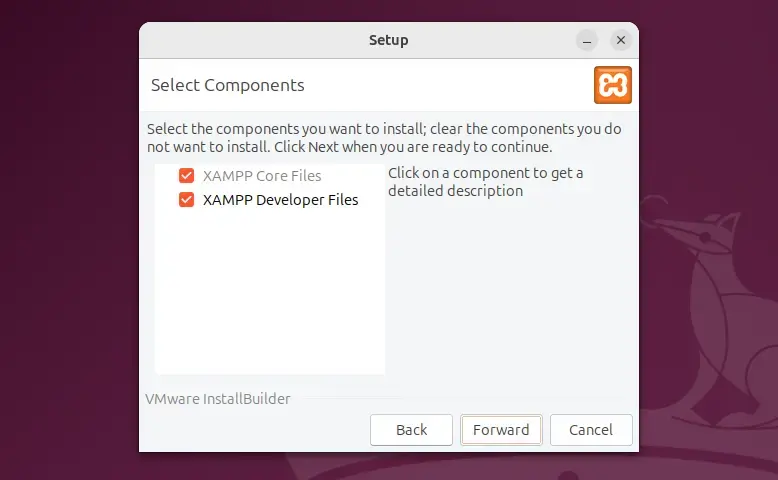
On the component selection page, choose the XAMPP Core Files and XAMPP Developer Files options, then click Next. The core files hold Apache, MariaDB, PHP and Perl. The developer files add the headers and tools you need if you compile extensions later. Keep both ticked unless you have a specific reason not to.
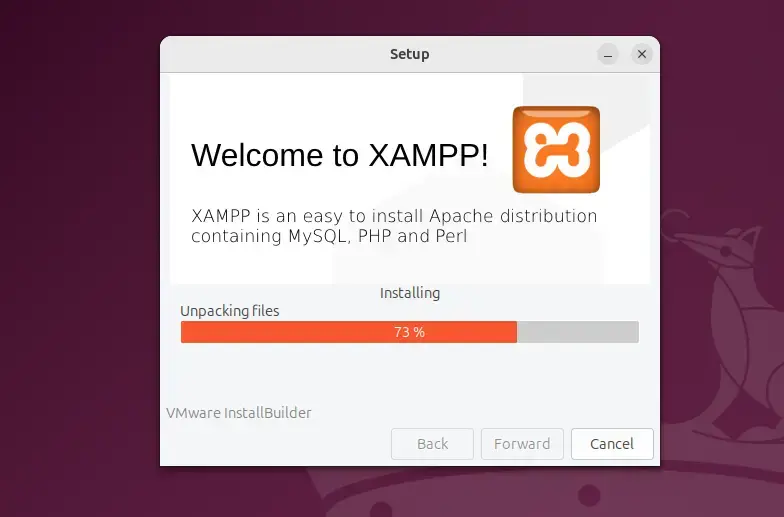
The installer now copies the files into place. Wait until the progress bar completes and the installer reports that it has finished. It installs everything under the /opt/lampp folder.
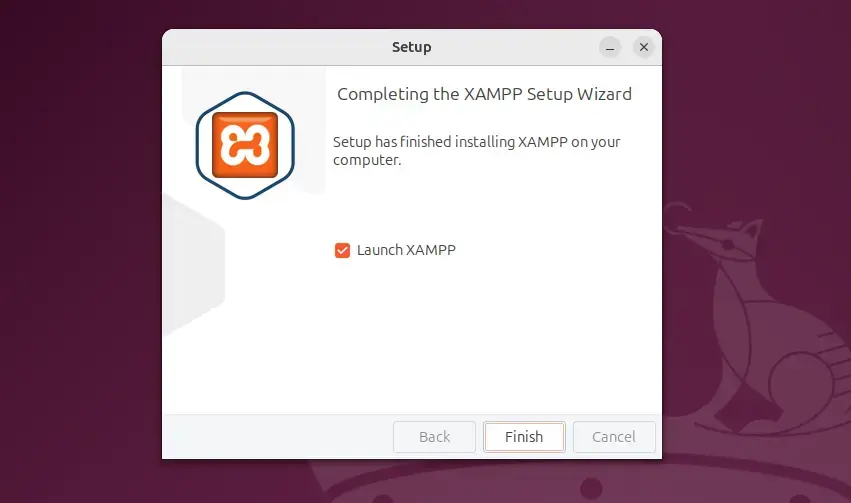
Click the Finish button to close the wizard. The XAMPP application opens, and you can use it to control your servers.
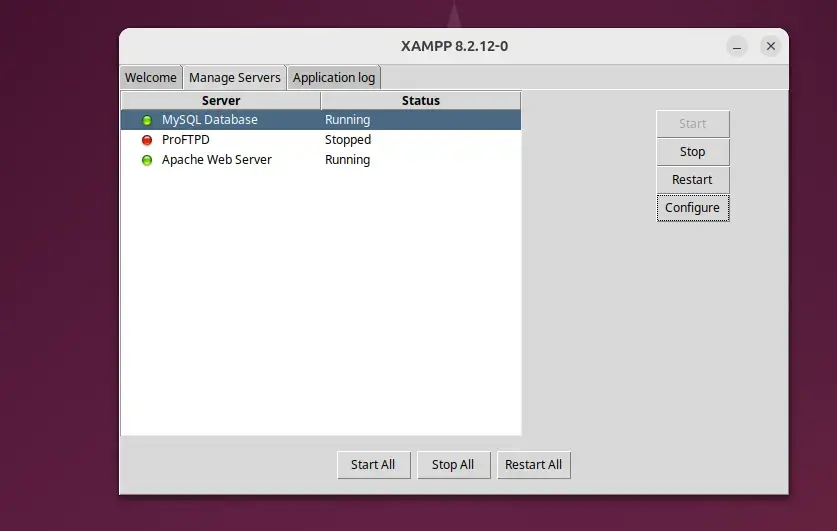
Open the Manage Servers tab. It lists the servers that come with XAMPP, including Apache and the MariaDB database. Select a server and use the buttons next to it to start, stop or restart it. Start both Apache and the database now. You need them running for the checks later in this guide.
The command line is an alternative to the application, and it is handy on a server with no desktop. The commands below start and stop all the servers in one go. Run them from a terminal with administrator rights.
sudo /opt/lampp/lampp stop
sudo /opt/lampp/lampp start
Operation
Back up this folder before you make big changes.
- Start the services, using either the XAMPP application or the command-line method above.
- Open a web browser on the Ubuntu machine.
- Go to your server IP address. On the same machine, localhost also works.
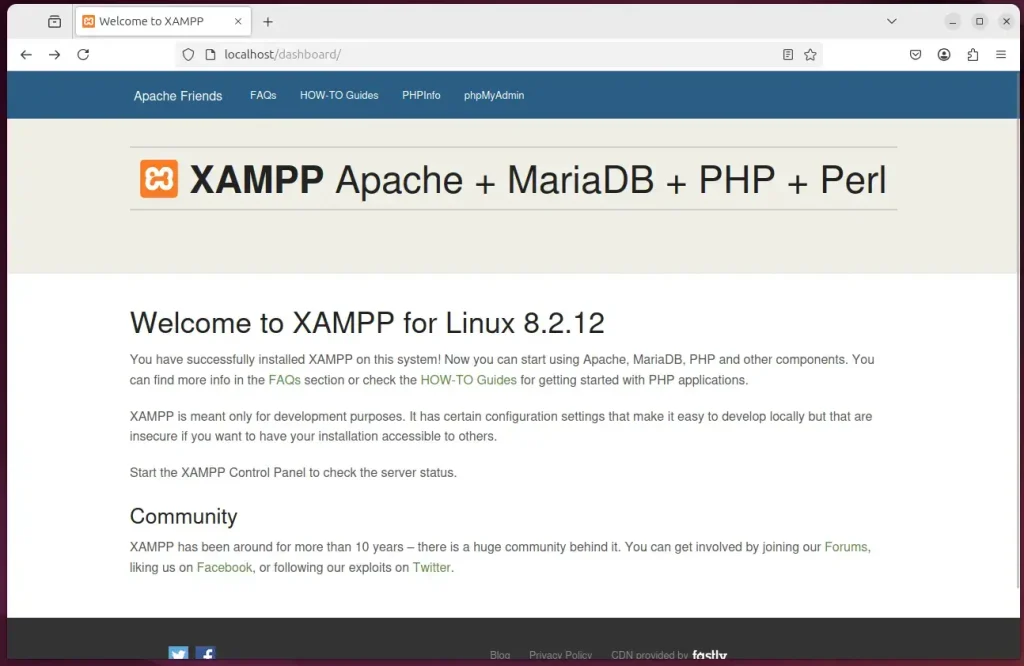
If the XAMPP welcome page loads, Apache is running. You can then click the phpMyAdmin link on that page to manage your databases through a web interface.
Browse to the server IP address or hostname to view the default Apache web page. If the page does not load, go back to the Manage Servers tab and check that Apache is running. Also check that no other web server is using the same port.
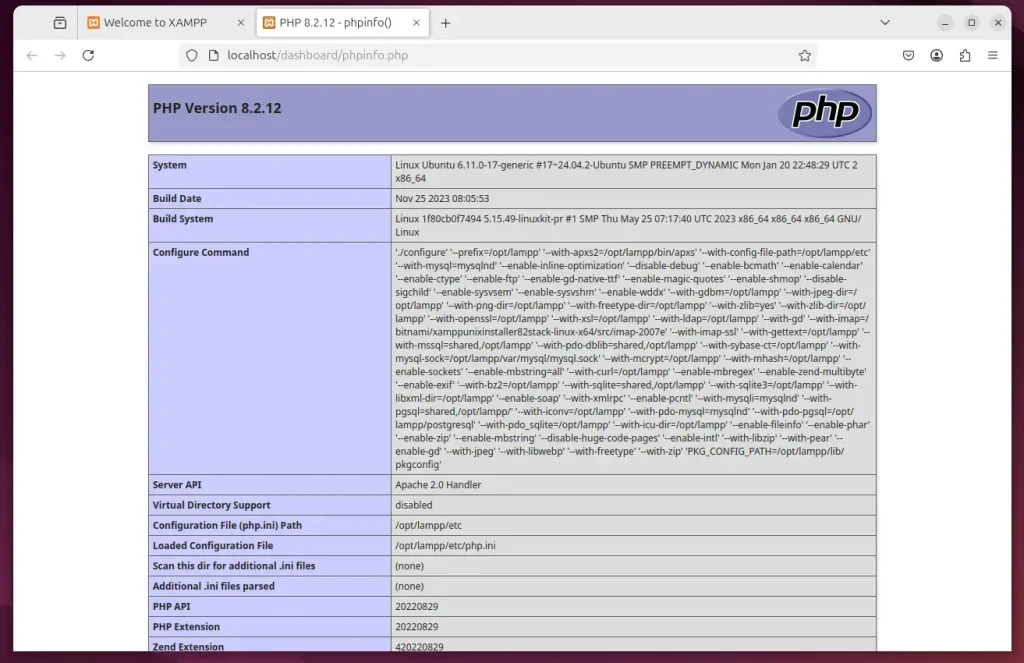
Click the PHPInfo link to display PHP information. The page lists the installed PHP version, the loaded modules and the configuration settings. It is a quick way to confirm that PHP works with Apache.
Click the phpMyAdmin link to manage MariaDB. The database server must be running for this page to work. From phpMyAdmin you can create databases, add tables and import or export data without typing SQL commands.
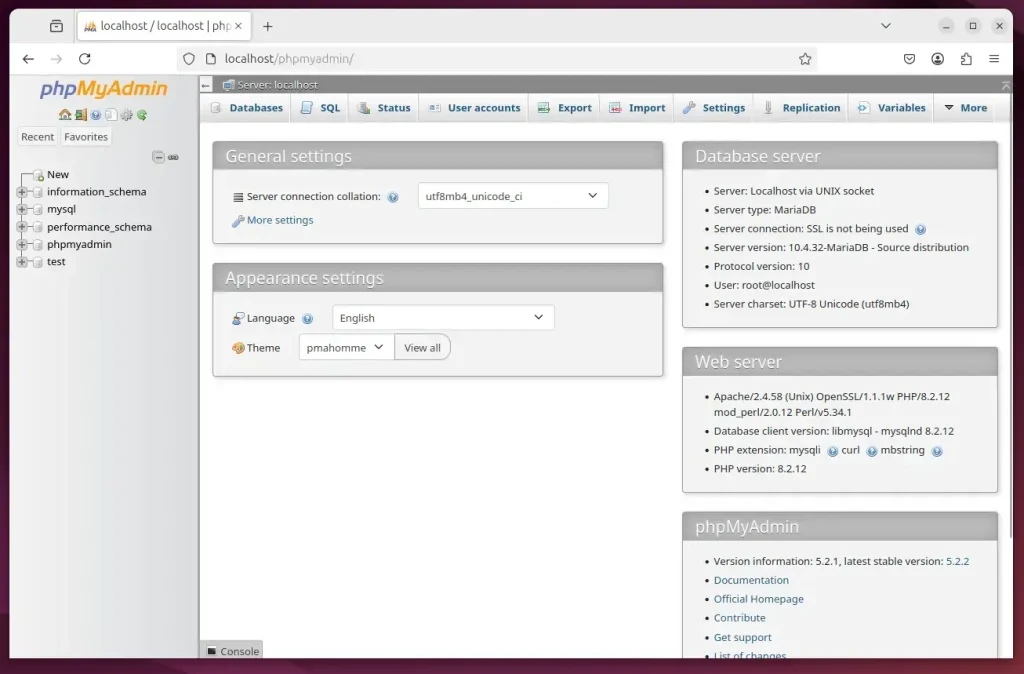
That completes the setup. XAMPP is installed, Apache and MariaDB are running, and you can start building and testing your PHP projects locally.
XAMPP gives you an efficient way to set up a local server environment on Ubuntu for PHP development. These are the main points:
- XAMPP provides an efficient way to set up a local server environment on Ubuntu, facilitating PHP development.
- The installation process is straightforward, requiring only a few terminal commands.
- This package includes essential components such as Apache, MariaDB, and interpreters for PHP and Perl, streamlining web development.
- Users can manage their servers easily through the XAMPP application or command line.
- With XAMPP, you can easily create, run, and manage PHP-based websites and applications from a single installation, enhancing developer productivity.
Have a question about this guide?
Answered by AI from this guide. Good questions may be added to this page — please don't include personal details.
Did this guide fix your problem?

About the Author
Richard
Tech Writer, IT Professional
Richard is a writer at Geek Rewind who turns complex IT tasks into clear, step-by-step guides. He draws on years of hands-on experience in system administration and enterprise IT operations, focusing on Windows, Linux and WordPress: the problems people actually run into, and the fixes that work. His server and WordPress guides come from systems he runs himself. Richard builds and maintains the platform behind Geek Rewind, from its Ubuntu servers and Nginx configuration to its custom WordPress plugins. Many new tutorials start with readers' questions, and he's always glad to answer them in the comments.
[…] can install XAMPP on Windows or Ubuntu to run PHP apps locally on your […]
[…] you need to run websites, like Apache, MariaDB, and PHP. You can also use XAMPP on Windows or Ubuntu to run PHP apps. Joomla is a popular, free system used to build and manage professional […]