How to Install FileZilla on Ubuntu 24.04

FileZilla is a free file transfer program that lets you move files between your computer and a server using FTP, SFTP, and FTPS connections. On Ubuntu 24.04 you can install it in a few minutes, either from the Ubuntu Software app or with a command in the terminal. This guide covers three terminal methods: the standard Ubuntu repository, the XtraDeb PPA, and Flatpak. Each one is explained below, along with how to start FileZilla and how to remove it.
If you only want the program running quickly, open your terminal with Ctrl+Alt+T and run sudo apt install filezilla. You need an account with sudo rights, and the command asks for your password. Nothing shows on screen while you type the password, which is normal. If you want a newer version or a sandboxed install, read the methods below first.
Install FileZilla on Ubuntu 24.04 by opening the terminal with Ctrl+Alt+T and running sudo apt install filezilla after sudo apt update. The command asks for your sudo password, which won’t show as you type. FileZilla then appears under Activities Show Applications, with no restart needed.
Install FileZilla from the Ubuntu repository
The simplest method is to install FileZilla from the standard Ubuntu repository. You update your package list and run one install command in the terminal. The package comes from the official software sources that ship with Ubuntu, so it is trusted and stable and needs no extra setup. The trade-off is that the version is usually a little behind the newest release. For everyday FTP and SFTP work that rarely matters.
First, refresh your package list so Ubuntu knows about the latest available versions. Open the terminal and run the command below. When it finishes, you should see a list of repository lines being checked, followed by a message about how many packages can be upgraded.
sudo apt update
sudo apt upgrade
Next, run the command below to install FileZilla. Ubuntu lists the packages it will add, including a few supporting libraries, and may ask you to confirm. Type Y and press Enter if it does. The download is small, so this usually takes under a minute on a normal connection.
sudo apt install filezilla
Now start FileZilla from the desktop. No restart is needed.
- Click Activities in the top-left corner of the screen.
- Click Show Applications, the grid icon at the bottom of the dock. You should see a grid of installed apps.
- Find FileZilla and click it. If you have many apps, start typing FileZilla to filter the list.
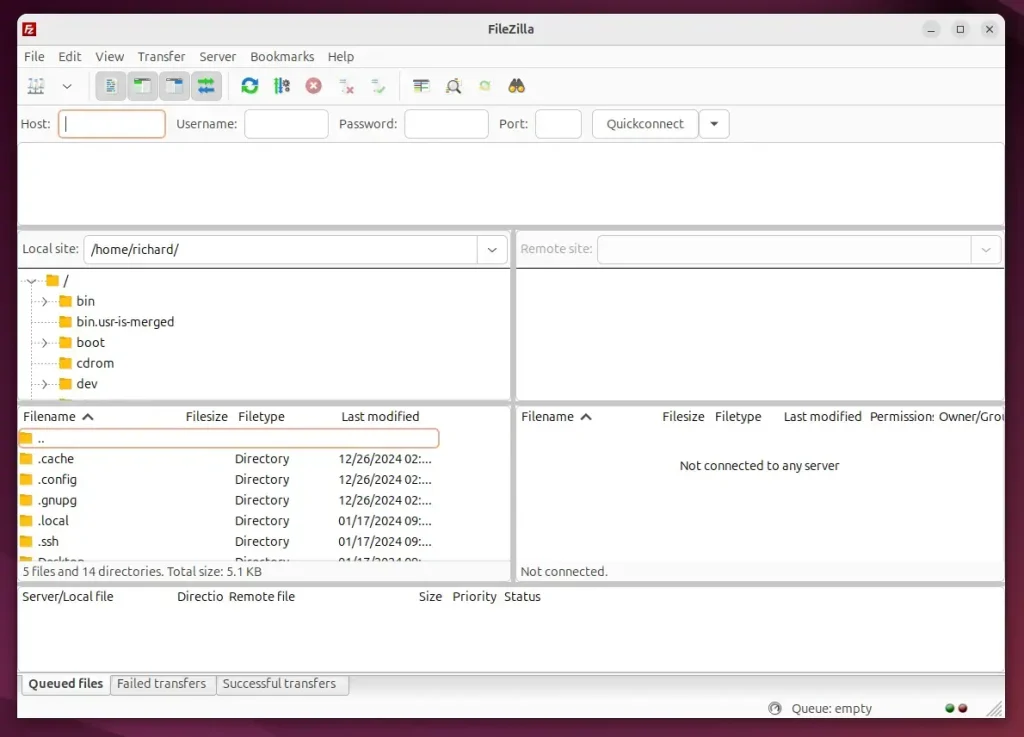
The menu path is Activities Show Applications FileZilla The FileZilla window opens with the Quickconnect bar at the top, where you enter the host, username, password, and port.
Install FileZilla from XtraDeb PPA
If you want a newer FileZilla than the one in the Ubuntu repository, use the XtraDeb PPA. A PPA (Personal Package Archive) is an extra software source that publishes newer releases than the standard Ubuntu channels. You add the PPA to your system first, then run the install command.
You are trusting its maintainers, so only add PPAs you are comfortable with.
Start by installing the packages the PPA method depends on. These let your system manage extra software sources. Run the command below and confirm if Ubuntu asks. If the packages are already installed, Ubuntu says so and moves on, which is fine.
sudo apt install software-properties-common apt-transport-https
Now add the PPA to your system repositories by running the command below. Ubuntu may show a short description of the PPA and ask you to press Enter to continue. Press Enter, and the terminal then confirms the repository was added.
sudo add-apt-repository ppa:xtradeb/apps
Finally, update your package list so the new source is picked up, then install FileZilla. Because the PPA now offers a newer version, Ubuntu installs that one instead of the version from the standard repository. Watch the output for any errors before you move on.
sudo apt update
sudo apt install filezilla
Start FileZilla the same way as before. No restart is needed.
- Click Activities in the top-left corner.
- Click Show Applications at the bottom of the dock.
- Click FileZilla.
The menu path is Activities Show Applications FileZilla The main FileZilla window should open.
Install FileZilla from Flatpak
The third method uses Flatpak, a modern application manager that runs each program in its own isolated sandbox for better security. Ubuntu does not include Flatpak by default, so you set it up first and then install FileZilla from it. Flatpak apps are a bit larger because they bring their own libraries, but they stay separate from your system packages.
Flatpak is a third-party application distribution system, which is why Ubuntu does not include it by default. Installing it does not affect your existing apt packages.
The process has three parts. You install Flatpak, add the Flatpak repository, and then install FileZilla from it.
Start by updating your system and installing Flatpak with the command below. Confirm any prompt that appears and wait for the terminal to return to the prompt.
sudo apt update && sudo apt upgrade
sudo apt install flatpak
Next, add the Flatpak repository to Ubuntu with the command below. This gives Flatpak a place to download apps from. If it reports that the repository already exists, you can continue.
sudo flatpak remote-add --if-not-exists flathub https://flathub.org/repo/flathub.flatpakrepo
Last, install FileZilla with the command below. Flatpak lists what it will download and asks you to confirm. Type Y and press Enter if it does. The first install is the longest, because Flatpak also downloads its runtime.
After installing FileZilla, you can open it by running the command `filezilla` in the terminal, or by launching it from the desktop app center. If the terminal says the command is not found after a Flatpak install, use the app menu instead. If FileZilla does not show up there either, log out and back in, or restart the computer once. Ubuntu sometimes needs this after Flatpak is set up for the first time.
flatpak run org.filezillaproject.Filezilla
If you no longer need FileZilla, you can remove it with the command below. Use the removal command that matches the method you installed with. Removing the app does not touch the rest of your system. Run it, confirm if asked, and the app disappears from Show Applications.
sudo flatpak uninstall org.filezillaproject.Filezilla
To check that FileZilla is gone, or to start it again after a reinstall, open it from the desktop.
- Click Activities in the top-left corner.
- Click Show Applications at the bottom of the dock.
- Look for FileZilla in the list.
The menu path is Activities Show Applications FileZilla If the app is installed, clicking it opens the main window. If you removed it, it no longer appears in the list.
That completes the setup. FileZilla is ready to connect to your FTP, SFTP, or FTPS server.
Conclusion:
You have three ways to install FileZilla on Ubuntu 24.04, and each suits a different need:
- Ubuntu Repository: Quick and straightforward, ideal for those who need basic functionality. It uses only official Ubuntu sources, so there is nothing extra to maintain.
- XtraDeb PPA: Offers the latest version of FileZilla, ensuring access to new features and updates. It relies on a third-party source, so add it only if you need the newer release.
- Flatpak: Provides enhanced security through sandboxing and a robust system for managing software dependencies. It needs a one-time Flatpak setup and uses more disk space.
Pick the method that fits how you work. For most people the Ubuntu repository is enough, and you can switch to the PPA or Flatpak later if you need a newer version or a sandboxed install.
Have a question about this guide?
Answered by AI from this guide. Good questions may be added to this page — please don't include personal details.
Did this guide fix your problem?

About the Author
Richard
Tech Writer, IT Professional
Richard is a writer at Geek Rewind who turns complex IT tasks into clear, step-by-step guides. He draws on years of hands-on experience in system administration and enterprise IT operations, focusing on Windows, Linux and WordPress: the problems people actually run into, and the fixes that work. His server and WordPress guides come from systems he runs himself. Richard builds and maintains the platform behind Geek Rewind, from its Ubuntu servers and Nginx configuration to its custom WordPress plugins. Many new tutorials start with readers' questions, and he's always glad to answer them in the comments.
No comments yet — be the first to share your thoughts!