How to Uninstall and Reinstall Xbox Game Bar on Windows 11


Xbox Game Bar is a built-in Windows 11 overlay. Press the Win+G to open it, then record your screen, take screenshots, check performance and chat with friends. Removing and reinstalling the app fixes common bugs, such as the overlay not opening or freezing in games. It also stops background processes like Microsoft.XboxGamingOverlay and can free up a little memory on slower PCs.
You can remove Game Bar from Settings or with a short command, and download it again from the Microsoft Store whenever you want it back. Reinstalling is free and takes about a minute, so the change is easy to undo. This guide covers the command method, the case where the Uninstall button is greyed out, and the reinstall. It applies to Windows 11 Home and Pro alike.
You uninstall Xbox Game Bar using Windows Terminal with the command Get-AppxPackage -PackageTypeFilter Bundle -Name “*Microsoft.XboxGamingOverlay*” | Remove-AppxPackage. Reinstall it by searching for “Xbox Game Bar” in the Microsoft Store and clicking “Install”.
Prerequisites
Before you start, make sure you are signed in with an administrator account. Some commands change system-level apps and will fail or show an access error without elevated rights. Close Game Bar and any game or recorder that is using it. Save your open work too, because the steps end with a restart. Back up important files before changing Windows components, and consider creating a restore point if you want an extra safety net.
How to Uninstall Xbox Game Bar
You can uninstall Xbox Game Bar on Windows 11 by running a removal command in Windows Terminal. This method bypasses the Settings app, so it works when the normal remove option fails or is missing. Open Windows Terminal, paste the removal command and press Enter. That clears the built-in gaming overlay from your system for your user account.
Windows Terminal opens a PowerShell tab by default in Windows 11, which is the shell these commands expect. If you are not sure it is the right tab, check the tab title at the top of the window.
- Open the Windows Terminal app. A dark window opens with a command prompt waiting for input.
- Copy and paste the following command into the window and press Enter:
Get-AppxPackage -PackageTypeFilter Bundle -Name "*Microsoft.XboxGamingOverlay*" | Remove-AppxPackage
Wait for the prompt to come back. A brief progress bar is normal. A red error message means the removal did not work, so check that you pasted the whole command. - Restart your computer to finish the process. After the restart, Game Bar should no longer appear in Start, and pressing Win+G may show a prompt asking you to find an app in the Microsoft Store instead.
If you want to remove it for every person who uses this computer, you must run the Windows Terminal app as administrator. Use this command instead: Get-AppxPackage -AllUsers -PackageTypeFilter Bundle -Name "*Microsoft.XboxGamingOverlay*" | Remove-AppxPackage -AllUsers
Copy the command exactly as shown and run only one of the two. If you change your mind later, the reinstall steps below bring the app back.
Troubleshooting Grayed-Out Uninstall Buttons
The Uninstall button for Xbox Game Bar can be greyed out in Windows 11 Settings because the operating system treats the app as a protected system component. To get around this, run PowerShell with administrator rights. That gives you the permissions needed to remove protected apps that a standard user session cannot touch. You will find the app by its package name, then remove it using that name.
[Requires Admin Privileges]- Open PowerShell as Administrator. Right-click the Start button and choose the Terminal (Admin) entry, then approve the User Account Control prompt. The window title should include "Administrator". If you are not an administrator, the prompt asks for admin credentials.
- Run the following command to identify the package:
Get-AppxProvisionedPackage -Online | Where-Object {$_.PackageName -like "*XboxGamingOverlay*"}. The output lists the package details, including its full name. If nothing is listed, Game Bar is already removed for this account. - Remove the package using:
Remove-AppxProvisionedPackage -Online -PackageName "

[[SAL_FIXED_62]]

"
. When the prompt returns without a red error, the app is removed. Restart the PC to make sure no leftover processes keep running.
How to Reinstall Xbox Game Bar
If you decide you need the features back, you can restore the app from the Microsoft Store. You do not need to reset Windows or run any commands. If you only want to stop the overlay from popping up, you can switch it off instead in Settings Gaming, which is less drastic than removing it.
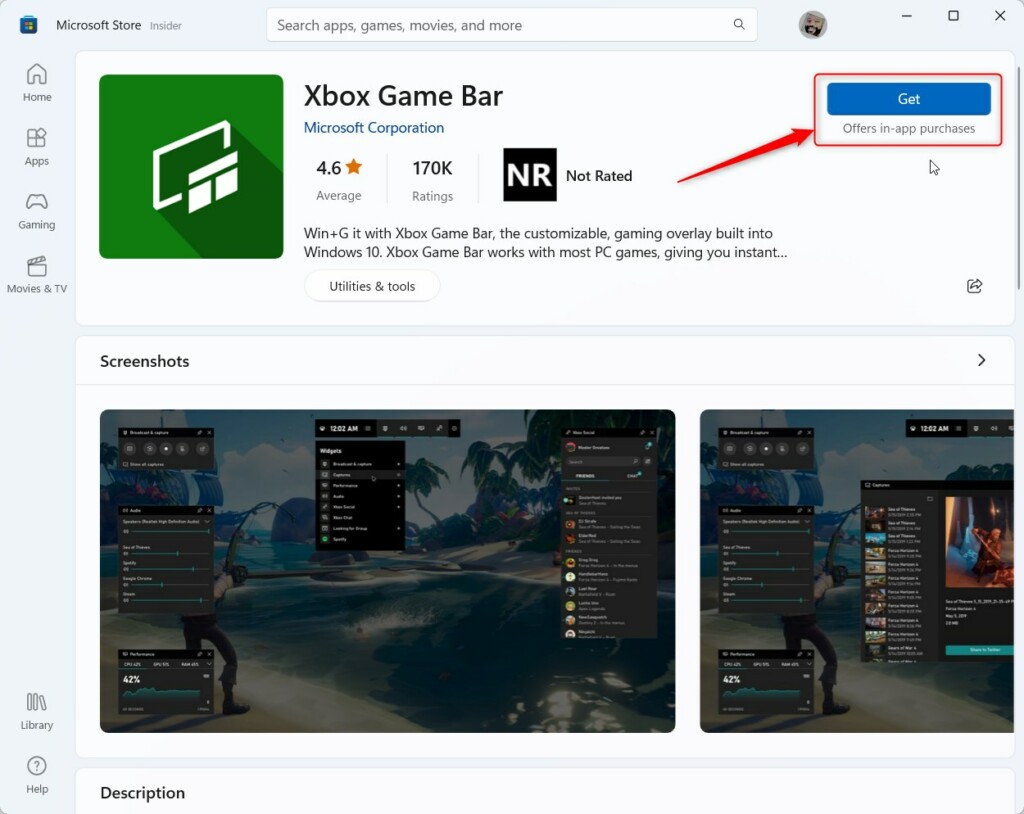
- Click this Xbox Game Bar on the Microsoft Store link. The Microsoft Store app should open on the Xbox Game Bar page. If your browser asks permission to open the Store, allow it.
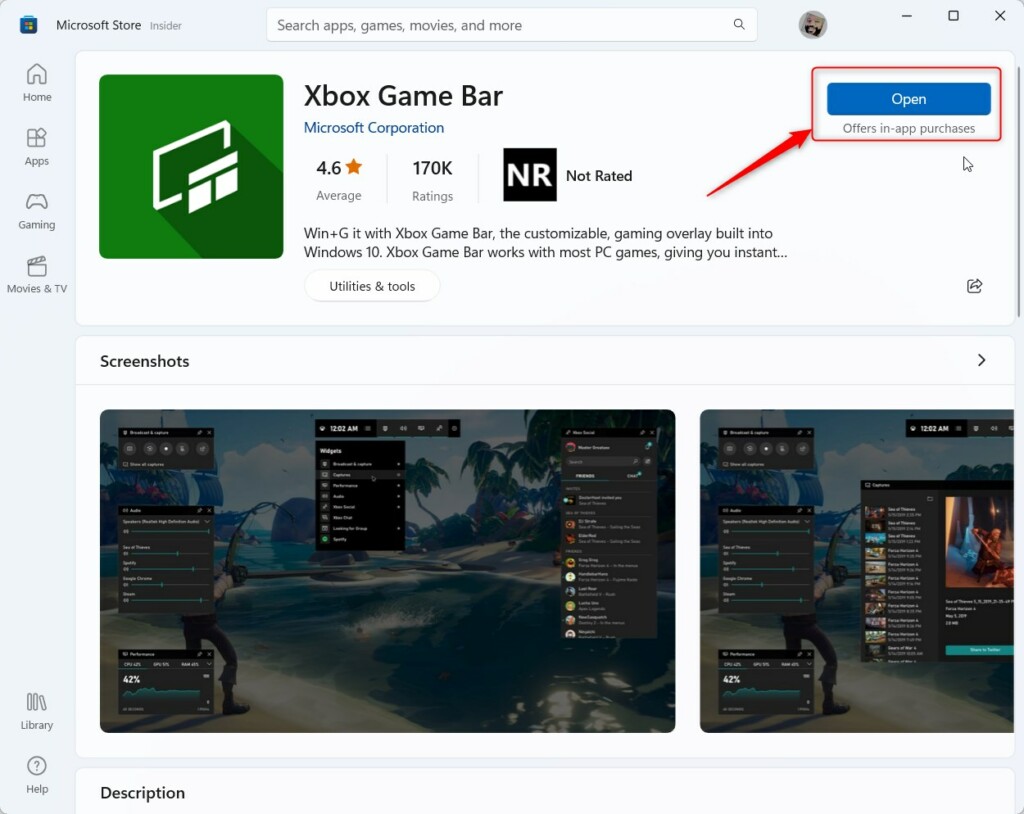
- Click the Get or Install button on the Microsoft Store app. A progress indicator appears while it downloads and installs. If the Store asks you to sign in, use your Microsoft account. If the button is missing, make sure Windows Update is current and try again.
Once the download finishes, you can open the Game Bar from your Start menu. Search for Xbox Game Bar, or press the Windows key + G to bring up the overlay. A restart is not normally needed after reinstalling. If the shortcut does nothing, restart the PC once and try again.
Summary
The Xbox Game Bar can be a helpful tool, but if it is causing problems you can uninstall and reinstall it on Windows 11 with a few commands. Use the standard command first. Switch to the administrator PowerShell method if the Settings button is greyed out or the first command fails. Reinstall from the Microsoft Store whenever you want the app back.
Have a question about this guide?
Answered by AI from this guide. Good questions may be added to this page — please don't include personal details.
Did this guide fix your problem?

About the Author
Richard
Tech Writer, IT Professional
Richard is a writer at Geek Rewind who turns complex IT tasks into clear, step-by-step guides. He draws on years of hands-on experience in system administration and enterprise IT operations, focusing on Windows, Linux and WordPress: the problems people actually run into, and the fixes that work. His server and WordPress guides come from systems he runs himself. Richard builds and maintains the platform behind Geek Rewind, from its Ubuntu servers and Nginx configuration to its custom WordPress plugins. Many new tutorials start with readers' questions, and he's always glad to answer them in the comments.
The Xbox Game bar is not in the Microsoft store. So if you follow this and uninstall Xbox game bar every game will cause a pop up asking for the game bar and you get to reinstall windows.