How to Enable or Disable Zoom Auto-Start in Windows 11


Zoom auto-start controls whether the app launches in the background as soon as you sign in to Windows 11. By default Zoom stays closed until you open it yourself. The switch for changing this is inside Zoom’s own settings, not in Windows.
Turning auto-start on means Zoom is already running when a meeting starts, so you skip the wait for it to load. Turning it off keeps your system tray clean and means one less app competes for resources while Windows finishes starting up. This matters most on older PCs or machines with a slow drive.
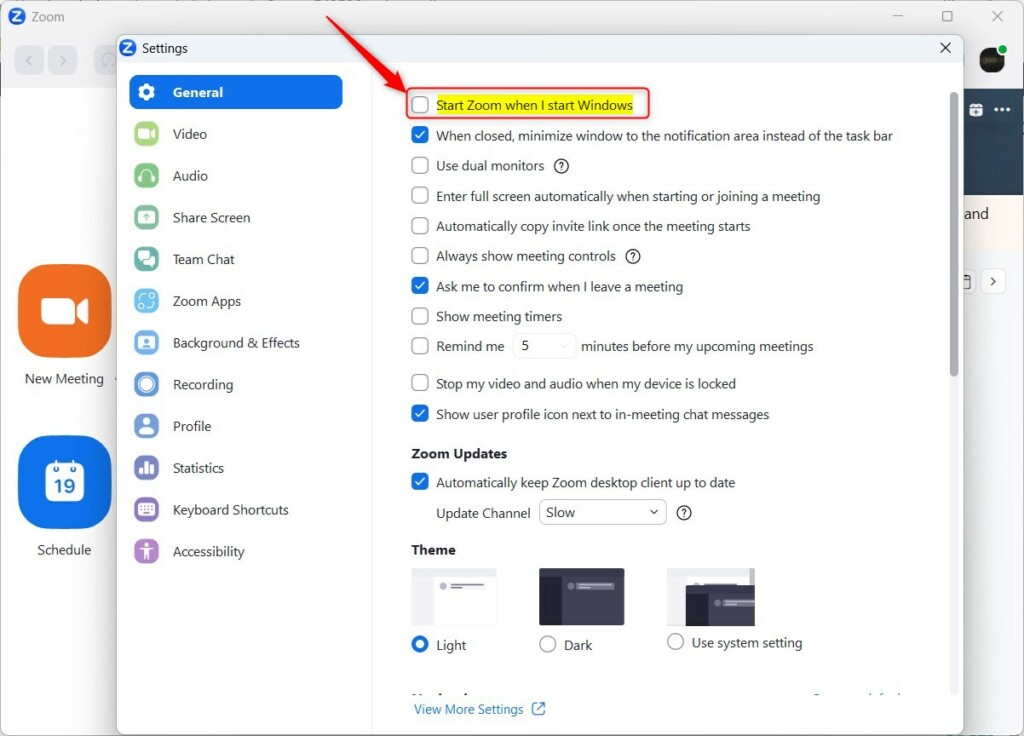
Open Zoom, click the Settings gear icon, select the General tab, then check Start Zoom when I start Windows to enable auto-start or uncheck it to disable. The change takes effect at your next sign-in without a restart.
Turn “Start Zoom when I start Windows” on or off
In short, open Zoom, go to Settings , click the General tab, and check or uncheck Start Zoom when I start Windows. Checked, Zoom launches every time you sign in. Unchecked, it stays closed until you open it. The same box is the one to untick if Zoom keeps popping up when you power on your PC.
Here are the steps in full.
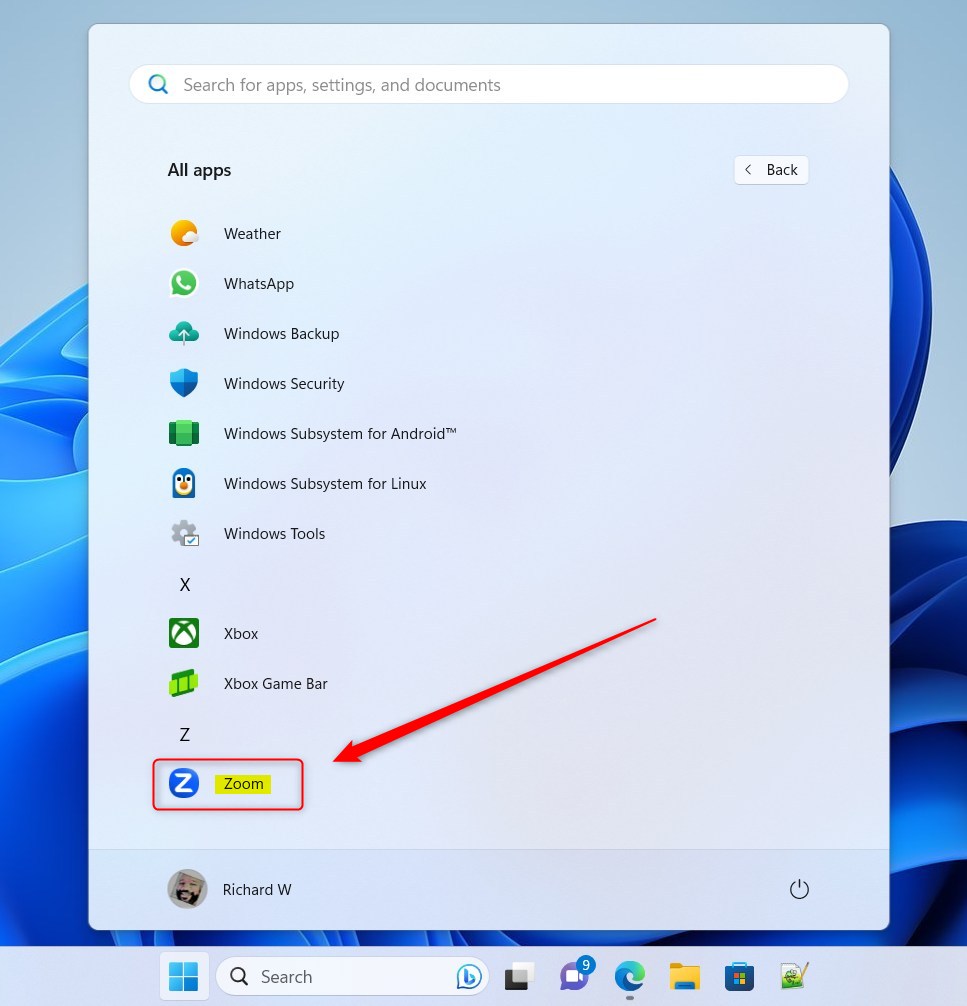
- Click Start and select All apps. The full list of installed apps appears.
- Scroll down to Zoom and open it. If it isn’t in the list, Zoom isn’t installed on this PC. Install it first, then come back. The Zoom window opens and, if you’re not signed in, asks you to sign in.
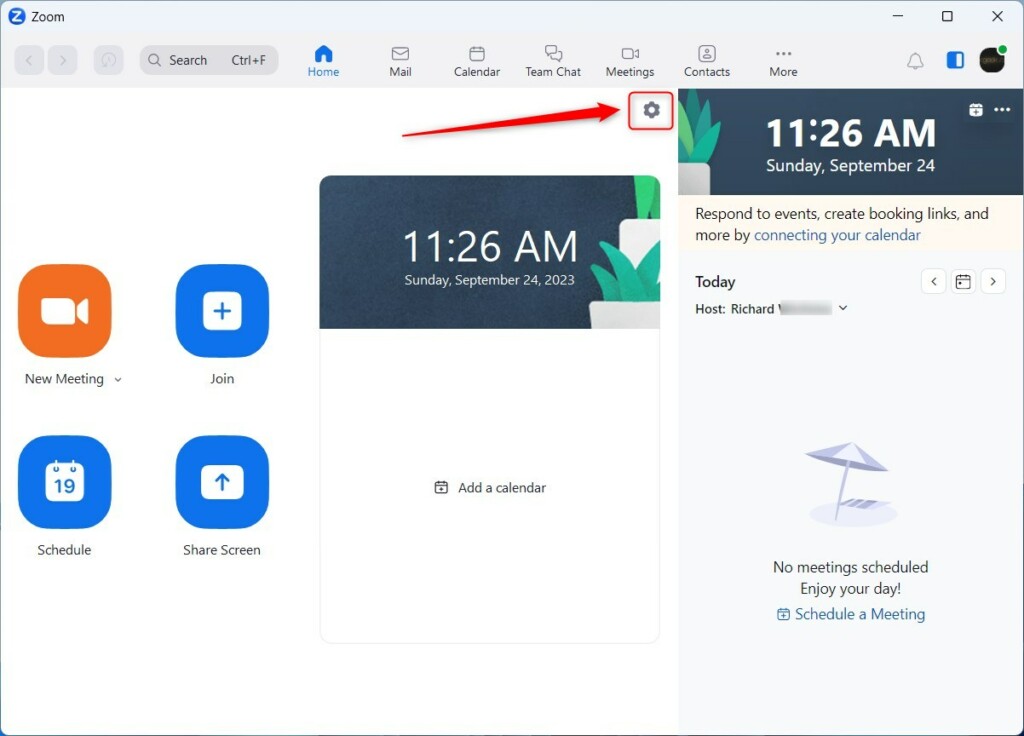
- With Zoom open, click the Settings gear icon. The settings panel opens in its own window.
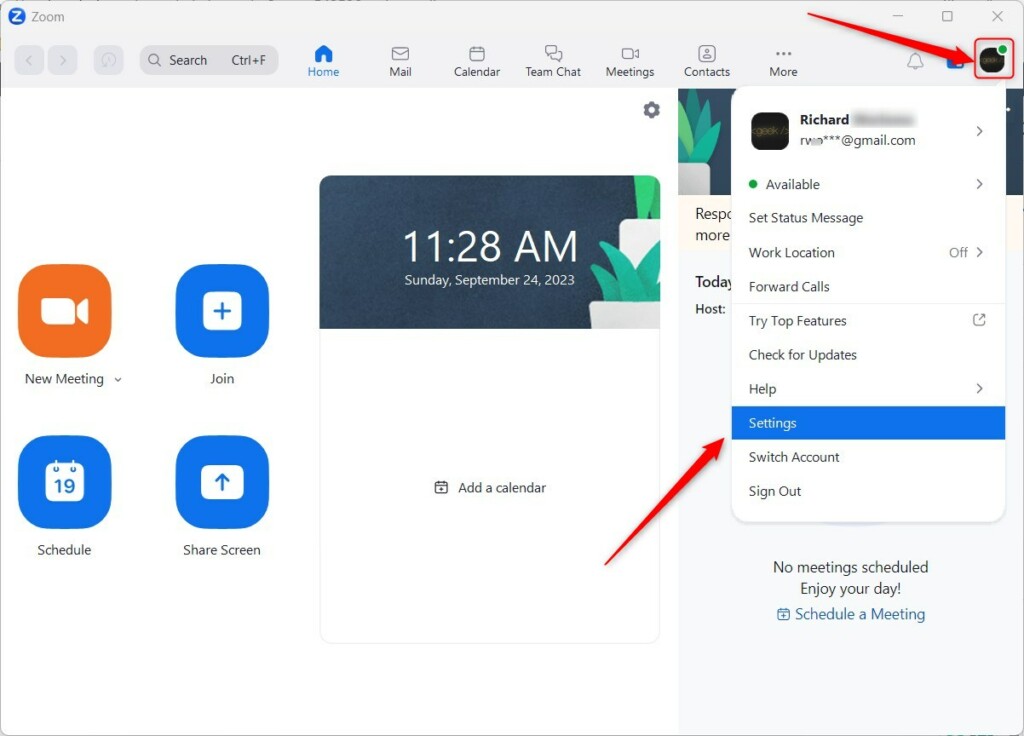
Click your profile picture in the top right corner of the Zoom window, then choose Settings from the menu. The result is the same settings panel.
- In the settings panel, click the General tab in the left-hand list if it isn’t already selected.
- To enable auto-start, check the box next to Start Zoom when I start Windows. Zoom will now launch the next time you sign in to Windows.
- To disable auto-start, uncheck the same box. Zoom will stay closed at sign-in from now on.
The change applies immediately. You don’t need to click Save or restart your PC. You’ll see the effect the next time you sign in.
In that case, ask your IT administrator. If you ever need a second way to stop Zoom from starting, you can also turn it off in Windows under Settings Apps Startup The Zoom setting is still the one to try first.
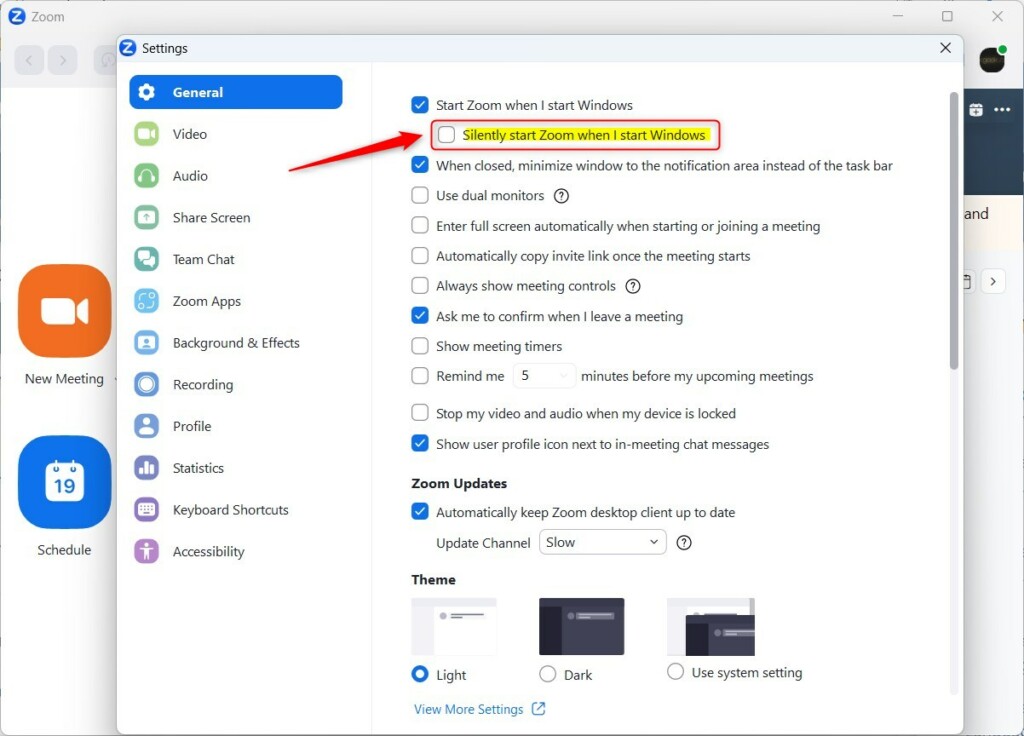
If you want Zoom ready but don't want its window in your face every morning, use the quieter option.
- Make sure Start Zoom when I start Windows is checked. The silent option depends on it, so it may not appear until the first box is ticked.
- Check Silently start Zoom when I start Windows. Zoom will now start with Windows but stay in the background, with no main window.
You can still reach Zoom from its icon in the system tray (it may be under the hidden icons arrow) or by opening it from Start. To undo this, uncheck the silent option. To stop Zoom from starting altogether, uncheck Start Zoom when I start Windows as well.
That completes the process.
Conclusion:
- Enabling auto-start gives you quick access to Zoom as soon as you sign in to Windows
- Disabling it reduces the number of startup programs, which can help your PC start up faster
- The setting lives in Zoom's settings menu, under the General tab, and takes effect without a restart
- Consider "Silently start Zoom when I start Windows" to keep Zoom running discreetly in the background
Have a question about this guide?
Answered by AI from this guide. Good questions may be added to this page — please don't include personal details.
Did this guide fix your problem?

About the Author
Richard
Tech Writer, IT Professional
Richard is a writer at Geek Rewind who turns complex IT tasks into clear, step-by-step guides. He draws on years of hands-on experience in system administration and enterprise IT operations, focusing on Windows, Linux and WordPress: the problems people actually run into, and the fixes that work. His server and WordPress guides come from systems he runs himself. Richard builds and maintains the platform behind Geek Rewind, from its Ubuntu servers and Nginx configuration to its custom WordPress plugins. Many new tutorials start with readers' questions, and he's always glad to answer them in the comments.
[…] are many settings one can configure in the Zoom app on Windows. Users can download and install, start Zoom automatically when Windows starts, use dual monitors, turn Video and audio on or off screen lock, mute microphone when joining […]
[…] settings one can configure in the Zoom app on Windows. Users can download and install, start Zoom automatically when Windows starts, use dual monitors, turn Video and audio on or off screen lock, mute microphone when […]
[…] settings one can configure in the Zoom app on Windows. Users can download and install, start Zoom automatically when Windows starts, use dual monitors, turn Video and audio on or off screen lock, mute microphone when […]
[…] settings one can configure in the Zoom app on Windows. Users can download and install, start Zoom automatically when Windows starts, use dual monitors, turn Video and audio on or off screen lock, and […]
[…] settings one can configure in the Zoom app on Windows. Users can download and install, start Zoom automatically when Windows starts, use dual monitors, and […]