How to Enable or Disable Windows Device Portal in Windows 11

The Windows Device Portal is a built-in diagnostic tool. It lets you manage, test, and troubleshoot your Windows 11 PC from a web browser, including one on another device on your home network.
Once it is on, you can install apps, check performance, and view what is running on the PC from afar. Because it opens a direct network connection to your system, turn it on only when you need it. Leave it off the rest of the time.
Open Settings , navigate to Accessibility, then For developer, and toggle Device Portal on or off. You must enable Developer Mode first. The portal allows remote management of your PC via a web browser.
How to Enable or Disable Windows Device Portal
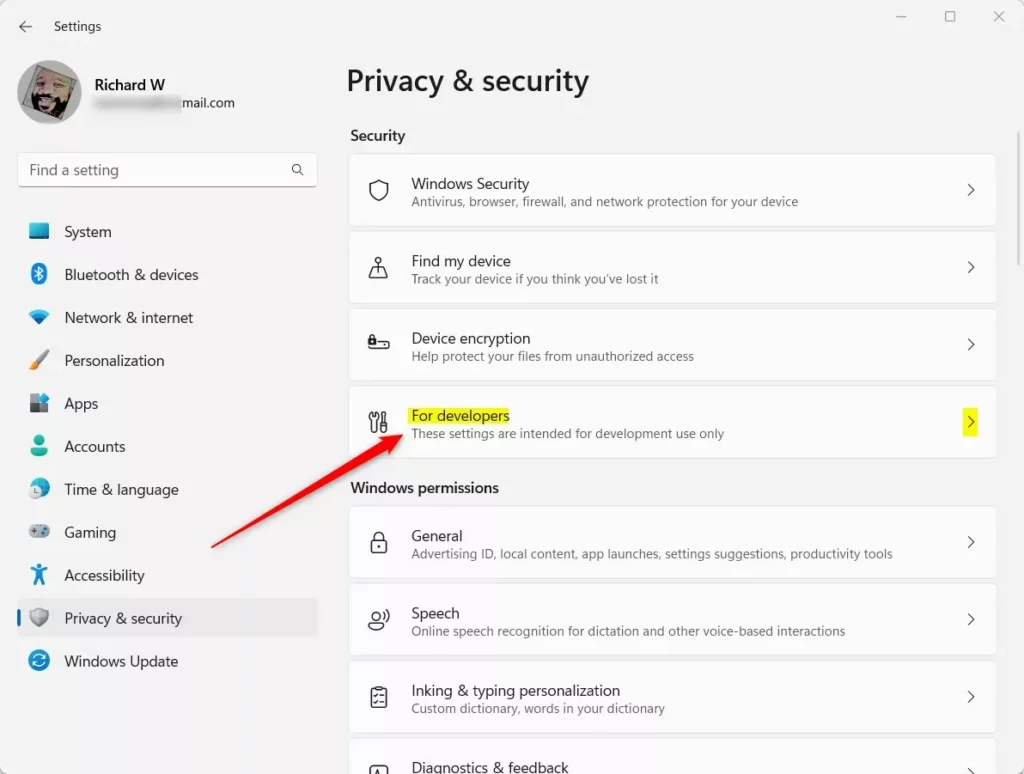
You turn Device Portal on or off in the Settings app , but only after Developer Mode is on. Press Win+I to open Settings . Then go to Privacy & security > For developers and switch Device Portal on or off. On newer Windows 11 builds, such as 24H2, the same page is under System For developers instead. The options on that page vary a little between builds, so look for the same names if your screen differs from the screenshots.
Device Portal is meant for developers and testers. It works on Home and Pro, and you do not need a Microsoft account to use it.
First make sure Developer Mode is on. It is the first switch on the For developers page. If Device Portal is greyed out or missing, Developer Mode is almost always the reason. Once Developer Mode is on, follow these steps:
- Open the Settings app by clicking the Start button and selecting Settings, or press
Windows key + Ion your keyboard. The Settings window opens with a list of categories on the left. - In the left-hand menu, click Privacy & security. On newer builds where the developer settings moved, click System instead. The page on the right changes to show that category.
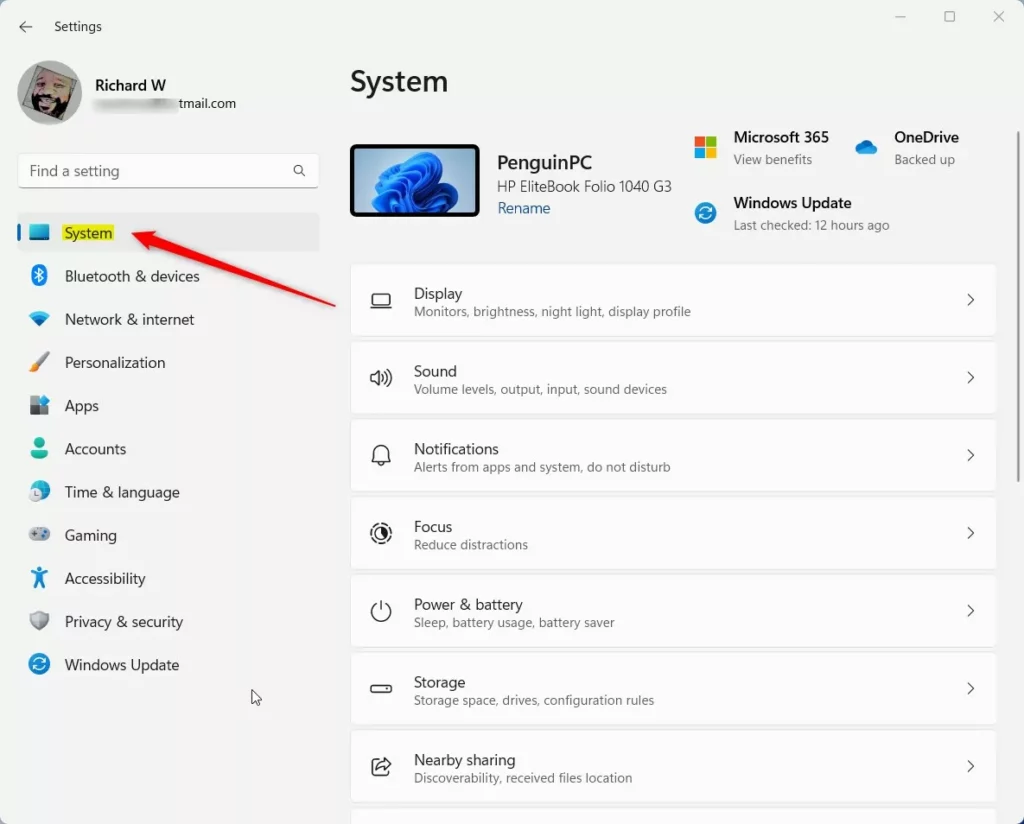
Windows 11 Accessibility in Settings - On the right side, scroll down and click For developers to open it. You should see the Developer Mode switch near the top. If it is off, turn it on and confirm any prompt before you continue.
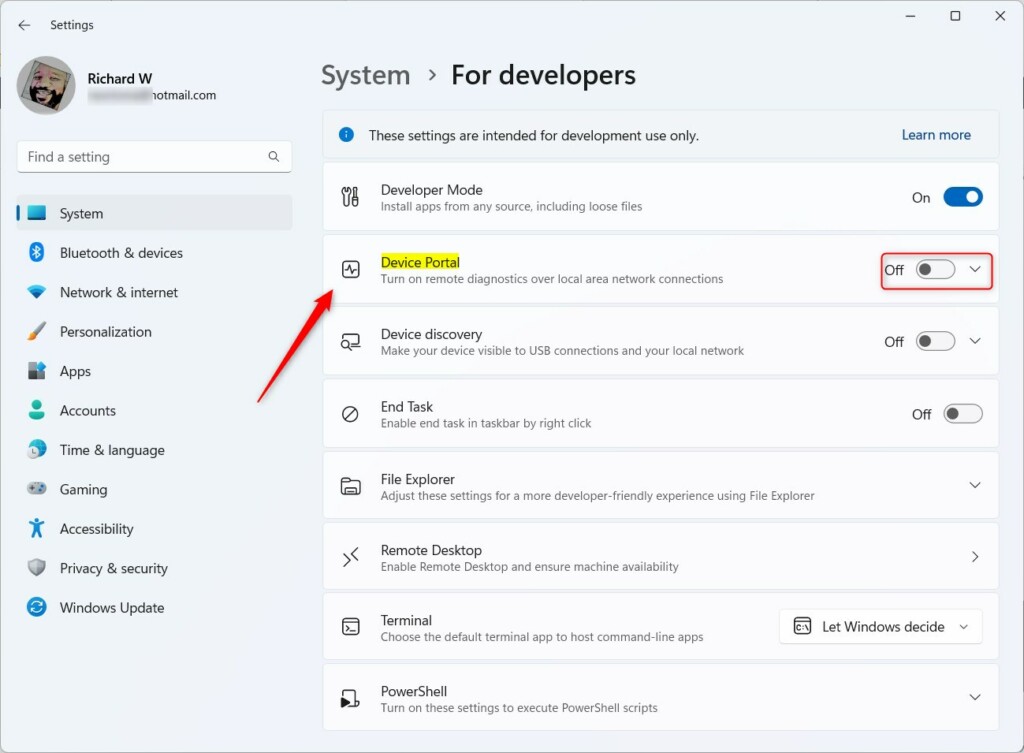
Windows for developer tile in the settings app - Find Device Portal and turn the switch on. The switch should now read On.
Turn on Device Portal switch - The first time you turn it on, Windows may ask to download a small Developer Mode package. Click Yes to install it . The PC needs an internet connection for this download. Wait for the install to finish before you go on. Windows may ask for a restart on some builds, so save your work first.
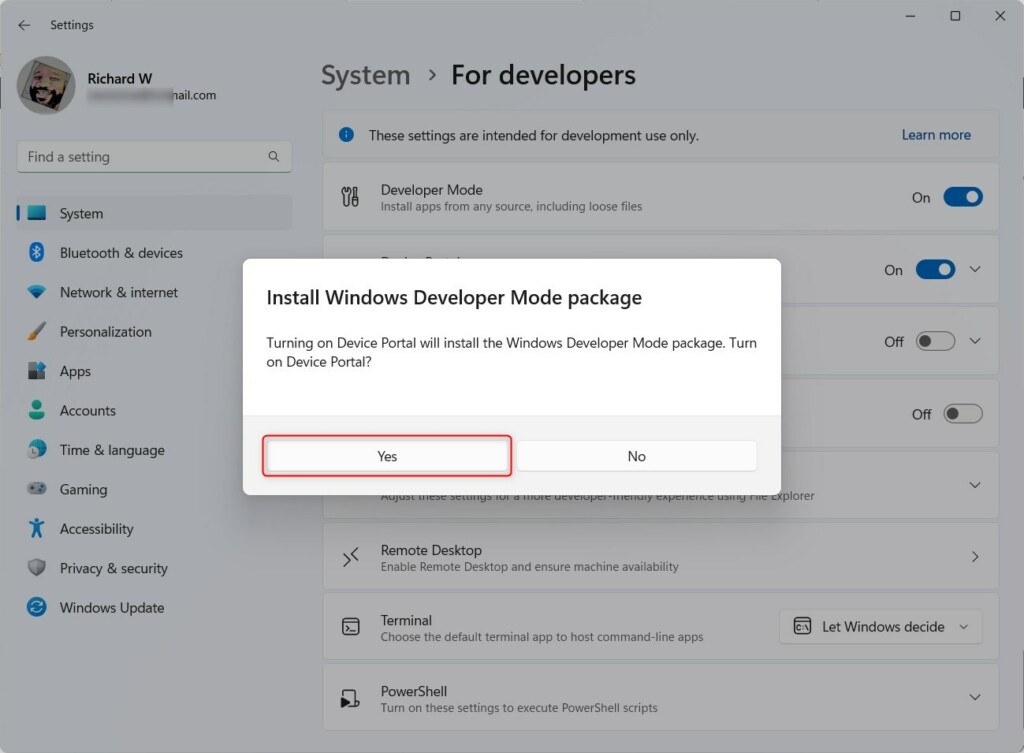
Install Developer Mode package - After Device Portal is enabled, turn on Authentication. With this on, anyone who tries to reach your PC through Device Portal must enter a username and password. Set up credentials here and keep them somewhere safe. Leave Authentication on, especially if the PC is on a shared or office network.
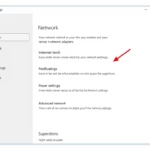
- Look at the Device Portal section of the page. It also shows the web address (local host address) used to connect to your PC’s Device Portal. Write it down or copy it.
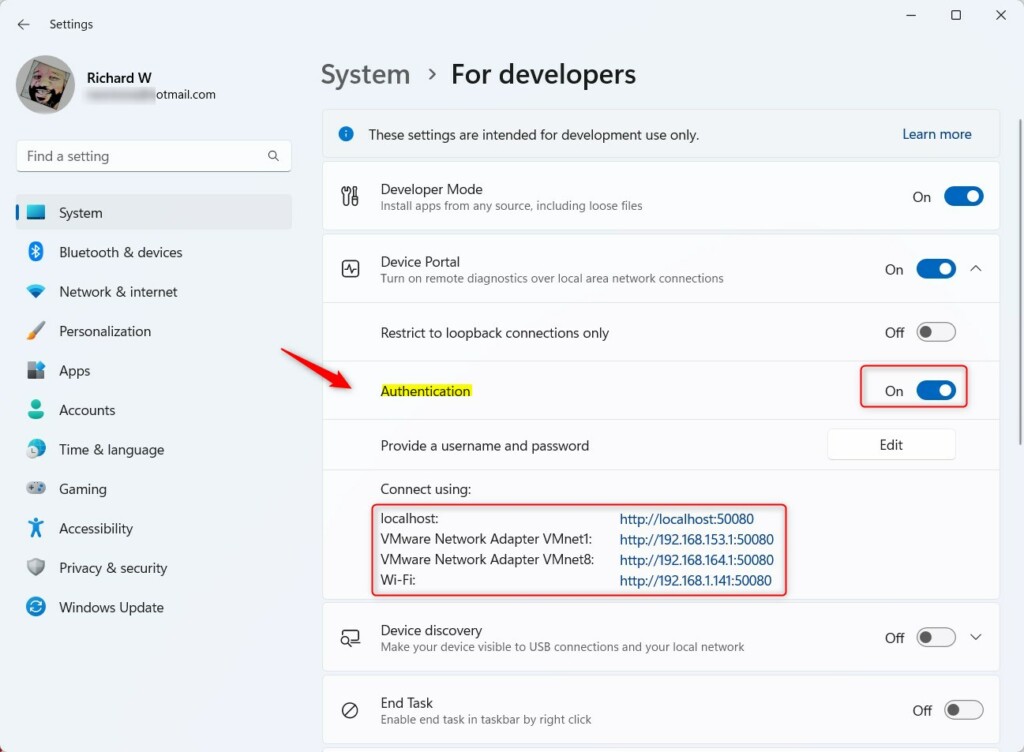
Windows Device Portal settings - Open any web browser on your PC and type the address shown. The Device Portal login page appears. Your browser may warn that the connection is not private, because the portal uses a self-signed certificate. That is expected for this tool. To connect from another device on your network, use the PC’s own network address in place of the local host part. Sign in with the username and password from the previous step.
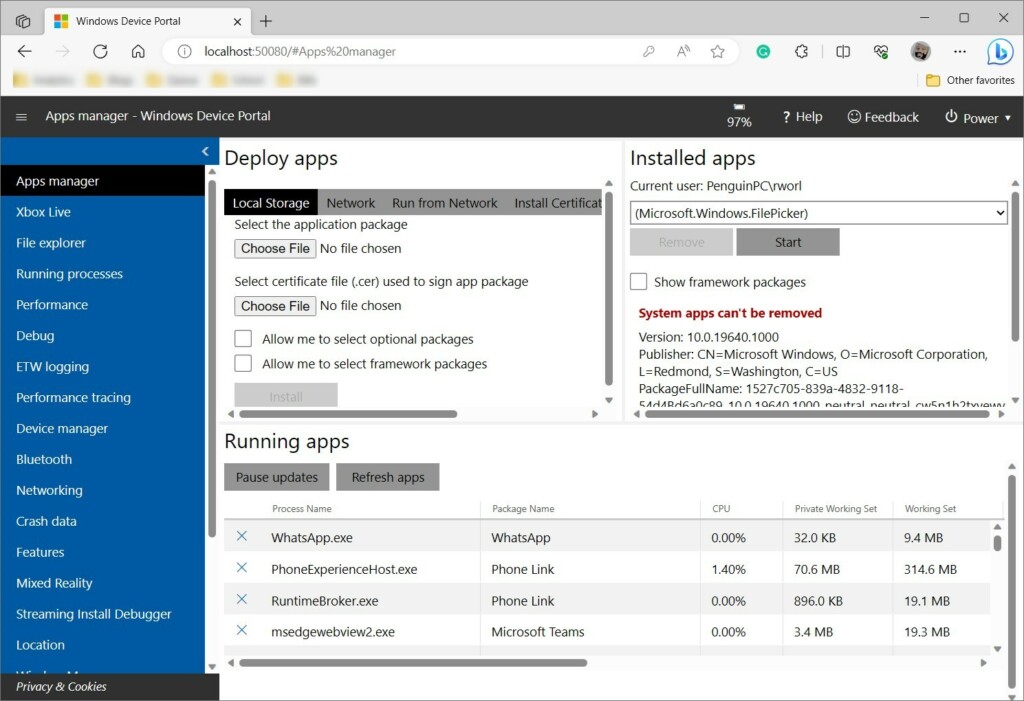
Windows Device Portal web page
Windows Device Portal is now on. You can use it to manage your Windows 11 PC from the browser. That includes tasks such as installing apps and checking running processes and performance.
To turn it off again, follow these steps:
- Open Settings and go to Privacy & security > For developers. On newer builds, go to System For developers
- Switch Device Portal to Off. The portal address stops responding in your browser.
- If you no longer need developer features at all, you can also switch off Developer Mode on the same page.
Summary
- Windows Device Portal lets you control and check your Windows 11 PC remotely with advanced tools.
- You need to enable Developer Mode before you can turn on Device Portal. If the option is greyed out or missing, check Developer Mode first.
- Turning on Authentication keeps your PC more secure by asking for a username and password.
- You can turn Device Portal on or off anytime depending on your needs. Keep it off when you are not using it.
Windows Device Portal lets you manage and test your Windows 11 computer remotely over a network connection. It requires Developer Mode to run and offers security features like password authentication. You can turn it on or off at any time in the Settings app. Because it opens your PC to the network, enable it only for as long as you need it and keep Authentication on while it runs.
If you have questions or want to share your experience, please leave a comment below!
Was this guide helpful?

About the Author
Richard
Tech Writer, IT Professional
Richard is a writer at Geek Rewind who turns complex IT tasks into clear, step-by-step guides. He draws on years of hands-on experience in system administration and enterprise IT operations, focusing on Windows, Linux and WordPress: the problems people actually run into, and the fixes that work. His server and WordPress guides come from systems he runs himself. Richard builds and maintains the platform behind Geek Rewind, from its Ubuntu servers and Nginx configuration to its custom WordPress plugins. Many new tutorials start with readers' questions, and he's always glad to answer them in the comments.


No comments yet — be the first to share your thoughts!