Enable Multiple Windows in Snipping Tool on Windows 11

This article describes steps to turn on or off the Snipping Tool opening screenshots in multiple windows Windows 11.

The Snipping Tool app allows you to quickly annotate screenshots, photos, and other images with your pen, touch, or mouse and save, paste, or share with other apps. The app, by default, will open screenshots in the same window.

However, if you want, you can open screenshots in multiple different windows when using the Snipping Tool app.

With the most recent version, you can also turn on a feature to save screenshots automatically. In addition to being copied to the clipboard, they’ll now be automatically saved in PNG format in the Screenshots folder under Picture in your home folder.

Below is how to enable or disable the Snipping Tool app to open new screenshots in different windows.

How to disable or enable multiple windows with Snipping Tool in Windows

As described above, the Snipping Tool will default use one window for all screenshots. However, you can turn on a feature to open new screenshots in different windows, and the steps below show you how to do that.

Because Snipping Tool is not a native Win32 app but a Store app that receives updates separately from the OS, you can’t change its settings with the group policy of Windows Registry.

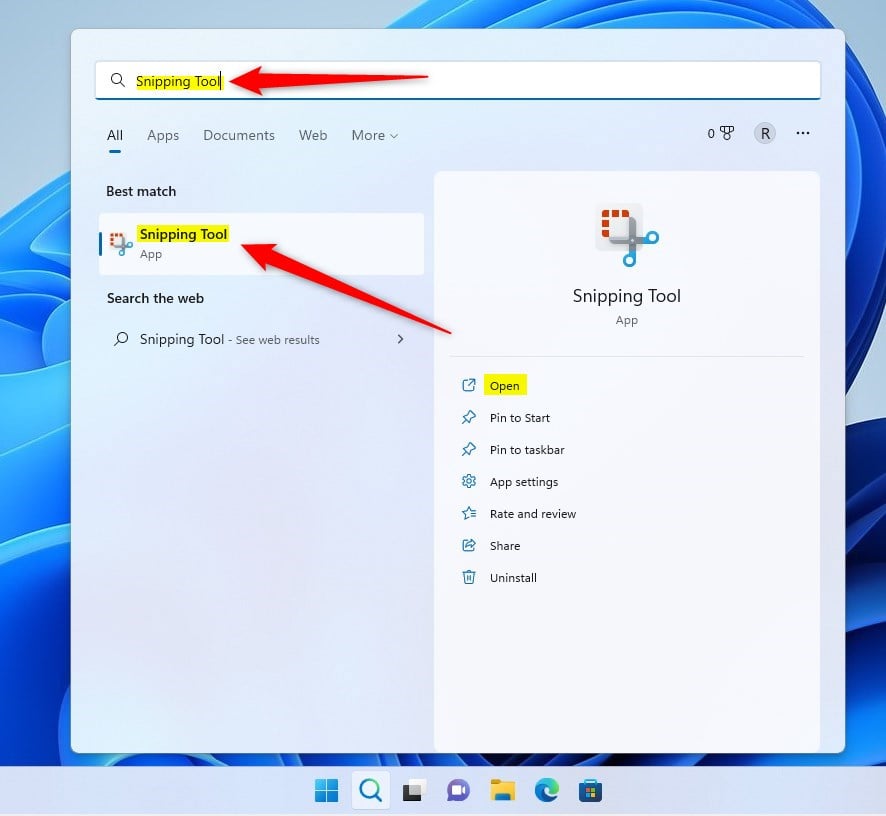
To disable or enable it, open the Snipping Tool app. You can do that from the Start menu and search for Snipping Tool.

Under Best match, select the Snipping Tool app to launch.
windows 11 snipping tool disable automatically saving screenshots
windows 11 snipping tool disabled automatically saving screenshots

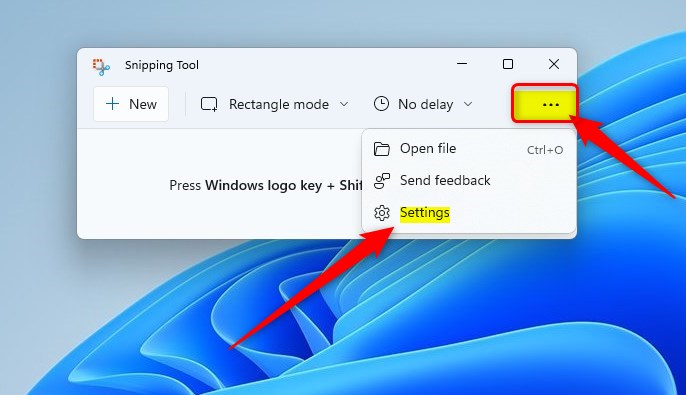
Once the app opens, click on the menu’s three horizontal dots (ellipses) and select Settings.
windows 11 snipping tool options settings
Windows 11 snipping tool options settings

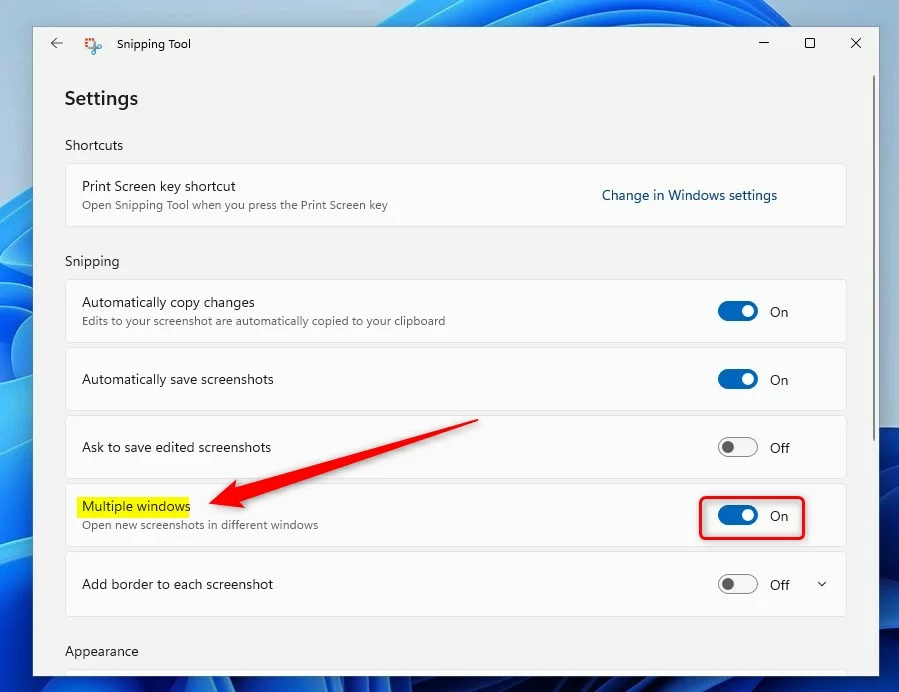
Find the Multiple windows option on the Settings page, then toggle the switch button to On to enable the feature.

To disable it, toggle the switch button to the Off position.
windows 11 snipping tool multiple windows on or off

Exit and your changes should be applied immediately.

Reference:

https://apps.microsoft.com/store/detail/snipping-tool/9MZ95KL8MR0L

That should do it!

Conclusion:

  • Enabled multiple windows feature in the Snipping Tool app
  • Disabled multiple windows feature in the Snipping Tool app
  • Described how to make changes using the Settings menu
  • Provided a reference link for more information
Categories:

Tags:

10 responses to “Enable Multiple Windows in Snipping Tool on Windows 11”

  1. […] The Snipping Tool is a built-in screenshot tool in Windows that allows you to capture screenshots of any part of your screen, including full-screen captures, individual windows, or user-defined capture areas. […]

  2. […] The Snipping Tool is a built-in screenshot tool in Windows that allows you to capture screenshots of any part of your screen, including full-screen captures, individual windows, or user-defined capture areas. […]

  3. […] The Snipping Tool is a built-in screenshot tool in Windows that lets you capture screenshots of any part of your screen, including full-screen captures, individual windows, or user-defined capture areas. […]

  4. […] The Snipping Tool is a built-in screenshot tool in Windows that lets you capture screenshots of any part of your screen, including full-screen captures, individual windows, or user-defined capture areas. […]

  5. […] The Snipping Tool is a built-in screenshot tool in Windows that lets you capture screenshots of any part of your screen, including full-screen captures, individual windows, or user-defined capture areas. […]

  6. […] The Snipping Tool is a built-in screenshot tool in  Windows that lets you capture screenshots of any part of your screen, including full-screen captures, individual windows, or user-defined capture areas. […]

  7. […] The Snipping Tool is a built-in screenshot tool in Windows that lets you capture screenshots of any part of your screen, including full-screen captures, individual windows, or user-defined capture areas. […]

  8. […] Snipping Tool is a free program built into Windows 11. It helps you take pictures of your screen, whether it’s […]

  9. […] Snipping Tool is a built-in app on Windows 11 that helps you take screenshots and record your screen. You can […]

  10. […] Snipping Tool is a handy program built into Windows. You can use it to take pictures of your whole screen, just […]

Leave a Reply to How to enable or disable the automatic saving of screen recordings in the Snipping Tool on Windows 11 – Geek Rewind Cancel reply

Your email address will not be published. Required fields are marked *

Explore Topics