How to Turn On or off Move Properties to Bottom of Context Menu in Windows 11

The “Move Properties to Bottom of Context Menu ” setting in Windows 11 changes where the Properties option sits in your right-click menu . Moving it to the very bottom puts it where it used to sit in older versions of Windows. That makes it faster to check file details on Windows 11 Build 22621 and later.
You can turn this setting on or off with the Settings app or with the Registry Editor (a tool for changing advanced system settings). Either method takes less than a minute and gives you a familiar right-click layout. The Settings option depends on your Windows build, so if you can’t find it, the registry method below does the same job.
Open Settings with Win+I, go to Personalization Context menu, and turn on the switch for moving Properties to the bottom of the menu. The change applies straight away with no restart.
Method 1Moving Properties Using the Windows Settings App
The Settings app is the safest way to move Properties. You change your right-click layout from a normal toggle and never touch system files. There is no difference between Home and Pro here. What matters is whether your build includes the option. Microsoft often rolls out new features like this slowly, so it may not be on your PC yet.
- Press the Win+I together. The Settings app opens right away. You can also click the Start button and choose the gear icon.

Windows 11 Start menu with Settings gear icon highlighted. - Click Personalization in the list on the left side of the window. This area controls how your desktop and menus look.
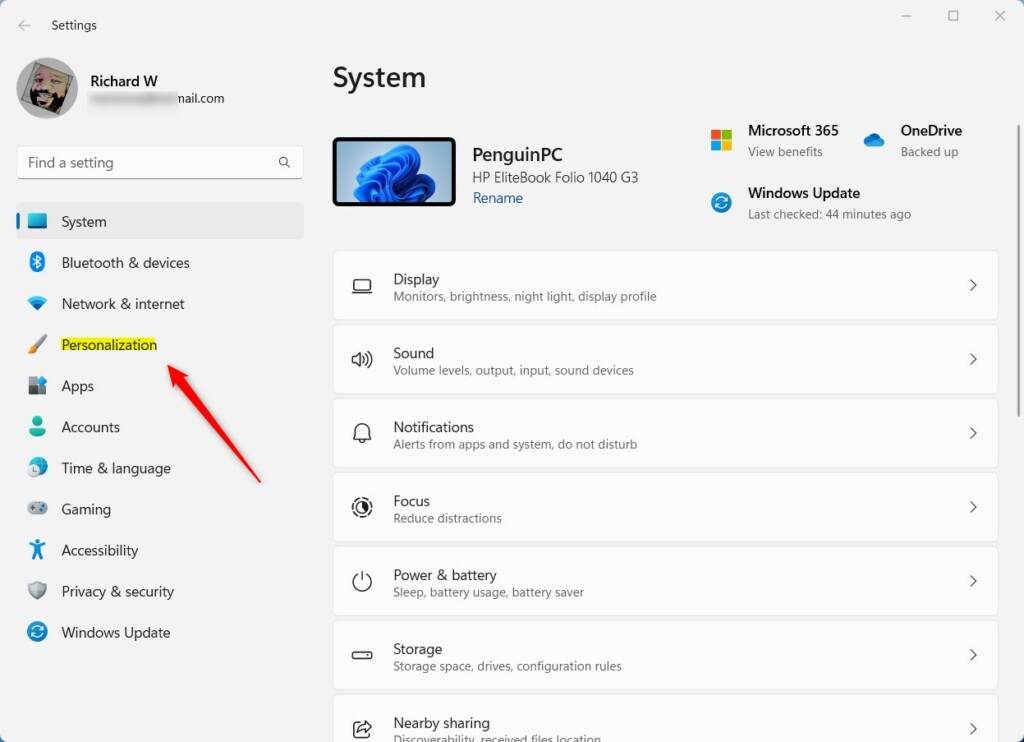
Windows 11 Personalization in the Settings app - Scroll down the right side of the Personalization page until you see Context menu , then click it. The page with your right-click choices opens.
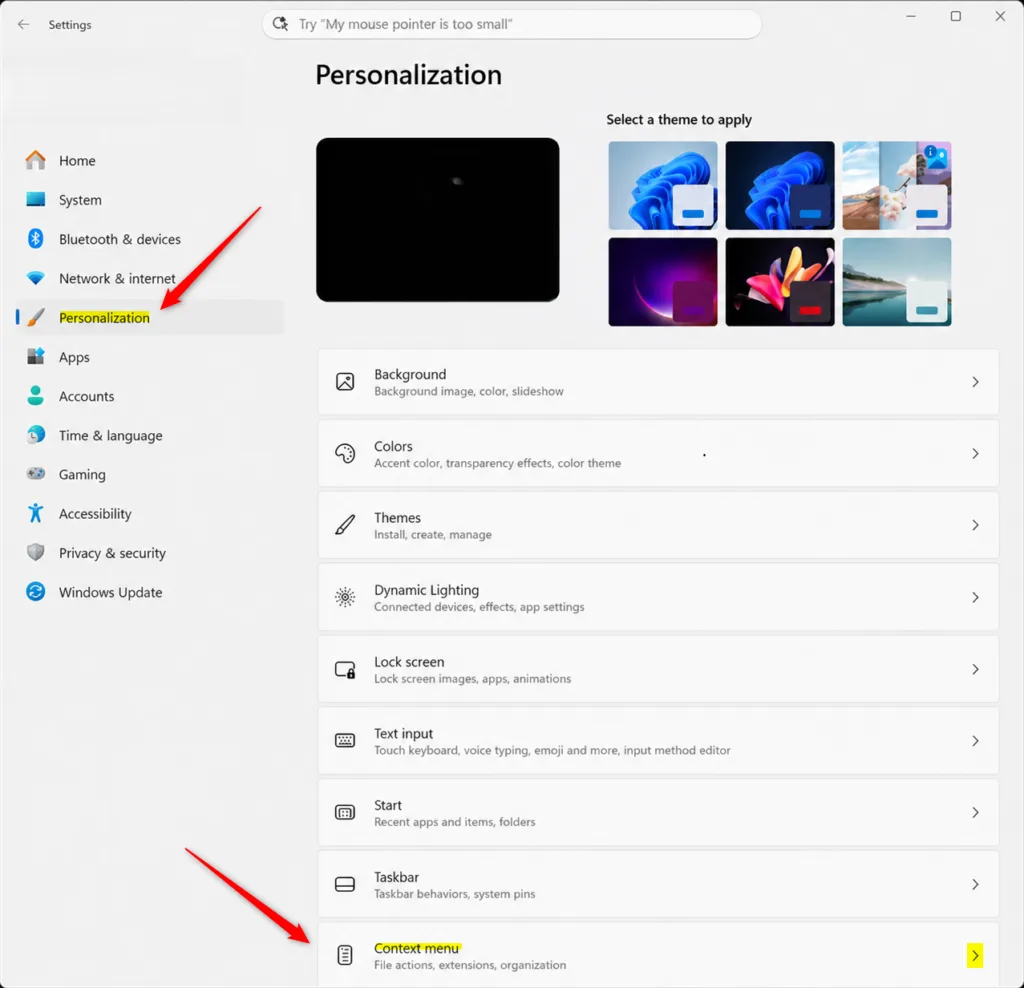
Context menu tile in Windows 11 Personalization settings
If you don’t see this option, install all pending updates first (Settings Windows Update ). If it is still missing, your build probably doesn’t have the feature yet, and you should use the registry method below instead. - Look for the area called Additional options. You will see a switch for moving the Properties button. Turn it On to send Properties to the bottom of the menu. Turn it Off to put it back in its normal spot.
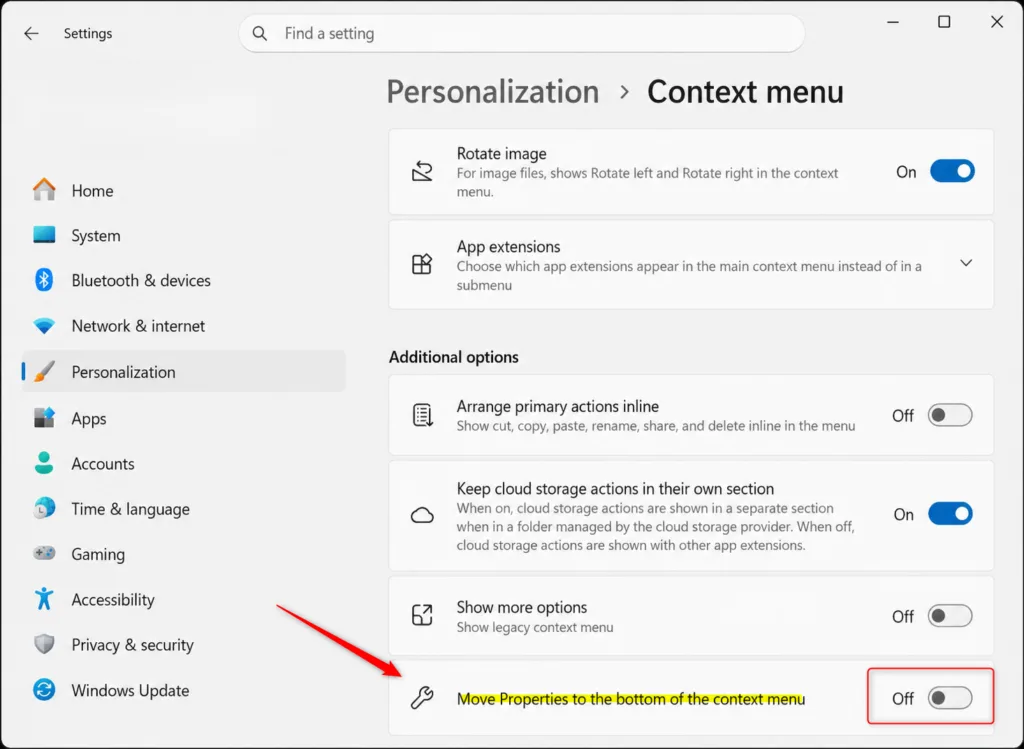
- Close the Settings app. Then right-click any file or folder to test the new layout. The change applies straight away, and you don’t need to restart. To undo it, come back to the same page and flip the switch the other way.
Method 2Moving Properties Using the Windows Registry Editor
It works on every edition of Windows 11, Home included. It also helps when the Settings page is missing on your build. You edit registry keys directly, so back up your system before you start.
Follow these steps carefully and don't change any value you didn't mean to touch. Note: Administrator privileges are required for this method.
For a quick backup, open Registry Editor and choose File Export to save a copy of the registry. You can also create a system restore point first. If anything goes wrong, you can restore from either one.
- Press the Windows key + R to open the Run box. Type
regeditinto the empty text box and press Enter. Click Yes if a User Account Control prompt asks for permission to make changes to your device. The Registry Editor window opens. - Click the address bar at the top of the Registry Editor window and go to this location:If you don't see the final subkeys, such asRegistry
HKEY_CURRENT_USER\Software\Microsoft\Windows\CurrentVersion\Explorer\ContextMenu\Preferences\MovePropertiesMoveProperties, you need to create them. Right-click the folder just above the missing one, choose New Key, and type the name exactly as shown. Repeat for each missing level. - Look at the right side of the window for a value named Enabled. If it isn't there, right-click any empty space on the right and choose New DWORD (32-bit) Value. Name it
Enabled. The new value now appears in the list. - Double-click the Enabled value to open its settings window. To move the Properties option to the bottom of the menu, type
1in the Value data box and click OK. To put it back in the default spot, type0in the Value data box and click OK. The value in the list now shows the number you entered. - Restart Windows Explorer so the change takes effect. Press Ctrl + Shift + Esc to open Task Manager. On the Processes tab, find Windows Explorer, right-click it, and select Restart. Your taskbar flashes for a moment and then comes back. Right-click a file to check the new layout. If it hasn't changed, sign out and back in, or restart the PC.
To undo the change later, go back to the same key and set the Enabled value to the other number. Then restart Windows Explorer again. If you exported a backup, you can also double-click the saved .reg file to restore it.
Summary
You can move the Properties option to the bottom of your Windows 11 right-click menu with either the Settings app or the Registry Editor. Both take only a few minutes. Use Settings when your build offers the toggle, and the registry when it doesn't. You can switch the setting back at any time.
Have a question about this guide?
Answered by AI from this guide. Good questions may be added to this page — please don't include personal details.
Did this guide fix your problem?

About the Author
Richard
Tech Writer, IT Professional
Richard is a writer at Geek Rewind who turns complex IT tasks into clear, step-by-step guides. He draws on years of hands-on experience in system administration and enterprise IT operations, focusing on Windows, Linux and WordPress: the problems people actually run into, and the fixes that work. His server and WordPress guides come from systems he runs himself. Richard builds and maintains the platform behind Geek Rewind, from its Ubuntu servers and Nginx configuration to its custom WordPress plugins. Many new tutorials start with readers' questions, and he's always glad to answer them in the comments.
No comments yet — be the first to share your thoughts!