How to Enable or Disable Windows Update Delivery Optimization


Windows Update Delivery Optimization shares update files between your PCs and other computers on your local network or the internet, speeding up downloads.
This feature uses peer-to-peer technology, meaning your Windows 10 or Windows 11 PC can get parts of updates from nearby computers instead of just Microsoft’s servers.
It also lets your PC send update pieces to other devices, which can save bandwidth and download time, especially if you have many Windows computers. By default, Delivery Optimization is usually turned on.
Enable or disable Windows Update Delivery Optimization by going to Settings, then Windows Update , Advanced options, and toggling “Allow downloads from other PCs” on or off. This setting controls whether your PC shares update files with other devices on your network or the internet.
Security and Privacy Implications
Windows Update Delivery Optimization is generally safe, as Microsoft checks that update files are real, but some people prefer to turn it off to stop background data sharing.
Bandwidth Throttling and Network Impact
Yes, Windows Update Delivery Optimization can use your internet bandwidth to upload updates to other PCs on the network.
How to Check if Delivery Optimization is Active
You can see if it is working by opening Task Manager . Press Ctrl+Shift+Esc. Click the Performance tab and look at your Ethernet or Wi-Fi usage. If you see high activity while no apps are open, Delivery Optimization might be sharing files.
How to Change Settings in 🪟 Windows 11
- Open the Windows Settings app.
- Select Windows Update on the left side.
- Click on Advanced options.
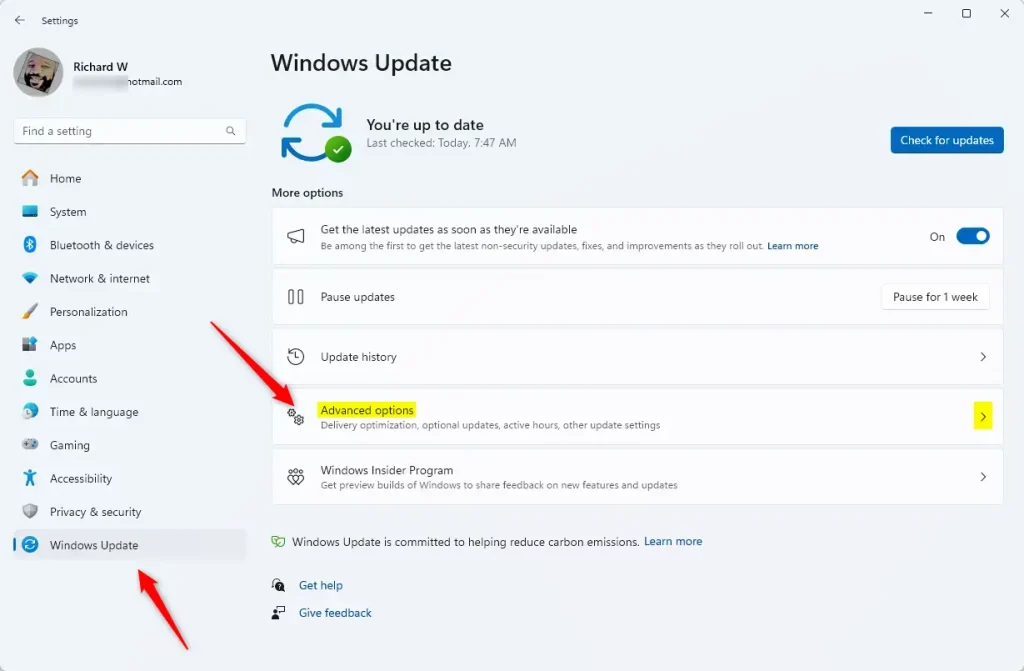
- Look for the Delivery Optimization tile under "Additional options" and click it.
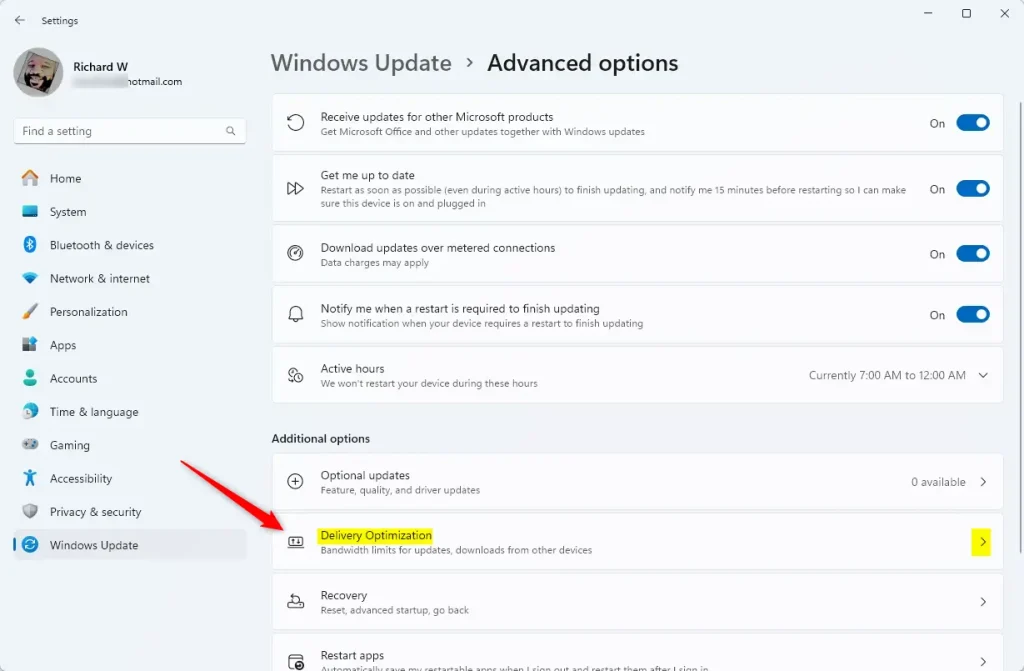
- Click on Allow downloads from other PCs.
- Toggle the switch to On or Off.
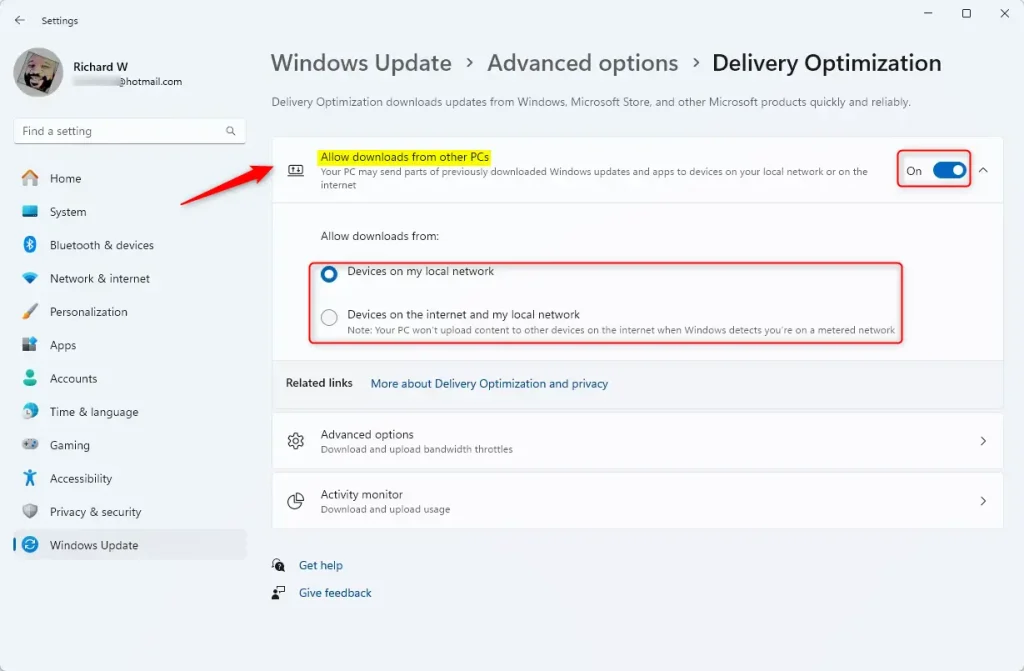
You can change Windows Update Delivery Optimization settings directly in the Windows Settings app to control whether your computer shares update files with other PCs on your local network or the internet. To do this, open Settings, select Windows Update, go to Advanced options, click Delivery Optimization, and then turn the switch on or off next to Allow downloads from other PCs.
Advanced Method: Using the Registry Editor
You can change Windows Update Delivery Optimization using the Registry Editor (a tool that lets you view and change system settings) if you prefer not to use the main Settings app. Type regedit in your search bar and press Enter to open the tool, then go to the correct registry path to update the values. Make sure to back up your system first, because a wrong edit can cause serious Windows problems.
- Press the Windows key, type
regedit, and press Enter. - Navigate to:
HKEY_LOCAL_MACHINE\SOFTWARE\Policies\Microsoft\Windows\DeliveryOptimization - Look for
DODownloadMode. If it is not there, right-click, select New DWORD (32-bit) Value, and name itDODownloadMode. - Double-click
DODownloadModeand enter:- 0: Disable Delivery Optimization.
- 1: Enable for local network only.
- 3: Enable for local network and the internet.
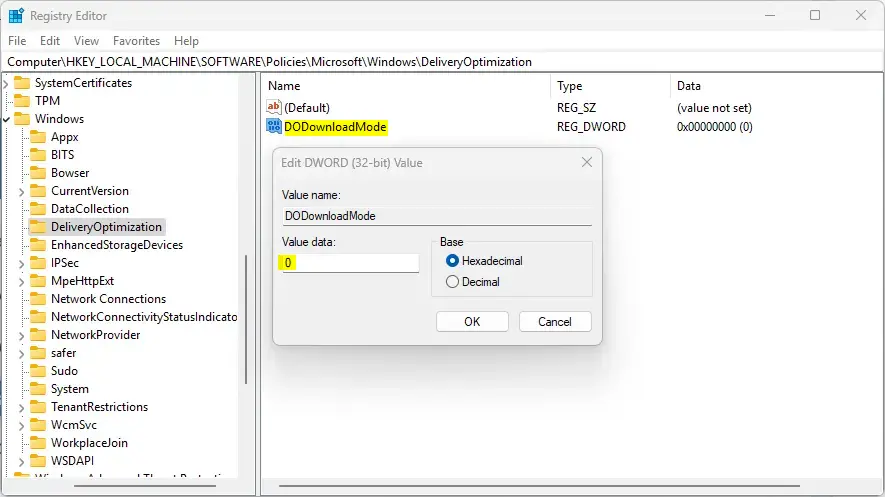
Restart your computer to apply the changes.
How to Clear the Delivery Optimization Cache
Go to Settings System Storage Temporary files. Select Delivery Optimization Files and click Remove files.
Summary
Windows Update Delivery Optimization is a tool for faster updates using P2P technology. While efficient, it can impact your bandwidth. These settings can be managed in the Windows Settings app or via the Registry Editor. Always monitor your data usage if you have a limited internet plan.
Is Delivery Optimization safe for metered connections?
Yes, Windows is smart enough to detect metered connections. If you set your Wi-Fi or Ethernet connection as metered in Windows settings, Delivery Optimization will automatically pause background uploads and downloads to prevent you from exceeding your data limit.
Was this guide helpful?

About the Author
Richard
Tech Writer, IT Professional
Richard, a writer for Geek Rewind, is a tech enthusiast who loves breaking down complex IT topics into simple, easy-to-understand ideas. With years of hands-on experience in system administration and enterprise IT operations, he’s developed a knack for offering practical tips and solutions. Richard aims to make technology more accessible and actionable. He's deeply committed to the Geek Rewind community, always ready to answer questions and engage in discussions.

Absolutely DOES NOT WORK.,
it is not working