How to Send and Receive Text Messages on Windows 11


The Phone Link app lets you send and receive text messages directly on Windows 11 without picking up your phone. This built-in tool connects your smartphone to your PC over Bluetooth and Wi-Fi to handle regular texts and picture messages right on your desktop or laptop screen.
You only need to pair your devices once to start texting while you work. The connection supports both Android and iPhone devices, though some messaging features vary depending on your phone type.
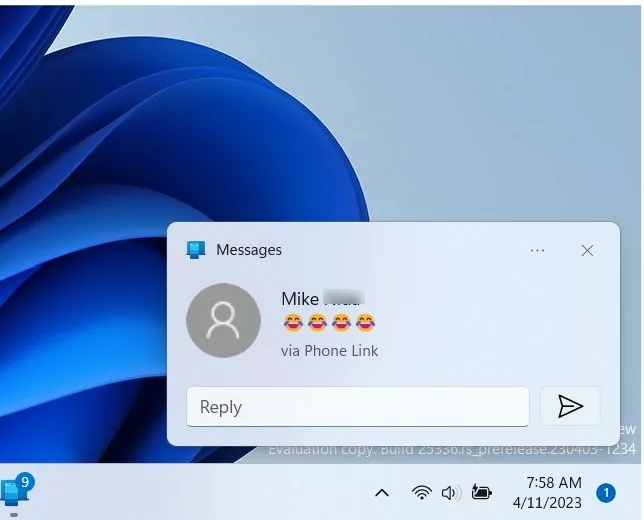
Send and receive texts on Windows 11 with the Phone Link app. Open Phone Link on your PC, link your Android or iPhone by following on-screen prompts, and grant permissions on your phone. You can then view, reply to, and send SMS/MMS messages directly from your computer.
Why use Phone Link for text messages?
Keeping your texts on your desktop keeps your workflow uninterrupted.
System Requirements and Compatibility
These features require a PC running Windows 11 and an Android device with the Link to Windows app installed. Both devices need a connection to the same Wi-Fi network. Bluetooth also must remain enabled on both devices for a stable sync connection.
Setting Up Link to Windows
Setting up Link to Windows involves pairing your Android phone with your PC so you can send and receive text messages on Windows 11 directly from your computer screen. You need to open the Phone Link app on your computer, sign in with your Microsoft account, and scan the QR code using the companion app on your phone to finish the connection.
- Open the Phone Link app on your PC.
- Follow the on-screen instructions to sign in with your Microsoft Account.
- On your Android phone, open the Link to Windows app and scan the QR code displayed on your PC screen.
- Grant the necessary permissions on your phone to allow message syncing.
Managing Messages and Media
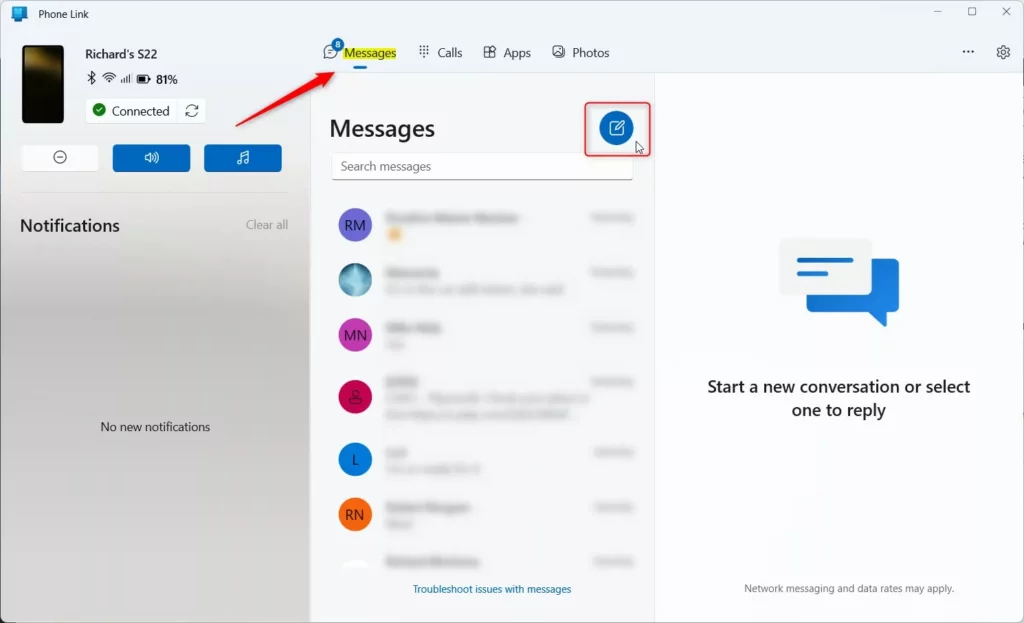
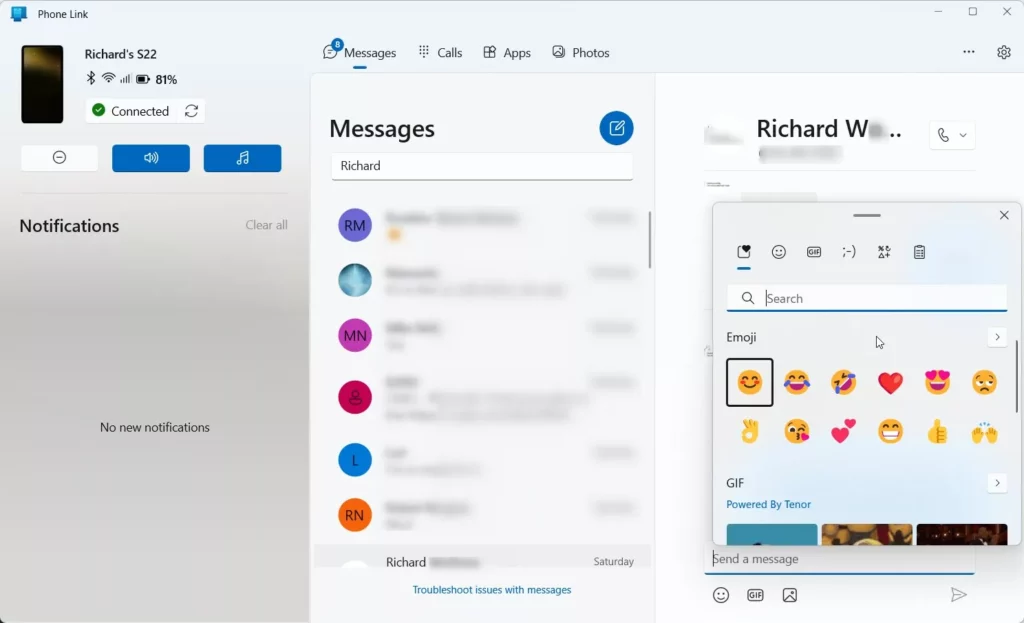
Phone Link supports MMS (Multimedia Messaging Service for pictures and group texts), meaning photos, GIFs, and emojis transfer successfully. Group messaging works directly from the desktop too. Clicking the Messages tab reveals the conversation history.
Troubleshooting: Why are my text messages not syncing?
If your messages fail to sync, try these quick fixes:
- Ensure your PC and phone are on the same Wi-Fi network.
- Check that Focus Assist is not blocking notifications.
- Verify that your Microsoft Account is signed in on both devices.
- Restart the Phone Link app on your PC.
Keyboard Shortcuts for Efficiency
Keyboard shortcuts speed up message management:
- Ctrl + N: Start a new message.
- Ctrl + F: Search through your messages.
- Enter: Send your typed message.
Summary
Linking a phone to Windows 11 lets users manage SMS and MMS messages, view media, and reply to contacts using the keyboard. Productivity improves as the digital life stays organized. Additional details live on the official Microsoft support page.
Can I delete messages from my PC?
Yes, individual messages or entire conversation threads delete directly from the Phone Link app. Deleting a message on the PC removes it from the connected phone too, keeping devices perfectly in sync at all times.
How many messages can I view in Phone Link?
Phone Link displays text messages sent and received within the last 30 days. Limiting history keeps the app responsive and loads conversations faster.
Was this guide helpful?

About the Author
Richard
Tech Writer, IT Professional
Richard, a writer for Geek Rewind, is a tech enthusiast who loves breaking down complex IT topics into simple, easy-to-understand ideas. With years of hands-on experience in system administration and enterprise IT operations, he’s developed a knack for offering practical tips and solutions. Richard aims to make technology more accessible and actionable. He's deeply committed to the Geek Rewind community, always ready to answer questions and engage in discussions.


[…] can quickly use the settings on this page to send and receive text messages, view your photos on your mobile devices, control apps on your mobile devices, and […]
[…] or off, unlink your phone from Windows, enable or disable auto startup for the phone link app, send and receive text messages from the app, add or remove Phone Link on the widgets board, turn dark mode on or off, open your phone screen […]