How to Remove Recent Items from Windows 11 Search

- 10 steps
- Needs administrator rights
Windows 11 Search can now remove individual entries from the view that appears before you type anything, but only in Insider preview builds. In Windows Insider build 26340.9843, released to the Experimental channel, an early test group for Insider builds, on October 30, 2026, you right-click a recent item and choose Remove from list.
This option exists only in Windows Insider preview builds so far. It is not in standard Windows 11 releases, and Microsoft may change or drop it before it reaches everyone. The steps below cover the Insider method and what to check if the option is missing.
Right-click a recent item in the initial Windows Search view and select Remove from list to delete just that entry. This option exists only in Windows Insider preview builds, such as build 26340.9843, so check your build with winver first. Standard Windows 11 releases do not show it yet.
What this feature does and where it is available
Open Windows Search and the panel shows content before you type a single character. Microsoft calls this the initial Search view, and it lists recent items. Until now, you had to wipe all of your search history to remove one stray entry.
The Insider change adds a per-item option. Right-click a recent item in the initial view and a context menu (the small menu that opens when you right-click) includes Remove from list. Choosing it takes that one entry out of the view and leaves the others alone.
The same right-click also gives you thumbs up and thumbs down feedback options on a result or suggestion. These are separate from removal, and a later section explains the difference.
Nothing in this process edits the registry (Windows’ settings database) or changes a Group Policy setting (an administrator control over Windows settings). The steps run entirely in the Search interface, so nothing in them calls for administrator privileges.
Who can use it right now
The feature appears in a Windows Insider preview build, which is an early test version of Windows that Microsoft releases to volunteers before the public. If your PC runs a standard release of Windows 11, you will not see Remove from list when you right-click a recent item. That is expected behaviour, not a fault on your PC.
Insider builds are also less stable than standard releases. Joining the Insider program to hide one search entry is a poor trade. This matters most on a work PC or on your only computer. If you stay on a standard release, the history controls covered later in this article are your option.
Because the feature is in preview, its wording, its position in the menu and its behaviour can change. The names used in this article match build 26340.9843. If you run a different Insider build, the menu may look different or the option may not be there yet.
How to remove recent items from 🪟 Windows 11 Search
These steps remove a single recent item from the initial Search view. The list starts with a check of your build, because the option does not appear on builds that lack it.
- Press Win+R. The Run dialog box opens in the lower-left corner of the screen.

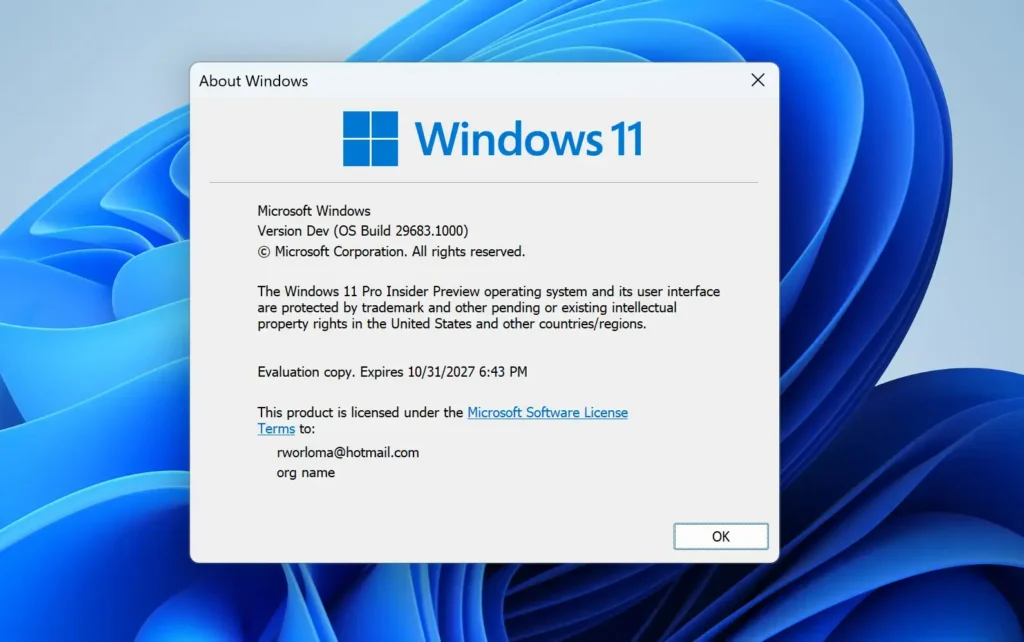
Run dialog - Type winver and press Enter. A window titled About Windows opens.
- Read the build number. Look for 26340.9843 in the version line, which appears as “OS Build” or after the version number. Other Insider builds may also include the option, but this is the build where Microsoft lists it. If your build is a standard release, stop here, because the option is not available to you yet.
- Select OK. The About Windows window closes.
- Open Windows Search. Select the search box or icon on the taskbar, or press Win+S. The Search panel opens.
- Stay on the initial view. Do not type anything. The panel shows the content that appears before a query, including your recent items. If you start typing, the panel switches to results and the recent list disappears.
- Right-click the recent item you want to remove. A context menu opens next to the item.
- Select Remove from list. The item disappears from the initial Search view.
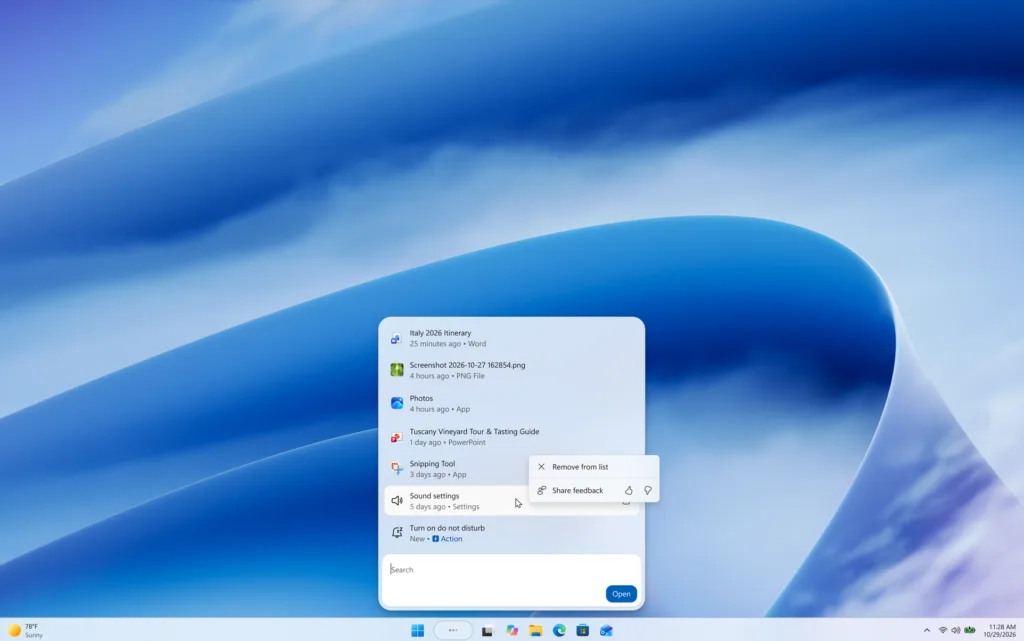
Context menu - Repeat for any other item. Right-click each entry in turn and choose Remove from list. Each removal affects only the item you clicked.
- Close Search and open it again. Press Esc, then press Win+S. Confirm the removed items no longer appear in the initial view.
If the context menu shows only thumbs up and thumbs down options and no Remove from list, you right-clicked something other than a recent item. Check that you are in the initial view and that the entry you picked sits in the recent items area. Then try again.
Thumbs up and thumbs down are not the same as removal
Right-clicking a result or suggestion in these Insider builds shows feedback choices alongside, or instead of, the removal option. Thumbs up tells Microsoft the result was useful. Thumbs down tells Microsoft it was not.
Neither choice is a removal command. If you want an entry out of the initial view, choose Remove from list and leave the thumbs options alone. Sending feedback on a result does not clear it from your recent items.
Microsoft has not said what happens after a thumbs down, so do not use it to hide anything.
If Remove from list does not appear
A missing option has a short list of likely causes. Work through them in this order.
- You are not on an Insider build. Press Win+R, type winver, and press Enter. This opens the About Windows window, which shows your build number. A standard Windows 11 release does not include per-item removal.
- Your Insider build predates or differs from 26340.9843. Microsoft lists the option in that build. Other builds might not have it, or might have changed it.
- You are looking at typed results, not the initial view. The option applies to the view before you type. Clear the search box and look at what appears first.
- The item is not in the recent items area. Right-click an entry that sits in the recent list. Other parts of the panel may offer only feedback options.
- The feature has changed since this was written. Preview features move between builds. Check the release notes for your build if the menu looks different.
If Search itself behaves oddly, for example it fails to open or shows a blank panel, the cause is not the removal feature. The post on how to reset Windows Search in Windows 11 covers that problem, and the guide on fixing Windows 11 search and indexing covers results that are missing or wrong.
What removing an item does not do
The label says Remove from list, and that describes the scope. The item leaves the recent list in the initial Search view. Nothing in the preview notes says the action deletes the file, uninstalls the app or removes anything from your PC.
Other places that show recent files, such as File Explorer or the Start menu, are separate from the Search initial view. Removing an entry from Search does not clear it from those places. The notes do not say otherwise, so check each location on its own.
Clear more than one item or hide history entirely
Per-item removal works well for one or two entries. For a long list, right-clicking every entry takes time, and the notes do not describe a bulk option for the initial view.
If you want to stop Windows from recording search history at all, use the history setting instead. The guide on turning recent search history on or off in Windows 11 walks through it, and it works on standard releases as well as Insider builds.
For a broader look at how the newer Search panel is laid out, read how to use the new Windows Search experience in Windows 11. That guide helps if your initial view looks different from what is described here.
How to undo a removal
If you want to go back to a standard Windows 11 release, you can leave the Windows Insider Program, but that is a larger change than the one this article covers. Take a backup of your files first, because moving between Insider and standard builds can involve a reinstall.
What to do next
Open Search again after a restart or a sign-out and confirm the removed items stay gone. If a build update changes the menu, look for the wording on screen rather than relying on this article’s names. If Search stops finding files after you change history or index settings, the guide to rebuilding the Windows Search index is the next step. To limit what Search pulls from the web and your accounts, read how to turn off cloud content search in Windows 11.
Have a question about this guide?
Answered by AI from this guide. Good questions may be added to this page — please don't include personal details.
Did this guide fix your problem?

About the Author
Richard
Tech Writer, IT Professional
Richard is a writer at Geek Rewind who turns complex IT tasks into clear, step-by-step guides. He draws on years of hands-on experience in system administration and enterprise IT operations, focusing on Windows, Linux and WordPress: the problems people actually run into, and the fixes that work. His server and WordPress guides come from systems he runs himself. Richard builds and maintains the platform behind Geek Rewind, from its Ubuntu servers and Nginx configuration to its custom WordPress plugins. Many new tutorials start with readers' questions, and he's always glad to answer them in the comments.
No comments yet — be the first to share your thoughts!