Remove PIN from Account in Windows 11


- 2 ways to do it
- Needs administrator rights
- Includes a restart or sign-out
Removing a PIN in Windows 11 clears your current sign-in code. You can then sign in with a standard password, a security key, or a biometric option such as fingerprint, depending on what your device supports. On Windows 11 version 22H2 and later, you can turn off PIN sign-in from the main Settings app. You don’t need the Control Panel or any extra tools.
This guide covers three things: removing the PIN through Settings, using the direct Sign-in options shortcut, and a batch file fix for when the normal method fails. It also explains what you lose when the PIN goes, so you can decide before you remove it.
To remove PIN from Windows 11, open Settings with Win+I, go to Accounts Sign-in options, find PIN (Windows Hello) under Ways to sign in, and click Remove. Enter your Microsoft account password to confirm. The PIN is then deleted and you’ll sign in with your password instead.
What is Windows Hello and PIN?
Windows Hello lets you sign in to your Windows 11 computer with a short code, a fingerprint or your face instead of a long password. The PIN is the most common part of it. It is tied to one specific device. Even if someone learns your PIN, it does nothing on another computer or website.
A Windows 11 PIN can be numbers only, or it can include letters and symbols if you enable that option. Because it is bound to the hardware, it gives much stronger protection than a traditional password that you might reuse elsewhere.
Why is a PIN better than a password?
- PIN is tied to your device
Your PIN only works on your computer. If someone steals your PIN, they still can’t get into your account without the device itself. - PIN stays on your device
Unlike a password, your PIN isn’t sent over the internet or stored on Microsoft’s servers. It stays on your device only. - PIN is backed by special hardware
Most modern devices have a security chip called a TPM. It protects your PIN and makes it very hard to break in by guessing. - PIN can be as strong as a password
Your PIN can be a short number or a long mix of letters, numbers and symbols, depending on your settings. - PIN is needed for biometrics
Fingerprint and face sign-in depend on a PIN being set up. The PIN also works as your backup if the biometric sign-in doesn’t recognise you.
A PIN is safer than a standard password because it stays locked to your physical hardware. It never travels across the internet or sits on Microsoft’s servers. That means an attacker cannot reuse it on other sites, even if they see it.
How to Remove PIN on Your 🪟 Windows 11 PC
Option 1Remove PIN Using Settings
You need to know your Microsoft account password before you start, because Windows asks for it at the end. If you only ever used the PIN, reset or confirm your password first so you don’t lock yourself out.
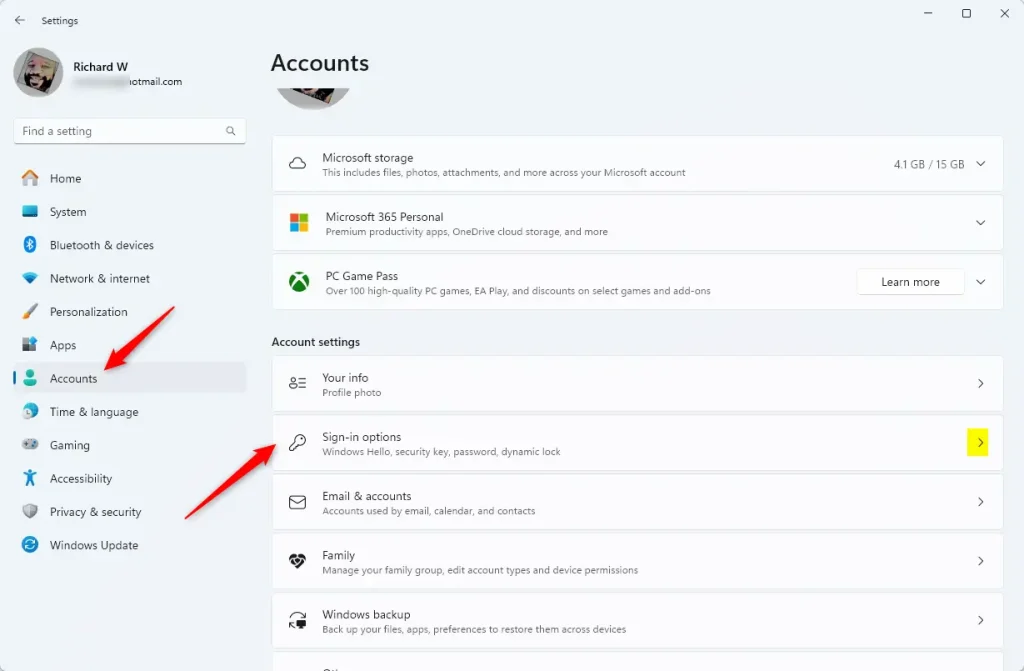
- Press Win+I to open Settings.
- Click Accounts in the left menu.
- Click Sign-in options on the right. You should now see a list of sign-in methods.
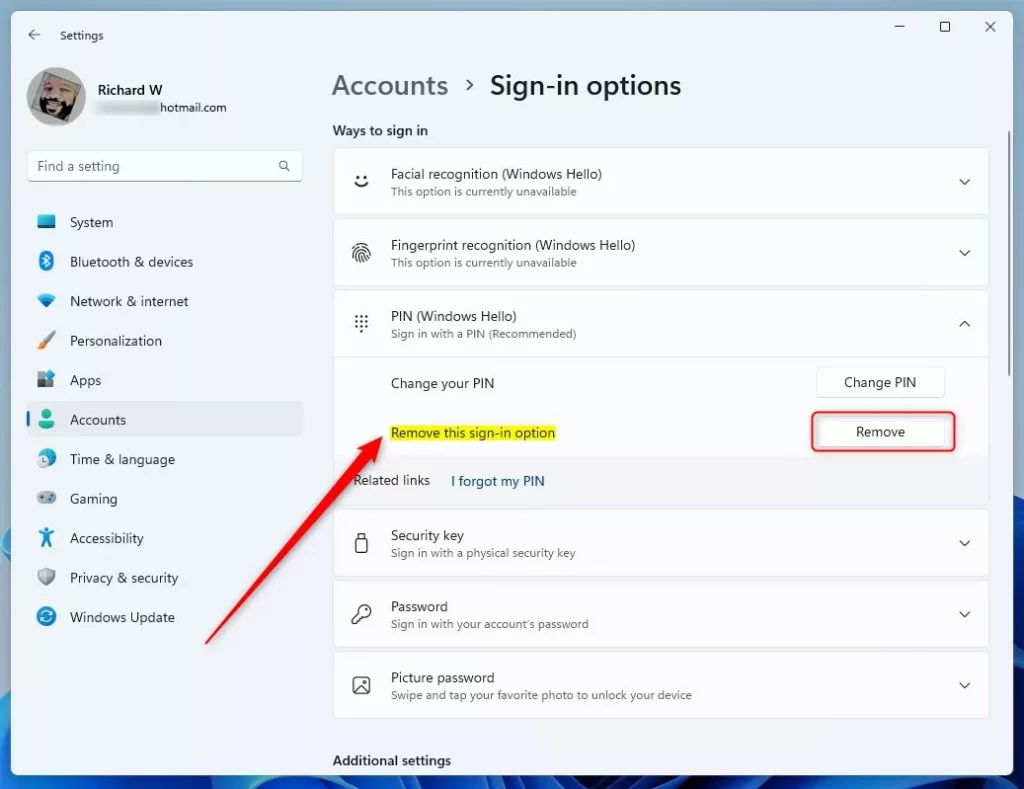
- Under Ways to sign in, find PIN (Windows Hello) and click it to expand it.
- Click the Remove button next to “Remove this sign-in option”.
- If the Remove button is grey, scroll down to the Additional settings area on the same page. Turn off “For improved security, only allow Windows Hello sign-in for Microsoft accounts on this device”, then go back to the PIN entry. The button should now be clickable.
- Click Remove again when Windows asks you to confirm.
- Enter your Microsoft account password (not the PIN) to verify it’s you, then click OK. The PIN entry should now show an Add button, which means the PIN is gone.
- Close Settings.
The whole process takes less than a minute. No restart is needed. The next time you lock the screen or sign in, Windows asks for your password instead of the PIN.
If the button is still grey after you turn that toggle off, the device may be managed by a work or school organisation that requires a PIN. In that case, ask your IT administrator. To undo the change at any time, go back to Sign-in options, expand PIN (Windows Hello) and click Add.
Quick Link to Sign-in Options Settings
Windows 11 also lets you jump straight to the right page. Click the “Open Sign-in options” link and Settings opens directly on Sign-in options. This saves you the trip through Accounts.
From there, continue with the steps above, starting at expanding PIN (Windows Hello) under Ways to sign in.
Option 2Remove PIN for All Users Using a Batch File (Advanced)
Use a batch file when the normal method fails or throws errors. This is a more advanced fix. It clears broken sign-in records from your system so Windows can start fresh. Try the Settings method first.
When the stored PIN records are damaged, signing in or changing your credentials gives persistent errors. Deleting the broken files forces Windows to rebuild a clean authentication state. These are the errors that usually point to this problem:
- “Something went wrong (code: 0x8009002d)” when signing in with PIN.
- “Something went wrong. Try again later” when adding or changing a PIN.
- PIN sign-in option missing or not working.
A batch file is a text file saved with a .bat extension. Run as administrator, the script below clears the corrupted directory and resets local credentials:
@echo off
powershell -windowstyle hidden -command "Start-Process cmd -ArgumentList '/s,/c,takeown /f C:\Windows\ServiceProfiles\LocalService\AppData\Local\Microsoft\NGC /r /d y & icacls C:\Windows\ServiceProfiles\LocalService\AppData\Local\Microsoft\NGC /grant administrators:F /t & RD /S /Q C:\Windows\ServiceProfiles\LocalService\AppData\Local\Microsoft\Ngc & MD C:\Windows\ServiceProfiles\LocalService\AppData\Local\Microsoft\Ngc & icacls C:\Windows\ServiceProfiles\LocalService\AppData\Local\Microsoft\Ngc /T /Q /C /RESET' -Verb runAs"
How to use this code:
- Open Notepad and copy-paste the code above.
- Click File, then Save As. Set Save as type to All files so Notepad doesn’t add .txt. Save the file with a
.batextension, for example,ResetPIN.bat. - Right-click the file and choose Run as administrator. If a User Account Control prompt appears, click Yes.
- Wait for the script window to finish and close. Your PIN data is now reset.
- Restart the PC if you can, then try setting up a PIN again under Settings Accounts Sign-in options. Any fingerprint or face sign-in will likely need to be set up again too.
Sign in with a password first if the PIN no longer works.
Summary
Those features rely on the PIN as a backup code. Your account stays protected by your main password, but you will type that password every time you start or unlock your PC.
- Removing the PIN also removes face and fingerprint sign-in.
- The PIN works only on your device, so it helps keep your account safe.
- PIN data is stored securely on your PC, not online.
- Admins can fix PIN problems for all users by resetting the PIN folder.
- Removing the PIN may turn off some account protection features in Windows Security.
Before you remove the PIN, think about why you want to. If it is just broken, resetting it with the batch file and setting a new one is often the better fix. If you prefer a traditional password, removing it is fine. Make sure the password is strong and that you can always recover it.
More Help
For more detail on how Windows Hello and PIN sign-in work, see Microsoft's official documentation:
Sign-In Options in Windows - Microsoft Support
Have a question about this guide?
Answered by AI from this guide. Good questions may be added to this page — please don't include personal details.
Did this guide fix your problem?

About the Author
Richard
Tech Writer, IT Professional
Richard is a writer at Geek Rewind who turns complex IT tasks into clear, step-by-step guides. He draws on years of hands-on experience in system administration and enterprise IT operations, focusing on Windows, Linux and WordPress: the problems people actually run into, and the fixes that work. His server and WordPress guides come from systems he runs himself. Richard builds and maintains the platform behind Geek Rewind, from its Ubuntu servers and Nginx configuration to its custom WordPress plugins. Many new tutorials start with readers' questions, and he's always glad to answer them in the comments.
No comments yet — be the first to share your thoughts!