How to Enable or Disable Show Desktop Windows 11 Taskbar

You enable or disable the ‘Show Desktop’ button on the Windows 11 taskbar to control how quickly you can minimize all open windows.
This ‘Show Desktop’ feature is a tiny button located at the extreme right end of your Windows 11 taskbar, designed to instantly clear your entire screen with a single click.
Clicking it once minimizes every application window, and a second click restores them to their previous positions. For example, on Windows 11 build 22621, this feature offers a quick way to access desktop icons or create a distraction-free workspace.
To enable or disable the ‘Show Desktop’ button, open Settings, go to Personalization, then Taskbar, expand Taskbar behaviors, and check or uncheck “Select the far corner of the taskbar to show the desktop.” This feature minimizes all windows with one click.
Method 1Use the Settings App
Turning the ‘Show Desktop’ button on or off in Windows 11 is simple using the Settings app.
- Open the Settings app by pressing Windows key + I.
- Click Personalization on the left menu.
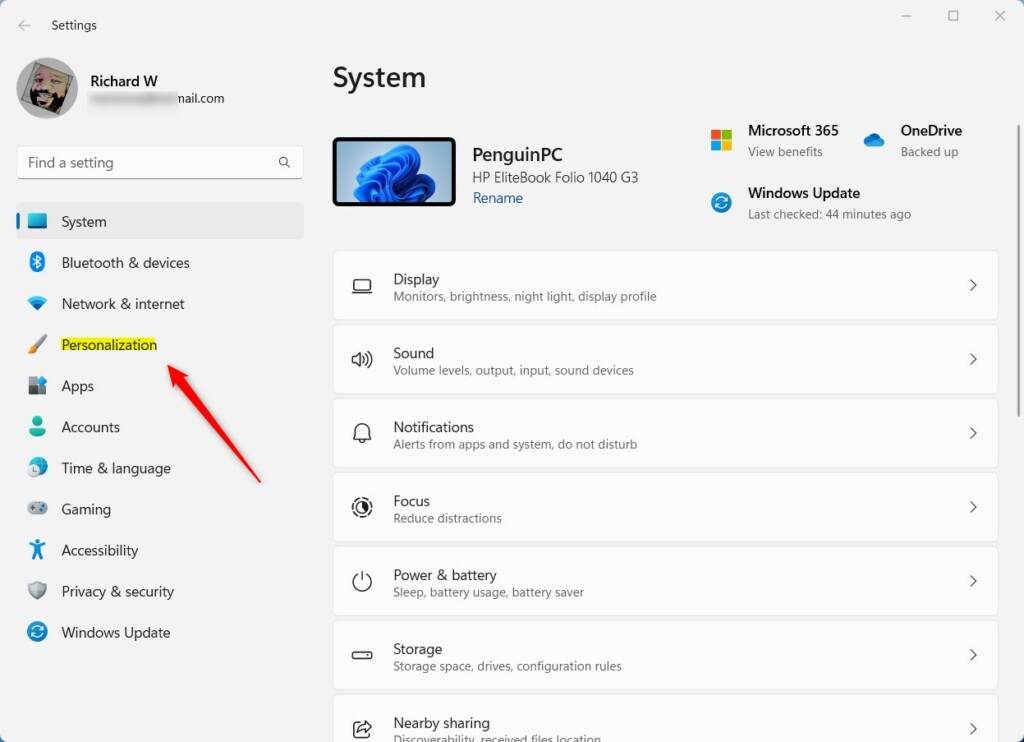
Windows 11 Personalization in the Settings app - Select Taskbar on the right side.
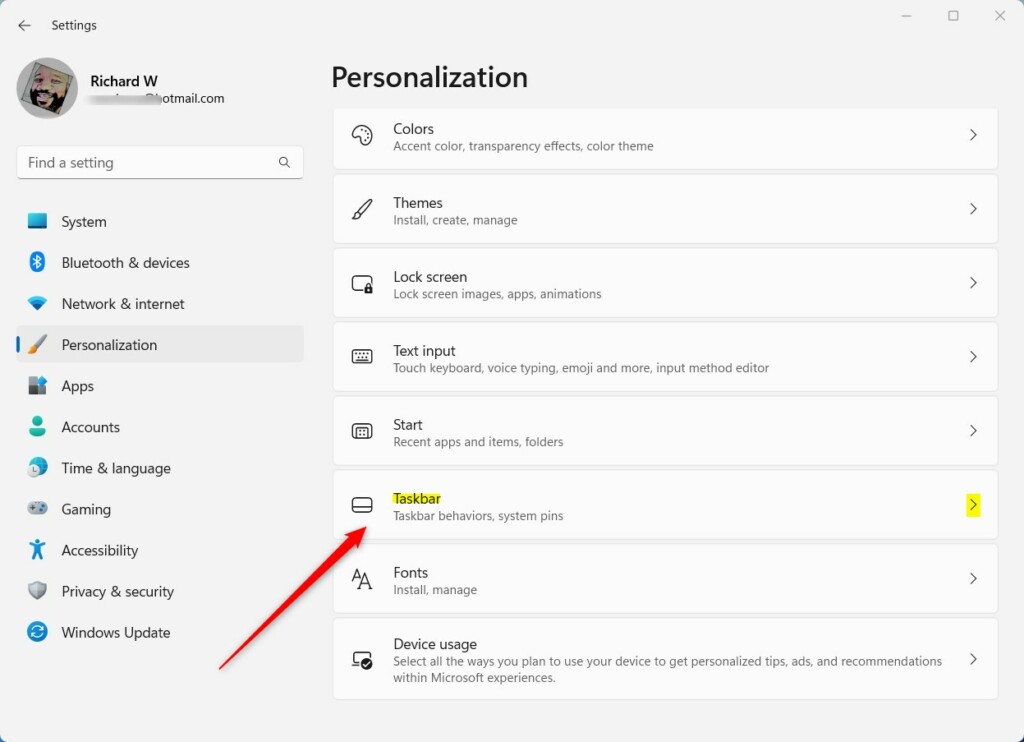
Windows 11 Settings app showing Personalization Taskbar options - Click Taskbar behaviors to expand the menu.
- Check or uncheck the box labeled Select the far corner of the taskbar to show the desktop.

Windows 11 select the far corner of the taskbar to show the desktop
Method 2Use the Registry Editor (Advanced)
For more control, you can change the ‘Show Desktop’ feature in Windows 11 using the Registry Editor, but be careful as this involves system files.
- Press Windows key + R, type
regedit, and press Enter. - Navigate to:
HKEY_CURRENT_USER\Software\Microsoft\Windows\CurrentVersion\Explorer\Advanced - Find TaskbarSd. If missing, right-click, select New > DWORD (32-bit) Value, and name it TaskbarSd.
- Double-click it and set the value to 1 to enable or 0 to disable.

Windows 11 select the far corner of the taskbar to show the desktop registry - Restart your computer to apply changes.
Keyboard Shortcuts for Instant Access
You do not always need a button to clear your screen. Use these shortcuts:
- Windows key + D: Toggles between showing the desktop and showing your open windows.
- Windows key + M: Minimizes all windows. Use Windows key + Shift+M to bring them back.
Is the ‘Desktop’ Toolbar Available in 🪟 Windows 11?
Windows 11 no longer includes the old ‘Desktop’ toolbar found in Windows 10 that let you see files right from the taskbar.
PowerShell Automation
Set-ItemProperty -Path 'HKCU:\Software\Microsoft\Windows\CurrentVersion\Explorer\Advanced' -Name 'TaskbarSd' -Value 1
Summary
The ‘Show Desktop’ feature in Windows 11 helps you quickly clear your screen, and you can manage it through Settings or the Registry Editor.
How do I restore the Show Desktop icon if it disappears?
If the button seems missing, first check the Taskbar settings to ensure the feature is enabled. If it is already checked, try unchecking and re-checking the box. If that fails, restart the Windows Explorer process via the Task Manager or restart your computer to refresh the taskbar interface.
What is the difference between Show Desktop and minimizing all windows?
The ‘Show Desktop’ button acts as a toggle. Clicking it once minimizes everything, and clicking it again restores the windows exactly where they were. Minimizing all windows manually using shortcuts like ⊞ Win+M does not always provide the same ‘toggle’ behavior to restore them instantly.
Was this guide helpful?

About the Author
Richard
Tech Writer, IT Professional
Richard, a writer for Geek Rewind, is a tech enthusiast who loves breaking down complex IT topics into simple, easy-to-understand ideas. With years of hands-on experience in system administration and enterprise IT operations, he’s developed a knack for offering practical tips and solutions. Richard aims to make technology more accessible and actionable. He's deeply committed to the Geek Rewind community, always ready to answer questions and engage in discussions.

No comments yet — be the first to share your thoughts!