How to Open Server Manager in Windows 11

- 12 steps
- Needs administrator rights
- Includes a restart or sign-out
Server Manager is not installed on Windows 11 by default, so the Server Manager shortcut does not exist until you add it. On Windows 11 Pro, Enterprise and Education, you add it as the optional feature RSAT: Server Manager (Settings System Optional features) and then open it from Start.
Server Manager is the Microsoft console (a management window) for viewing and controlling Windows Server machines, their roles and their services. On Windows 11 it works as a remote console: it manages servers elsewhere on your network, not your own PC. The steps below install Server Manager, show every way to open it, and cover what to do when it is missing.
Server Manager is not built into Windows 11, so you first add it as an optional feature. Open Settings System Optional features, select View features, and install RSAT: Server Manager. Then type Server Manager in Start. This works on Windows 11 Pro, Enterprise and Education, not Home.
Why Server Manager Is Missing on Windows 11
Server Manager ships as part of Windows Server. On a Windows 11 PC, Microsoft delivers it inside Remote Server Administration Tools (RSAT), a set of admin consoles for managing servers from a client computer. Windows 11 lists RSAT items under optional features, which are extra Windows components you download only when you want them.
This is why typing Server Manager into Start search finds nothing on a fresh install. It is also why Turn Windows features on or off in the old Control Panel does not list it. The only supported route on Windows 11 is the Optional features page in Settings.
What You Need Before You Start
Check these four things first. Each one explains most of the failed installs.
- EditionRSAT installs on Windows 11 Pro, Enterprise and Education. Windows 11 Home does not support it, and the RSAT entries do not appear there.
- Administrator rightsAdding an optional feature needs an administrator account. Standard accounts see a prompt for admin credentials or a failure.
- Internet accessWindows downloads the feature through Windows Update when you select Install. A PC that is offline, or blocked from Windows Update, cannot finish the install.
- A server to manageServer Manager opens without one, but it has little to show until you add a Windows Server machine to it.
How to Open Server Manager in Windows 11
These steps install Server Manager on Windows 11 and then open it for the first time. The install step requires administrator privileges. After the first run, skip the install and use only the final launch steps in the list.
- Open Settings. Press Win+I, or select Start and then Settings.
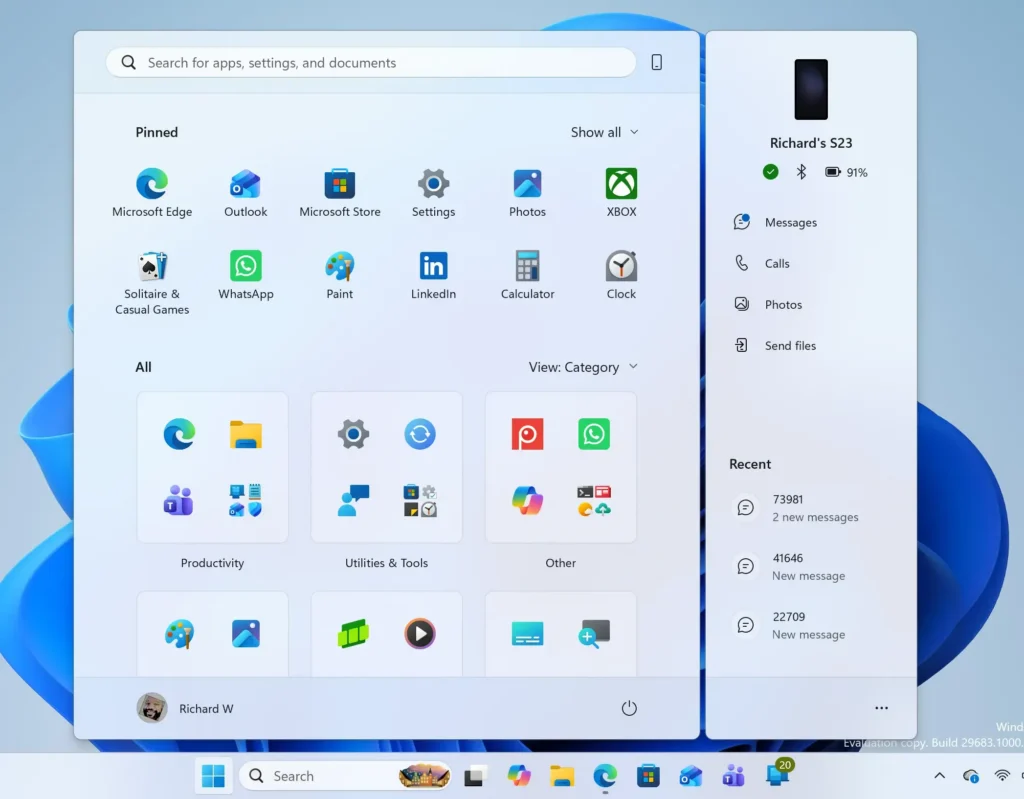
Windows 11 Start menu search panel for opening OpenSSH Client settings - Select System. It sits in the left pane of Settings.
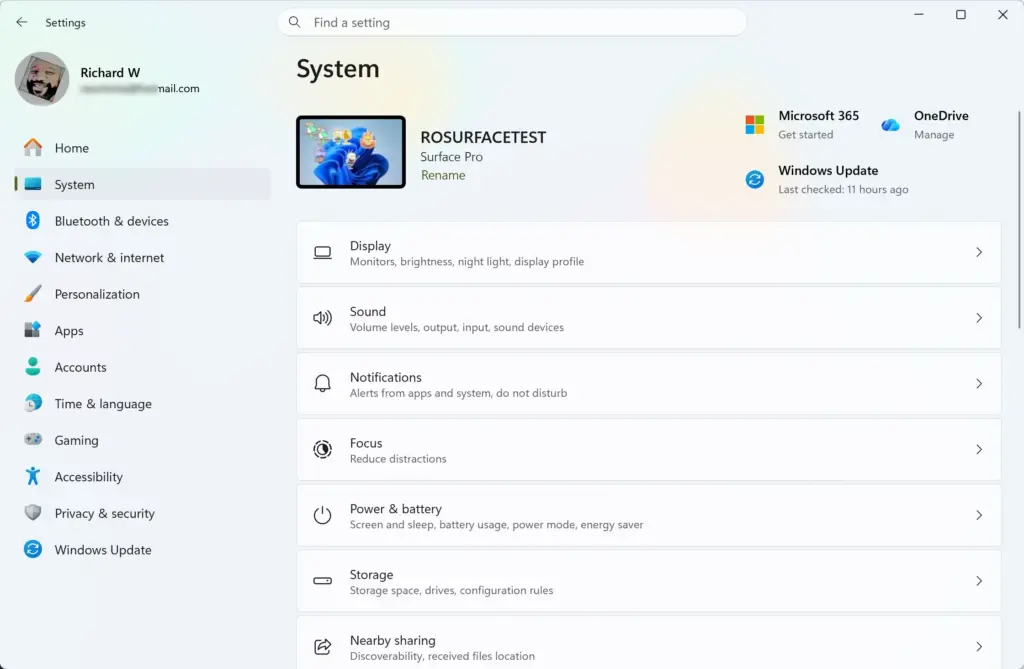
Settings › System - Select Optional features. Scroll down the System page until you see it. The page lists the optional features already installed and an Add an optional feature section at the top.
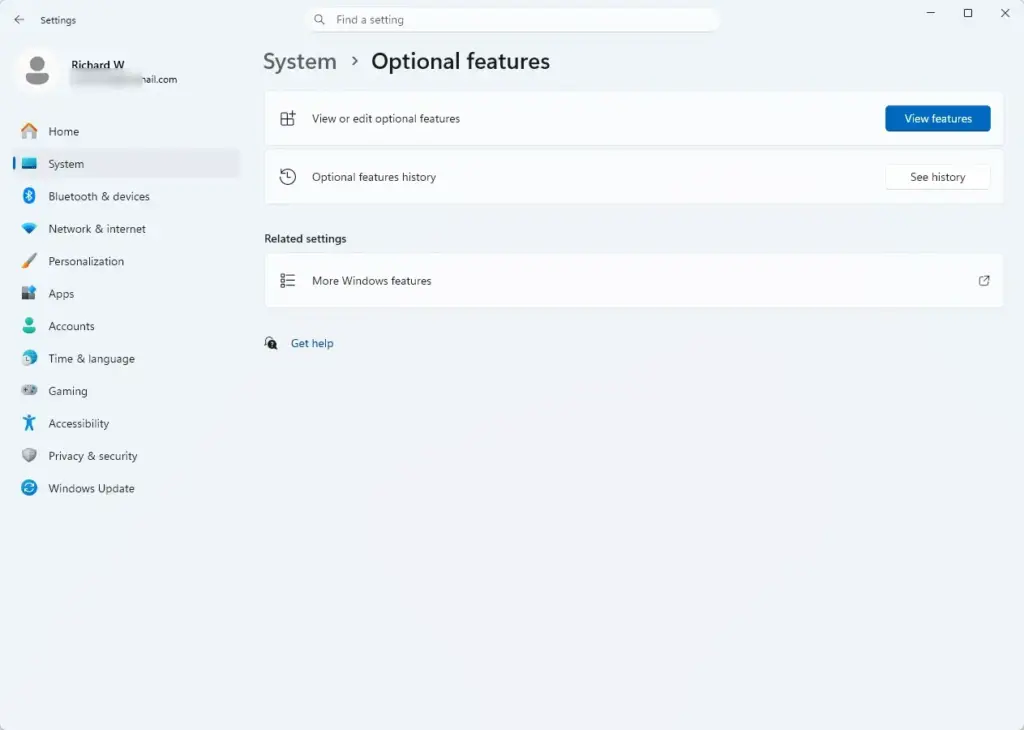
Settings › System › Optional features - Select View features. The button sits next to Add an optional feature. A window opens with a list of features you can add.
- Type RSAT: Server Manager in the search box. The list narrows to a single entry named RSAT: Server Manager. If nothing appears, read the troubleshooting section below.
- Tick the box next to RSAT: Server Manager. You can tick other RSAT items at the same time if you need them.
- Select Next. Windows shows a summary of what you are about to add.
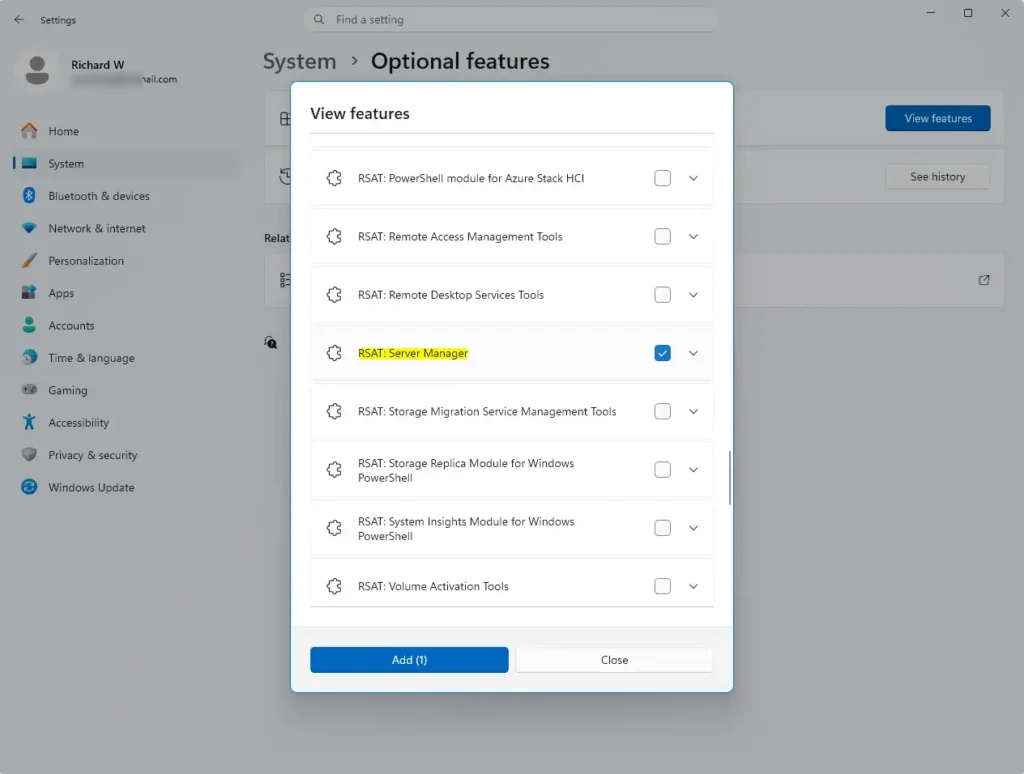
- Select Add. The button may read Install on some builds. Windows starts the download, and you can close the window while it works.
- Wait for the install to finish. Progress shows under Recent actions on the Optional features page. When the status reads as installed, the console is ready. Restart the PC only if Windows asks for it.
- Open Start. Select the Start button on the taskbar or press the Win.
- Type Server Manager. The Server Manager app appears at the top of the search results.
- Select Server Manager. The console opens on the Dashboard page. The left pane lists Dashboard, Local Server and All Servers.
If Windows shows a User Account Control prompt when you launch it, approve it. Server Manager reads system information that standard accounts cannot see.
Other Ways to Open Server Manager
Once RSAT: Server Manager is installed, you do not have to search every time. Pick whichever method fits how you work.
Open it from the Windows Tools folder
Windows 11 groups its admin tools in one folder called Windows Tools. Select Start, select All to open the full app list, and then select Windows Tools. Look for Server Manager in the folder window that opens. Other RSAT consoles you install later appear in the same place.
Pin it to Start or the taskbar
Open it from Task Manager
If the Start menu is not responding, Task Manager on Windows 11 can still launch apps. Press Ctrl+Shift+Esc, select Run new task, type the program’s file name in the box, and select OK. If you are not sure of the file name, use Start search instead and treat this as a fallback only.
Add a Server to Manage
Server Manager on Windows 11 opens with nothing in All Servers until you add a machine. This step connects the console to a server so you can see its roles, services and events.
- Open Server Manager. Use any method above.
- Select Manage. It is in the top bar of the console, next to the notification flag.
- Select Add Servers. The Add Servers dialog opens with tabs for Active Directory, DNS and Import.
- Find your server. On the DNS tab, type the server name or IP address, such as 192.0.2.10, and select the search button.
- Select the server and move it to the right-hand list. Use the arrow button between the two panes.
- Select OK. The server now appears under All Servers.
If the server shows as offline or with an access error, the problem is usually permissions or remote management on the server side. Server Manager connects with your current Windows sign-in unless told otherwise. When the server needs a different account, right-click it in All Servers, choose Manage As, and enter a different username and password. The Credential Manager guide covers where Windows stores saved credentials for network resources.
Remote management also has to be turned on at the server end. On the server, open Server Manager, select Local Server, and check the Remote management entry in the Properties pane. If it says Disabled, select it and enable remote management. Check the Remote management setting on each server rather than assuming it is already turned on.
If Server Manager Is Missing or Will Not Install
Most failures fall into a few patterns. Match what you see to the list.
- RSAT: Server Manager does not appear in the list. Check your edition first. Open Settings System About and read the Edition line. If it says Windows 11 Home, RSAT is not available, and you need to upgrade to Pro or use another machine.
- Search returns nothing even on Pro. Clear the search box and scroll the list manually. RSAT entries start with the letters RSAT, so the list is easier to scan if you type just RSAT.
- The install stalls or fails. The download comes from Windows Update. Confirm the PC is online and that Windows Update is not paused. On a work PC managed by an update server, your IT team may need to allow the download.
- Windows asks for credentials or says you lack permission. Sign in with an administrator account and repeat the install.
- It installed but Start search finds nothing. Wait a minute, then search again. If it still does not show, open Windows Tools from the All app list, or restart the PC.
Remove Server Manager
To undo the install, go to Settings System Optional features. Find RSAT: Server Manager in the installed features list, expand it, and select Uninstall. The shortcuts disappear from Start and Windows Tools. You can add the feature again later with the same steps.
Other Tools for Managing a Server
Server Manager is one route to a remote server, not the only one. For command-line access, enabling OpenSSH Server on Windows 11 lets other machines connect to your PC over SSH (a secure command-line connection). There is also a PowerShell-based walkthrough in Install OpenSSH Server in Windows 11 with PowerShell. These apply when your Windows 11 PC is the machine others connect to, not to Server Manager itself.
What to Do Next
With Server Manager open and a server added, check the All Servers page for status and event entries, and use the Manage menu to add roles or more servers. If you plan to manage several machines with different accounts, store those credentials in Credential Manager so you are not prompted each time. If a server’s clock is off and sign-in fails, change its time server next, as described in changing the time server in Windows 11.
Have a question about this guide?
Answered by AI from this guide. Good questions may be added to this page — please don't include personal details.
Did this guide fix your problem?

About the Author
Richard
Tech Writer, IT Professional
Richard is a writer at Geek Rewind who turns complex IT tasks into clear, step-by-step guides. He draws on years of hands-on experience in system administration and enterprise IT operations, focusing on Windows, Linux and WordPress: the problems people actually run into, and the fixes that work. His server and WordPress guides come from systems he runs himself. Richard builds and maintains the platform behind Geek Rewind, from its Ubuntu servers and Nginx configuration to its custom WordPress plugins. Many new tutorials start with readers' questions, and he's always glad to answer them in the comments.
No comments yet — be the first to share your thoughts!