How to Invert Screen Colors in Windows 11 Magnifier

- 16 steps
- Needs administrator rights
- Includes a restart or sign-out
Inverting screen colors in Windows 11 Magnifier flips your display from light to dark. White backgrounds turn black and black turns white. This can reduce eye strain during long reading sessions, and it helps if bright screens bother your eyes.
The fastest way is to press the Win and the Plus (+) key together to open Magnifier, then press Ctrl+Alt+I. Press the same keys again whenever you want your normal colors back. If you would rather use menus, or you want the setting to persist, the Settings app and the Registry Editor both work. Each is covered below.
Open Magnifier by pressing Windows key + Plus (+), then press Ctrl+Alt+I to invert colors. Your screen flips—white becomes black and black becomes white. Press Ctrl+Alt+I again to return to normal colors.
Why Use Invert Colors?
Inverted colors make text stand out sharply from the background. Many people find a dark screen with light text easier on the eyes, especially in a dim room or after hours of reading. Some people with low vision or light sensitivity rely on it every day, which is why it sits under Accessibility in Windows.
It does not suit everyone. Photos and videos look like negatives while inversion is on, so you may want to toggle it off when you work with images. The shortcut makes that easy.
Using Keyboard Shortcuts (Quickest Method)
The keyboard shortcut is the quickest method. It works through Magnifier, the built-in tool that zooms in on your screen. The shortcut only works while Magnifier is running, so start there.
- Turn on Magnifier by pressing
Windows key + Plus (+). The screen zooms in and the Magnifier toolbar appears. - While Magnifier is on, press
Ctrl + Alt + Ito invert colors. The whole display flips at once. - Press
Ctrl + Alt + Iagain to switch back to normal colors.
Your screen colors flip instantly. You don’t need to open any menus or dig through settings. If nothing happens when you press the shortcut, check that Magnifier is actually open. Without it running, the key combination does nothing.
Using the Settings App (Easiest Method)
The Settings app lets you change the option without a shortcut. It also works well if you can’t remember the key combination. These steps apply to Windows 11, and the layout can differ slightly between builds.
- Open the Settings app. Click the Start menu and then click Settings. Or press
Windows key + I. - Click Accessibility on the left side.
- Find and click Magnifier on the right side. The Magnifier options open.
- Look for the Invert colors option under the Appearance section. Depending on your build, it may appear as a switch or as a checkbox.
- Turn it On or Off as you prefer. The change shows on screen right away.
- Close the Settings app when finished.
To undo the change, return to the same page and turn Invert colors off. If you can’t find the option, make sure you are on the Magnifier page and not another Accessibility page. If the page looks different from what is described here, your Windows 11 version may be older or newer than the one this guide describes. Updating Windows usually brings the layout in line.


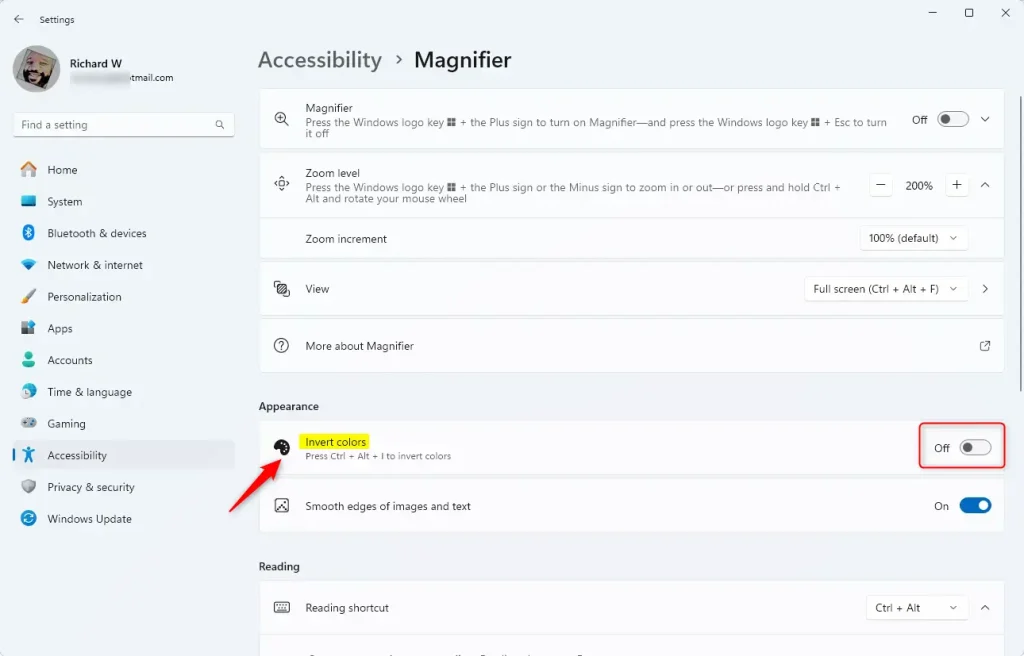
Your screen colors flip or return to normal. The change takes effect right away, with no restart needed for this method.
Using the Registry Editor (Advanced Users Only)
This method needs administrator permissions and careful handling. A wrong change here can cause serious problems for your computer. Registry Editor is available in both Windows 11 Home and Pro. For most people, the shortcut or the Settings app is the better choice.
That way, you can undo any changes if you need to.
- Open the Registry Editor. Search for
regeditin the Start menu and pressEnter. If Windows asks for permission, click Yes. - Go to this folder path:
Computer\HKEY_CURRENT_USER\Software\Microsoft\ScreenMagnifier - Right-click on ScreenMagnifier. Choose New DWORD (32-bit) Value. Name it
Invert. - Double-click the new
Invertentry. Set its value to:1to turn invert colors ON0to turn invert colors OFF
- Close the Registry Editor and restart your computer for changes to take effect.
If something goes wrong, reopen the Registry Editor, return to the same location and set the value to the OFF number. You can also restore the backup you made before starting.
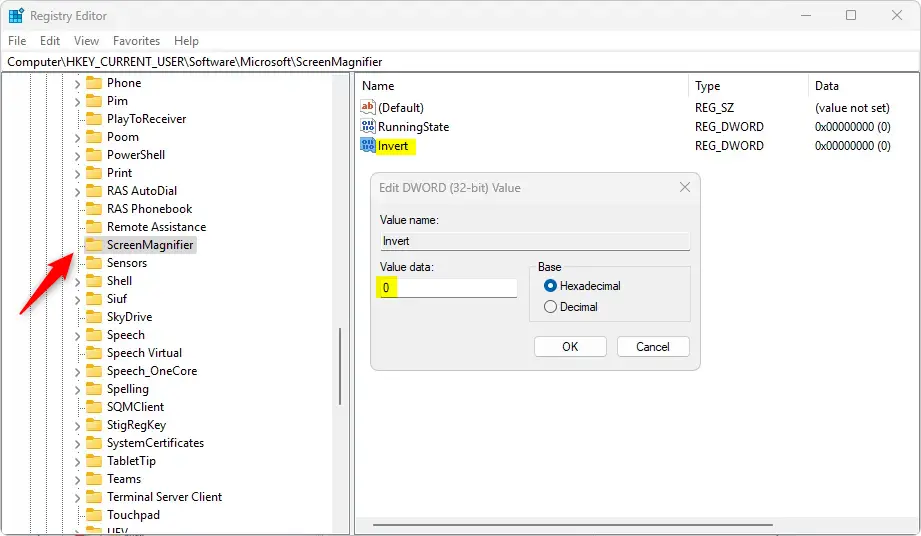
Your computer stores your color preference permanently. Even after restarting, your choice stays the same.
Summary
- What is Magnifier? A Windows 11 tool that zooms in on your screen to help you see better.
- What is Invert Colors? A feature that flips colors (black to white, white to black) to make reading easier and reduce eye strain.
- How to turn it on or off? You have three options:
- Keyboard shortcut: Press
Ctrl + Alt + Iwhen Magnifier is on (quickest) - Settings app: Go to Accessibility Magnifier Invert colors (easiest)
- Registry Editor: Edit the
Invertvalue inHKEY_CURRENT_USER\Software\Microsoft\ScreenMagnifier(advanced, restart required)
- Keyboard shortcut: Press
- Why use these options? They make your computer more comfortable and easier to use.
You can quickly invert colors in Windows 11 using a keyboard shortcut, the Settings app, or the Registry Editor, depending on your preference. Magnifier is a built-in zoom tool that also lets you flip your screen colors to help reduce eye strain and make reading easier. Start with the shortcut. Use Settings if you want the option in plain view, and keep the Registry for cases where nothing else suits you.
Have a question about this guide?
Answered by AI from this guide. Good questions may be added to this page — please don't include personal details.
Did this guide fix your problem?

About the Author
Richard
Tech Writer, IT Professional
Richard is a writer at Geek Rewind who turns complex IT tasks into clear, step-by-step guides. He draws on years of hands-on experience in system administration and enterprise IT operations, focusing on Windows, Linux and WordPress: the problems people actually run into, and the fixes that work. His server and WordPress guides come from systems he runs himself. Richard builds and maintains the platform behind Geek Rewind, from its Ubuntu servers and Nginx configuration to its custom WordPress plugins. Many new tutorials start with readers' questions, and he's always glad to answer them in the comments.
No comments yet — be the first to share your thoughts!