
Installing Google Chrome on Windows 11 takes less than five minutes when you use the official web installer. Google Chrome is a fast, free web browser that lets you visit websites, run web apps, and sync your bookmarks across devices.
You start by downloading the setup file from the official Google website, running it on your PC, and letting the automated installer finish the setup.
Download the installer from google.com/chrome and run the file. Click the “Download Chrome” button, then “Accept and Install” when prompted. The installer will run automatically to complete the process.
Why Install Chrome on 🪟 Windows 11?
You should install Google Chrome Windows 11 if you want to sync your bookmarks, saved passwords, and browsing history across all your devices. While Microsoft Edge is the default browser, adding Chrome lets you use your preferred extensions, keep your personal settings, and maintain the same browsing experience you already use on your phone or other computers.
If you prefer Chrome and use it on your phone or other devices, you can install it on Windows 11 too. Once you sign in, Chrome will remember your preferences and saved information across all your devices.
How to Download and Install Google Chrome
Step 1Open Microsoft Edge
Click the Microsoft Edge icon on your taskbar at the bottom of your screen.

Step 2Go to Chrome’s Download Page
Visit the link below to download Chrome:
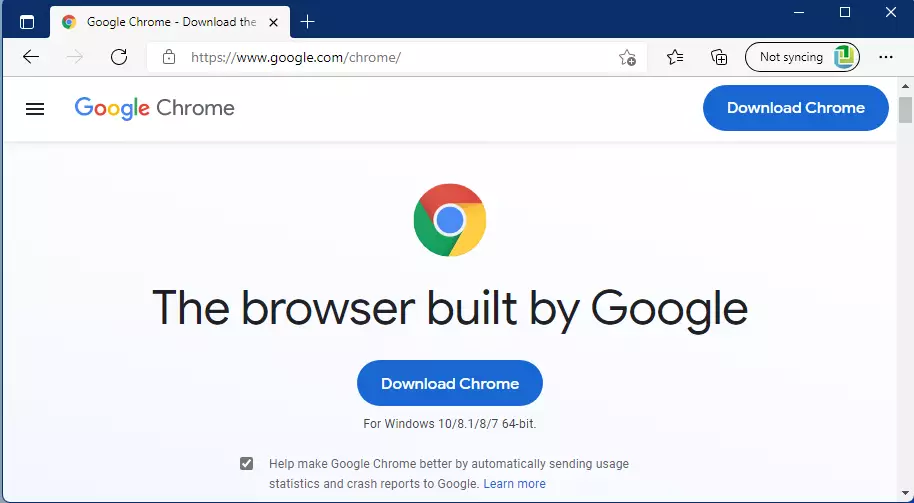
Step 3Click the Download Button
On the download page, click the blue "Download Chrome" button.
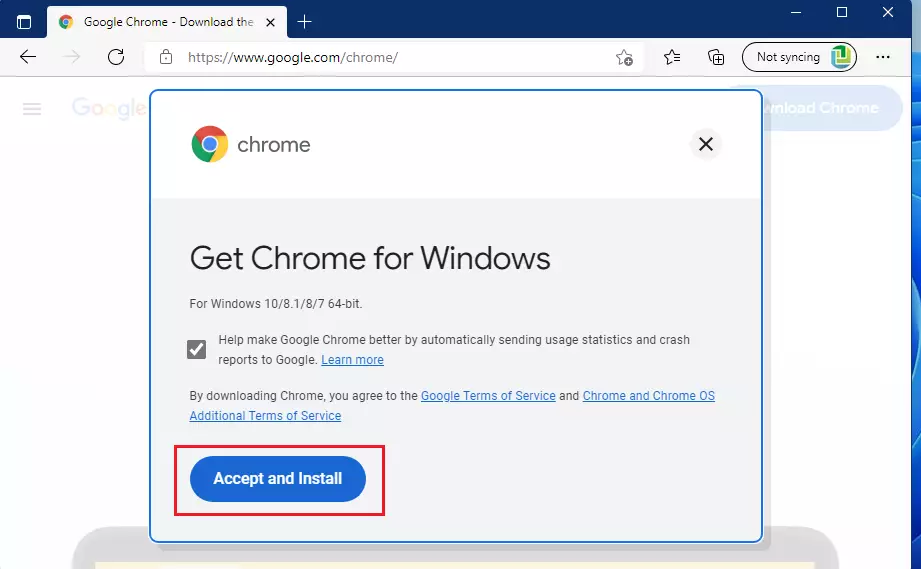
Step 4Accept and Install
When a window pops up, click the "Accept and Install" button to begin the download.
Step 5Open the Installer
After the file downloads, open your Downloads folder in File Explorer. Double-click the Chrome installer file to start the installation.
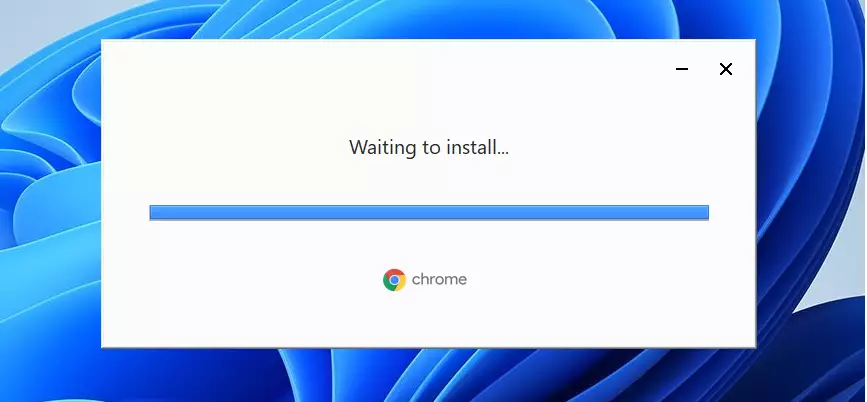
Step 6Wait for Installation to Complete
The Google Chrome installer starts on its own once you download it. This installation process takes about 30 seconds to finish. Keep the installer window open while Chrome finishes setting up.
Step 7Chrome is Ready
When installation finishes, Chrome will open automatically. You're done! Chrome is now installed and ready to use.
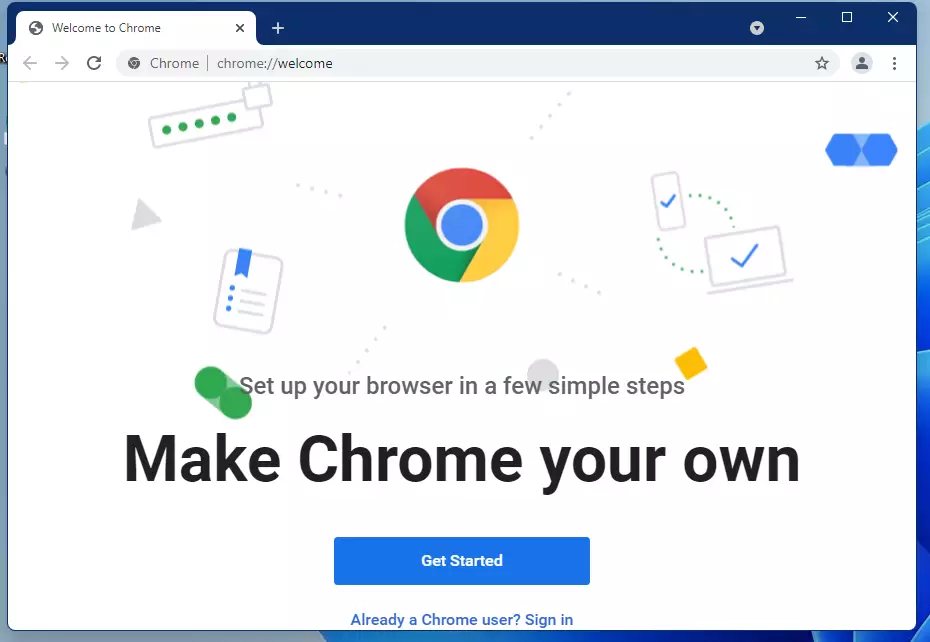
Make Chrome Your Default Browser
Chrome becomes your default browser when you select it to open web links automatically. This setting ensures Chrome launches whenever you click a hyperlink. A detailed guide explains how to make Google Chrome the default browser.
How to make Google Chrome the default web browser on Windows 11
Summary
You can easily get Google Chrome Windows 11 by downloading the setup file from the official Google website and running it on your PC. Because Chrome does not come pre-installed on Windows 11 like Microsoft Edge does, you must download it manually. The entire setup process takes just a few minutes from start to finish.- Google Chrome is a popular web browser that works great on Windows 11.
- Chrome does not come pre-installed on Windows 11, so you must download it yourself.
- The installation process is simple and takes just a few minutes.
- After installing Chrome, you can sign in to sync your preferences and data across devices.
- You can set Chrome as your default browser for a smoother online experience.
- Chrome offers strong security and fast performance for web browsing.
Was this guide helpful?

About the Author
Richard
Tech Writer, IT Professional
Richard, a writer for Geek Rewind, is a tech enthusiast who loves breaking down complex IT topics into simple, easy-to-understand ideas. With years of hands-on experience in system administration and enterprise IT operations, he’s developed a knack for offering practical tips and solutions. Richard aims to make technology more accessible and actionable. He's deeply committed to the Geek Rewind community, always ready to answer questions and engage in discussions.

This doesn’t work on Windows 11. Windows prevents you from downloading. Wants Edge.
This doesn’t work on Windows 11. Windows prevents you from downloading.
It says: For security purposes Windows 10 is able to download in S mode.
This doesn’t work on Windows 11. Windows prevents you from downloading.
Windows 11 makes Edge default and greys out the Make Default button