How to Force Users to Sign into Microsoft Edge on Windows 11


The BrowserSignin policy on Windows 11 forces anyone who opens Microsoft Edge to sign in with a Microsoft account before browsing the web. This system rule locks down the browser so no one can surf the internet anonymously.
IT administrators set up this requirement on school and office computers to keep track of user accounts and block guest access. You need administrative rights on your PC to put this rule into action.
Configure the BrowserSignin policy in the Windows Registry. Navigate to ComputerHKEY_LOCAL_MACHINESOFTWAREPoliciesMicrosoftEdge, create a DWORD value named BrowserSignin, and set its value data to 2. This forces users to sign in to Microsoft Edge.
Force users to sign into Microsoft Edge
To force sign in Microsoft Edge on Windows 11, you need to add a specific entry to the Registry Editor (the database for core Windows settings ). This setup makes people sign in with their Microsoft account the very first time they open the browser. You must be signed in as an administrator on your computer to make this change.
The configuration process requires a few precise steps.
Open the Registry Editor to begin.
Creating a registry backup or a System Restore point first protects the system against accidental mistakes.
ComputerHKEY_LOCAL_MACHINESOFTWAREPoliciesMicrosoftEdge
Navigate to the target registry key, right-click the white space, and select New DWORD (32-bit) Value. Name this new entry BrowserSignin.
Double-click BrowserSignin and change its value data to 2 to require a sign-in.
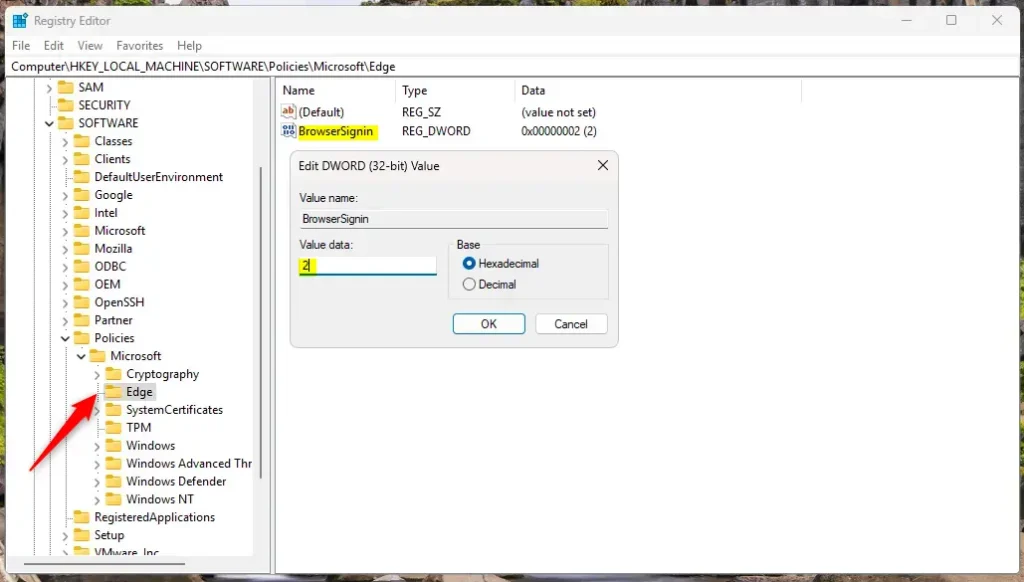
Delete the "BrowserSignin" name created above to restore the default behavior and stop forcing users to sign into Microsoft Edge with their Microsoft account.
BrowserSignin
A computer reboot may be required to apply the changes.
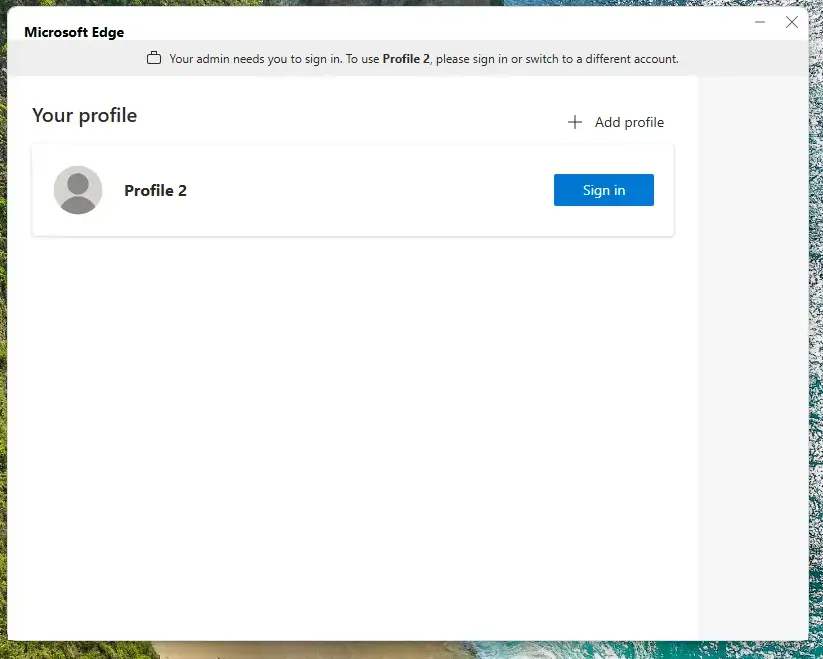
Configuration complete.
Examining the motivation behind this configuration clarifies its purpose.
Requiring users to sign into Microsoft Edge delivers a structured browsing experience paired with reliable data syncing. Authentication adds an extra security layer by verifying user identity before browsing starts.
- Increased Security: Requires users to authenticate, adding a layer of security to browsing activities.
- Data Synchronization: Ensures browsing data is seamlessly synced across devices.
- Policy Control: Offers system administrators the ability to manage user access effectively.
- Simple Implementation: The process involves making straightforward changes to the Windows Registry.
- Easily Reversible: The enforcement can be undone by deleting the policy entry if needed.
Implementing this policy benefits organizations aiming to streamline user experiences while maintaining oversight of browser activity.
Was this guide helpful?

About the Author
Richard
Tech Writer, IT Professional
Richard is a writer at Geek Rewind who turns complex IT tasks into clear, step-by-step guides. He draws on years of hands-on experience in system administration and enterprise IT operations, focusing on Windows, Linux and WordPress: the problems people actually run into, and the fixes that work. His server and WordPress guides come from systems he runs himself. Richard builds and maintains the platform behind Geek Rewind, from its Ubuntu servers and Nginx configuration to its custom WordPress plugins. Many new tutorials start with readers' questions, and he's always glad to answer them in the comments.




No comments yet — be the first to share your thoughts!