How to Find Firewall Settings in Windows 11

- 15 steps
- Needs administrator rights
- Includes a restart or sign-out
Firewall settings in Windows 11 sit in the Windows Security app, under Firewall & network protection. To open them, go to Settings Privacy & security Windows Security, then select Firewall & network protection.
The steps below open the firewall page today. Microsoft is also testing a firewall page under Network & internet in Settings, but only in Insider preview builds. It may change before release.
The Windows Defender Firewall (the built-in filter that decides which network traffic can reach your PC) has several entry points. This page shows each one, what it offers, and why a page might be missing or greyed out.
Open Settings, select Privacy & security, then select Windows Security and Firewall & network protection. Your active network type is marked Active, and each network type shows whether the firewall is on. You can also reach the same page by searching the Start menu for Windows Security. No restart is needed to view or change these settings.
Where the firewall settings are in Windows 11
Windows 11 puts firewall controls in more than one place. Which one you need depends on the job.
- Windows Security app: the main page. Check whether the firewall is on, switch it on or off for each network type, and allow an app through.
- Windows Defender Firewall with Advanced Security: a separate console for inbound and outbound rules, which are the individual allow and block entries. Changing it needs administrator rights.
- Control Panel: the older Windows Defender Firewall page. It still works and links to the same advanced tools.
- Settings Network & internet: firewall controls in Windows Insider preview builds only. Regular Windows 11 releases do not show them yet.
Open firewall settings from Windows Security
This route works on every current release of Windows 11. It takes you to the page that shows your firewall status for each network type.
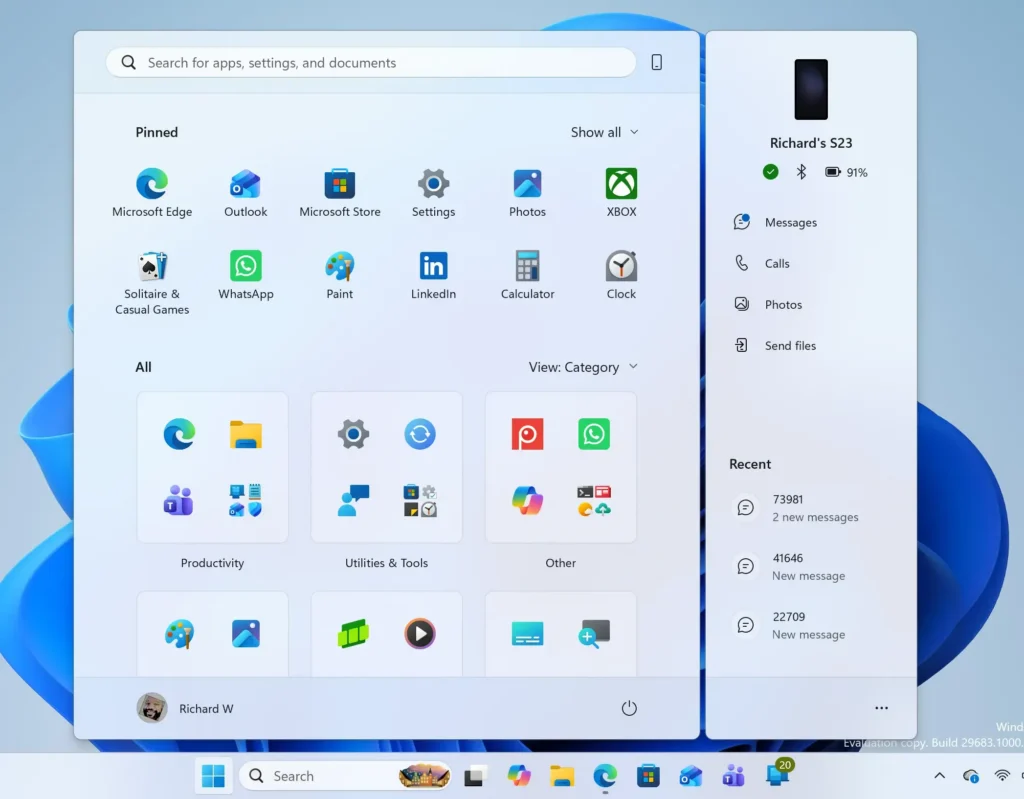
- Open Settings. Press Win+I, or right-click Start and select Settings.
Windows 11 Start menu search panel for opening OpenSSH Client settings - Select Privacy & security in the left pane.
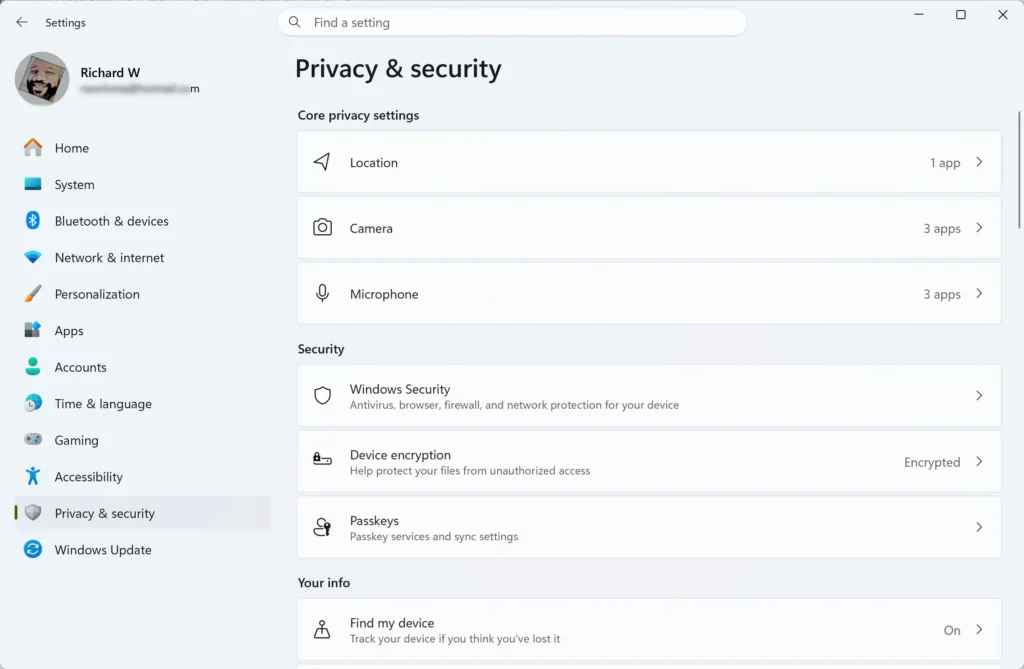
- Select Windows Security. The Windows Security overview page lists protection areas such as Virus & threat protection and Account protection.
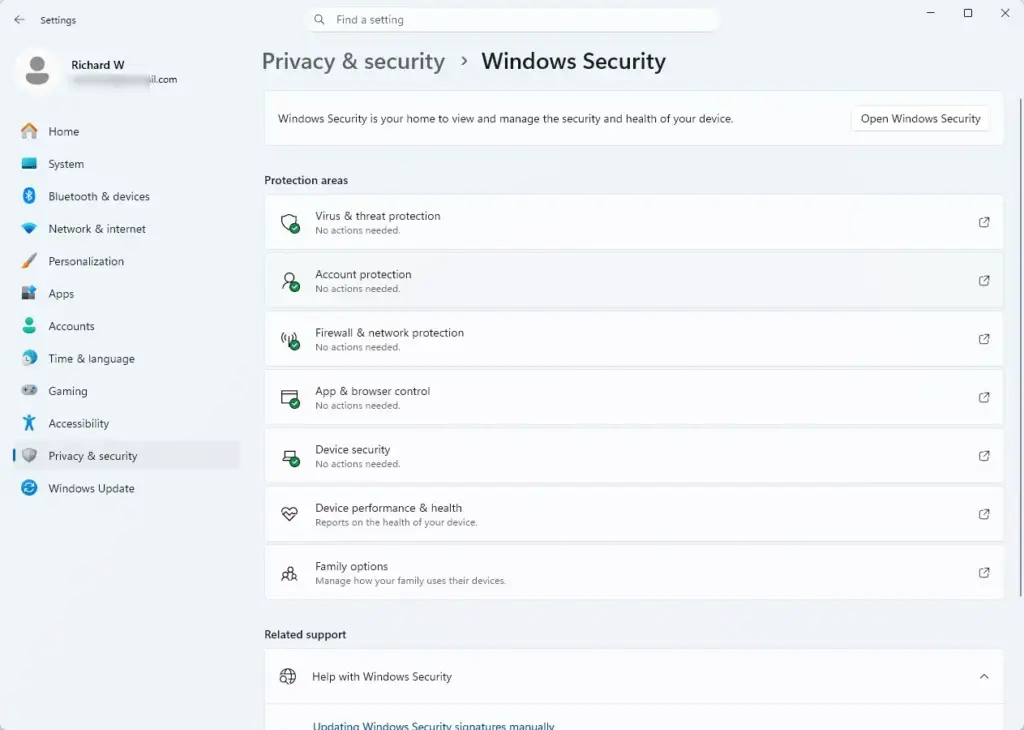
Settings › Privacy & security › Windows Security - Select Open Windows Security. The Windows Security app opens in its own window.
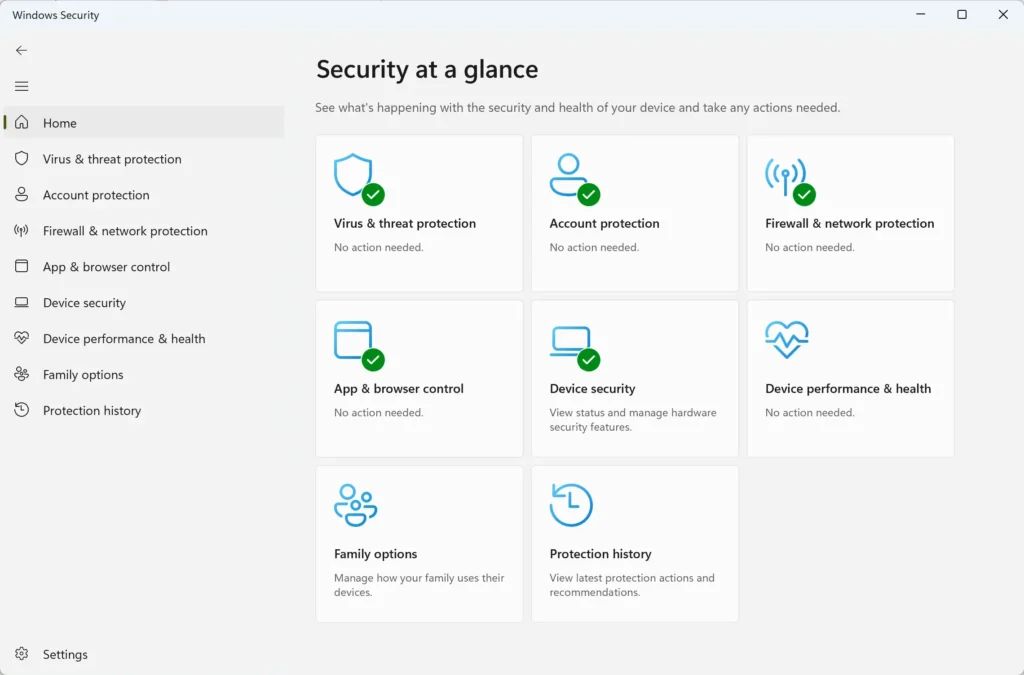
Windows Security - Select Firewall & network protection. You now see three network types: Domain network, Private network and Public network. The one your PC is using right now is marked Active.
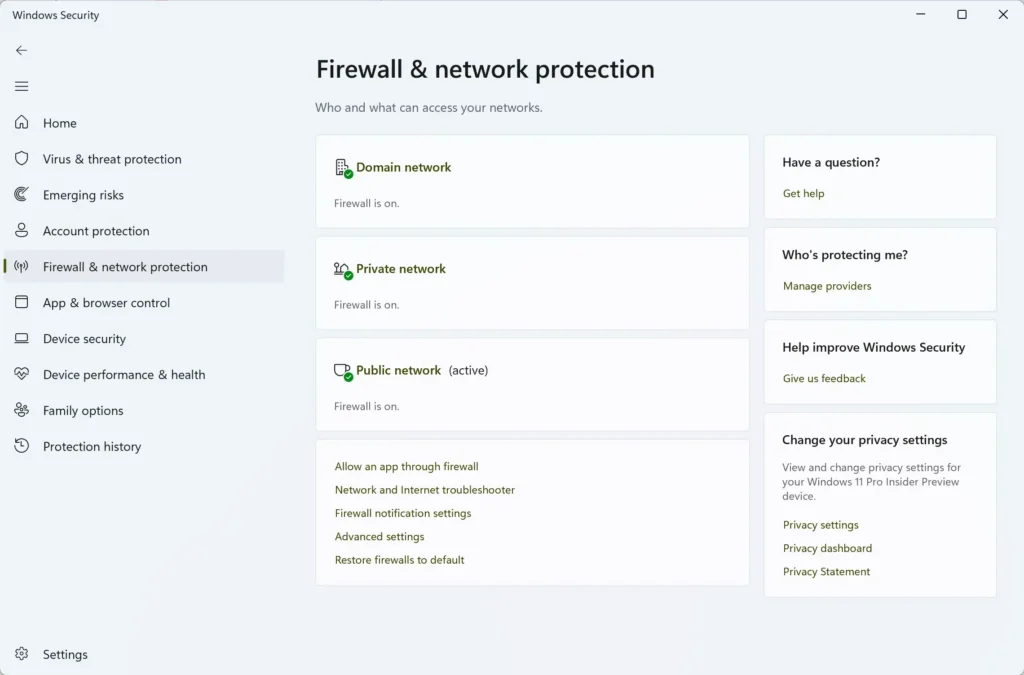
Windows Security
To skip the Settings route, select Start, type Windows Security, and press Enter. Then select Firewall & network protection in the app.
If the firewall is off for the active network, the page shows a red cross and a warning that your device may be vulnerable. Select Turn on to switch it back on.
What you find on the Firewall & network protection page
The page has a few controls, and it helps to know what each one does before you change anything.
Select a network type, such as Private network. A page opens with a Microsoft Defender Firewall toggle. Switching it off stops Windows from filtering traffic on that network type. Switching it back on restores filtering.
On the same page, the Incoming connections option, labelled Blocks all incoming connections, including those in the list of allowed apps, blocks every inbound connection. Use it on an untrusted network, such as public Wi-Fi. Apps that rely on inbound traffic, such as file sharing, stop working while it is on.
Back on the main Firewall & network protection page, you also see links to these tools:
- Allow an app through firewall: lists apps with permission to communicate on Private and Public networks. Use it when a program cannot connect because the firewall blocks it.
- Network and Internet troubleshooter: runs a Windows diagnostic for connection problems.
- Firewall notification settings: controls whether Windows tells you when the firewall blocks an app. For the registry (Windows’ internal settings database) and policy options, see how to enable or disable firewall notifications in Windows 11.
- Advanced settings: opens the rule console described in the next section.
- Restore firewalls to default: clears your changes and puts the firewall back to its original state.
Open the advanced firewall settings
The advanced console is where you create, edit or disable individual inbound and outbound rules. This step needs administrator privileges. Windows asks for an administrator password when you are signed in with a standard account.
- Open Firewall & network protection in the Windows Security app, as described above.
- Select Advanced settings near the bottom of the page.
- Select Yes when User Account Control asks if you want to allow the app to make changes. Enter an administrator password if prompted.
- Wait for the Windows Defender Firewall with Advanced Security window to open. The left pane lists Inbound Rules, Outbound Rules, Connection Security Rules and Monitoring.
You can also select Start, type Windows Defender Firewall with Advanced Security, and open the result. The same administrator prompt appears.
Editing rules here can block apps or open your PC to traffic you did not intend. Before you edit a rule, note its name and its current setting. That lets you put it back if something stops working.
The firewall also records blocked and allowed connections, but logging is off until you turn it on. Reading the Windows Firewall log file in Windows 11 explains how to find and read that log.
Open the Control Panel version
The older Control Panel page still exists in Windows 11. It is useful if you follow older instructions that refer to it.
- Select Start, type Control Panel, and press Enter.
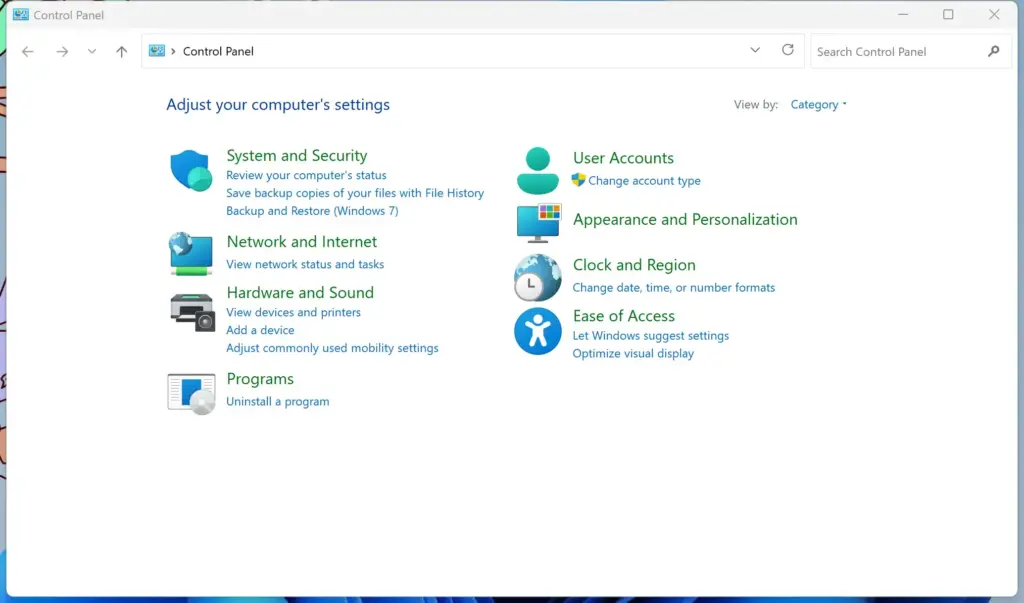
Control Panel - Select System and Security.
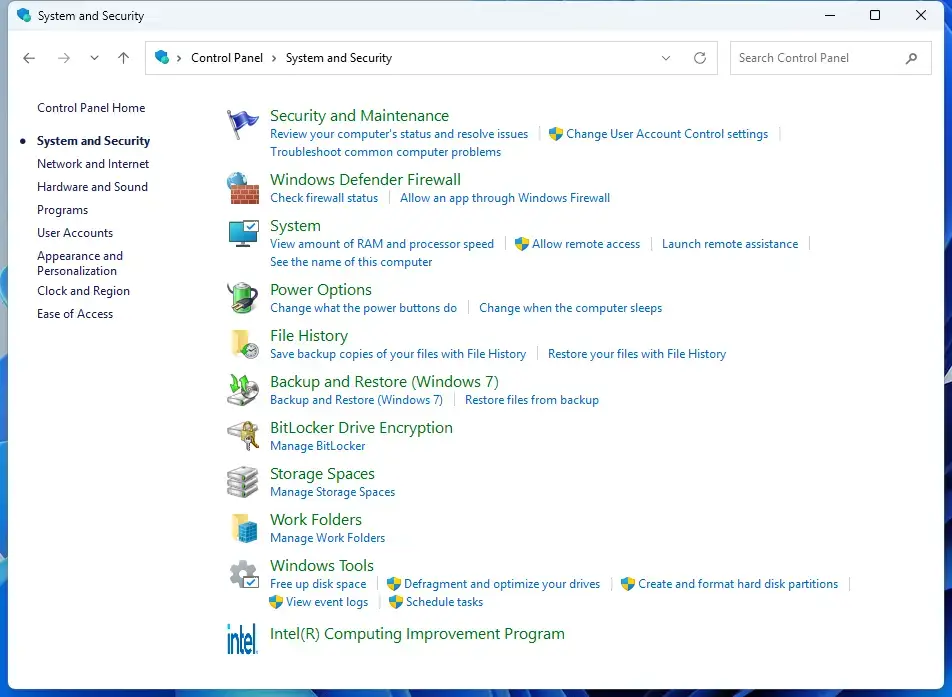
Control Panel › System and Security - Select Windows Defender Firewall. The page shows the status of your Private and Public networks.
The left pane has links such as Allow an app or feature through Windows Defender Firewall, Turn Windows Defender Firewall on or off and Advanced settings. These open the same tools as the Windows Security app. Changing most of them needs administrator approval.
To turn the firewall off completely, use the steps in how to disable Windows Firewall on Windows 11. A PC without an active firewall is exposed on any network, so turn it back on when you finish testing.
Firewall controls in Network & internet settings (Insider preview)
Microsoft has announced that firewall controls now appear directly in Settings, alongside network and internet settings. This is in Windows Insider preview builds only so far. The Windows Insider Program (Microsoft’s early-access channel for unreleased Windows builds) is the only way to see it today.
Microsoft’s announcement is the post titled A verifiable security state with Windows baseline protection, published on 17 November 2026. It places the firewall controls in Network and internet settings. The announcement also covers Windows baseline protection, which is in preview.
It groups three protections into one security status: secure boot (a startup check that blocks untrusted software), virtualization-based security (a feature that isolates sensitive parts of Windows from the rest of the system) and memory integrity (a feature that stops unsafe drivers from loading). Microsoft has not yet said how it will be displayed.
Microsoft has not published the exact page names, build numbers or release date for the firewall controls in the sources used here. This guide does not list them, because a guess could send you to a page that does not exist. The layout and wording can change before the feature reaches regular releases.
Check whether your PC has them by following the steps below.
- Open Settings.
- Select Network & internet.
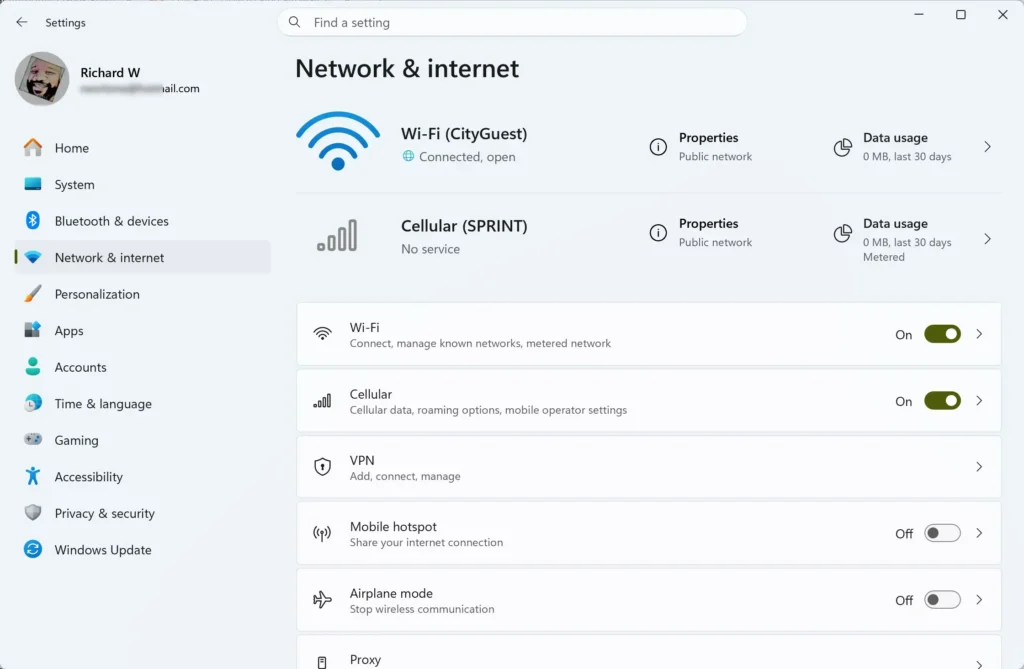
- Look through the page and its sub-pages for firewall controls.
If you see no firewall entry, your build does not include the preview change. That is the normal result on a regular Windows 11 release. Use the Windows Security route above.
If the firewall page is missing, greyed out or says another app is in charge
Three situations account for most of the problems people hit when they look for these settings.
The settings show a message that another app manages your firewall. Third-party security software, such as a security suite, can take over firewall duties. Windows Security then reports that the other product is responsible, and the toggle may be missing or locked.
Open that product to change its firewall settings. Turn off or uninstall it only if you plan to go back to the Windows Defender Firewall.
Options are greyed out or a message says your organization manages some settings. A work or school PC often receives firewall rules from an administrator through policy (centrally set configuration). Local changes are blocked or overwritten.
Ask your IT team to change the setting. A reset to defaults does not remove those policies.
You can open the page but cannot change anything. You are probably signed in with a standard account. Sign out and sign in with an administrator account, or enter administrator credentials when Windows asks.
If the Windows Security app does not open at all, or the Firewall & network protection page is blank, restart the PC and try again. If the page is still blank, check for updates in Settings Windows Update, then try again after installing them. This guide has no verified fix for a blank page beyond the steps above. Check Microsoft’s support pages if the problem continues.
Firewall settings can also change after a feature update or after you install security software. If an app that worked before stops connecting, return to Allow an app through firewall and check its entry first.
What to do next
Once you can find the page, check that the active network shows the firewall as on. Then open Allow an app through firewall and review the list for anything you do not recognize.
If a change causes new problems, restore Windows Firewall settings to default to undo it. Check Settings Network & internet again after future Insider builds, because Microsoft may add or rename the firewall controls there.
Have a question about this guide?
Answered by AI from this guide. Good questions may be added to this page — please don't include personal details.
Did this guide fix your problem?

About the Author
Richard
Tech Writer, IT Professional
Richard is a writer at Geek Rewind who turns complex IT tasks into clear, step-by-step guides. He draws on years of hands-on experience in system administration and enterprise IT operations, focusing on Windows, Linux and WordPress: the problems people actually run into, and the fixes that work. His server and WordPress guides come from systems he runs himself. Richard builds and maintains the platform behind Geek Rewind, from its Ubuntu servers and Nginx configuration to its custom WordPress plugins. Many new tutorials start with readers' questions, and he's always glad to answer them in the comments.
No comments yet — be the first to share your thoughts!