How to Enable or Disable Shield Up in Windows Firewall on Windows 11


Shield Up in Windows Firewall is a master switch on Windows 11 that instantly blocks all incoming network traffic and overrides your standard firewall rules. Turning on this emergency setting stops every single incoming connection so you can quickly cut off your PC from a suspected security threat.
Windows hides this feature because most people rarely need it, but you can turn it on when you want to block unauthorized access from outside sources in a hurry. Once you flip the switch, your computer stays completely hidden on the local network until you turn the protection back off.
Enable or disable “Shield up” by opening Windows Security, selecting Firewall & network protection, choosing your network profile, and toggling the “Block all incoming connections” option. This instantly blocks all incoming connections, overriding existing rules for maximum security.
How to Turn On or Off “Shield up” Mode in Windows Firewall
You can turn Windows Firewall Shield Up mode on or off directly through the Windows Security app to block all incoming connections. Open the Windows Security app, go to firewall and network protection, and change the block incoming connections setting to protect your computer from unwanted network traffic.
- Open the Windows Security app.
Alternatively, select Start Settings Update & Security Windows Security Open Windows Security
- In the Windows Security app, select “Firewall & network protection.”
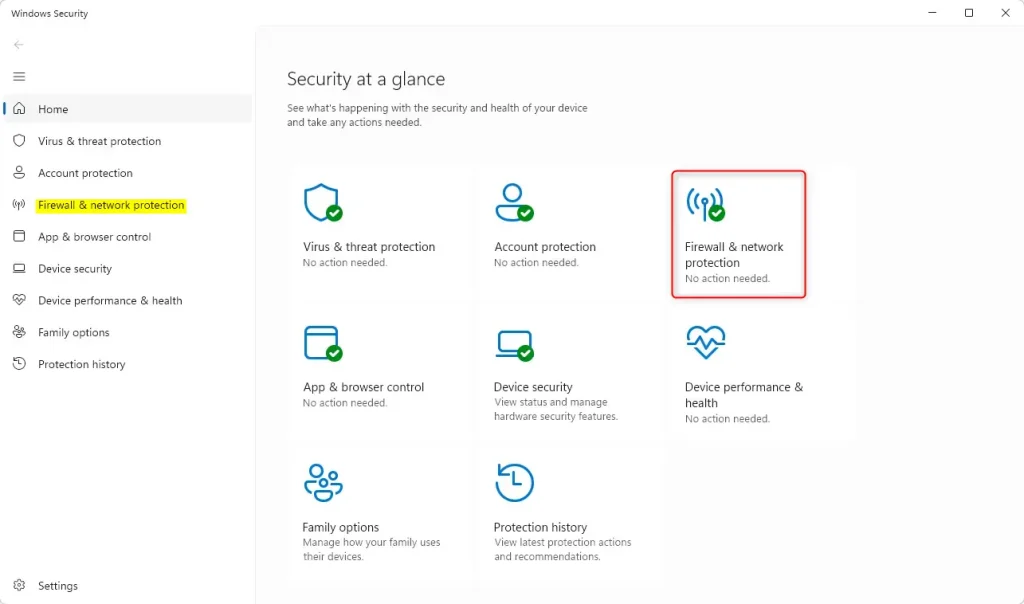
Windows Firewall in Windows Security app - Select the “Private network” profile.
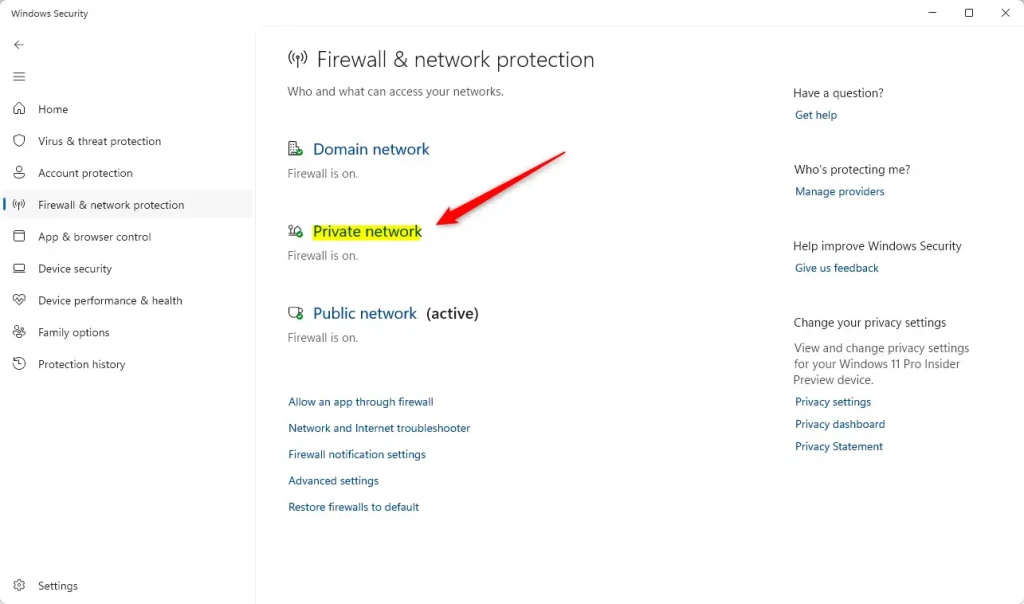
Windows Firewall private profile - Check the box next to "Block all incoming connections, including those in the list of allowed apps" to turn on "Shield up" mode.
To turn it off, uncheck the box.
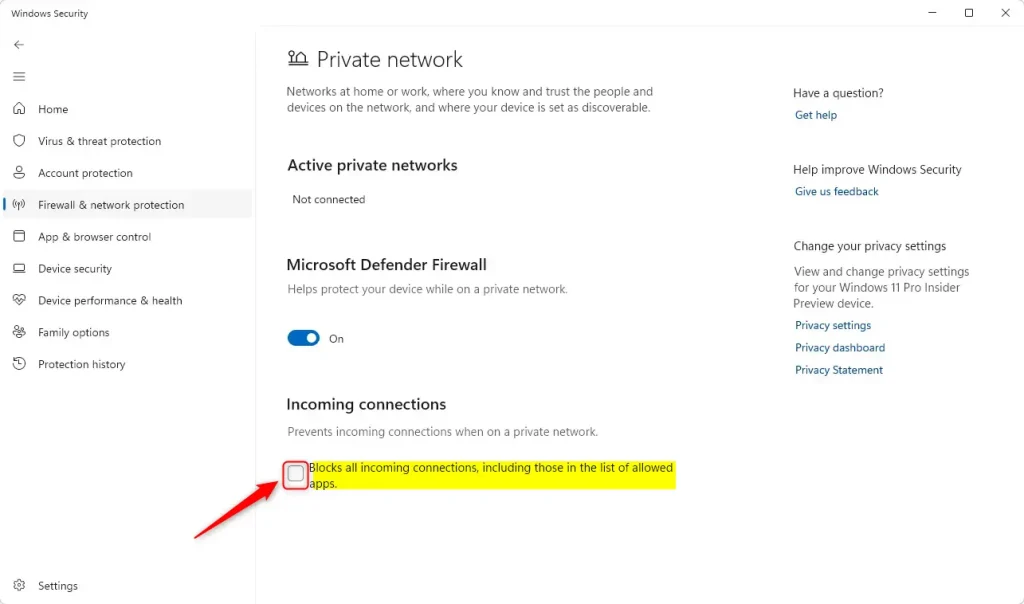
Windows Security settings showing the block all incoming connections toggle option - When prompted, click the Yes button to confirm the changes.
- Close the Windows Security app when done.
Use Control Panel to Block All Incoming Connections
You can use the Control Panel to turn on Windows Firewall Shield Up and block all incoming connections. Open the Control Panel, go to System and Security, and open Windows Defender Firewall to find the setting that stops all attempts to reach your computer from outside networks.
- Click the "Turn Windows Firewall on or off" link on the Windows Defender Firewall settings page.
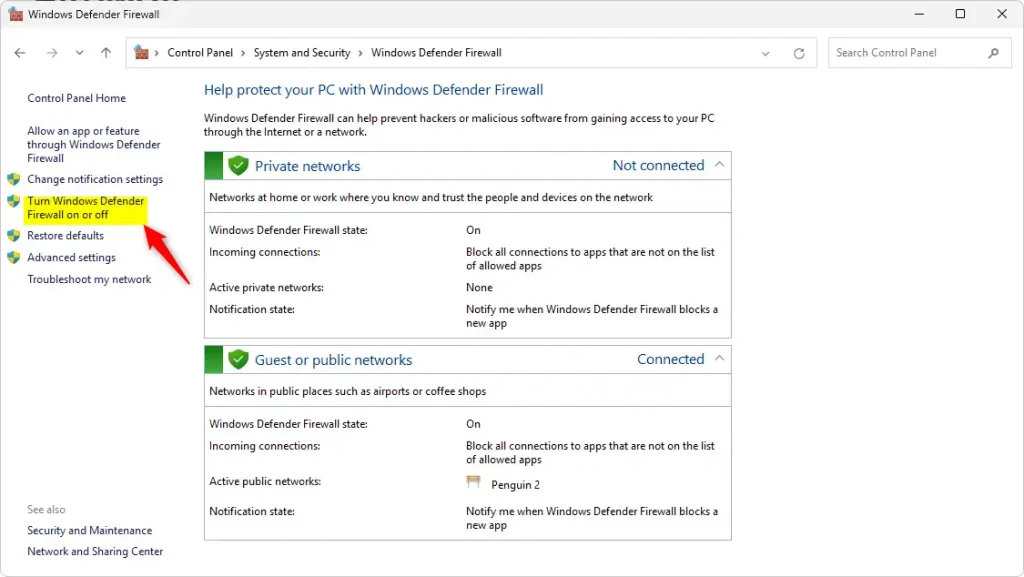
Windows Defender Firewall in Control Panel - Check or uncheck the box next to "Block all incoming connections, including those in the list of allowed apps" to turn it on or off.
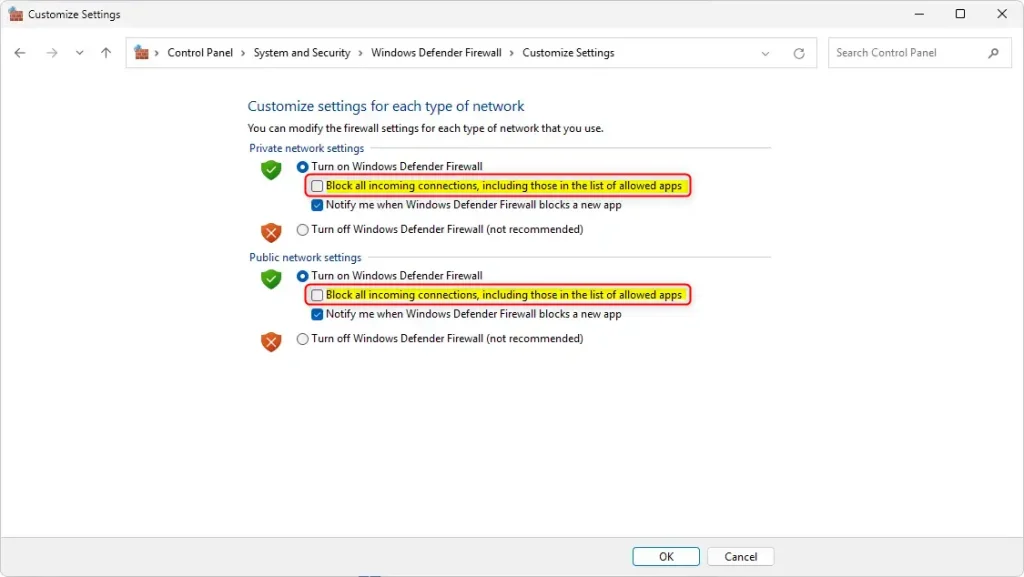
Windows Defender Firewall block all incoming connections - Close the Control Panel when you are done.
Turn On or Off Shield Up Mode Using the Windows Registry
You can turn Windows Firewall Shield Up mode on or off by editing the Windows Registry when the graphical settings are not working. Open Registry Editor by typing regedit in the Start menu, go to HKEY_LOCAL_MACHINE\SOFTWARE\Microsoft, and change the relevant firewall key to control incoming connection blocks.
Another way to enable or disable the "Shield up" feature is to use the Windows Registry editor.
- Open the Windows Registry and navigate to the folder key path below:
Computer\HKEY_LOCAL_MACHINE\SYSTEM\CurrentControlSet\Services\SharedAccess\Parameters\Firewall\StandardProfile - Right-click StandardProfile New DWORD (32-bit) Value and name the new DWORD
DoNotAllowExceptions. - Double-click
DoNotAllowExceptionsand change the value to1to block all incoming connections in the "Private network" profile.💡TipEnter 0 to turn it off and allow connections.Enter
0to turn it off and allow connections.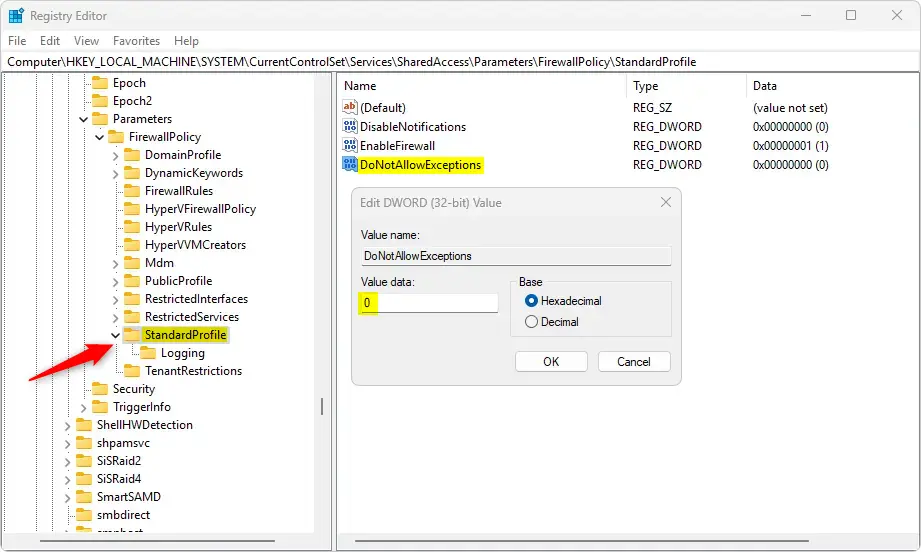
Windows Defender Firewall block all incoming connections registry - To do the same for the "Public network" profile, use this registry path:
Computer\HKEY_LOCAL_MACHINE\SYSTEM\CurrentControlSet\Services\SharedAccess\Parameters\Firewall\PublicProfileThen block or unblock all incoming connections using the
DoNotAllowExceptionsvalue name and enter1or0. - For the "Domain network" profile, use this path:
Computer\HKEY_LOCAL_MACHINE\SYSTEM\CurrentControlSet\Services\SharedAccess\Parameters\Firewall\DomainProfileThen block or unblock all incoming connections using the
DoNotAllowExceptionsvalue name and enter1or0. - Save your changes and restart your computer.
Summary
Turning Windows Firewall Shield Up on or off blocks all incoming connections to keep your computer safe from outside threats. You can choose to change this setting through the Windows Security app, the Control Panel, or the Windows Registry depending on which tool you prefer to use.
- Multiple ways to do it: You can enable or disable "Shield up" mode through the Windows Security app, Control Panel, or Windows Registry.
- Complete protection: When you turn on this mode, it blocks all incoming connections. It overrides any apps you've previously allowed.
- Easy to use: The steps are simple and take just a few minutes to complete.
- Different network types: You can apply these settings to Private, Public, or Domain networks based on what you need.
- Easy to change back: You can turn "Shield up" off anytime if you need to allow incoming connections again.
By following the steps in this article, you can keep your Windows 11 device safer and protect it from unauthorized access.
Reference: Microsoft
Is firewall block suspicious activity?
They can block known malicious IP addresses, restrict access to certain ports, and inspect network packets for suspicious content. However, firewalls alone are not sufficient to provide comprehensive protection against malware and viruses.
Was this guide helpful?

About the Author
Richard
Tech Writer, IT Professional
Richard, a writer for Geek Rewind, is a tech enthusiast who loves breaking down complex IT topics into simple, easy-to-understand ideas. With years of hands-on experience in system administration and enterprise IT operations, he’s developed a knack for offering practical tips and solutions. Richard aims to make technology more accessible and actionable. He's deeply committed to the Geek Rewind community, always ready to answer questions and engage in discussions.




No comments yet — be the first to share your thoughts!