How to Export Search History in Outlook on Windows 11

Exporting your search history in the new Outlook for Windows 11 creates a file of all your past searches.
The new Outlook app is a fresh version of the email program, offering a cleaner design and working with accounts like Microsoft 365, Outlook.com, Hotmail, and Gmail.
Outlook keeps track of what you search for to improve future search results . You have the option to erase this history or save it.
Saving your search history lets you keep a record of what you’ve looked for, which can be handy for tracking your habits or keeping a copy before you clear it.
This export feature lets you save your history into a CSV file. You can then open this file with programs like Excel to easily review your past searches later.
Click the gear icon for Settings, then select General, and Privacy and data. Under the Search history section, click Export to download your search logs as a CSV file. This feature is available in the new Outlook for Windows and Outlook on the web.
Export your "Search history" in Outlook
You can export your search history in the new Outlook app on Windows 11 to review what you've searched for and spot any patterns. This guide shows you how to get your search history out of Outlook so you can easily look back at past queries.
Here's how to do it.
First, open the new Outlook app on Windows 11.
You can do that by clicking Start - All app - Outlook app. Or use the Start menu search box to search for Outlook and open it.

When the app opens, click the Settings button (gear on the top right) to proceed.

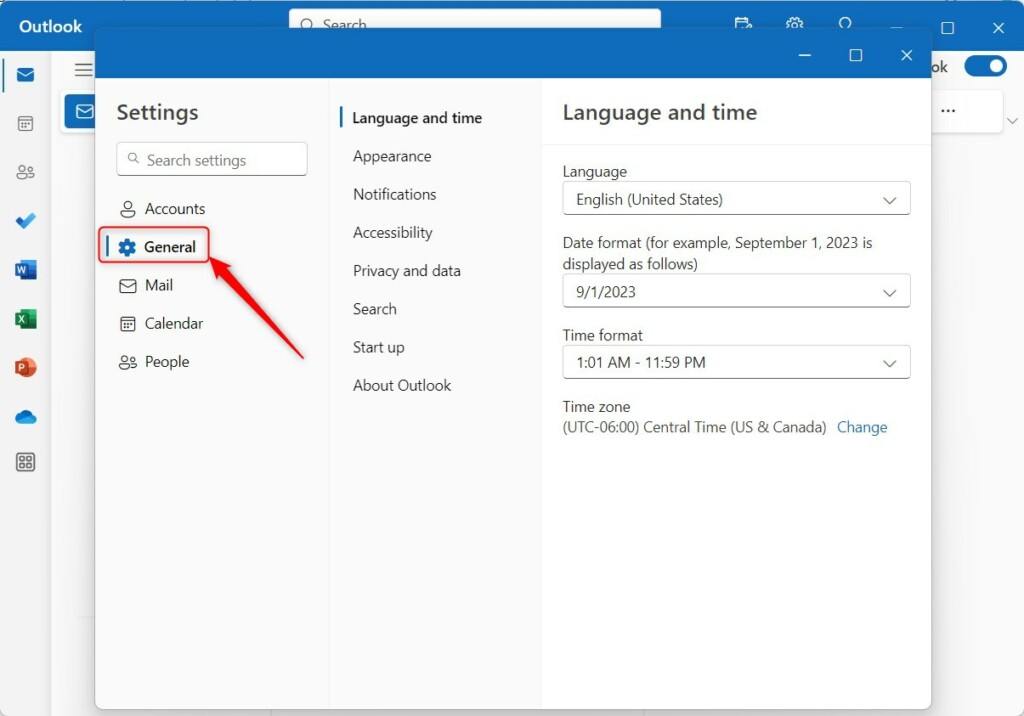
On the Settings page, click the General tab on the left sidebar.
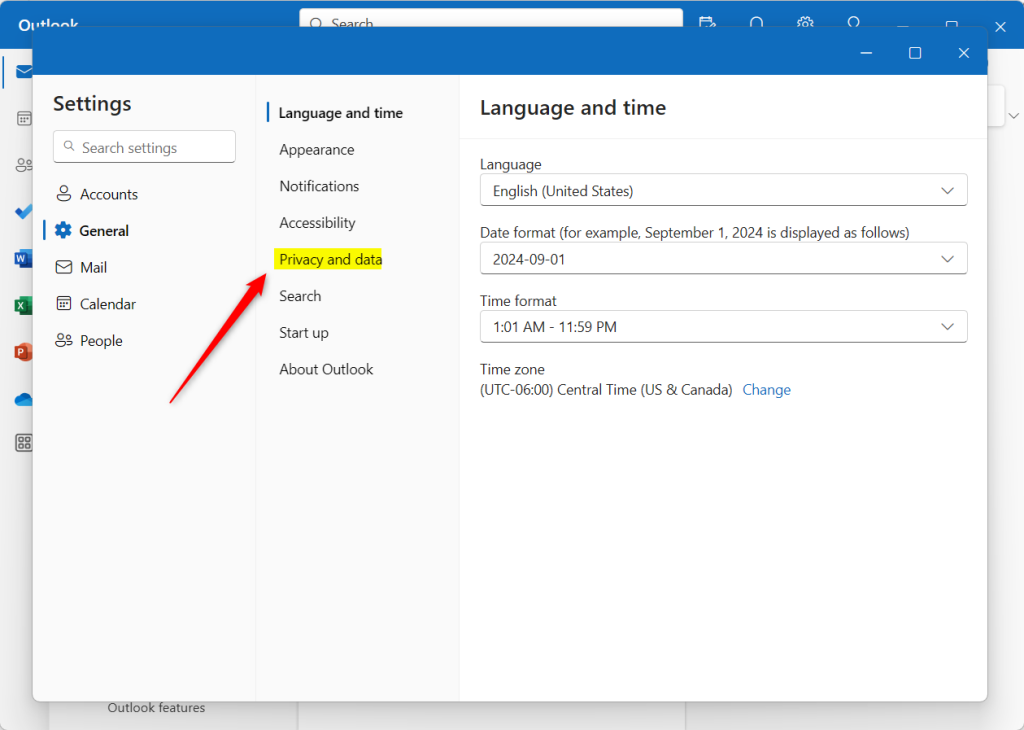
Next, select "Privacy and data" on the right to open its settings page.
On the Privacy and data settings page, under Search history, click the "Delete history" button to delete your search history.
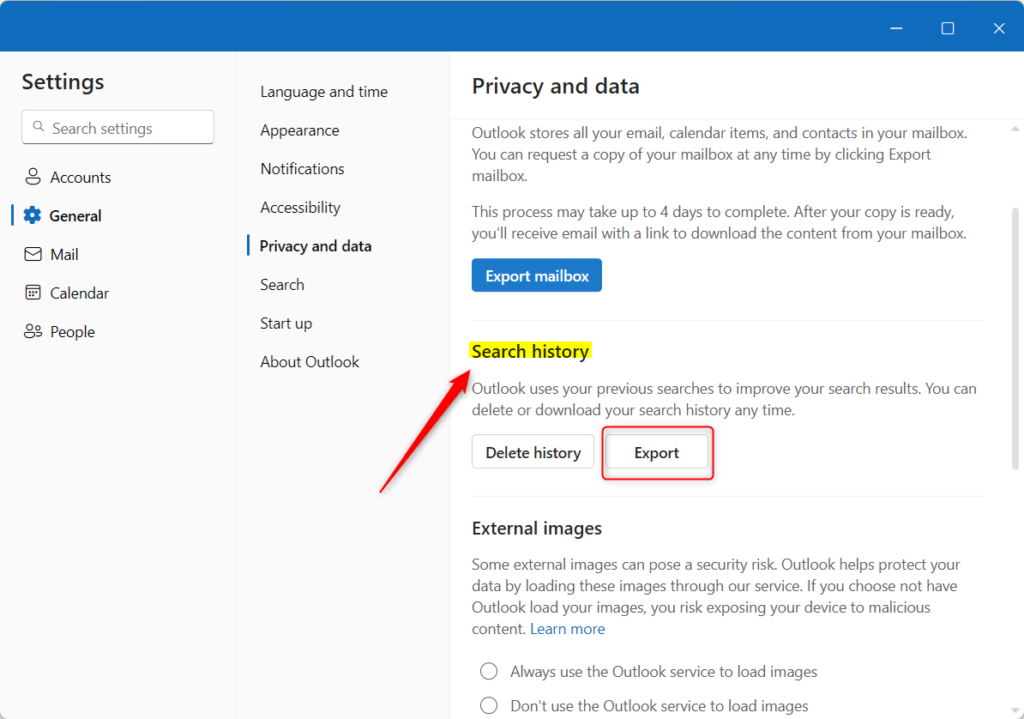
After you click the 'Export' button, a new file called 'search_history' will be saved in your Download folder. Exit the settings page to view the file in Outlook.
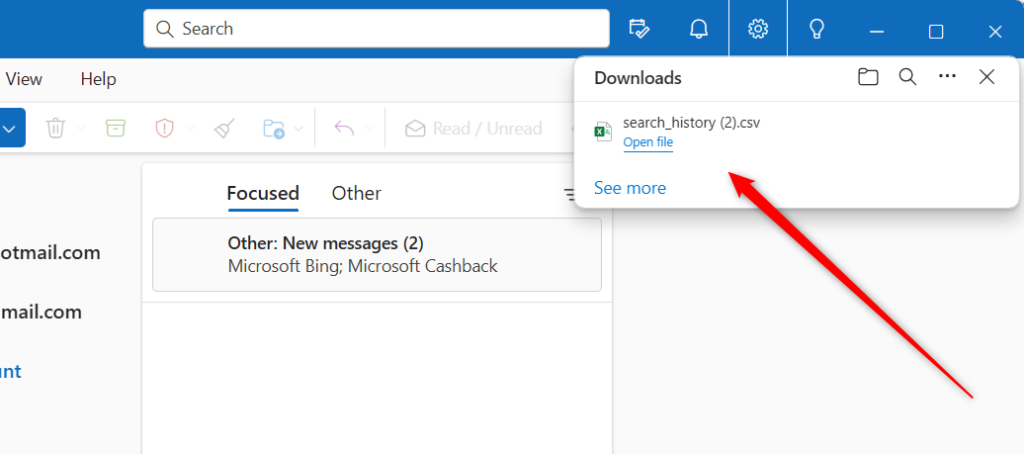
That should do it!
Conclusion:
- Exporting your search history in Outlook is a powerful feature that allows you to analyze your search behavior and trends.
- This function helps keep track of search activities and can aid in creating reports or sharing search data with others.
- Following the simple steps outlined in this guide, users can efficiently export their search history in the new Outlook app on Windows 11.
- Should there be any discrepancies or if you have valuable insights to contribute, we encourage you to utilize the comments section below to engage with us.
Can you download your entire Outlook history to a USB?
To export your Outlook emails and contacts to a PST file and store them on a USB or external drive, follow these steps: Open Outlook: Launch Microsoft Outlook on your computer. Access the Export Feature: Go to the File menu, select Open & Export , and then choose Import/Export .
How do I export Outlook history?
Select File Open & Export Import/Export. Select Export to a file, and then select Next. Select Outlook Data File (. pst), and select Next.
Where is the nk2 File in Outlook 2019?
Because the default folder is hidden folder, the easiest way to open the folder is to use the command %APPDATA%\Microsoft\Outlook in the Windows Search box (or, browse to C:\Users\username\AppData\Roaming\Microsoft\Outlook). In the Outlook folder, find your Auto-Complete List (. nk2) file.
Was this guide helpful?

About the Author
Richard
Tech Writer, IT Professional
Richard, a writer for Geek Rewind, is a tech enthusiast who loves breaking down complex IT topics into simple, easy-to-understand ideas. With years of hands-on experience in system administration and enterprise IT operations, he’s developed a knack for offering practical tips and solutions. Richard aims to make technology more accessible and actionable. He's deeply committed to the Geek Rewind community, always ready to answer questions and engage in discussions.



[…] format, public a calendar, show week numbers in Outlook calendar, deleting your search history, export your search history, add or remove events from emails to your Calendar, switch to dark mode, and […]
[…] a calendar, show week numbers in Outlook calendar, deleting your search history, export your search history, add or remove events from emails to your Calendar, switch to dark mode, link preview, and […]
[…] a calendar, show week numbers in Outlook calendar, deleting your search history, export your search history, add or remove events from emails to your calendar, and […]
[…] a calendar, show week numbers in Outlook calendar, deleting your search history, export your search history, and […]