

This article explains how to add or remove the ability to use local account passwords as a sign-in option and UAC credential provider in Windows 11.
Windows provides multiple options one can use to sign into a device. A more secure way to sign into Windows is to use Windows Hello. It provides a more personal and secure way to sign into Windows using a PIN, facial recognition, fingerprint, passkey, and more.
Users can also use a security key, a hardware device – usually a little USB key – that you can use instead of your username and password to sign in on the web.
A less secure way is to use a password.
For Windows devices set up with local accounts, they can enable or disable the ability to use passwords as a sign-in option and UAC credentials provider. When disabled, it will remove the Password credential provider from the UAC prompt and Sign-on options on the Sign-in screen.
For several reasons, someone might want to add or remove a password as a sign-in option in Windows. One reason is to increase security by limiting the number of user sign-in options. Another reason is to simplify the sign-in process and reducing the steps required to access a device.
Additionally, removing passwords as a sign-in option can help prevent users from using weak passwords that are easy to guess or crack. Conversely, enabling passwords as a sign-in option may be necessary for users who cannot use other sign-in methods, such as Windows Hello or a security key.
How to add or remove passwords as a Sign-in option
As mentioned above, if you don’t want users using passwords to sign into Windows or want to standardize the Windows sign-in process, you can remove the ability to use passwords as a sign-in option and UAC credential provider.
Note: Before you disable password login, you must first add another sign-in option like Windows Hello PIN, Facial recognition, or Fingerprint.
If you do not set up another sign-in option, those accounts with passwords will not be able to log in again.
Here’s how to do it.
First, open Windows Registry Editor.
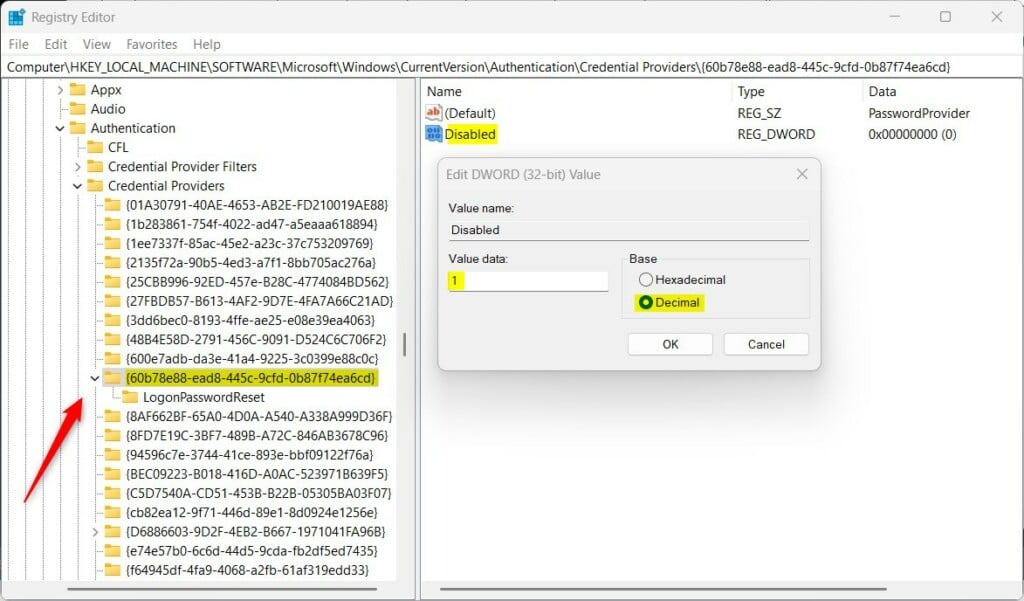
Then, navigate to the registry key below.
ComputerHKEY_LOCAL_MACHINESOFTWAREMicrosoftWindowsCurrentVersionAuthenticationCredential Providers{60b78e88-ead8-445c-9cfd-0b87f74ea6cd}
Next, double-click the Disabled (REG_DWORD) name on the Explorer key’s right pane to open it. Then, enter a value 1 to disable local account passwords as a sign-in option in Windows.
To allow all users to use their passwords to sign into Windows, simply delete the Disabled item.
If you do not see the ‘Disabled ‘item, right-click a blank area and create a new DWORD (32-bit) Value. Then, enter the name ‘Disabled ‘.
You may have to restart your computer to apply the changes.
Reference:
Conclusion:
- Windows provides secure sign-in options such as Windows Hello for PIN, facial recognition, and fingerprint authentication, enhancing personal and device security.
- Users can also utilize less secure sign-in methods such as passwords, security keys, and local account credentials, each with its considerations for security and convenience.
- Adding or removing local account passwords as a sign-in option and UAC credential provider in Windows 11 offers users flexibility in tailoring the sign-in process to their specific security and usability needs.
- It’s important to consider alternative sign-in options such as Windows Hello before disabling password login and ensure that such changes are carefully evaluated and communicated to users.




Leave a Reply