How to Hide Office.com Files in Windows 11 File Explorer

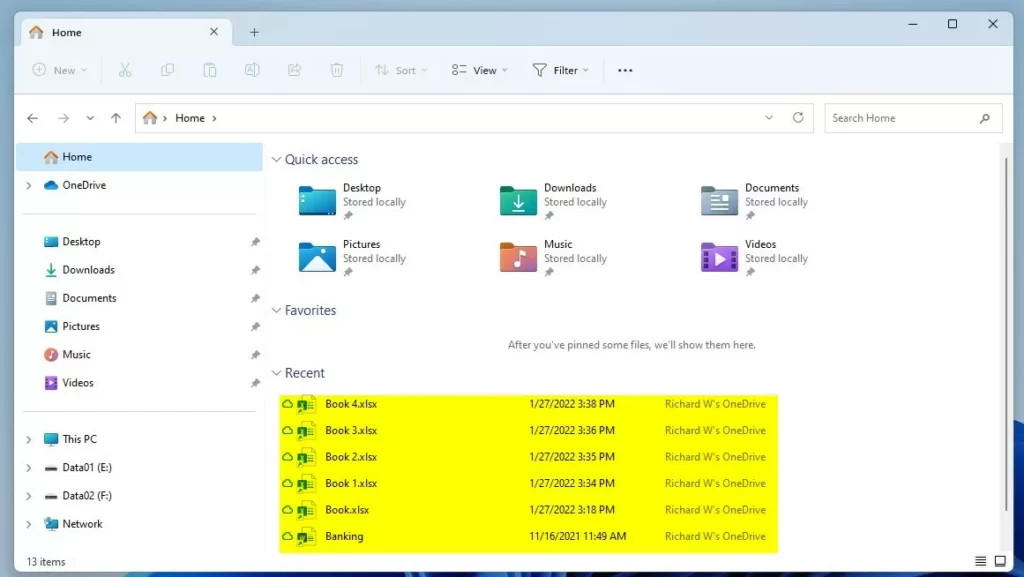
Office.com files in Windows 11 File Explorer are cloud-based documents that appear under the Home screen along with your local files. Windows 11 displays these online suggestions by default, which can clutter your quick access view and mix work files with your local storage.
Hiding these cloud files takes only a few clicks in the File Explorer folder options menu. Turning off this feature removes cloud documents from the Home view so you see only local files stored on your PC.
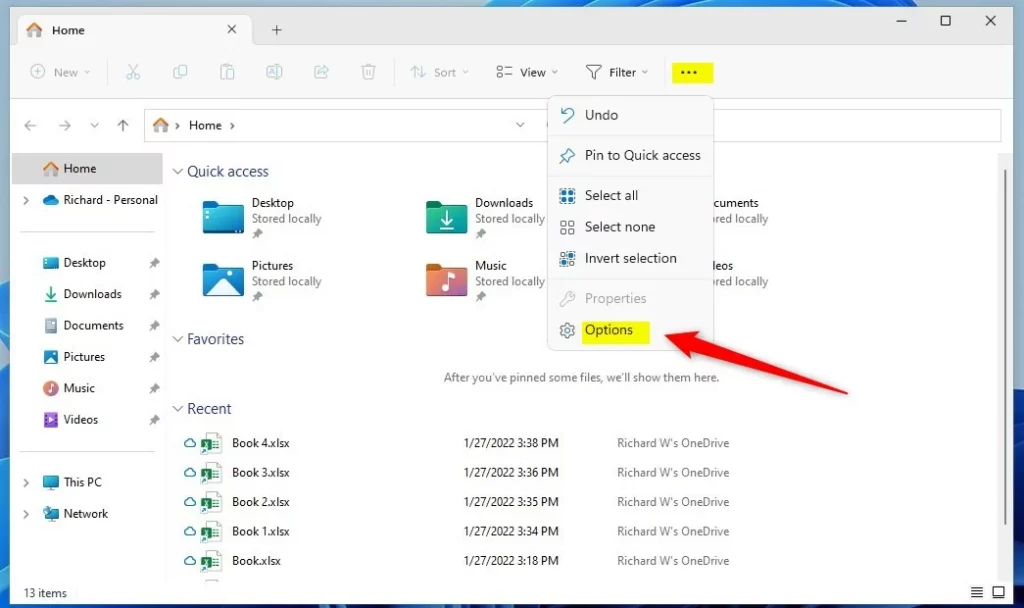
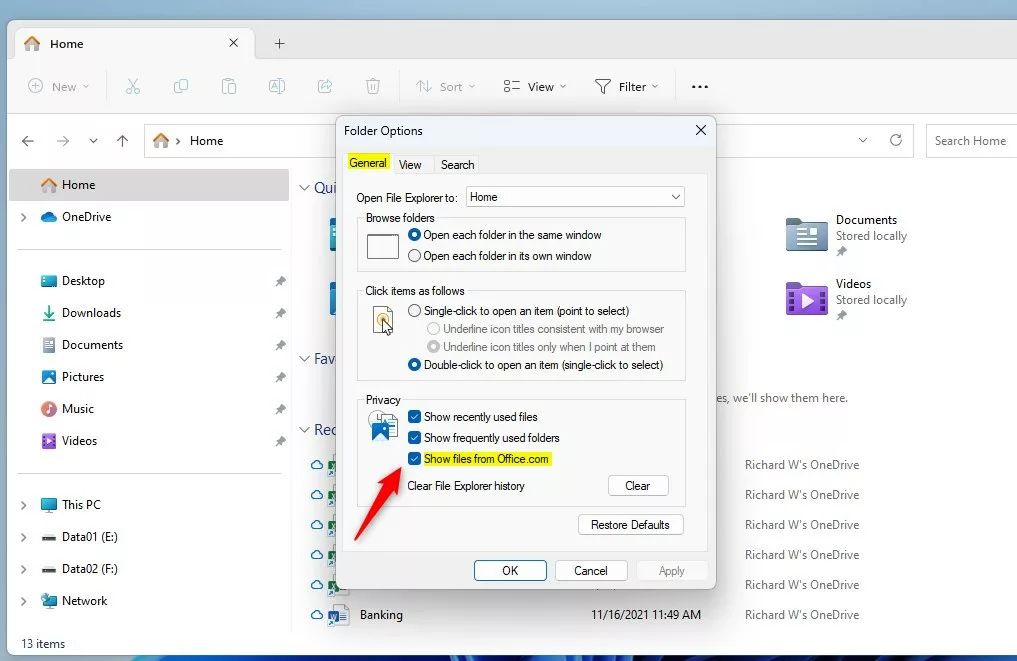
To hide Office.com files in Windows 11 File Explorer , open File Explorer, click the three dots (…), select Options, and uncheck “Show files from Office.com” under the Privacy section. Save the changes by clicking OK.
Why Manage Office.com Files?
Windows 11 File Explorer ’s Home view often shows cloud-based file suggestions from your Microsoft 365 account. While helpful for some, others might find it distracting or a privacy concern. Adjusting these settings lets you clean up your workspace and keep your personal and work files separate.
What happens when you are done?
Disabling the Office.com file settings prevents Office.com files from appearing on your File Explorer Home page. This action does not delete files from the cloud. Instead, it stops Windows from showing suggestions for these files within your local file manager.
Method 1Using Folder Options
You can hide Office.com files File Explorer integration for your individual account by changing the settings in Folder Options. This method affects only your user profile and does not change how files appear for other people who use the same computer. Open File Explorer, click the three dots in the top menu, choose Options, find the Privacy section under the General tab, and uncheck the box for Office.com files.
- Open File Explorer .
- Click the three dots (…) in the top menu and select Options.
- Under the General tab, look for the Privacy section.
- Check or uncheck the box labeled Show files from Office.com.
- Click OK to save.
Method 2Using Local Group Policy Editor (Admin Required)
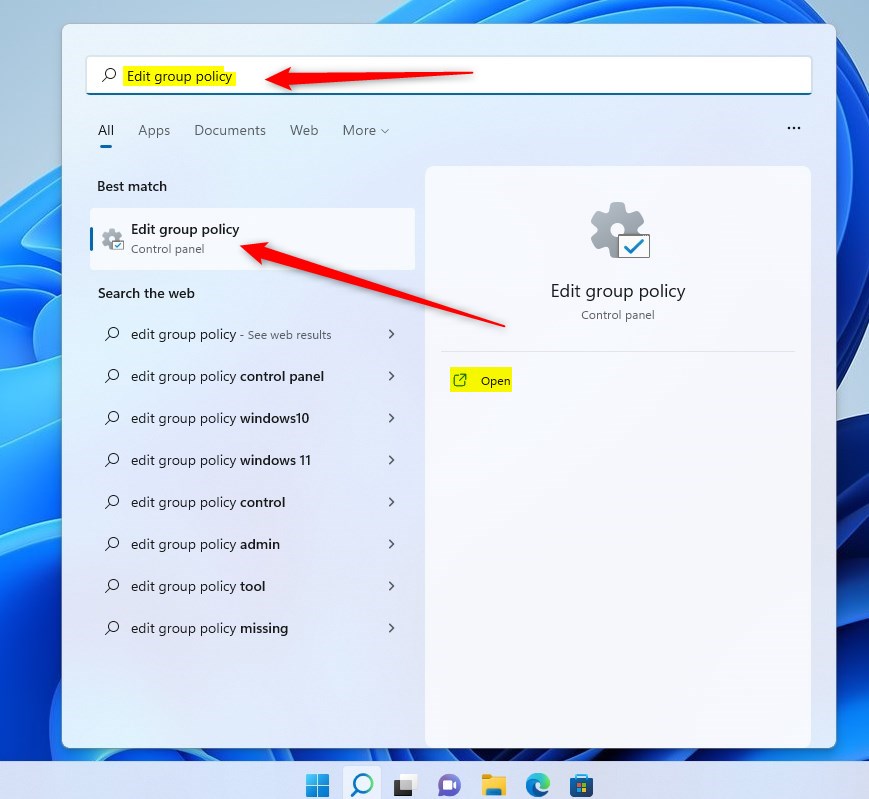
The Local Group Policy Editor (a tool for managing system settings) lets you hide Office.com files File Explorer integration for every user account on a PC at the same time. This system-wide change requires administrator access and ensures that cloud files from Office do not show up for anyone who logs into the computer. Search for Edit group policy in the Windows Start menu to open the tool.
- Press the Windows key and search for Edit group policy. Select the result.
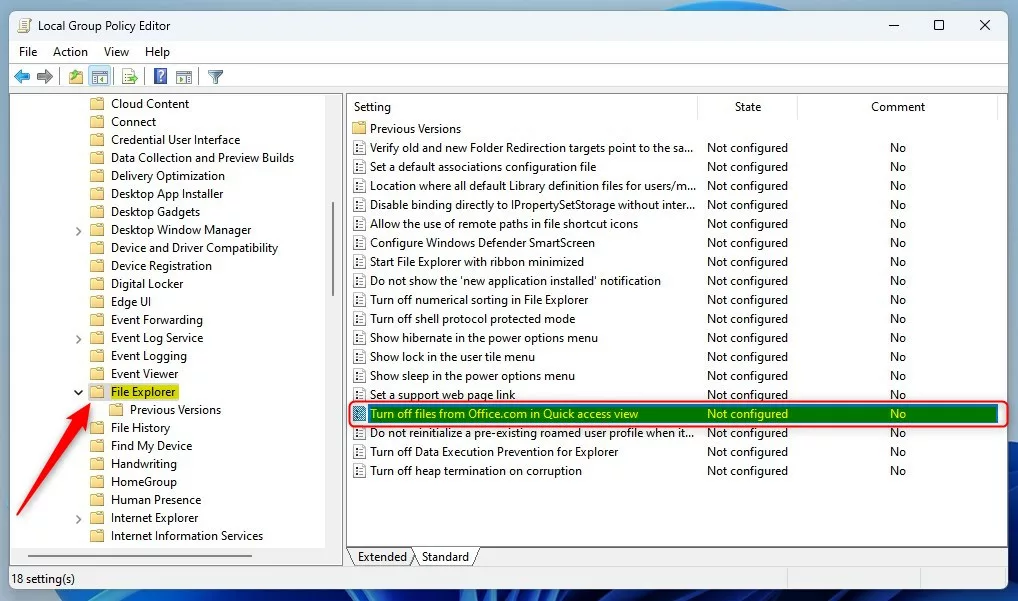
- Navigate to: Computer Configuration Administrative Templates Windows Components File Explorer.
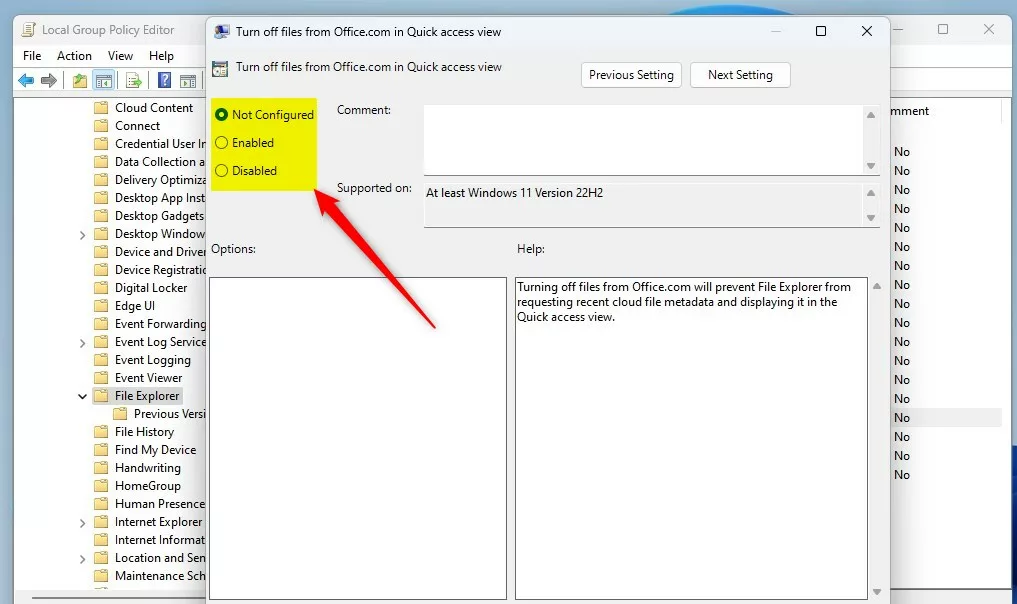
- Find the setting named Turn off files from Office.com in Quick access view and double-click it.
- Choose Enabled to hide the files or Disabled to show them.
- Click OK and restart your computer.
Method 3Using the Windows Registry (Admin Required)
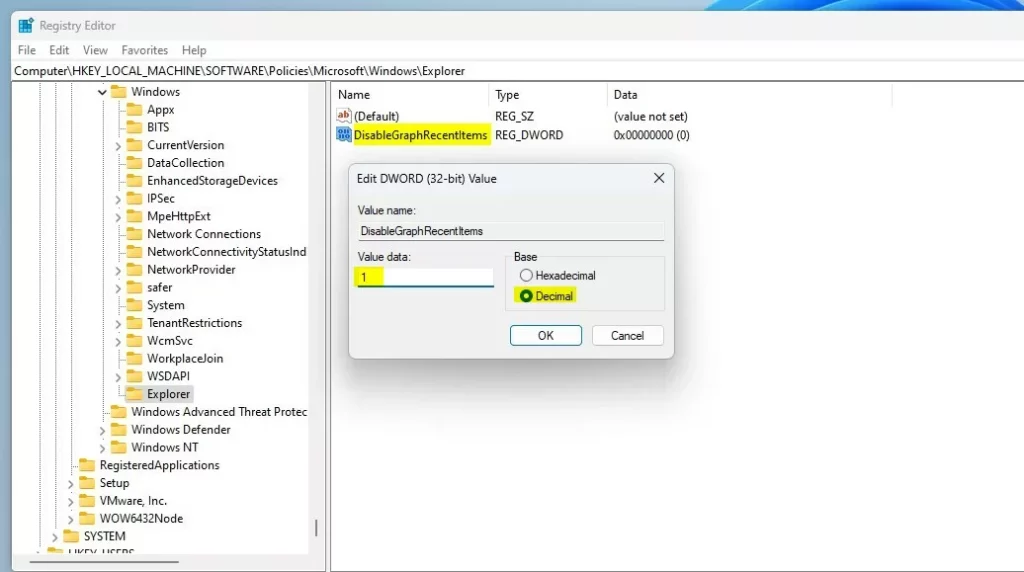
The Windows Registry (a database of low-level Windows settings) provides a backup way to hide Office.com files File Explorer recommendations when the Group Policy Editor is missing from your edition of Windows. This administrator-level fix updates system keys directly to turn off cloud file visibility across the entire machine when other options are not available on your PC.
- Press the Windows key, type
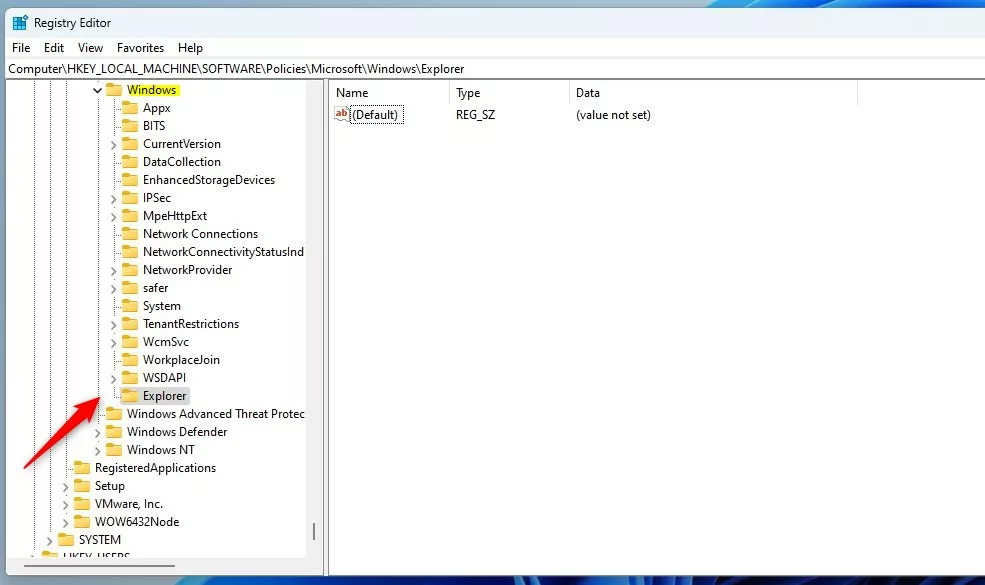
regedit, and press Enter to open the Windows Registry. - Go to the following path:
HKEY_LOCAL_MACHINE\SOFTWARE\Policies\Microsoft\Windows\Explorer - If the Explorer folder does not exist, right-click the Windows folder, select New Key, and name it
Explorer. - Right-click in the empty space on the right, select New DWORD (32-bit) Value, and name it
DisableGraphRecentItems. - Double-click
DisableGraphRecentItems. Set the value to1to hide the files, or0to show them. - Restart your computer to apply the changes.
Troubleshooting Sync and Updates
Sometimes, Office.com files might reappear in File Explorer after a Windows update because your settings get reset.
Summary
You can manage Office.com files in Windows 11 File Explorer to keep your Home view clean and organised.
Does disabling Office.com files delete the files from the cloud?
No, disabling this setting does not delete your files. It only removes the shortcut links from your File Explorer Home view. Your documents remain safely stored in your OneDrive or SharePoint cloud storage, and you can still access them through your web browser or the Office application.
Is this setting specific to Microsoft 365 Personal or Business accounts?
This setting applies to both Microsoft 365 Personal and Business accounts. If you are signed into Windows with a Microsoft account, the File Explorer Home page will attempt to show recent cloud-based file recommendations regardless of the subscription tier, provided the integration is enabled in your privacy settings.
Was this guide helpful?

About the Author
Richard
Tech Writer, IT Professional
Richard, a writer for Geek Rewind, is a tech enthusiast who loves breaking down complex IT topics into simple, easy-to-understand ideas. With years of hands-on experience in system administration and enterprise IT operations, he’s developed a knack for offering practical tips and solutions. Richard aims to make technology more accessible and actionable. He's deeply committed to the Geek Rewind community, always ready to answer questions and engage in discussions.


No comments yet — be the first to share your thoughts!